How to Create a Pitching Tracker with Google Sheets
Whether you are new to the freelancing scene or searching for a simple way to keep up with your pitches, then I suggest using a pitching tracker to stay organized and be more productive.
Using a pitching tracker can help you be more efficient, track the date you sent the original pitch, and know when to follow-up.
It will also show which pitches have sold or what you need to tweak and send to other publications.
There are many ways you can create a pitching tracker, but I find Google Sheets to be one of the simplest ways to track my pitches.
Here is how to create a pitching tracker in Google Sheets:
1. Create a New Spreadsheet
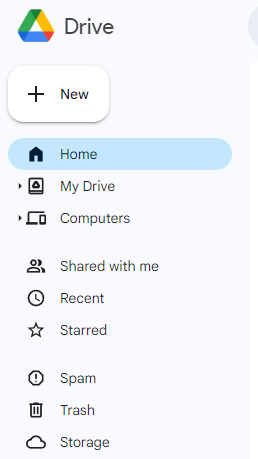
If you are familiar with Google sheets then this is simple. If not, in your Gmail account, you will click on the dotted icon next to your email picture to populate the Gmail features you can utilize. Click on the “Drive” option. This will take you to your Google Drive.
You will see a + NEW button at the top left side of the screen. A drop down box will appear and you will click on the “Google Sheets” option. This will create a brand new Google sheet for you to customize. Here’s a screenshot to help:
2. Title the Spreadsheet
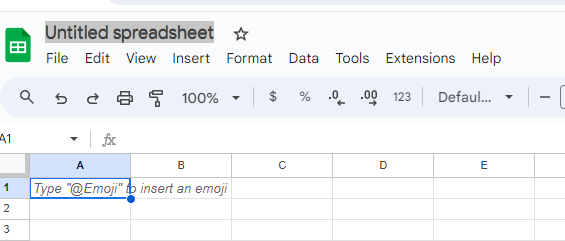
Now that you have your new Google sheet, you need to title it so you can find it in your drive. I just use “Pitching Tracker” to keep it simple. You can click the star icon too so you can go to that section and find it easier.
3. Input Information to Make a Pitch Log
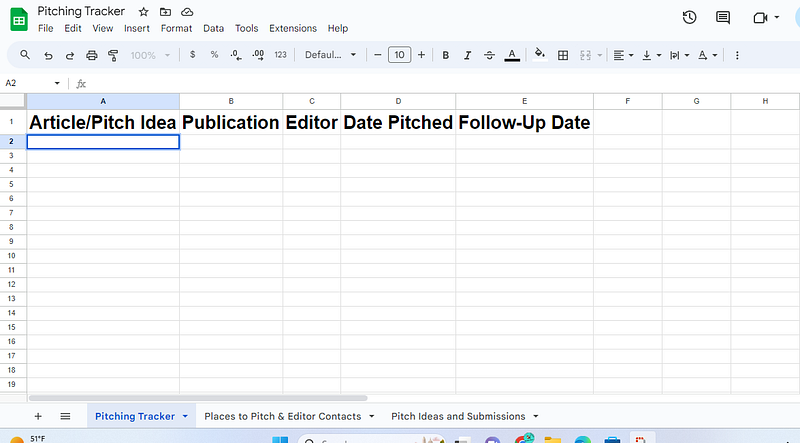
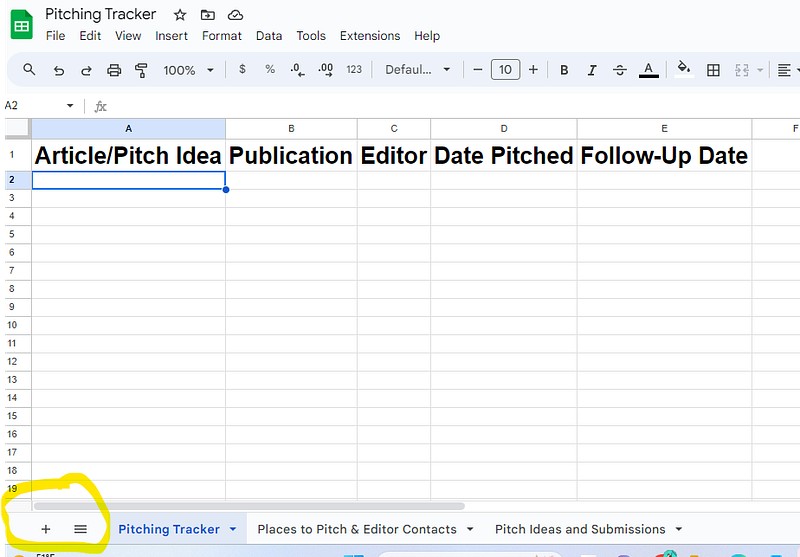
Use the top cells of the sheet to input your pitch log template to properly track your pitches. Here is how I set up my tracker:
Cell A-1 is subtitled “Article Title/Pitch Idea” then all the pitches will be under this header in the same column.
Cell B-1 is subtitled “Publication” for which publication or website I sent the pitch too.
Cell C-1 is subtitled “Editor” and will contain the name of the editor I contacted with their email address.
Cell D-1 is subtitled “Date Pitched” to track the original date that I sent the pitch. This helps for the following cell.
Cell E-1 is subtitled “Follow-Up Date” to track the date that I followed up IF I did not receive a response from my original pitch. (I typically wait a week to follow up unless the pub’s submission guidelines state otherwise.)
Once these cells are set up you can use the corresponding column to track your pitches with all the required information you need.
If I sell an article, I will highlight it in green because green is the color of money. If I don’t sell the pitch, I will either highlight it in red or strike through the pub and dates, then try to sell it somewhere else.
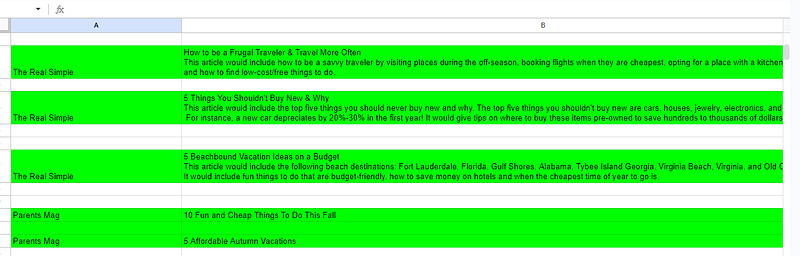
You can also create other sheets for pitch-related work within your pitching tracker. For example, I created a sheet for potential publications I wanted to pitch but didn’t have ideas for them yet. However, I researched the appropriate editor to pitch, so when I do have an idea, I am ready to go as far as who to send it to!
This helps me pitch those big dream publications, rather than waiting. It gives me goals to attain.
A pitching tracker is essential for keeping everything organized and staying the course with selling your wonderful article ideas. So, if you’re seeking a simple way to track your pitches, then I suggest giving Google Sheets a whirl!


