
How to Create a Habit Tracker in Obsidian You’ll Actually Use
Simple and easy way to track your habits

Obsidian is a note-taking app but with the community plugins, it can be much more. Along with note-taking, I’m using obsidian as a habit tracker recently.
Most people might find it difficult to track habits in obsidian. It involves the use of dataview plugin, little code, and other metadata that looks complex to replicate for a normal user.
But In this guide, I’ll show you how you can create a habit tracker in obsidian that’s easy to use. You won’t have to do any of the complex stuff. Once you set the system up, it will be as easy as ticking it off.
Creating a Habit Tracker in obsidian
Obsidian is nothing more than a markdown tool without plugins. The official plugin with the community plugins is what makes it a powerful note-taking software along with its capability to be more. To create a habit tracker, we’ll be using the following three plugins:
- Daily Notes Plugin
- Templater Plugin
- Calendar Plugin
- Dataview Plugin
- Database folder Plugin
Setting up a Habit Tracker in obsidian
This is the simplest and easiest way to track your habits in obsidian. It will take you no more than 5 minutes to set it up. And once it's set up, habit tracking will be as easy as ticking off on paper. Follow the steps below:
Configuring Templater Plugin
If you are starting obsidian recently and haven’t used community plugins, you’ll need to disable the restricted mode. Only then you can install community plugins.
Go to settings> Community plugins>Search>Templater. Install and enable the templater plugin by SilentVoid. This is similar to the core plugin templates but on steroids.
Once you have installed the plugin, go to options, and enable the trigger templater on new file creation. Also, add the template folder location.
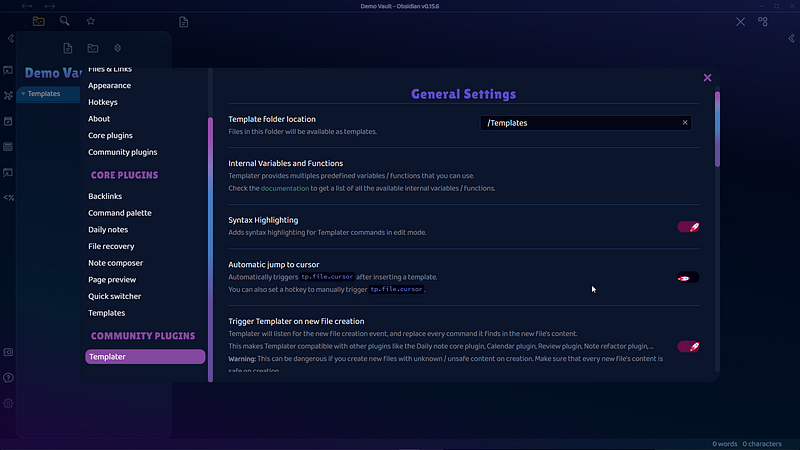
If you already have a templates folder, use that one. If not create a new folder called templates.
Configuring Daily Notes Plugin
Daily Notes come pre-installed as a core plugin in the obsidian vault. Now we need to create a template that will be used for daily notes. Here’s a sample of the daily notes template.
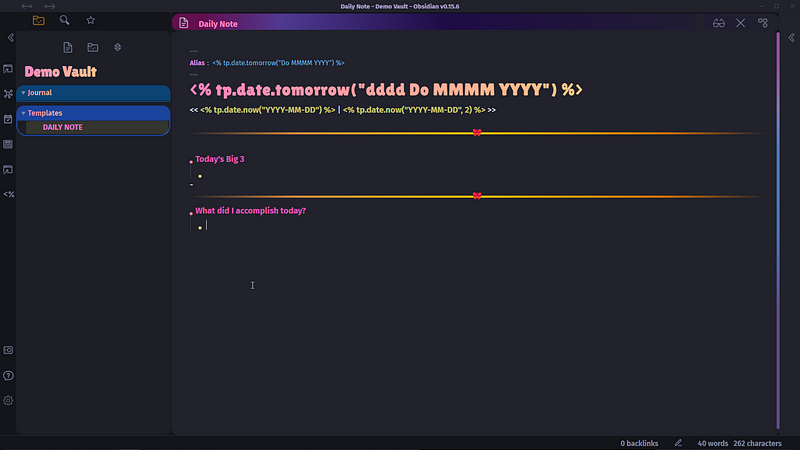
Here’s the code used in this template:
---
alias:  <% tp.date.tomorrow("Do MMMM YYYY") %>
---
# <% tp.date.tomorrow("dddd Do MMMM YYYY") %><< [[<% tp.date.now("YYYY-MM-DD") %>]] | [[<% tp.date.now("YYYY-MM-DD", 2) %>]] >>The code after YAML frontmatter is optional but add an alias or any other data(tag)in the frontmatter section(without existing data in frontmatter, the database folder doesn’t work properly, I don’t know why though).
Note: I make new daily notes before ending the day. So, I will create tomorrow’s note today. Therefore the code has tomorrow instead of today. To tweak these variables, learn about the templater date functions here.
Once you have created a daily notes template, place it inside the templates folder. Create a new folder where you want to store all of your daily Notes.
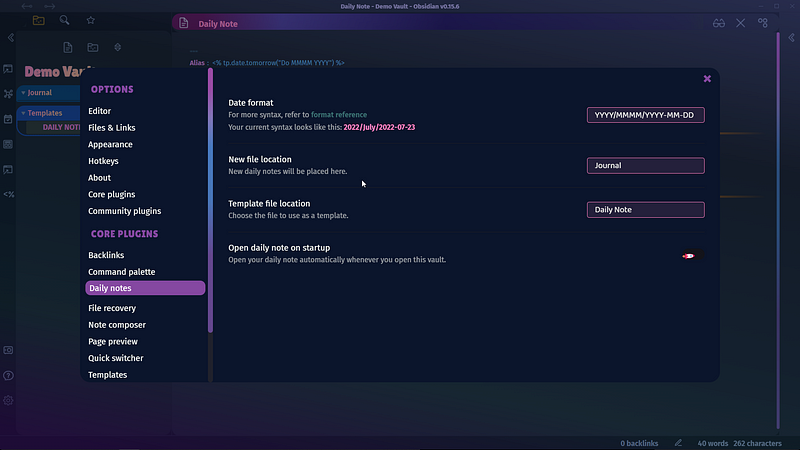
Once all of that is done, it's time to configure the daily plugins option. Choose a new file location as the folder that you recently created. And select the template file.
Regarding the date format, you can either use the default format or use YYYY/MMMM/YYYY-MM-DD. This will create folders inside your main folder. Different years and months will have different folders. This helps to organize the daily notes.
Add calendar plugin
This is not a compulsory step. Installing this plugin will create a calendar widget on the right sidebar. It makes creating daily notes easier. You can click on a date to create a new daily note. I will create a few daily notes to track habits.
Configuring Dataview plugin
Dataview plugin is the powerhouse of obsidian. Dataview plugin will help us create a habit tracker in obsidian. Go to community plugins and install the dataview plugin.
Go to options and enable javascript queries and inline javascript queries.

Configuring database folder plugin
Now is the time to introduce you to a plugin that helps you imitate notion like databases in obsidian. This will be used as our tool for creating a habit tracker. The database folder plugin uses dataview queries to create a database from different sources.
Install the database folder plugin from community plugins and leave it as it is. Don’t change any option unless you feel you need to.
Creating a Habit Tracker in Obsidian
We have finished installing and configuring all the necessary plugins. Now It's time to move to the final step, to create a habit tracker.
Right-click on the folder where your daily notes are stored. Click on create a new database folder.
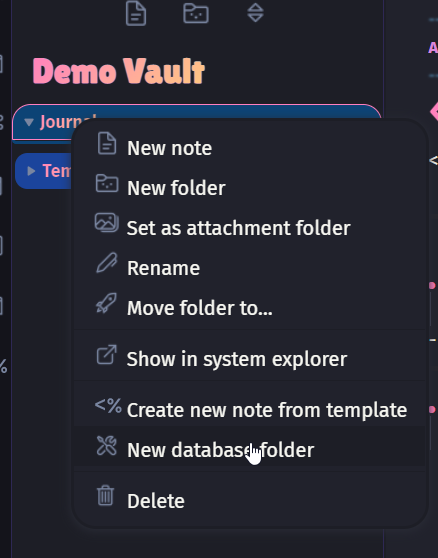
Rename the file name as a habit tracker. Here’s what I got in my obsidian vault.
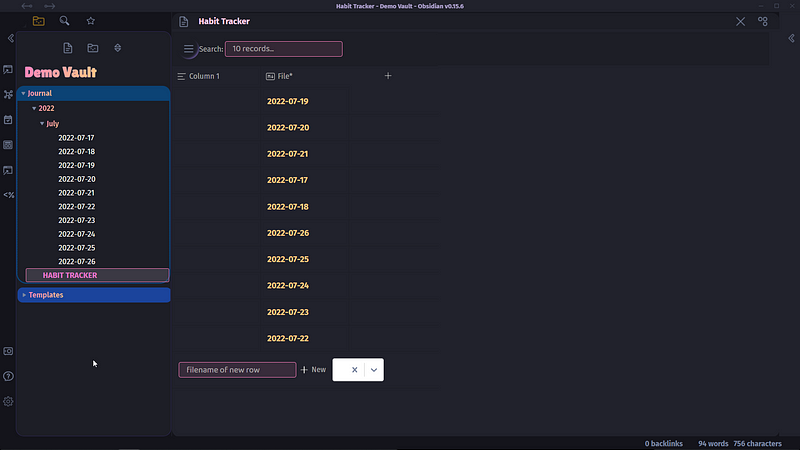
Now lets, go to database folder settings and see more settings that can be helpful for us. Click on the three dots on the right corner and click on open database settings.


The source of the database can’t just be a folder but also these four options. But for now, we will use the folder as a source. Add information about your database. I used the compact cell size and sticky first column. There are more options that you can tweak. But this works perfectly for me.
Now go back to your habit tracker database and delete the first database column called column 1.
Create a new column and name it the habit you want to track. Let’s say it's Exercise. You can add as many habits as you want but tracking too much won’t do any good. Prioritize what’s important and choose the few that will make significant changes in your life.
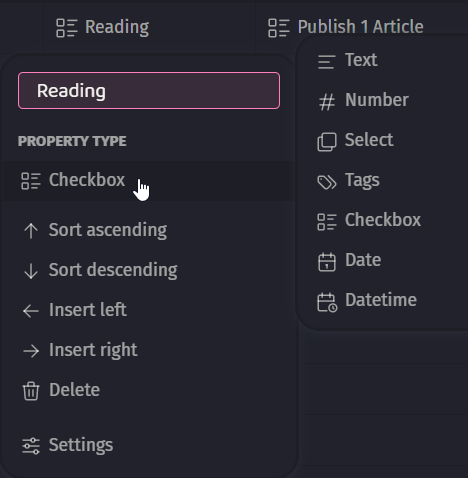
Adding a new habit will show you different types of properties you can use for that database. Is this look similar to the obsidian database, doesn’t it?
You can use the checkbox feature for habits with binary action. You can use the number format for tracking your progress. Use text or select option for tracking your moods. There are many ways you can use this database table to track not only habits but different aspects of your life.
After all the steps, a habit tracker built in obsidian itself should be ready.


Once you have set it up, you can add the link to the habit tracker on your dashboard. This will make it easier navigation.
Not a Medium Member Yet?
If you liked this story, you will love the medium subscription. With only $5 a month(less than the price of a cup of coffee), you get unlimited access to the best stories and articles written on the web.
This is my referral link, if you sign up using this link, I earn a small commission with no additional charges to you.


