
How To Create A Free Blog With Medium In 6 Easy Steps
With video tutorials from a Medium Top Writer.

On Quora, where I am a Most Views Writer in the categories “Medium.com”, I got asked:
“How to write for Medium.com?”
I know several new writers who joined Medium in November.
Welcome, new writers!
So here are the steps to start writing on Medium:
Step 1 — Pimp up your profile
Once signed up and logged into Medium…
…open your account and click on “Edit profile”:
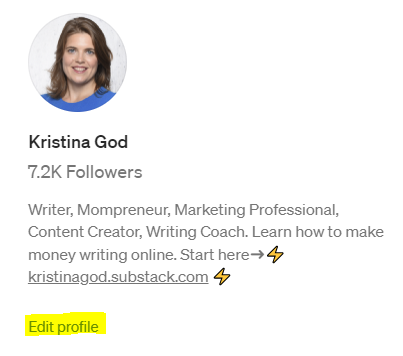
Add your real name (better than a pen name, if you want to build a personal brand) and short bio by simply editing each part you want to change:

Additionally, I recommend connecting your Twitter account with Medium to tweet your posts or share quotes.
Your short bio should include:
- your expertise
- topics your gonna write about
- link to your LinkTree, other socials, (Substack) newsletter, or email address so people can connect with you elsewhere too
Design tip: You can also design your profile by customizing the colors, fonts, and header. But if you’re just starting out, I wouldn’t take too much time thinking about that.
You can design your profile page by going to “Settings” and then on “Profile Design”.

About tip: Medium gives you the opportunity to add an About page to your profile and customize it. But if you’re just starting out, I wouldn’t take too much time thinking about that. When you have time, here’s more.
Step 2 — Start writing your first blog post
Click on the write icon on your profile page and …

… open a draft:

I love that Medium’s layout is simple and clean. It allows you to create a stylish blog post with minimal tech expertise.
Type in the title and the subtitle of your story and then tell your story.
Step 3 — Format your story with Medium’s story editor
Make sure your title and subtitle are formatted properly.
Your subtitle should be a little heading under the major heading (big T) for your Title (small T).
The Title and Subtitle will have a different font style from the rest of your post, which will let you know if they are formatted appropriately.

Additionally, you will see the labels “Title” and “Subtitle” on the left when modifying this section.
Here’s how to use Medium’s text editor:
Select the text you want to format, then this toolbar will appear:

Your formatting options in Medium’s story editor are:
1 — Bold — make your text bold
2 — Italics — generate italic text
3 — Links — embed hyperlinks to your story
4 — Title/Headers — create your title and header
5 — Subtitle/Subheaders — create a subtitle and subheaders
6 — Quotes — create a block or pull quote
7 — Drop caps — turn the first letter of your paragraph into a drop cap
8 — Private note — leave a private note
All you have to do is to select the text you want to format and choose the relevant option from the toolbar.
Step 4 — Add an image from Unsplash
You can add a royalty-free stock photo as a cover image by simply clicking on the plus button.
You find the plus button and the editor when you press Enter and start a new line:
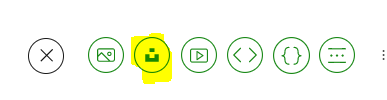
Now type a keyword to search Unsplash, and then press Enter.
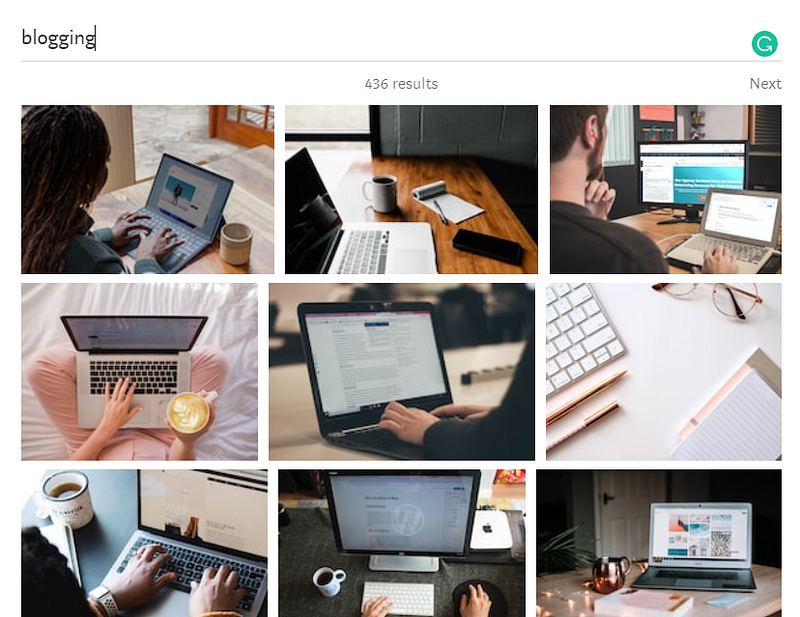
This way you can add pictures to your text wherever you like.
Step 5 — Add tags to make your blog post discoverable
You need to tell Medium’s algorithm what your post is all about.
Go to the three-dot menu at the top right and select “Change topics”.

Then add topics so readers know what your story is about.

I chose #Writing, #Blogging, #Advice, #Entrepreneurship, and #New Writers Welcome.
Extra tip: Writing, Entrepreneurship, and Advice belong to the most popular topics on Medium and are tags that are eligible for Top Writer status.
The others are more specific ones. They can’t make you a Top Writer in a specific category.
Keep in mind to use at least 1–2 Top Writer tags to become a Top Writer in the future and get more traffic.
Here’s all you need to know and the list of Top Writer tags.
Step 6 — Hit the publish button
I’d recommend reading your work out loud as a final proofread.
After you hit the “Publish and send now” button, your work will show up on your brand-new blog.
So make sure to check your blog post and the core settings in the Story Preview once again

Your cover image should show up. Your headline and subheadline and the tags are chosen.
Once you have 100 followers, you can meter your story.
Once you have email subscribers, you can email your story.
Tip: There are specific publications that welcome new writers. These publications have more followers than you do and can help you to reach 100 followers. Once reached this threshold, you can start earning money.
My recommendations for new writers: New Writers Welcome and Illumination (one of Medium’s biggest pubs) for long form content and The Shortform for short form content. Most publications prefer unpublished drafts.
To submit to a publication, click the three-dot menu next to Publish, then choose Add to Publication. Choose a publication that you’re an author for, then click Select and continue.
Extra tip: You can also dare to ask one of Medium’s biggest publications to become a writer. Here’s a list.


