
How to Create a Customized Search Bar for Your Website
No coding necessary

Google’s search engine is powerful, useful, and customizable. Google’s Programmable Search Engine website allows you to create a search bar tailored to your needs, powered by Google’s search algorithms. You can create a search bar for your website, for free, and even make money from it.
Every Website Needs a Search Bar
Search bars allow customers and clients to quickly navigate your website to find what they are looking for. It improves the user experience, being able to find useful information without searching every page on your website. Poor navigation might cause customers from clicking away, so a search bar helps prevent that.
Set up Your Search Bar
Create a new search
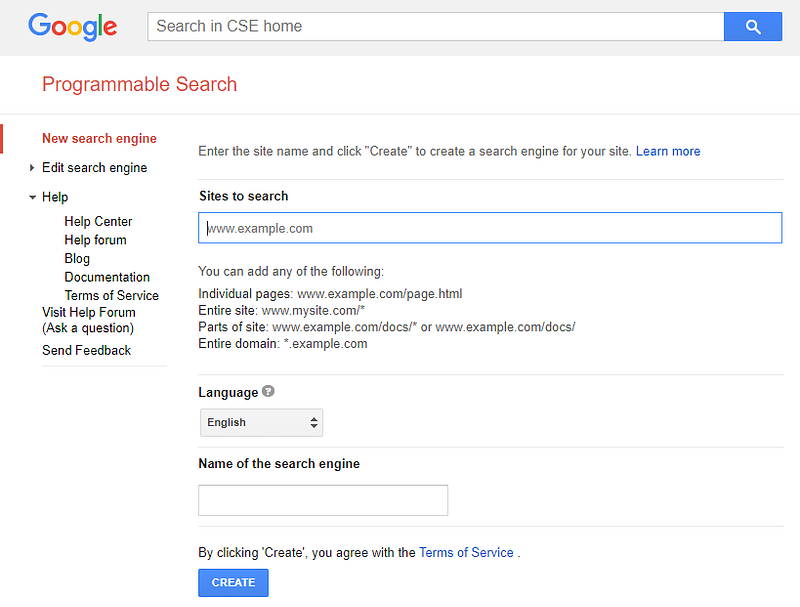
You can create a new search bar by going to https://programmablesearchengine.google.com/cse/create/new. There, you can list different websites and webpages that will show up in search results. Additionally, here you name your search bar, which is helpful if you create multiple custom search bars.
Edit the settings
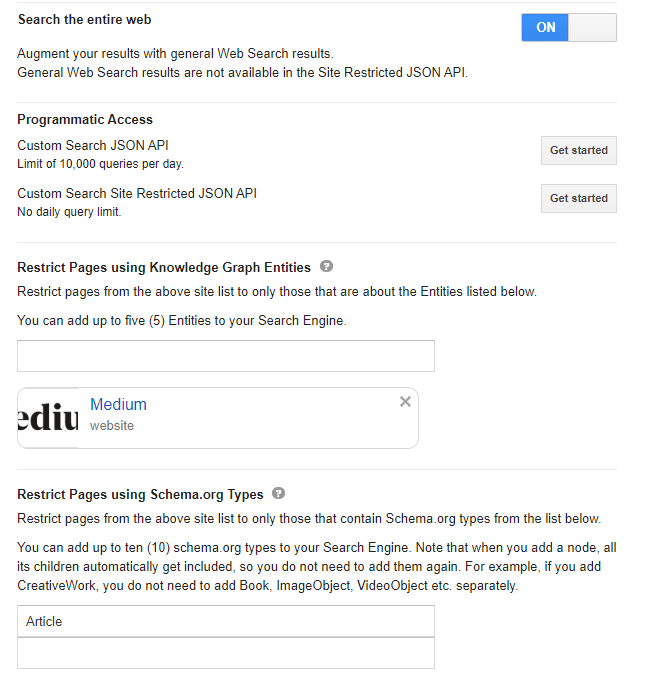
Once your search bar is created, you can refine the search functionality. Keywords will help refine searches to relevant topics. URL filters can be added to limit results to containing a specific URL pattern, and under Advanced, you can exclude certain websites. These settings are useful if you want to exclude pages such as employee-only pages from showing up in search results.
Additionally, results can be restricted using Knowledge Graph and Schema.org entities.
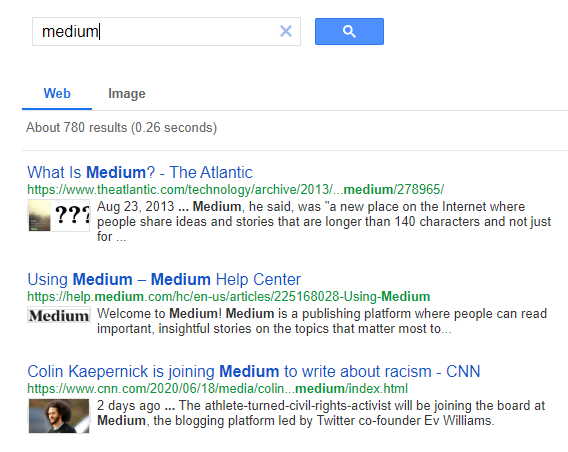
Knowledge Graph can be used to limit results by a relevant subject. For example, turning on Search the Entire Web and adding Medium as a Knowledge Graph entity will include search results that mention Medium.
Schema types can be used to limit the type of search result. For example, if you run a cooking blog, you can add the schema type recipe to your postings, and limit the search to the recipe schema type to return only the recipes on your website.
Enable image search
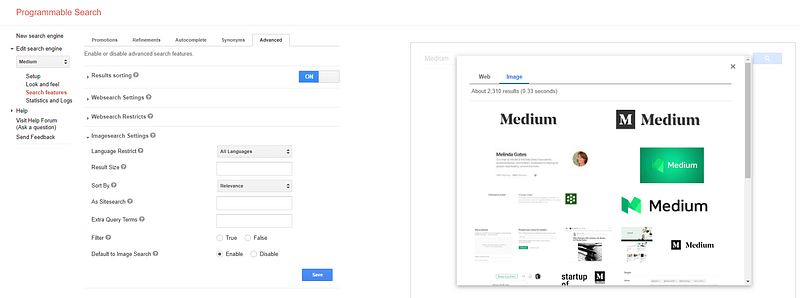
On the Setup tab, Image Search can be enabled. More Image search settings are found under Search Features>Advanced>Imagesearch Settings. To make image results the default (as opposed to website results), Enable Default to Image Search.
Customize the Appearance
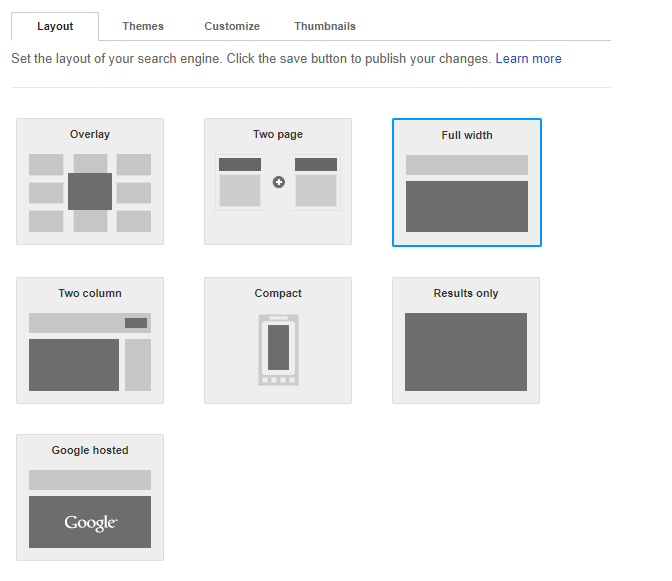
The search bar’s appearance can be customized to fit in with the theme of your website. Under the Look and Feel menu, you can edit the layout of the search bar and results, pick default themes, and customize the colors and fonts used.
Link to AdSense
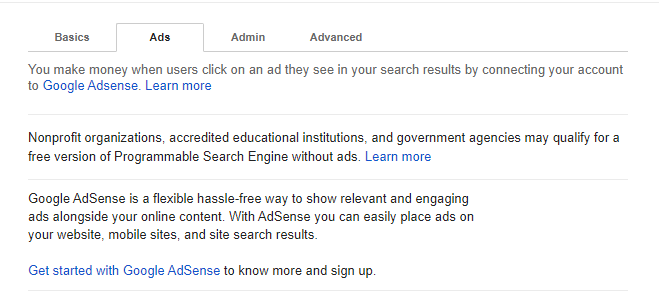
Just like normal Google searches, ads may show up in the search results. These ads are an opportunity to generate revenue from the search bar. You can link your AdSense account to the search bar so that when someone uses the search bar and clicks on an ad you receive some money.
Go to Setup>Ads. If you already have an AdSense account, there will be an option to link it to the search bar. If not, it will direct you to sign up for a free account that you will then be able to connect.
Add to Your Website
Once your search bar is all set up, it just needs to be added to your website. Under Setup>Basics, there are two ways to access the search bar. The Public URL links to the search bar on a separate webpage. The Get Code button will take you to a textbox of HTML code for embedding the search bar into your website.
If you’re using a website editor such as Wix, WordPress, or Squarespace, they typically offer an HTML embed or Code block option. Paste the code and resize the element to embed the search bar into your website.
Happy searching!


