
How to Create a Configurable .NET Project Template
A guide to creating your first configurable .NET project template to supercharge your new projects.

In modern day Cloud software we have tools and practices which make it quicker than ever to deploy our applications at scale. Unfortunately we still find ourselves writing lots of the same boring boilerplate code every time we add new services to our inventory. Having a decent project template allows us to skip all the mundane setup and get straight to the fun and important stuff. It will also create better consistency across our services - consistency is one of the biggest drivers for speed and efficiency in modern software teams.
It is definitely worth investing a good chunk of time in your template project. The power of any effective security, testing or performance techniques used can be multiplied across any new project you start with it! For this guide I will be using my recommended .NET Project Setup with Clean Architecture and Domain-Driven Design, which can be found in another article here. A link to the full code for the template project can be found at the bottom of the article.
Finding a Template Engine
There’s a bunch of options out there for creating project templates: GitHub templates, Spotify Backstage, custom implementations…
The most powerful engine that I came across was the dotnet template engine, dotnet new. If you are already a .NET Developer then you get an added benefit of being able to debug and test your template project using different configurations directly in Visual Studio or Rider.
dotnet new is built into the .NET CLI and is already used for the default project templates available with .NET. Templates can be installed from a local directory or from Nuget packages for easy distribution.

We can either use the dotnet CLI or our IDE to create new projects using a template.
There are lots of configuration and transformation options available, which mean your templates can get as sophisticated at you need. Here’s an example from .NET Boxed which has some powerful templates:

Template Project
It’s best not to add too many domain concepts to your template, most of them will not be relevant to new projects that you start. The sample application that we will use extends the typical Weather Forecast example provided in default .NET project templates and contains the following components:
- API — ASP.NET 7 REST API with Swagger support
- Angular SPA — Angular SPA hosted using ASP.NET 7
- Database — Database integration via Entity Framework Core
- Migrations — Code-First database migrations managed using a console application

Template Requirements
We will use the dotnet template engine and our template project to cater for the following requirements:
- Rename the Solution, Projects and Namespaces based on a specified Project Name
- Conditionally Add the Web project based on a checkbox
- Conditionally Add Test projects based on a checkbox
- Options for Database Type: SQL Server or PostgreSQL
Template Walkthrough
Let’s break down how the previous requirements can be supported using dotnet new.
Creating a Template
To make our Project a template we just need to add a special folder to the root of our solution .template.config

The template.json file is the most important addition, it contains the configuration and metadata for the template:
Our project can now be installed as a template and used to create new projects. This is covered in the next section.
Renaming Solution, Projects and Namespaces
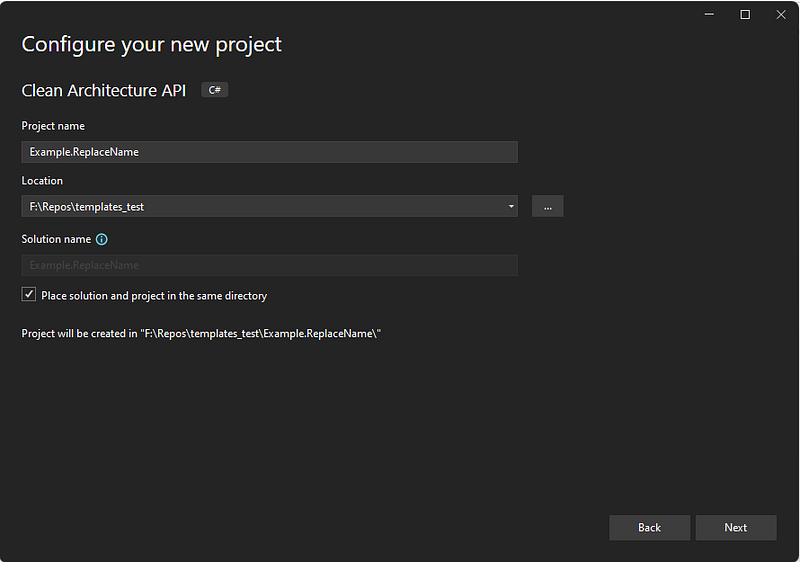
You probably don’t want all your new projects to be named ‘CleanArchitecture’. As long as the the sourceName property matches the prefix for your Solution/Projects/Namespaces, these will all be replaced automatically with the ‘Project name’ specified when you create new projects from your template.

Conditionally Removing Files and Projects
For your starting point you should include anything that you think might be used for your projects. When new projects are created from the template we can trim down code blocks, files and even whole projects depending on the configuration provided.
For our example we will provide configuration to conditionally add the following projects:
- Angular Web Project
- All Test Projects
First we need to add symbols to our template.json. These are variables which can be used to drive transformations and file exclusions across the template when projects are generated. Any parameter type symbols will appear as manual inputs that can be configured when projects are created.
We can use simple bool parameters to create checkboxes for whether to add our conditional projects.
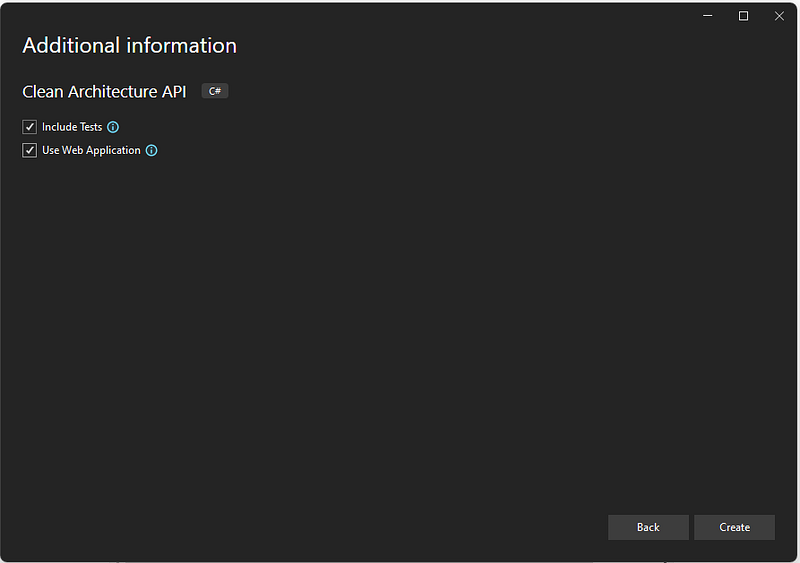
The final addition to our template.json is the sources to be excluded. We can use our previous bool parameters to exclude any files and projects related to Tests and Web. These will be excluded depending on the values provided on project creation.
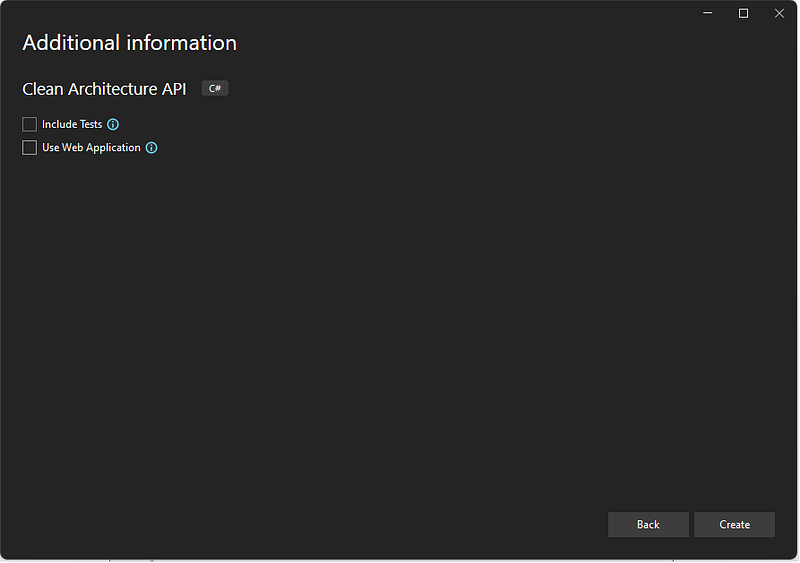
If the new bool parameters are not ‘checked’ then the Web and Test projects will not be included when a new project is generated:

Configuring Database Type
We will support 2 options for the Database:
- SQL Server
- PostgreSQL
A choice parameter can be used to show this option as a dropdown when creating a project:

Generally it is easier to work work with choice parameters by creating an additional boolean computed symbol which can be used across our template:
Conditionally Adding Code
To support different Entity Framework database providers we will have to create different code in our projects for:
- Selecting the appropriate EF Database Provider Nuget Package
- Configuring the correct provider using the DbContextOptions
- Configuring the connection string in the appsettings.json
- Creating the docker-compose service to spin-up the database in Docker
The dotnet template engine supports inserting different sections of code to your output projects based on any symbols in your template.json. The syntax for this is slightly different for each type of file.
Conditionally Adding Nuget Packages
XML comments can be used to add the correct EF Nuget package based on the UseSqlServer symbol from our template.json when a project is created.

Conditionally Adding C# Code
The same principle can be applied to our C# dependency injection code to configure which EF database provider to use.
C# conditional compilation directives are supported by dotnet new, which allows us to debug the projects using different configurations if we need to.

Conditionally Adding Configuration
The format for connection strings are different for SQL Server and PostgreSQL. We can handle this in the appsettings.json configuration.
Conditionally Configure Local Docker Database
We can also configure which local database will be created using docker-compose as well.
Debugging and Testing Template
Since our template project is a fully working .NET solution, we can run/debug it for testing. There is a trick that we can use to run the projects using different configurations.
The symbols from our template.json can be configured in any relevant .csproj files. An AuthoringMode symbol can be used to remove the test configuration when projects are generated.
Installing Template
Your template can be installed using the following command:
dotnet new install .and uninstalled:
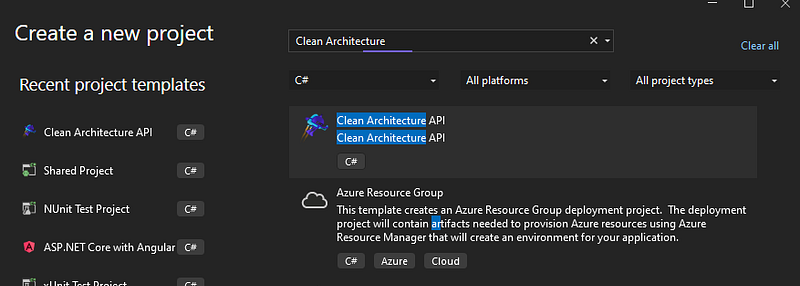
dotnet new uninstall .Once the template is installed, you should see it as an option when creating new projects.
Final Words
The previous techniques can be applied to do almost anything in your project templates. Hopefully this has given you some ideas!
All the code for the template project can be found in my GitHub.


