
How to Create a BookShelf To Track Books in Obsidian
The easy setup guide using the dataview plugin
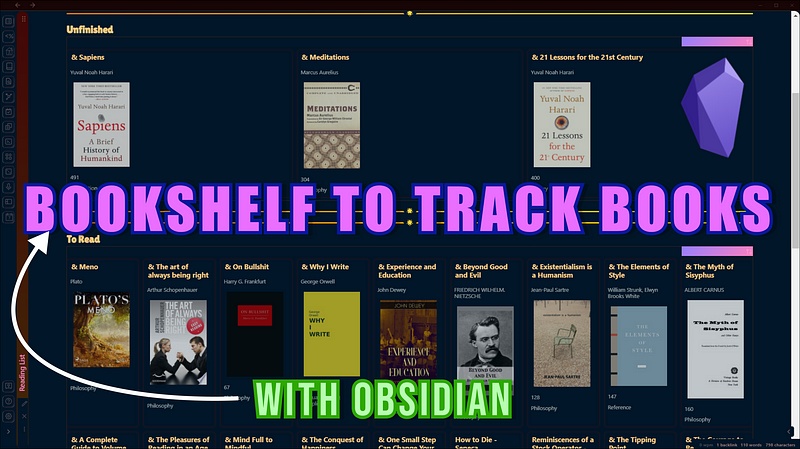
Previously I used to track books using Notion. But once I moved to obsidian, I wanted to make something similar on obsidian so that I don’t have to go back and forth between Obsidian and Notion.
Since, I keep all of my book notes in obsidian, having a book tracker and the reading list inside of obsidian itself is much more helpful to create a frictionless workflow.
With the help of the dataview plugin, it was possible to create a reading list and book tracker in obsidian. In this article, I will explain step-by-step how to create a reading list and track books in obsidian.

Plugins we’ll need: Dataview, Book Search
Step 1: Install Book Search Plugin
This is not mandatory, but using this plugin helps to auto-populate the data field of books. Go to community plugins, install it and then enable it.
Click on hotkeys and assign a hotkey preferable to you. I’ve used Alt+B.

Step 2: Configuring Book Search Plugin
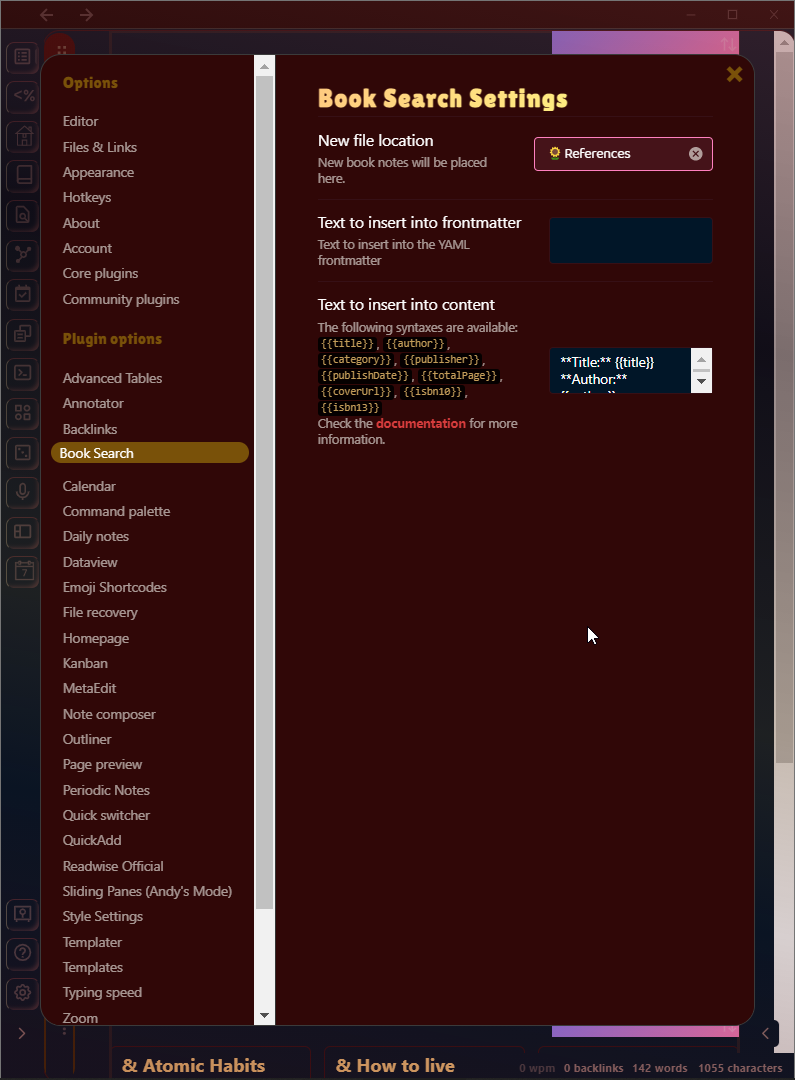
Select the location where you want to keep the new book note. In my case, I use a reference folder to keep all my book notes.
I want the following text to be inserted in every new note:
**Title:** {{title}}
**Author:** {{author}}
**Type:** #litnote #book #todevelop---This is like using a template for a new file. The #litnote and #todevelop are the status of the note. You may want to avoid it, but make sure you add #book inside your notes. This will be used by dataview plugin in the next steps.
Step 3: Adding New Books
We have installed the book search plugin. Now it's time to put it to use. Use the hotkey you assigned for a book search and perform a search for the book you want. Then select the book that comes out of the search result.
Here’s my result when I searched for The Tipping Point.
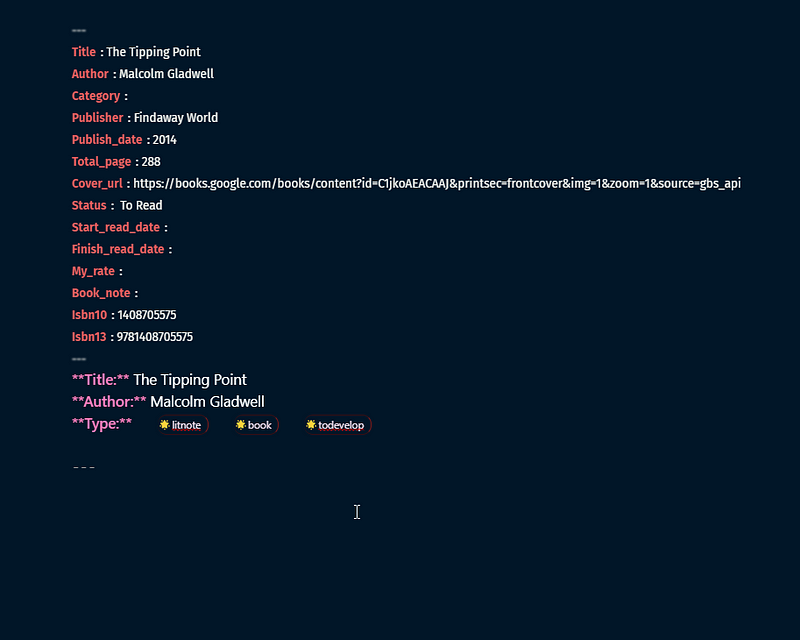
Book search tries to search the internet for the data. Sometimes it might be missing like the pages, category, or cover_url which you can add yourself manually.
To track books what we need to focus on is the status. I use the following 4 status for tracking books:
- Reading
- Unfinished: for books that I started reading and left unfinished to maybe read sometimes in future
- Completed
- To Read
Once you have learned how to create a bookshelf, you can also use fill in other fields like rating, start, and end date for adding more information to the bookshelf. For now, we will just use Status.
Step 4: Using Dataview Plugin
If you are using the obsidian plugin for some time, I bet you already have installed dataview plugin. If not, you can install it from the community plugin easily. After installing the community plugin, follow the steps:
- Create a New note called “Reading List”
- To create a list of books that you want to read, add the following code:
```dataview
Table author as Author, (" as Cover, total_page as "Pages", category as "Category"
From #book
where contains(status,"To Read")
```Here’s what the code means:
Create a table where the author is used as author, cover url as cover, total_pages as Pages, and category as a category(you can add more info about the book on the table like this). This all data is only taken from notes which have #book and where status is To Read in the frontmatter.
Here are more codes for different status:
Completed:
```dataview
Table author as Author, (" as Cover, total_page as "Pages", category as "Category"
From #book
where contains(status,"Completed")
```To Read:
```dataview
Table author as Author, (" as Cover, total_page as "Pages", category as "Category"
From #book
where contains(status,"To Read")
```Unfinished:
```dataview
Table author as Author, (" as Cover, total_page as "Pages", category as "Category"
From #book
where contains(status,"Unfinished")
```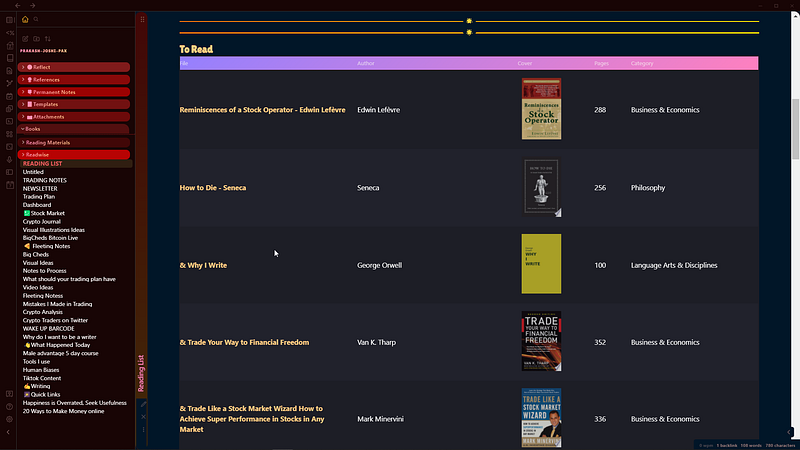
This is what the To Read list looks like in my obsidian vault. If you want to give it a better look, you can use add CSS class a front matter like this:
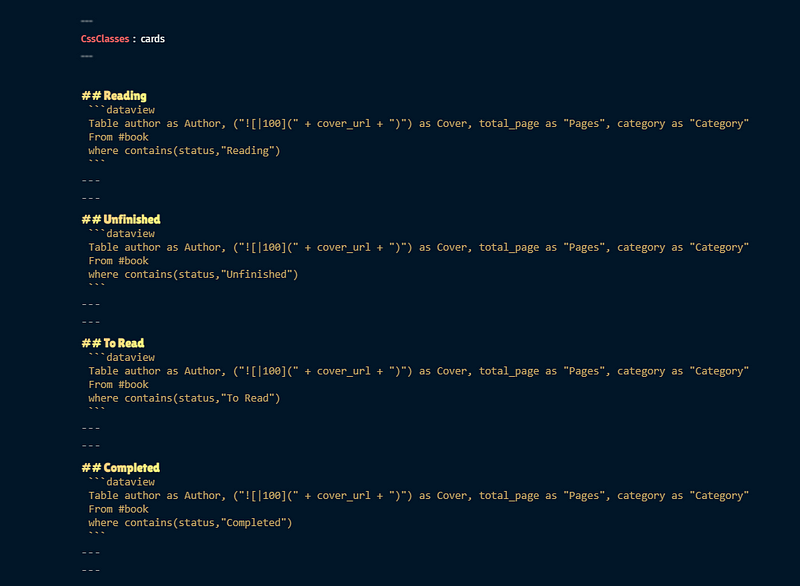
This will render the notes as follows in the preview mode:

Remember, the card's view is only supported in the minimal theme. If you use any other theme, this won’t work.
Additional Tip:
A plugin called “sortable” can be used to sort books on your reading list based on the number of pages, category, author, date published, and many other data inside the book's front matter.
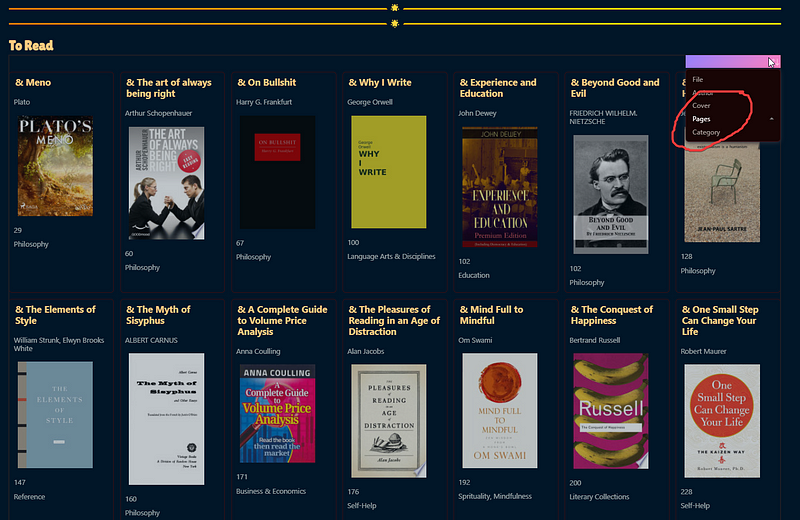
Also, the cover_url is downloaded from the internet. You need to have an active internet connection for the cover image to be displayed properly.


