
Step by step to convert Digital Number to Radiance for Landsat 8 using ArcGIS or ENVI
Remote sensing data is very helpful if the field data is missing. Remote Sensing Data can be a supplementary data to your project or analysis. Remote sensing data can be derived from satellite images, drones, and other platforms. Normally, the RS data are acquired from the accessible source that is free for the public. One of the most used satellite imagery is Landsat. Before using the satellite image, the raw image does not really reflect the actual data on the ground. Therefore, it is crucial to do preprocessing to minimize the unnecessary information of the image.
This article discusses how to convert Digital Number (DN) to TOA Radiance.
First thing first, what is Digital Number (DN)?
Digital number in remote sensing systems, a variable assigned to a pixel, usually in the form of a binary integer in the range of 0–255 (i.e. a byte). The range of energies examined in a remote sensing system is broken into 256 bins. But, Landsat 8 OLI sensor stores these data as DNS with a range from 0 to 65536.
What is the formula of converting DN to TOA Radiance?

How to translate the formula and process it in your image processing software?
Here are the steps to process your image if you’re using ArcGIS
- Prepare the Landsat data. Download it, and unzip the data.
2. Open the metadata
3. Open ArcGIS — Search — “Raster Calculator”
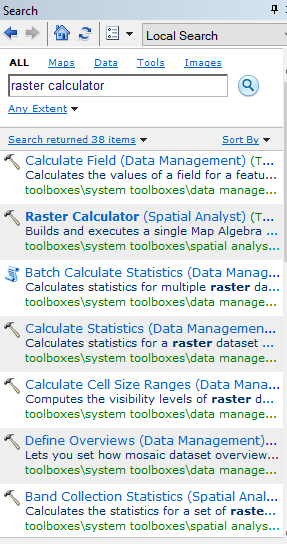
4. Translate the formula to the calculator friendly statement
TOA Spectral Radiance = (RADIANCE_MULT_BAND_x) * (Bx) + (RADIANCE_ADD_BAND_x)
Taken an example that we want to change DN to TOA Radiance of Band10 of Landsat, then the formula become :
TOA Spectral Radiance = (RADIANCE_MULT_BAND_10) * (B10) + (RADIANCE_ADD_BAND_10)
Take a look in metadata, and input the number to the formula.
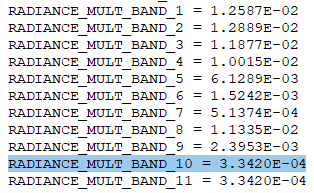
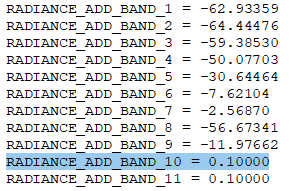
Then the formula become :
TOA Spectral Radiance = (0.0003342 * B10) + (0.1)
This is how it looks looks like in raster calculator:
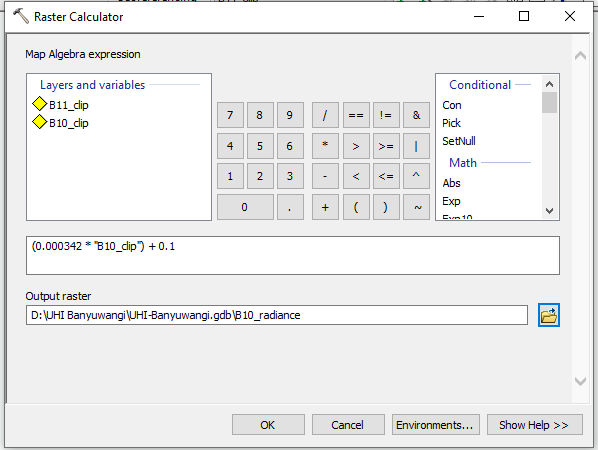
5. Click OK and the new layer will be created.
6. Check out the result
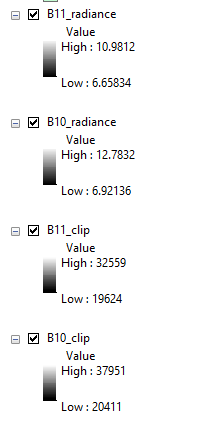
How to convert DN to TOA Radiance using ENVI?
- Open ENVI
- Open image file
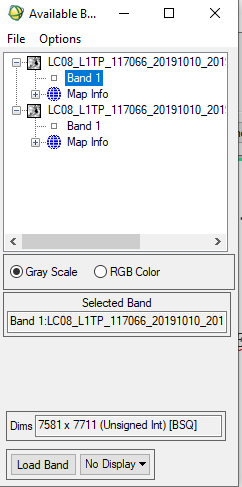
3. Apply Band Math
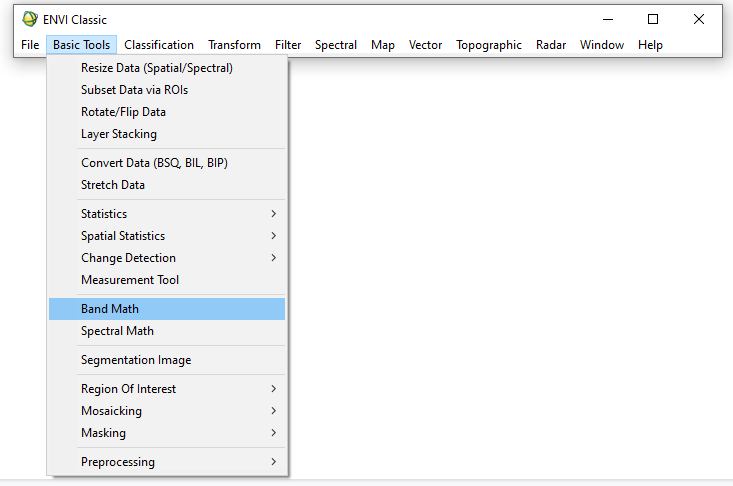
4. Insert the formula
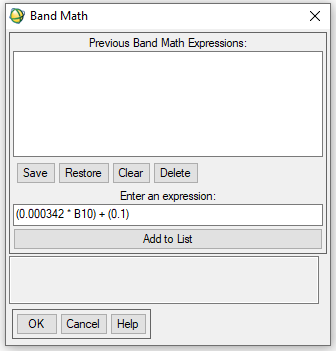
5. Define the band that you refer, in this case, I refer to B10
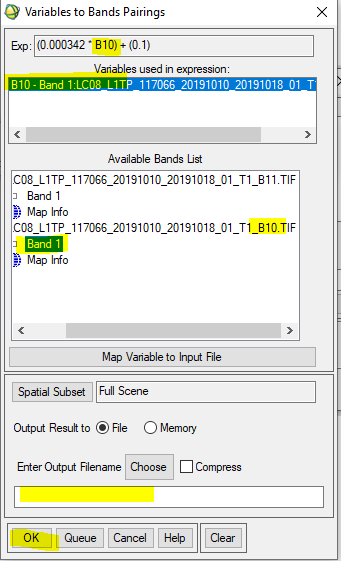
6. Then display the layer and show the statistics

The same steps can be repeated to the other bands.
Reference:
https://yceo.yale.edu/how-convert-landsat-dns-brightness-temperature-using-envi-standard
https://www.usgs.gov/land-resources/nli/landsat/using-usgs-landsat-level-1-data-product


