

How to configure Oracle OCI CLI in 5 minutes
The Oracle OCI CLI is a tool built on Python (version 2.7.5 or 3.5 or later), running on Mac, Windows, or Linux, used to deploy Oracle Cloud Infrastructure.
The Python code makes calls to Oracle Cloud Infrastructure APIs to provide the functionality implemented for the various services. These are REST APIs that use HTTPS requests and responses.
1. Requirements:
We will need to generate the private key & fingerprint and copy the tenancy_ocid & user_ocid from the console to configure the OCI Provider.
The process is described in detail in the following link: https://docs.cloud.oracle.com/iaas/Content/API/Concepts/apisigningkey.htm
2. Installing OCI CLI in macOS, Linux, and Unix
To install the CLI in these operating systems, open your Terminal and type the following command:
bash -c "$(curl -L https://raw.githubusercontent.com/oracle/oci-cli/master/scripts/install/install.sh)"3. Installing OCI CLI in Windows
Open the PowerShell console using the Run as Administrator option, and type the following line to configure PowerShell execution policy:
Set-ExecutionPolicy RemoteSignedThen, type the following command to install the CLI:
powershell -NoProfile -ExecutionPolicy Bypass -Command "iex ((New-Object System.Net.WebClient).DownloadString('https://raw.githubusercontent.com/oracle/oci-cli/master/scripts/install/install.ps1'))"4. Setup Python and folder settings
The installation script prompts you for the following information.
If you do not have a compatible version of Python installed:
- Windows & Linux: You are prompted to provide a location for installing the binaries and executables. The script will install Python for you.
- macOS: You are notified that your version of Python is incompatible. You must upgrade before you can proceed with the installation. The script will not install Python for you.
When prompted to upgrade the CLI to the newest version, respond with Y to overwrite an existing installation.
When prompted to update your PATH, respond with Y to be able to invoke the CLI without providing the full path to the executable. This will add oci.exe to your PATH.
If you are running Windows, close and reopen PowerShell to allow the configuration of your path.
5. Configure OCLI CLI settings
In your terminal or PowerShell console type the following command:
oci setup config
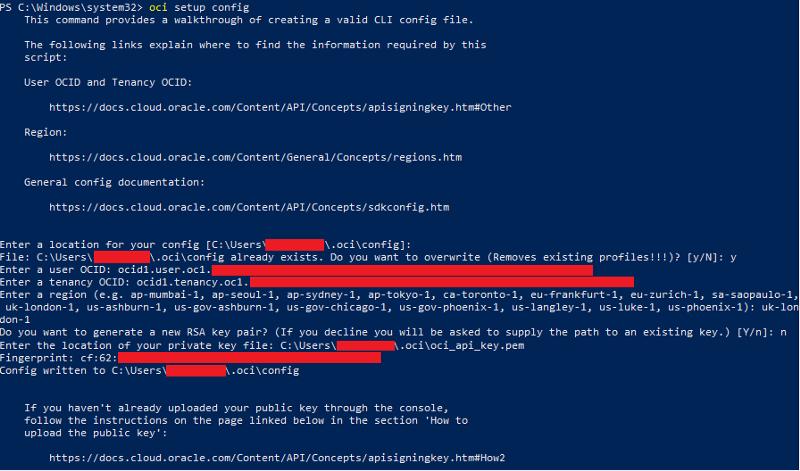
The process will create a file called config (optionally, you can create this file manually).
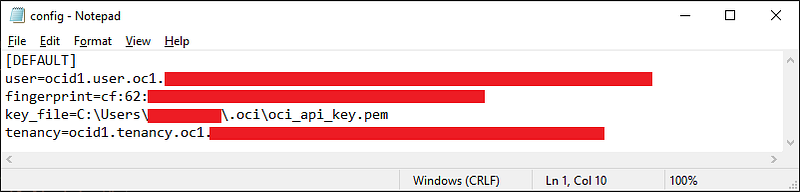
And you are ready to start with OCI! Thank you for reading!


