avatarMynotesoracleDBA
# Summary

The web content describes how to configure SMTP and email notifications on Jenkins using a Gmail account, with a focus on generating an app password for secure authentication.

# Abstract

The article provides a step-by-step guide for configuring Jenkins to send email notifications via Gmail SMTP. It begins with installing necessary plugins and then walks through setting up an email notification in Jenkins. The author emphasizes the need for SMTP authentication and instructs to use an app password for enhanced security instead of directly using the Gmail account password. The process includes enabling two-step verification in the Google account, generating an app password specifically for Jenkins, and using this password in the Jenkins email configuration. The guide concludes with a successful test of the email setup in Jenkins.

# Opinions

- The author suggests that securing Jenkins email notifications is crucial and advocates for using app passwords as a security best practice.
- They imply that configuring email notifications on Jenkins can be tricky, especially with the added layer of security provided by Google's two-step verification.
- The author positively acknowledges the effectiveness of using app passwords for specific applications like Jenkins to maintain account security while integrating email notifications.
- They also indicate that readers should be familiar with the process of managing their Google account security settings to generate app passwords.

How to configure SMTP and Email Notifications on Jenkins

Here we are going to understand step-by-step Gmail configurations

In my previous blog, I have shown how to install Jenkins and create a new project

Steps:

  1. To configure email smtp notification install the plugins.

2. Find the E-mail Notification (Ctrl + F “E-mail Notification”)
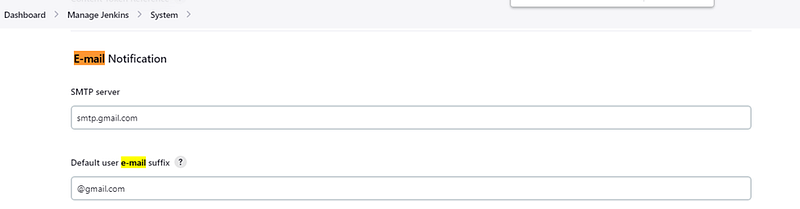
3. Click Advanced and add SMTP authentication, Here I have given my gmail account user name and password provided here (now the game begins)
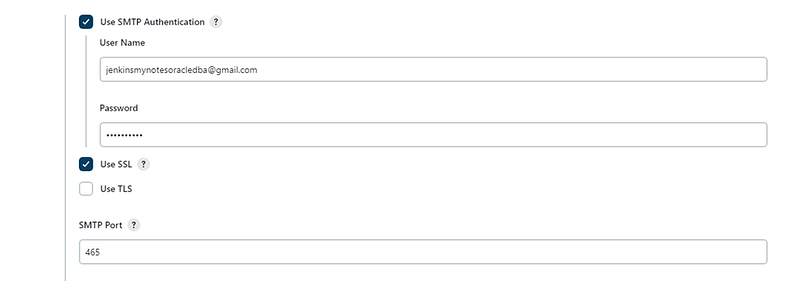
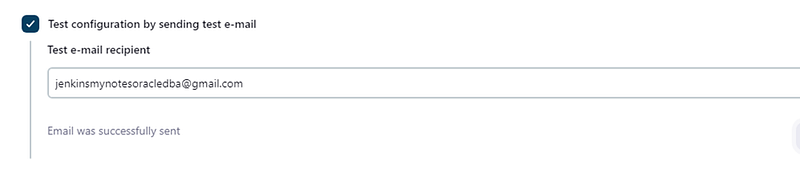
4. To verify the configured email and enter the test email recipient and test configuration

5. To fix the issue

go to our Google account → https://myaccount.google.com/

enable the two steps verification

after that Click the 2-step verification, scroll down we could see the “app passwords”
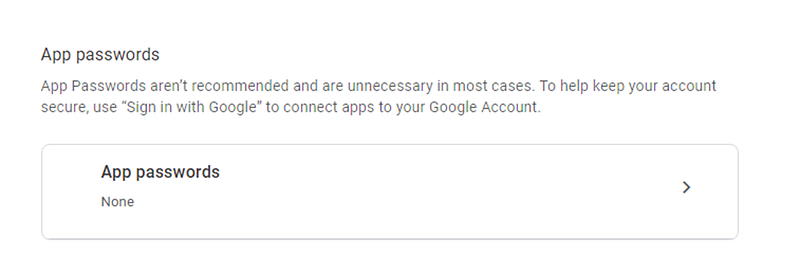
Click the arrow,we could see the different types of option
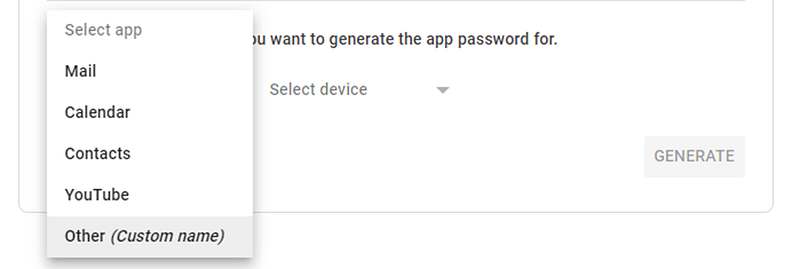
Here Type “Jenkins” → Generate → copy the passwords Go back to ur Jenkins email notification part → update this newly generated password over here

Note we could not use our Gmail account password directly here instead of that we have to use the password which we generated from the app password from Gmail

Now if we execute the test will be success
Jenkins Email
Gmail
Smtp For Gmail
Email Notifications
Recommended from ReadMedium