avatarNextGenTechDawn

Free AI web copilot to create summaries, insights and extended knowledge, download it at here

2096

Abstract

size and style</span> plt.title(<span class="hljs-string">"Sine Wave"</span>, fontsize=<span class="hljs-number">16</span>, fontstyle=<span class="hljs-string">'italic'</span>)

<span class="hljs-comment"># Set the axis labels with custom font size and style</span> plt.xlabel(<span class="hljs-string">"x-axis"</span>, fontsize=<span class="hljs-number">12</span>, fontstyle=<span class="hljs-string">'normal'</span>) plt.ylabel(<span class="hljs-string">"y-axis"</span>, fontsize=<span class="hljs-number">12</span>, fontstyle=<span class="hljs-string">'normal'</span>)

plt.show()</pre></div><figure id="bb5e"><img src="https://cdn-images-1.readmedium.com/v2/resize:fit:800/0*IgOKvdo6uzWL7yLI.png"><figcaption></figcaption></figure><h1 id="37d3">2. Setting global font properties</h1><p id="0e09">If you want to change the font properties globally, you can use the <b>rcParams</b> dictionary in <b>Matplotlib</b>. This allows you to set default font properties for all elements in your plots.</p><div id="56fe"><pre><span class="hljs-keyword">import</span> matplotlib.pyplot <span class="hljs-keyword">as</span> plt <span class="hljs-keyword">import</span> numpy <span class="hljs-keyword">as</span> np

<span class="hljs-comment"># Set global font properties</span> plt.rcParams[<span class="hljs-string">'font.size'</span>] = <span class="hljs-number">12</span> plt.rcParams[<span class="hljs-string">'font.family'</span>] = <span class="hljs-string">'Agency FB'</span> plt.rcParams[<span class="hljs-string">'font.style'</span>] = <span class="hljs-string">'normal'</span>

x = np.linspace(<span class="hljs-number">0</span>, <span class="hljs-number">10</span>, <span class="hljs-number">100</span>) y = np.sin(x)

plt.plot(x, y) plt.title(<span class="hljs-string">"Sine Wave"</span>) plt.xlabel(<span class="hljs-string">"x-axis"</span>) plt.ylabel(<span class="hljs-string">"y-axis"</span>)

plt.show()</pre></div><figure id="4149"><img src="https://cdn-images-1.readmedium.com/v2/resize:fit:800/0*JD5PkSnAPGuVvrqy.png"><figcaption></figcaption></figure><h1 id="3a0d">3. Working with c

Options

ustom fonts</h1><p id="8bd8">To use a custom font in your Matplotlib plot, you can use the <b>FontProperties</b> class from the <b>matplotlib.font_manager</b> module. This allows you to load a font file (<b>TTF or OTF</b>) and use it in your plot.</p><p id="d65f">Firstly, let’s download a font from Google Fonts and put the <b>.ttf</b> file in the <b>fonts</b> folder.</p><figure id="531a"><img src="https://cdn-images-1.readmedium.com/v2/resize:fit:800/0*v3RJyxoILSx8IYli.png"><figcaption></figcaption></figure><figure id="0edb"><img src="https://cdn-images-1.readmedium.com/v2/resize:fit:800/0*gz9Cai8V_lYEGuSK.png"><figcaption></figcaption></figure><div id="cbe8"><pre><span class="hljs-keyword">import</span> matplotlib.pyplot <span class="hljs-keyword">as</span> plt <span class="hljs-keyword">import</span> numpy <span class="hljs-keyword">as</span> np <span class="hljs-keyword">from</span> matplotlib.font_manager <span class="hljs-keyword">import</span> FontProperties

<span class="hljs-comment"># Load custom font</span> custom_font = FontProperties(fname=<span class="hljs-string">'fonts/BebasNeue-Regular.ttf'</span>)

x = np.linspace(<span class="hljs-number">0</span>, <span class="hljs-number">10</span>, <span class="hljs-number">100</span>) y = np.sin(x)

plt.plot(x, y)

<span class="hljs-comment"># Set the title using custom font</span> plt.title(<span class="hljs-string">"Sine Wave"</span>, fontproperties=custom_font, fontsize=<span class="hljs-number">16</span>)

<span class="hljs-comment"># Set the axis labels using custom font</span> plt.xlabel(<span class="hljs-string">"x-axis"</span>, fontproperties=custom_font, fontsize=<span class="hljs-number">12</span>) plt.ylabel(<span class="hljs-string">"y-axis"</span>, fontproperties=custom_font, fontsize=<span class="hljs-number">12</span>)

plt.show()</pre></div><p id="46a9">We can find that title and axis label font have been changed to our custom font.</p><figure id="1b64"><img src="https://cdn-images-1.readmedium.com/v2/resize:fit:800/0*jIDKpfuMI1T6kPL_.png"><figcaption></figcaption></figure></article></body>

How to Change Font Style and Size in Matplotlib

Table of Contents

Introduction

Matplotlib is a powerful Python library that allows users to create various visualizations. While creating these visualizations, it is often necessary to adjust the font style and size to improve readability and aesthetics. In this article, we will discuss how to change the font style and size in Matplotlib using various methods.
1. Changing font style and size for a specific element

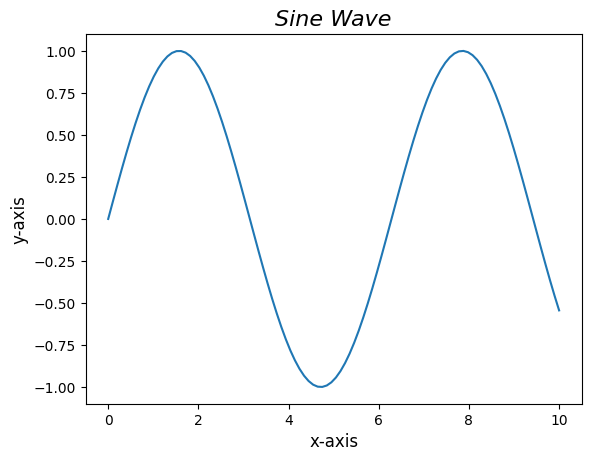
To change the font style and size for specific elements such as titles, axis labels, and tick labels, you can use the fontsize and fontstyle parameters in the corresponding functions.

import matplotlib.pyplot as plt
import numpy as np

x = np.linspace(0, 10, 100)
y = np.sin(x)
plt.plot(x, y)

# Set the title with custom font size and style
plt.title("Sine Wave", fontsize=16, fontstyle='italic')

# Set the axis labels with custom font size and style
plt.xlabel("x-axis", fontsize=12, fontstyle='normal')
plt.ylabel("y-axis", fontsize=12, fontstyle='normal')

plt.show()
2. Setting global font properties

If you want to change the font properties globally, you can use the rcParams dictionary in Matplotlib. This allows you to set default font properties for all elements in your plots.

import matplotlib.pyplot as plt
import numpy as np

# Set global font properties
plt.rcParams['font.size'] = 12
plt.rcParams['font.family'] = 'Agency FB'
plt.rcParams['font.style'] = 'normal'

x = np.linspace(0, 10, 100)
y = np.sin(x)

plt.plot(x, y)
plt.title("Sine Wave")
plt.xlabel("x-axis")
plt.ylabel("y-axis")

plt.show()
3. Working with custom fonts

To use a custom font in your Matplotlib plot, you can use the FontProperties class from the matplotlib.font_manager module. This allows you to load a font file (TTF or OTF) and use it in your plot.

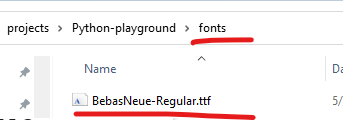
Firstly, let’s download a font from Google Fonts and put the .ttf file in the fonts folder.

import matplotlib.pyplot as plt
import numpy as np
from matplotlib.font_manager import FontProperties

# Load custom font
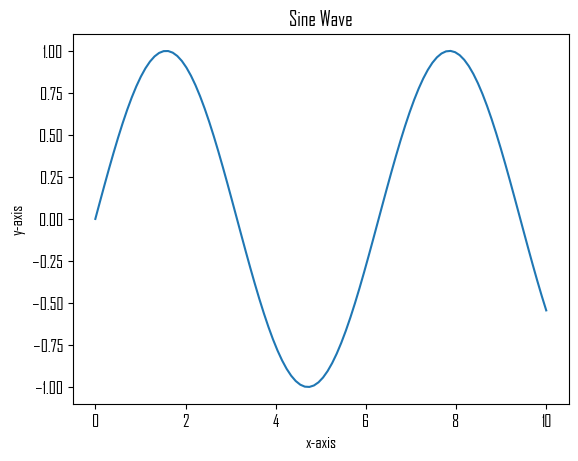
custom_font = FontProperties(fname='fonts/BebasNeue-Regular.ttf')

x = np.linspace(0, 10, 100)
y = np.sin(x)

plt.plot(x, y)

# Set the title using custom font
plt.title("Sine Wave", fontproperties=custom_font, fontsize=16)

# Set the axis labels using custom font
plt.xlabel("x-axis", fontproperties=custom_font, fontsize=12)
plt.ylabel("y-axis", fontproperties=custom_font, fontsize=12)

plt.show()

We can find that title and axis label font have been changed to our custom font.

Matplotlib
Fonts
Data Science
Style
Recommended from ReadMedium