avatarAndrew Bestbier

Free AI web copilot to create summaries, insights and extended knowledge, download it at here

6915

Abstract

</div><p id="aa2c">The final step is the creation of a Docker Hub repository. Again, see my guide here on how to do this:</p><div id="2645" class="link-block"> <a href="https://medium.com/@andrew.bestbier/how-to-create-a-docker-hub-repository-f07d1e0ddf5e"> <div> <div> <h2>How to create a Docker Hub repository:</h2> <div><h3>Note: In my blog posts I frequently create sample repositories on Docker Hub. Rather than repeat myself each time, I…</h3></div> <div><p>medium.com</p></div> </div> <div> <div style="background-image: url(https://miro.readmedium.com/v2/resize:fit:320/1*jhODQZVPt00_H6Kv88pfOg.png)"></div> </div> </div> </a> </div><h1 id="ca2a">Setting Up a CircleCI Pipeline</h1><p id="ef91">To setup a CircleCI pipeline, head over to <a href="https://circleci.com/">https://circleci.com/</a> and click <b>Log in with Github </b>(You will need to Authorise CircleCI through Github)<b>.</b></p><figure id="fce3"><img src="https://cdn-images-1.readmedium.com/v2/resize:fit:800/1*fmpq7dofqcs4T785k_8Dag.png"><figcaption></figcaption></figure><p id="934e">Next click <b>Settings</b> and <b>Projects</b> and find your Github repository (mine is called <i>ci-comparison-blog</i>) before clicking the <b>settings cog</b> on the right:</p><figure id="611b"><img src="https://cdn-images-1.readmedium.com/v2/resize:fit:800/1*tYsGEWUvQZkSZ00ct4bSOQ.png"><figcaption></figcaption></figure><p id="9aa5">Now that we have found your project, click <b>Environment variables</b> and add your <b>AWS</b> programmatic User credentials created from my earlier guide (<code>AWS_ACCESS_KEY_ID</code>, <code>AWS_SECRET_ACCESS_KEY</code>). The other variables, <code>DOCKER_USER</code><b> </b>and <code>DOCKER_PASS</code><i>,</i> are your Docker Hub credentials<i>. </i>These will be used later, when we configure your pipeline:</p><figure id="3d41"><img src="https://cdn-images-1.readmedium.com/v2/resize:fit:800/1*k6_ibwrW75fcNaClcxiQMA.png"><figcaption></figcaption></figure><p id="d68f">Next click <b>Add Projects</b> on the sidebar, search for your Github repository and click <b>Set Up Project</b>:</p><figure id="5fc3"><img src="https://cdn-images-1.readmedium.com/v2/resize:fit:800/1*mWnhVkYliLqDWWfYbcCE_w.png"><figcaption></figcaption></figure><p id="6189">You will then see a screen with instructions on how to set up your project. The most important instruction is “Create a folder named <code>.circleci</code> and add a file named <code>config.yml</code> ”.</p><figure id="67b7"><img src="https://cdn-images-1.readmedium.com/v2/resize:fit:800/1*kNnnrJV-01q7GrTDZVJKog.png"><figcaption></figcaption></figure><p id="86bf">If you look at our Github repository, you can see that I’ve already created this file:</p><div id="646c"><pre><span class="hljs-attr">version:</span> <span class="hljs-number">2</span> <span class="hljs-attr">jobs:</span> <span class="hljs-attr">test:</span> <span class="hljs-attr">working_directory:</span> <span class="hljs-string">~/app</span> <span class="hljs-attr">docker:</span> <span class="hljs-bullet">-</span> <span class="hljs-attr">image:</span> <span class="hljs-string">circleci/node:latest</span> <span class="hljs-comment"># (1)</span> <span class="hljs-attr">steps:</span> <span class="hljs-bullet">-</span> <span class="hljs-string">checkout</span> <span class="hljs-bullet">-</span> <span class="hljs-attr">run:</span> <span class="hljs-attr">name:</span> <span class="hljs-string">Update</span> <span class="hljs-string">npm</span> <span class="hljs-attr">command:</span> <span class="hljs-string">'sudo npm install -g npm@latest'</span> <span class="hljs-bullet">-</span> <span class="hljs-attr">restore_cache:</span> <span class="hljs-comment"># (2)</span> <span class="hljs-attr">key:</span> <span class="hljs-string">dependency-cache-{{</span> <span class="hljs-string">checksum</span> <span class="hljs-string">"package-lock.json"</span> <span class="hljs-string">}}</span> <span class="hljs-bullet">-</span> <span class="hljs-attr">run:</span> <span class="hljs-attr">name:</span> <span class="hljs-string">Install</span> <span class="hljs-string">npm</span> <span class="hljs-string">dependencies</span> <span class="hljs-attr">command:</span> <span class="hljs-string">npm</span> <span class="hljs-string">install</span> <span class="hljs-bullet">-</span> <span class="hljs-attr">save_cache:</span> <span class="hljs-attr">key:</span> <span class="hljs-string">dependency-cache-{{</span> <span class="hljs-string">checksum</span> <span class="hljs-string">"package-lock.json"</span> <span class="hljs-string">}}</span> <span class="hljs-attr">paths:</span> <span class="hljs-bullet">-</span> <span class="hljs-string">./node_modules</span> <span class="hljs-bullet">-</span> <span class="hljs-attr">run:</span> <span class="hljs-attr">name:</span> <span class="hljs-string">Run</span> <span class="hljs-string">tests</span> <span class="hljs-comment"># (3)</span> <span class="hljs-attr">command:</span> <span class="hljs-string">'npm run test'</span> <span class="hljs-attr">docker-deploy-image:</span> <span class="hljs-attr">working_directory:</span> <span class="hljs-string">~/app</span> <span class="hljs-attr">machine:</span> <span class="hljs-attr">docker_layer_caching:</span> <span class="hljs-literal">true</span> <span class="hljs-comment"># (4)</span> <span class="hljs-attr">steps:</span> <span class="hljs-bullet">-</span> <span class="hljs-string">checkout</span> <span class="hljs-bullet">-</span> <span class="hljs-attr">run:</span> <span class="hljs-string">|</span> <span class="hljs-comment"># (5) </span> <span class="hljs-string">docker</span> <span class="hljs-string">build</span> <span class="hljs-string">-t</span> <span class="hljs-string">andrewbestbier/ci-comparison-blog</span> <span class="hljs-string">.</span> <span class="hljs-string">docker</span> <span class="hljs-string">login</span> <span class="hljs-string">-u</span> <span class="hljs-string">$DOCKER_USER</span> <span class="hljs-string">-p</span> <span class="hljs-string">$DOCKER_PASS</span> <span class="hljs-string">docker</span> <span class="hljs-string">push</span> <span class="hljs-string">andrewbestbier/ci-comparison-blog</span> <span class="hljs-attr">deploy-aws:</span> <span class="hljs-attr">working_directory:</span> <span class="hljs-string">~/app</span> <span class="hljs-attr">docker:</span> <span class="hljs-bullet">-</span> <span class="hljs-attr">image:</span> <span class="hljs-string">circleci/python:latest</span> <span class="hljs # Options -attr">steps:</span> <span class="hljs-bullet">-</span> <span class="hljs-string">checkout</span> <span class="hljs-bullet">-</span> <span class="hljs-attr">run:</span> <span class="hljs-comment"># (6)</span> <span class="hljs-attr">name:</span> <span class="hljs-string">Installing</span> <span class="hljs-string">deployment</span> <span class="hljs-string">dependencies</span> <span class="hljs-attr">working_directory:</span> <span class="hljs-string">/</span> <span class="hljs-attr">command:</span> <span class="hljs-string">'sudo pip install awsebcli --upgrade'</span> <span class="hljs-bullet">-</span> <span class="hljs-attr">run:</span> <span class="hljs-comment"># (7)</span> <span class="hljs-attr">name:</span> <span class="hljs-string">Deploying</span> <span class="hljs-string">application</span> <span class="hljs-string">to</span> <span class="hljs-string">Elastic</span> <span class="hljs-string">Beanstalk</span> <span class="hljs-attr">command:</span> <span class="hljs-string">eb</span> <span class="hljs-string">deploy</span> <span class="hljs-attr">workflows:</span> <span class="hljs-attr">version:</span> <span class="hljs-number">2</span> <span class="hljs-attr">build-test-and-deploy:</span> <span class="hljs-attr">jobs:</span> <span class="hljs-bullet">-</span> <span class="hljs-string">test</span> <span class="hljs-bullet">-</span> <span class="hljs-attr">docker-deploy-image:</span> <span class="hljs-attr">requires:</span> <span class="hljs-bullet">-</span> <span class="hljs-string">test</span> <span class="hljs-bullet">-</span> <span class="hljs-attr">deploy-aws:</span> <span class="hljs-attr">requires:</span> <span class="hljs-bullet">-</span> <span class="hljs-string">docker-deploy-image</span></pre></div><p id="e10a">Let’s break down what’s happening during this build’s execution:</p><ol><li>The first job, <code>test</code> is run with a Node Docker container.</li><li>If they exist in the cache, the <i>node_modules</i> are restored, otherwise, they’re installed.</li><li>The tests are run.</li><li>Docker layer caching is enabled to speed up image building performance (See <a href="https://circleci.com/docs/2.0/glossary/#docker-layer-caching">here</a>).</li><li>Next, the Docker image is built and pushed to Docker Hub with the <code>DOCKER_USER</code><b> </b>and <code>DOCKER_PASS</code><b> </b>environment variables. Remember to change the repository to the one you created on Docker Hub in my earlier guide.</li><li>Install the Elastic Beanstalk CLI tool.</li><li>Using the CLI, deploy the app to Elastic Beanstalk with <code>eb deploy</code>. This command works as we have already been authenticated invisibly by CircleCI with the <code>AWS_ACCESS_KEY_ID</code>, <code>AWS_SECRET_ACCESS_KEY</code> environment variables.</li></ol><p id="3da7">You may be wondering, how does <code>eb deploy</code> know where to deploy? To specify a location, you need to create and modify the <code>.elasticbeanstalk/config.yml</code> file in your Github repository to align with the sample Elastic Beanstalk application you created:</p><div id="a61e"><pre><span class="hljs-attr">branch-defaults:</span> <span class="hljs-attr">master:</span> <span class="hljs-attr">environment:</span> <span class="hljs-string">CiComparisonBlog-env</span> <span class="hljs-attr">environment-defaults:</span> <span class="hljs-attr">CiComparisonBlog-env:</span> <span class="hljs-attr">branch:</span> <span class="hljs-literal">null</span> <span class="hljs-attr">repository:</span> <span class="hljs-literal">null</span> <span class="hljs-attr">global:</span> <span class="hljs-attr">application_name:</span> <span class="hljs-string">CI</span> <span class="hljs-string">Comparison</span> <span class="hljs-string">Blog</span> <span class="hljs-attr">default_ec2_keyname:</span> <span class="hljs-literal">null</span> <span class="hljs-attr">default_platform:</span> <span class="hljs-string">arn:aws:elasticbeanstalk:eu-west-2::platform/Docker</span> <span class="hljs-string">running</span> <span class="hljs-string">on</span> <span class="hljs-string">64bit</span> <span class="hljs-string">Amazon</span> <span class="hljs-string">Linux/2.12.17</span> <span class="hljs-attr">default_region:</span> <span class="hljs-string">eu-west-2</span> <span class="hljs-attr">include_git_submodules:</span> <span class="hljs-literal">true</span> <span class="hljs-attr">instance_profile:</span> <span class="hljs-literal">null</span> <span class="hljs-attr">platform_name:</span> <span class="hljs-literal">null</span> <span class="hljs-attr">platform_version:</span> <span class="hljs-literal">null</span> <span class="hljs-attr">profile:</span> <span class="hljs-literal">null</span> <span class="hljs-attr">sc:</span> <span class="hljs-string">git</span> <span class="hljs-attr">workspace_type:</span> <span class="hljs-string">Application</span></pre></div><p id="44d9">To find your equivalent values, see the following screenshot and the AWS documentation <a href="https://docs.aws.amazon.com/AWSEC2/latest/UserGuide/using-regions-availability-zones.html">here</a>.</p><figure id="427b"><img src="https://cdn-images-1.readmedium.com/v2/resize:fit:800/1*ASjdTcjkZHduH56m_hw3Tg.png"><figcaption></figcaption></figure><p id="412c">We’re finally ready to go so click <b>Start Building</b> on the CircleCI dashboard. With a little luck, your project should test, build and deploy successfully:</p><figure id="56fa"><img src="https://cdn-images-1.readmedium.com/v2/resize:fit:800/1*_I6psrQ9LuYCqd5C9no2Yg.png"><figcaption></figcaption></figure><h1 id="fe79">Conclusion</h1><p id="f52c">I hope you enjoyed this guide! Please let me know if you have any feedback on how I can improve the pipeline. Also, check out my other posts later this week to see how different CI/CD services can be used to deploy the same application.</p><figure id="a60f"><img src="https://cdn-images-1.readmedium.com/v2/resize:fit:800/0*cRMUa8dBX1dHpj5L"><figcaption></figcaption></figure><p id="3141">👋 <a href="https://avmconsulting.net/"><b>Join us today</b></a><b> !!</b></p><p id="eaa3">️Follow us on <a href="https://www.linkedin.com/company/avm-consulting-inc/">LinkedIn</a>, <a href="https://twitter.com/AvmConsulting">Twitter</a>, <a href="https://www.facebook.com/AVM-Consulting-Inc-114225960307418">Facebook</a>, and <a href="https://www.instagram.com/avmconsulting_inc/">Instagram</a></p><figure id="cb5c"><img src="https://cdn-images-1.readmedium.com/v2/resize:fit:800/1*UOzO1SzC0rQg-0hBwZjFDA.png"><figcaption><a href="https://avmconsulting.net/">https://avmconsulting.net/</a></figcaption></figure><p id="8060">If this post was helpful, please click the clap 👏 button below a few times to show your support! ⬇</p></article></body>

How To Build Your First CircleCI CI/CD Pipeline

A guide to continuously integrating and deploying your Dockerised Node app to AWS ElasticBeanstalk with CircleCI
Introduction

This piece has two goals:

  • To be a standalone guide to building a CI/CD pipeline with CircleCI
  • To form part of a larger series of articles which compare various CI/CD services.

The repository hosting the project tested and deployed with CircleCI can be found here. It’s a small Node/Express application that’s Dockerised and has a single test. I recommend that you clone this application and push it up to your own Github account, so you can build a pipeline while reading this guide.

Read my other CI/CD guides with this same application below:

The article comparing these services:

Pipeline Overview

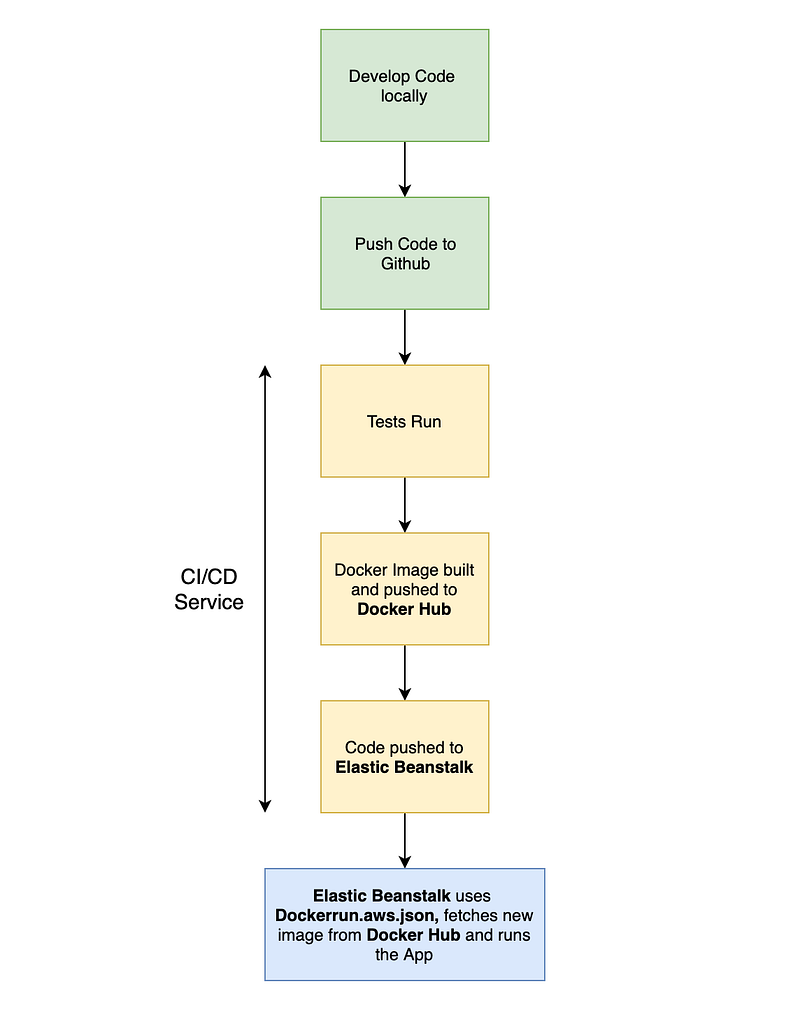
A diagram showing the steps followed in our CI/CD pipeline can be seen below. Notice how we use Docker Hub to store our Docker images and Elastic Beanstalk to pull and run those images:
Preliminary Steps

For this piece, we need to create an AWS User so that the CircleCI can programatically access Elastic Beanstalk. See my guide on how to do this: (You will be provided with AWS_ACCESS_KEY_ID and AWS_SECRET_ACCESS_KEY variables)

Next, we need to create an application on Elastic Beanstalk which CircleCI can deploy to. See my guide here on how to do this:

The final step is the creation of a Docker Hub repository. Again, see my guide here on how to do this:

Setting Up a CircleCI Pipeline

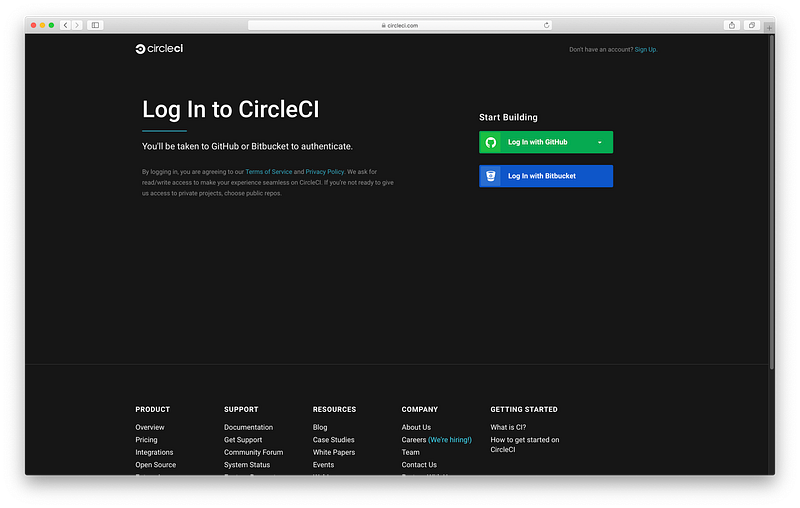
To setup a CircleCI pipeline, head over to https://circleci.com/ and click Log in with Github (You will need to Authorise CircleCI through Github).
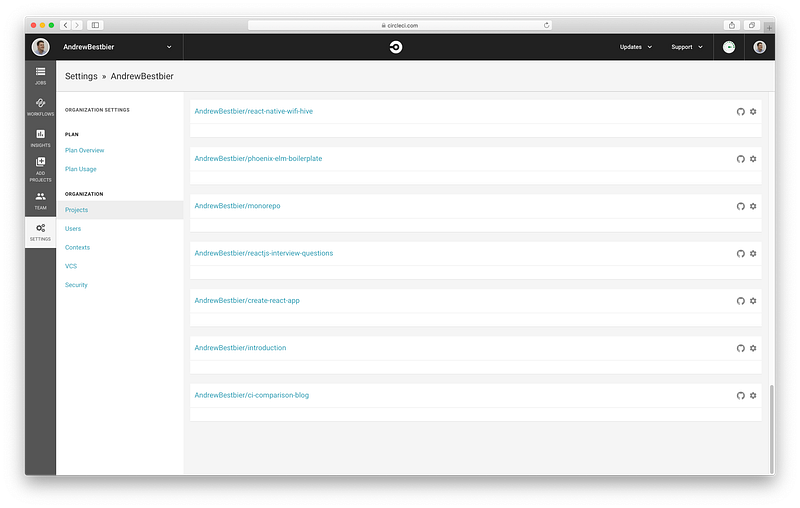
Next click Settings and Projects and find your Github repository (mine is called ci-comparison-blog) before clicking the settings cog on the right:
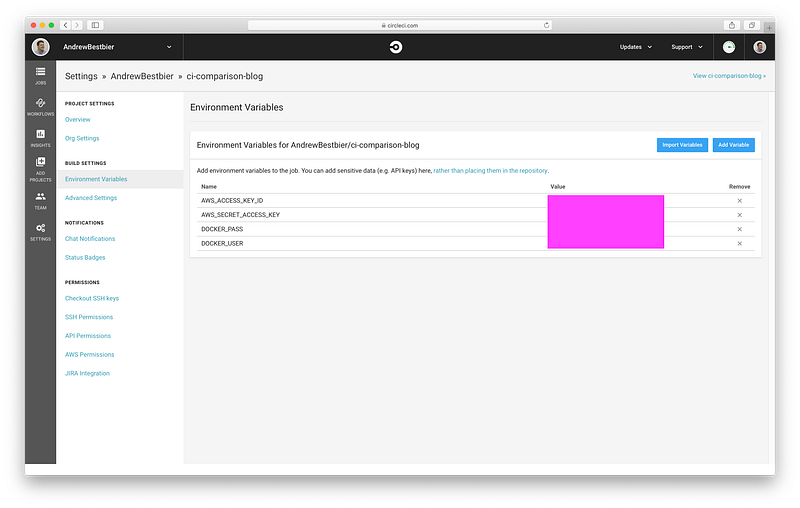
Now that we have found your project, click Environment variables and add your AWS programmatic User credentials created from my earlier guide (AWS_ACCESS_KEY_ID, AWS_SECRET_ACCESS_KEY). The other variables, DOCKER_USER and DOCKER_PASS, are your Docker Hub credentials. These will be used later, when we configure your pipeline:
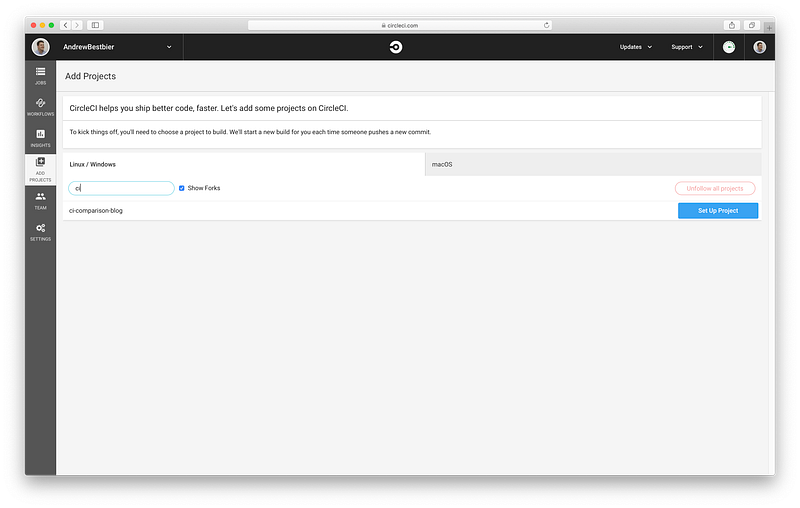
Next click Add Projects on the sidebar, search for your Github repository and click Set Up Project:
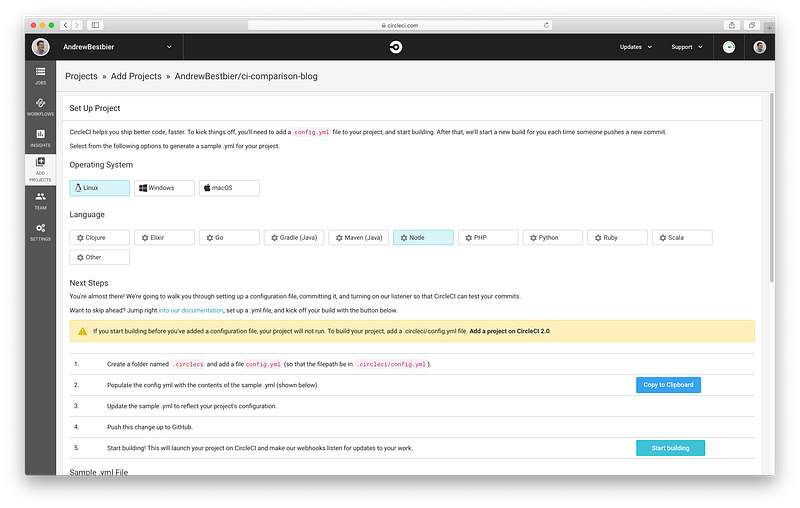
You will then see a screen with instructions on how to set up your project. The most important instruction is “Create a folder named .circleci and add a file named config.yml ”.
If you look at our Github repository, you can see that I’ve already created this file:

version: 2
jobs:
  test:
    working_directory: ~/app
    docker:
      - image: circleci/node:latest # (1)
    steps:
      - checkout
      - run:
          name: Update npm
          command: 'sudo npm install -g npm@latest'
      - restore_cache: # (2)
          key: dependency-cache-{{ checksum "package-lock.json" }}
      - run:
          name: Install npm dependencies
          command: npm install
      - save_cache: 
          key: dependency-cache-{{ checksum "package-lock.json" }}
          paths:
            - ./node_modules
      - run:
          name: Run tests # (3)
          command: 'npm run test'
  docker-deploy-image:
    working_directory: ~/app
    machine:
      docker_layer_caching: true # (4)
    steps:
      - checkout
      - run: | # (5)  
          docker build -t andrewbestbier/ci-comparison-blog .  
          docker login -u $DOCKER_USER -p $DOCKER_PASS
          docker push andrewbestbier/ci-comparison-blog
  deploy-aws:
    working_directory: ~/app
    docker:
      - image: circleci/python:latest
    steps:
      - checkout
      - run: # (6)
          name: Installing deployment dependencies
          working_directory: /
          command: 'sudo pip install awsebcli --upgrade'
      - run: # (7)
          name: Deploying application to Elastic Beanstalk
          command: eb deploy
workflows:
  version: 2
  build-test-and-deploy:
    jobs:
      - test
      - docker-deploy-image:
          requires:
            - test
      - deploy-aws:
          requires:
            - docker-deploy-image

Let’s break down what’s happening during this build’s execution:

  1. The first job, test is run with a Node Docker container.
  2. If they exist in the cache, the node_modules are restored, otherwise, they’re installed.
  3. The tests are run.
  4. Docker layer caching is enabled to speed up image building performance (See here).
  5. Next, the Docker image is built and pushed to Docker Hub with the DOCKER_USER and DOCKER_PASS environment variables. Remember to change the repository to the one you created on Docker Hub in my earlier guide.
  6. Install the Elastic Beanstalk CLI tool.
  7. Using the CLI, deploy the app to Elastic Beanstalk with eb deploy. This command works as we have already been authenticated invisibly by CircleCI with the AWS_ACCESS_KEY_ID, AWS_SECRET_ACCESS_KEY environment variables.

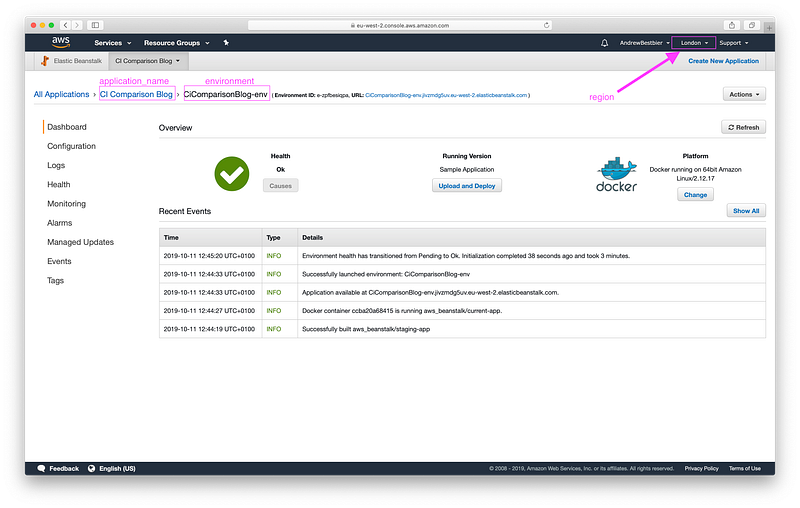
You may be wondering, how does eb deploy know where to deploy? To specify a location, you need to create and modify the .elasticbeanstalk/config.yml file in your Github repository to align with the sample Elastic Beanstalk application you created:

branch-defaults:
  master:
    environment: CiComparisonBlog-env
environment-defaults:
  CiComparisonBlog-env:
    branch: null
    repository: null
global:
  application_name: CI Comparison Blog
  default_ec2_keyname: null
  default_platform: arn:aws:elasticbeanstalk:eu-west-2::platform/Docker running on
    64bit Amazon Linux/2.12.17
  default_region: eu-west-2
  include_git_submodules: true
  instance_profile: null
  platform_name: null
  platform_version: null
  profile: null
  sc: git
  workspace_type: Application

To find your equivalent values, see the following screenshot and the AWS documentation here.
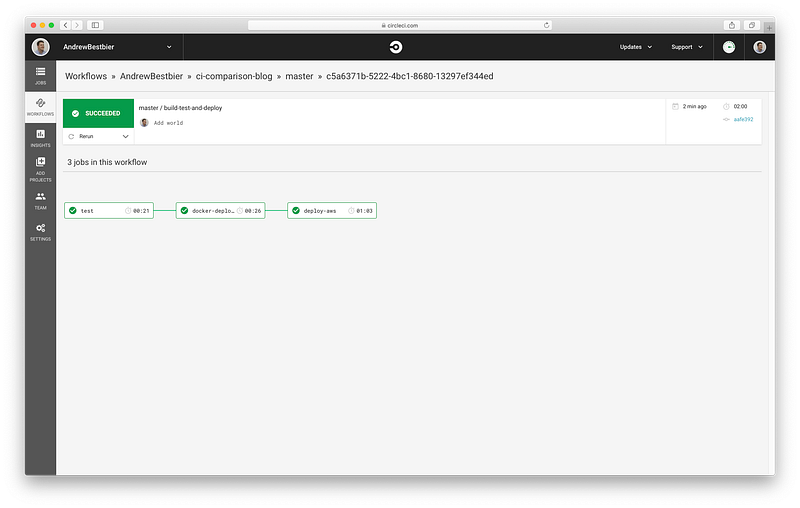
We’re finally ready to go so click Start Building on the CircleCI dashboard. With a little luck, your project should test, build and deploy successfully:
Conclusion

I hope you enjoyed this guide! Please let me know if you have any feedback on how I can improve the pipeline. Also, check out my other posts later this week to see how different CI/CD services can be used to deploy the same application.

👋 Join us today !!

️Follow us on LinkedIn, Twitter, Facebook, and Instagram

https://avmconsulting.net/

If this post was helpful, please click the clap 👏 button below a few times to show your support! ⬇

Elastic Beanstalk
AWS
Circleci
Programming
DevOps
Recommended from ReadMedium