
How to Build Easy to Use Second Brain with Notion
Simple but feature-rich system for notes, tasks, projects, and social content planning
There is a “boom” for Second Brain systems, and many people are organizing their entire life in apps like Notion, Evernote, Obsidian, Roam Research, TickTick, or ToDoIst. There are dozens of tutorials and ready-to-use templates, but mostly all require an additional education degree to use them efficiently.
Such advanced systems are too overwhelming, and I don’t want to do note-taking or task management as my additional job. I need instruments to speed up myself for actual task completion.
Using a tool like Notion, you can create templates for everything from task lists and project management to note-taking and content planning. These templates provide a structured way to organize your thoughts and tasks with any complexity, helping you focus on the most important and avoid feeling overwhelmed.
My requirements for the “Second Brain” system:
I’m a software engineer and dev lead on my primary job. Also, I have a side-hustle SaaS project, and I’m writing here on Medium as a hobby. So my system should meet some essential requirements:
- Note-taking functionality: I need to take a lot of notes and ideas. The system should have robust note-taking features, including the ability to attach files, add links, and format text.
- Project management features: I need to keep track of multiple projects and deadlines. The system should have project management features such as kanban boards and the ability to set priorities and due dates.
- Planner: I need a calendar view to easily plan my tasks, deadlines, and article publishing dates.
- Ease of use: The system should be intuitive and easy to use, so you can quickly get up and running without a steep learning curve.
- Accessibility: I need a system that is accessible from any device and mobile-friendly.
While building my ideal system, I understood the importance of a single and deadly simple flow for capturing initial notes and tasks.
Initial notes and tasks capturing flow:
One key feature of a note-taking and task-management system is the ability to quickly capture ideas and tasks as they come to you.
It’s essential to have a designated ‘inbox’ where you can quickly jot down a note or add a task without overthinking where it should go or how it should be organized. This helps avoid wasting time and ensures you don’t forget important ideas or tasks.
Another critical feature to look for in a system is a rule that everything can be done — it’s a task.
For example:
- Article idea — it’s a task related to the project with the name Medium;
- Twitter post — task related to the Twitter project;
- A new feature idea for my SaaS — is also a task related to project Methodist.io (my side hustle project);
In Notion, you can create a single ‘Tasks’ database and use simple relationships to link each task with the appropriate project.
This allows you to easily view and manage all of your tasks in one place while still seeing how they fit into the larger context of your projects.
The same concept applies to notes. You can easily take and organize your notes in one place by creating a single ‘Notes’ database and linking it with your projects. This helps to keep your ideas and information organized and easily accessible, no matter what project you’re working on.
And here is what I have built!
Dashboard
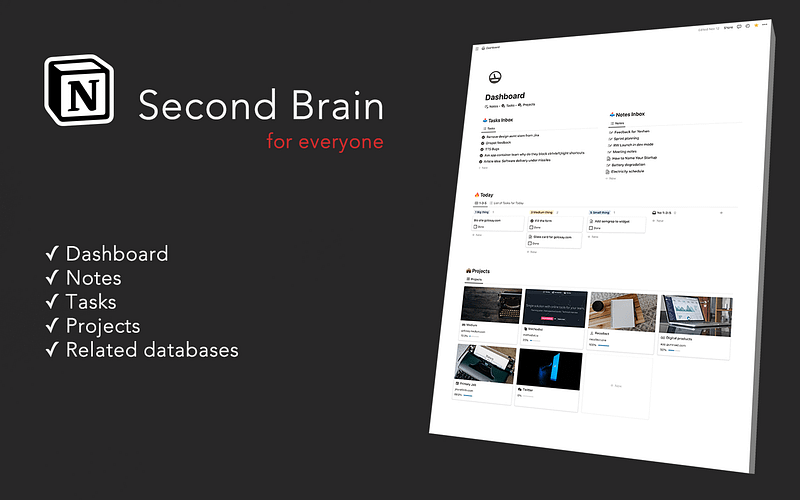
This is the main page where you can capture ideas and tasks, plan your day using the 1–3–5 system, and monitor the status of your projects. It’s the hub of my second brain and where I spend the most time.
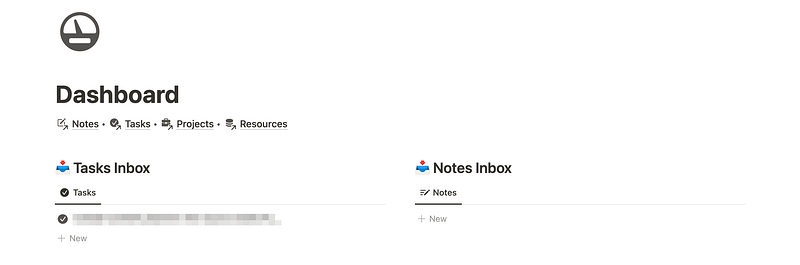
On the dashboard, you can see two “inbox” blocks to help me quickly capture notes and tasks as they come to my mind. I need to press + new and write a task or note name.
Later, I can review all newly created notes and tasks, assign the project, set a due date, and 1–3–5 complexity.
For displaying an inbox list of tasks or notes, I use the following filters:
For notes: Status is empty For tasks: Done is unchecked, Status is not Started, Project is empty, Due is empty
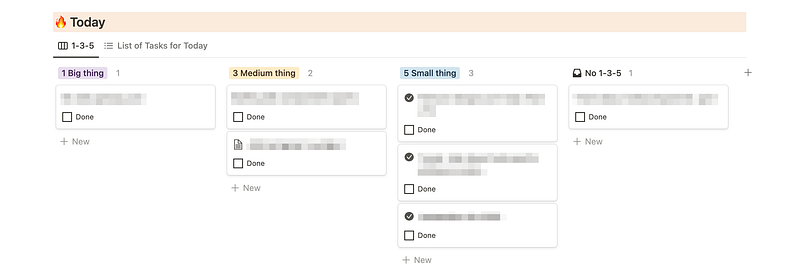
With Today’s view, I can see what I should do today or drag any task from my inbox to this board to plan it for today. This block is also reused on the Tasks page, and I will explain it more a little bit later.
Notes
Next, we have the notes page. This is where you can make quick jottings, review your notes, and assign them to projects using drag and drop. It’s a simple and efficient way to keep track of your ideas and information.
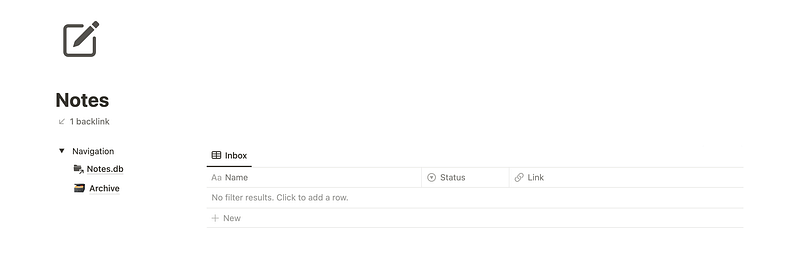
An empty inbox block means everything is reviewed and assigned to projects or personal notes. Notes, by default, have a field Status with an empty value, and I display in the Inbox section only Status is empty notes.
All notes have the field Status. The next block shows the board with all notes, divided by projects and personal notes. All these views are filtered by Status == reviewed. So when I drag and drop notes from inbox to any project, the note gets Reviewed status. I never assign it manually.
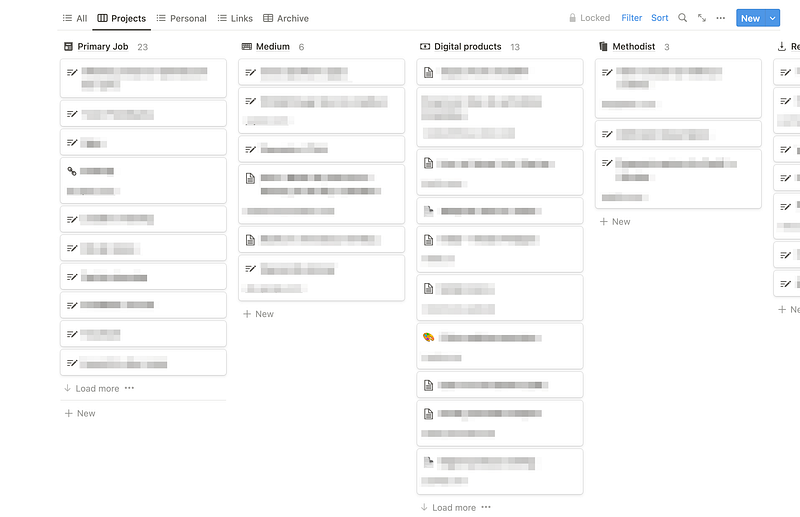
To add a relation between notes and projects databases, open the database page => click on three dots => properties => add new => relation. And link projects database in both directions. It will allow seeing all related notes inside the project.
I like how some messengers can display the list of links from the conversation. I did the same view, where I display notes with a filter:
Link is not empty
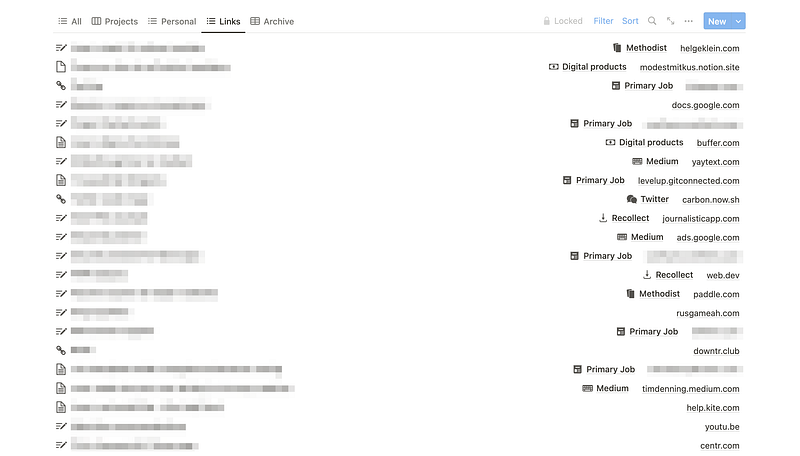
And, of course, tasks that are not actual anymore go to Archive Status == Archived.
Tasks
The tasks page is more advanced than the notes page. It has an inbox section for capturing new tasks, a 1–3–5 board for planning your day, a list of tasks for the next week, and a calendar with recurring tasks. Thanks to Thomas Frank’s video tutorial, you can easily use this page to manage your routine tasks.
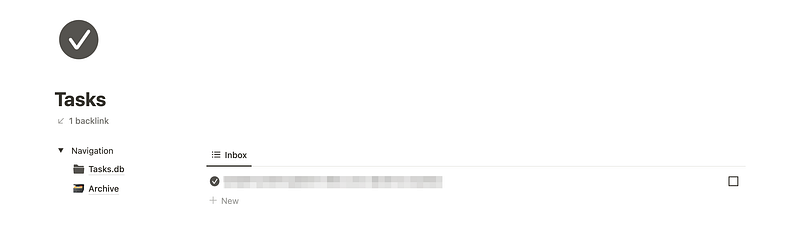
Of course, I can complete the task even from the Inbox view. Completed tasks are filtered everywhere. To see completed tasks possible only on the Tasks database page, where I have no filters.
Each of my tasks has fields:
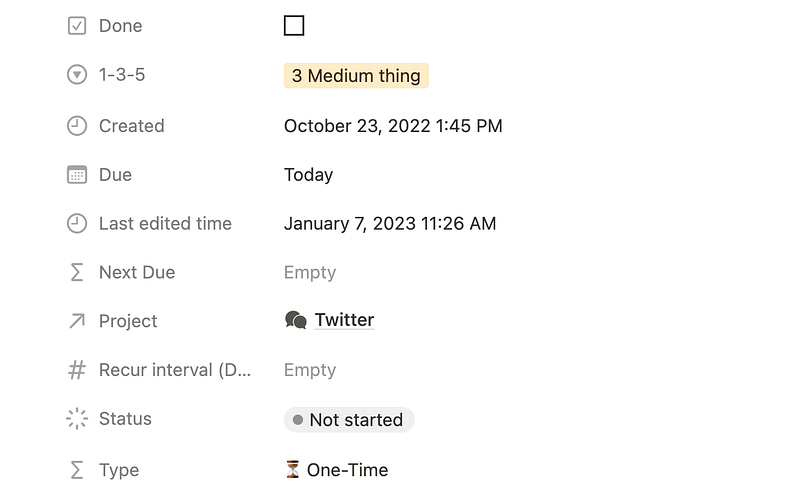
And now you will see why I need all of them. The two most interesting fields are 1–3–5 and Status.
1–3–5 field I use for planning my today’s day. Today’s view displays today’s and outdated tasks. So I see them until they won’t be completed.
The 1–3–5 planning system is a simple and effective method for organizing and prioritizing tasks. It involves dividing your tasks for the day into three categories: 1 big task, 3 medium tasks, and 5 small tasks.
The idea behind this system is to focus on completing a few important tasks each day, rather than trying to juggle too many things at once. By breaking your tasks down into smaller, more manageable chunks, you can stay focused and avoid feeling overwhelmed.
To display Today’s block, I filter tasks by the following filters:
Due is on or before Today Done is unchecked
Status I use for kanban boards that I use inside project’s pages. But about Projects, I will describe a little bit later.
The next block is my upcoming week overview.
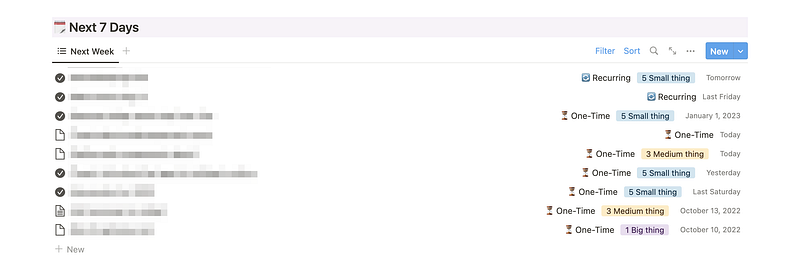
Here I see planned tasks with deadlines and recurring tasks.
Due is on or before One week from now Done is unchecked
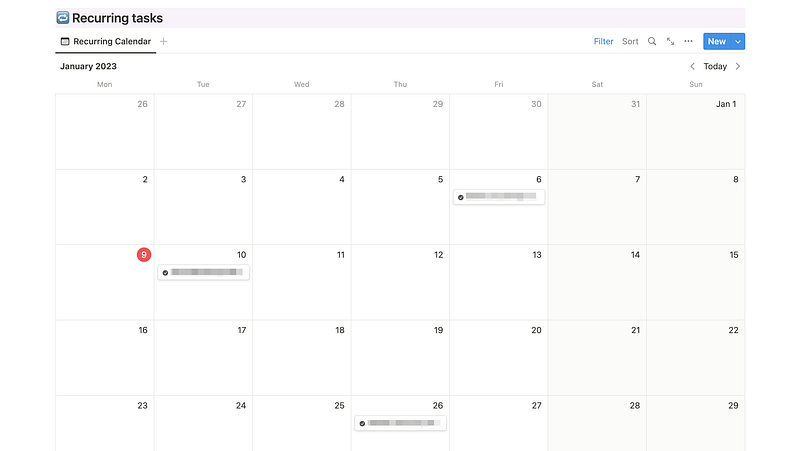
The last part of the Tasks page is a calendar with recurring tasks. It can be configured to show all tasks with Due, but I have something better — The planner page. I will describe this page later.
Filter for calendar block:
Type is 🔄 Recurring
Projects
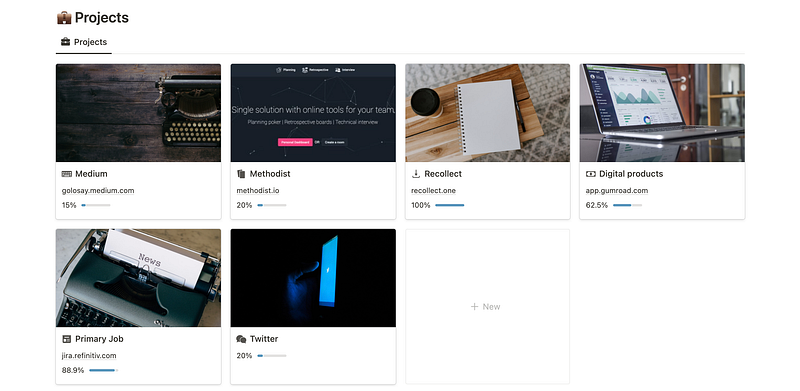
Finally, there’s the projects page. This is a gallery of all my projects, where I can track the progress of your tasks.
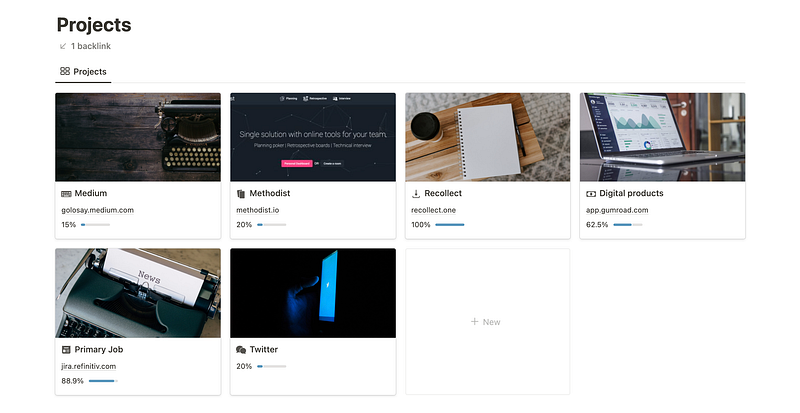
Clicking on a project takes me to that project’s page, where all the related notes and tasks are stored. They are displayed as a kanban board with columns: “Not started,” “In progress,” “Done,” and “Canceled.”
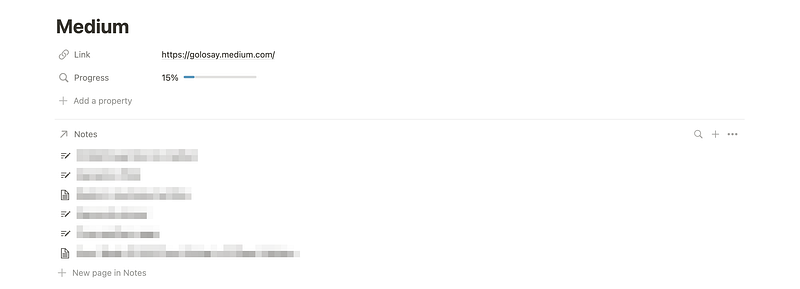
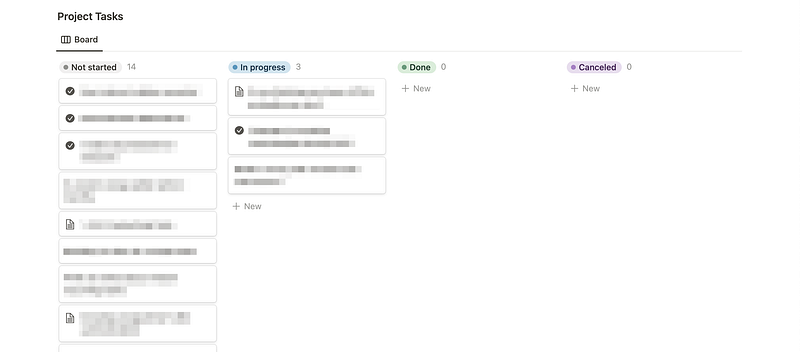
It’s a simple and effective way to see the big picture and stay on top of your work.
The done column is empty because I keep the completed task there for a while, then I mark it as checked, and the task becomes hidden as I have this filter everywhere.
Content Planner: Social Media Tasks and Calendar
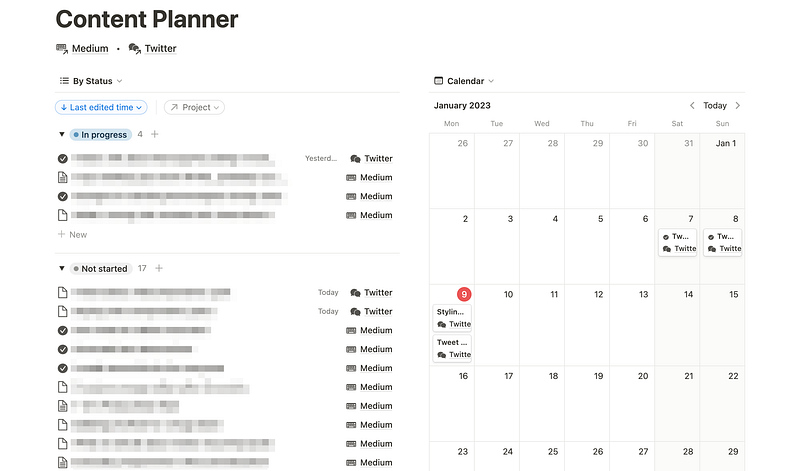
In addition to the dashboard, notes, tasks, and projects pages, one more page is essential to my second brain system: the planner page. This page is where I keep track of tasks related to social media and see my schedule at a glance.
On the planner page, I have a calendar view to see what tasks I have planned for each day and move them around using drag and drop. This is especially useful for tasks that don’t have a specific due date but that I want to complete within a specific timeframe.
For example, I might have a task to post on Twitter three times a week. Using the calendar view, I can see when I have planned these tasks and move them around as needed.
In addition to the calendar view, I have a list of tasks related to social media on the planner page. This is where I keep track of things like tweeting, posting on Instagram, and responding to comments. By keeping these tasks separate from my other tasks, I can focus on them when I have time for social media.
The list of tasks is grouped by Status, groups are ordered manually
If you’re interested in using a system like Notion’s second brain templates to boost your productivity and save time on organization, I have a proposal for you. I have created a set of customizable templates that you can use to get started with Notion’s second brain system quickly.
These templates include everything you need to track tasks, take notes, plan your content calendar, and schedule reminders.
If you want to save time and effort on building your system, you can purchase these templates on my Gumroad or Buy me a coffee page. With these templates, you’ll be up and running with a powerful second-brain system.
Thanks for reading! I hope it will help you build the second brain system or probably gain some ideas for your existing tasks and note-taking system!


