
How to Build a Stock Price Alert Using Python
A simple step by step guide to building a Python stock alert. You will never miss the price you want.

There can be a million reasons why you would invest in stocks. You want to be rich like Warren Buffet, you want to save up for retirement, or you just don’t want to miss out on the rising stock market ride.
Whatever your reason might be, you need to be aware of the price of the stock you’re interested in. Here is a simple guide to set up an email alert to notify when a stock reaches the price you desire.
Setting up Python on your device (skip if you have it set up already)
If you’re reading this article I will assume that you have Python installed and have your favorite code editor set up.
If not, here is a great guide to get you started, come back after you review it to follow along.
- Python setup tutorial click here
- Setting up Python for VS Code
Steps to take:
- Get API key from Alpha Vantage
- Import relevant packages
- Pull the data from Alpha Vantage
- Picking the relevant data
- Setting up an email notification
- Notes
Get API key from Alpha Vantage
Alpha Vantage provides free stock data. They were build to democratize the access to data for the purpose of using in projects such as this.
Normally you would have to go through a paid service or scrape the data off of Yahoo Finance or another service.
To pull your data from Alpha Vantage, you will need to receive an API key. Follow this link to their website which looks like this:

Click on the “Get your free API key today”
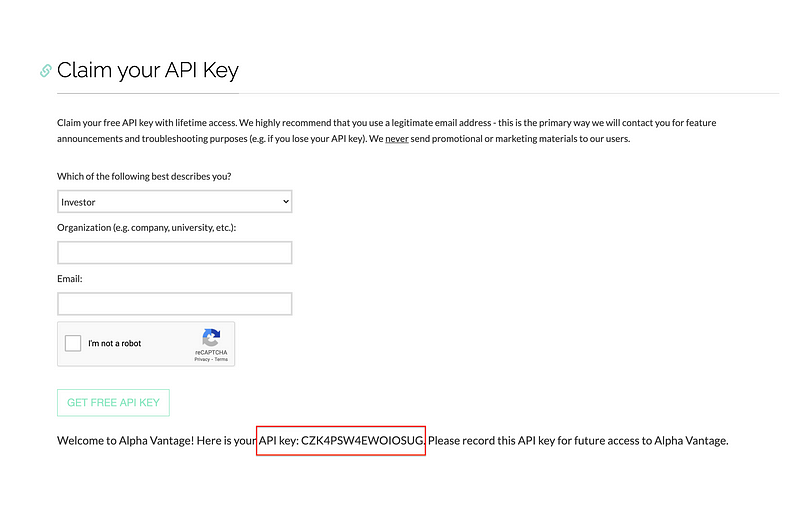
Once you fill the little form above, you will be given an API key which will enable you to pull data from Alpha Vantage. Take a note of the API key and let’s jump into our Code editor.
Import relevant packages
To get started with our project we need to make sure that we have all the relevant packages installed and imported. If you don’t know how to install packages you can learn it from here:
import pandas as pd #data manipulation and analysis packagefrom alpha_vantage.timeseries import TimeSeries #enables data pull from Alpha Vantageimport matplotlib.pyplot as plt #if you want to plot your findingsimport timeimport smtplib #enables you to send emailsPulling the data from Alpha Vantage
Here we will use the API key we just obtained from above, on the example below you will find the one I used while building the project initially:
#Getting the data from alpha_vantagets = TimeSeries(key='CZK4PSW4EWOIOSUG', output_format='pandas')data, meta_data = ts.get_intraday(symbol='MSFT',interval='1min', outputsize='full')On the first line, you are creating a time-series data frame and telling python to have the format as a pandas data frame.
In this case, I have used Microsoft or MSFT but you can use your own stocks. A couple of examples would be:
- AAPL — Apple
- AMZN — Amazon
- FB — Facebook
If you’re unsure about the ticker of your stock, you can go to Yahoo Finance and type in the company you’re interested in. It will display the stock ticker for you.
Another input that you can specify is the interval in which you want the program to pull data. I have specified 1min for the interval. A couple of other options include:
1min,5min,15min,30min,60min
To try and explore more options I recommend you read the Alpha Vantage documentation here.
Picking the right data
Alpha Vantage will by default output the following information for a stock.
For the purposes of this project, we will only use the close column which indicates the closing price of the stock.
Other columns if you’re interested: open, high, low, close, volume
#We are currently interested in the latest priceclose_data = data['4. close'] #The close data column
last_price = close_data[0] #Selecting the last price from the close_data column#Check if you're getting a correct value
print(last_price) *usually [0] would get you the first element however, on this instance, the prices are listed in reverse order.
The output was:$ 220.9 as of Aug 26, 20:00
Setting up the email notification
Now that we are able to pull the latest prices of the stock we desire. We can set up an email alert to notify us when the time is right.
#Set the desired message you want to see once the stock price is at a certain levelsender_email = "[email protected]" #The sender emailrec_email = "[email protected]" #The receiver emailpassword = ("password") #The password to the sender emailmessage = "MSFT STOCK ALERT!!! The stock is at above price you set " + "%.6f" % last_price #The message you want to sendBelow we will set up the condition and the trigger that will cause the email to be sent to us when the time is right.
Let’s assume that you own a bunch of MSFT stock that you bought for $150 a share, and you want to sell them at a profit.
Thetarget_sell_price variable enables you to set the limit you want.
For example, you might believe that the stock price is too high right now and want to get out.
Or you think that you will have sufficient profits at the $220.00 price level. Thus, you can use that limit as your alert price.
It is totally up to you to enter your desired number.
target_sell_price = 220 #enter the price you want to sell atif last_price > target_sell_price:
server = smtplib.SMTP('smtp.gmail.com', 587)
server.starttls()
server.login(sender_email, password) #logs into your email account
print("Login Success") #confirms that you have logged in succesfully
server.sendmail(sender_email, rec_email, message) #send the email with your custom mesage
print("Email was sent") #confirms that the email was sent You’re DONE!
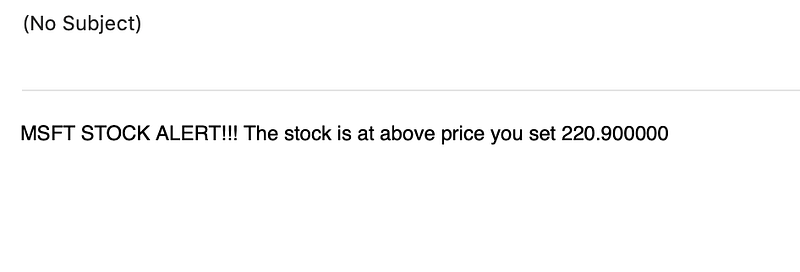
If everything went as planned you should expect to find an email like this:
Here is the full code for your reference:
import pandas as pd #data manipulation and analysis package
from alpha_vantage.timeseries import TimeSeries #enables data pull from Alpha Vantage
import matplotlib.pyplot as plt #if you want to plot your findings
import time
import smtplib #enables you to send emails
#Getting the data from alpha_vantagets = TimeSeries(key='CZK4PSW4EWOIOSUG', output_format='pandas')data, meta_data = ts.get_intraday(symbol='MSFT',interval='1min', outputsize='full')#We are currently interested in the latest priceclose_data = data['4. close'] #The close data column
last_price = close_data[0] #Selecting the last price from the close_data column#Check if you're getting a correct value
print(last_price)#Set the desired message you want to see once the stock price is at a certain levelsender_email = "[email protected]" #The sender emailrec_email = "[email protected]" #The receiver emailpassword = ("password")#The password to the sender emailmessage = "MSFT STOCK ALERT!!! The stock is at above price you set " + "%.6f" % last_price #The message you want to sendtarget_sell_price = 220 #enter the price you want to sell atif last_price > target_sell_price:
server = smtplib.SMTP('smtp.gmail.com', 587)
server.starttls() server.login(sender_email, password) #logs into your email account
print("Login Success")#confirms that you have logged in succesfully server.sendmail(sender_email, rec_email, message)#send the email with your custom mesage
print("Email was sent") #confirms that the email was sentNotes
- If you copy and paste the full code above DO NOT forget to enter your own email and password information.
- Make sure to use your own API key obtained by Alpha Vantage
- By no means is this a trading or stock investment advice
- If you get an error saying your password is rejected, you might want to configure the “Less secure apps” settings on your (assuming you use a Gmail account) Gmail account here. This will enable your program to access your Google account and send an email on your behalf, otherwise, Google will reject the request from your program.
A couple of improvement ideas
- You can add more stocks to your tracker and set buy/sell targets
- You can make the email look better and create an email service (or have fun with your friends. To format your Python emails check this out.
- You can create more sophisticated indicators such as:
change_in_priceto seek volatility.
I hope that this simple walkthrough helps you dip your toes in the water. Even if you’re not a coder I hope you were able to follow through. Happy coding!!
You might also find this interesting: