
How to Build a Local Open-Source LLM Chatbot With RAG
Talking to PDF documents with Google’s Gemma-2b-it, LangChain, and Streamlit
Introduction
Large Language Models (LLMs) are remarkable at compressing knowledge about the world into their billions of parameters.
However, LLMs have two major limitations: They only have up-to-date knowledge up to the time of the last training iteration. And they sometimes tend to make up knowledge (hallucinate) when asked specific questions.
Using the RAG technique, we can give pre-trained LLMs access to very specific information as additional context when answering our questions.
In this article, I will walk through the theory and practice of implementing Google’s LLM Gemma with additional RAG capabilities using the Hugging Face transformers library, LangChain, and the Faiss vector database.
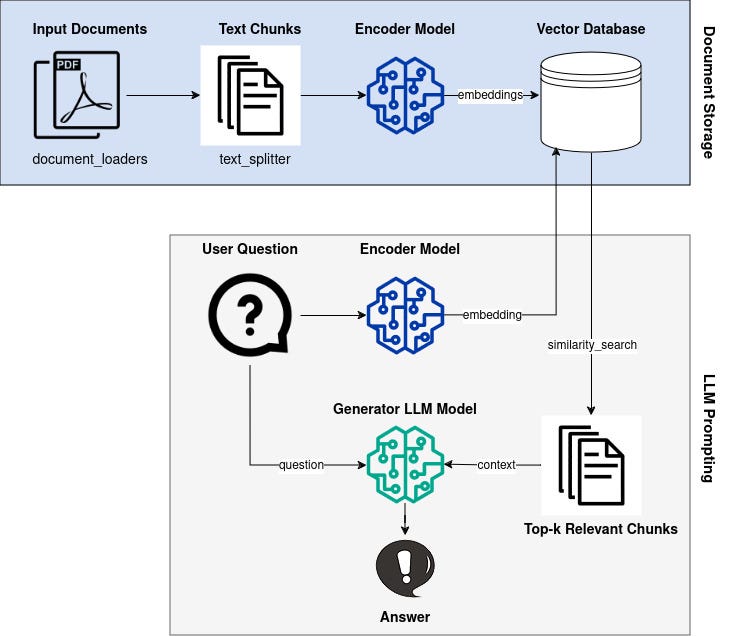
An overview of the RAG pipeline is shown in the figure below, which we will implement step by step.
Retrieval-Augmented Generation (RAG)
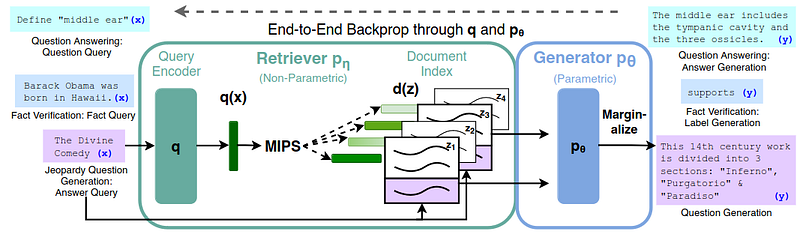
The term “Retrieval Augmented Generation” (RAG) comes from the paper Retrieval-Augmented Generation for Knowledge-Intensive NLP Tasks from the year 2020 by researchers at Facebook AI Research, University College London, and New York University [1].
The basic idea is as follows:
We start with a knowledge base, such as a bunch of text documents z_i from Wikipedia, which we transform into dense vector representations d(z) (also called embeddings) using an encoder model.
Next, if we have a user question x , we also transform this text into an embedding vector q(x) using the same encoder model.
Then, we want to find similar vectors to q(x) from all available d(z) using a similarity metric.
Encoding our question and finding similar documents in the knowledge base is called the retriever component.
Given our question and the additional context from the retrieved documents, we can feed this into an LLM called the generator component and get our answer.
The generator is usually an encoder-decoder or decoder-only LLM.
Let’s implement this RAG pipeline.
Generator Component: LLM Model
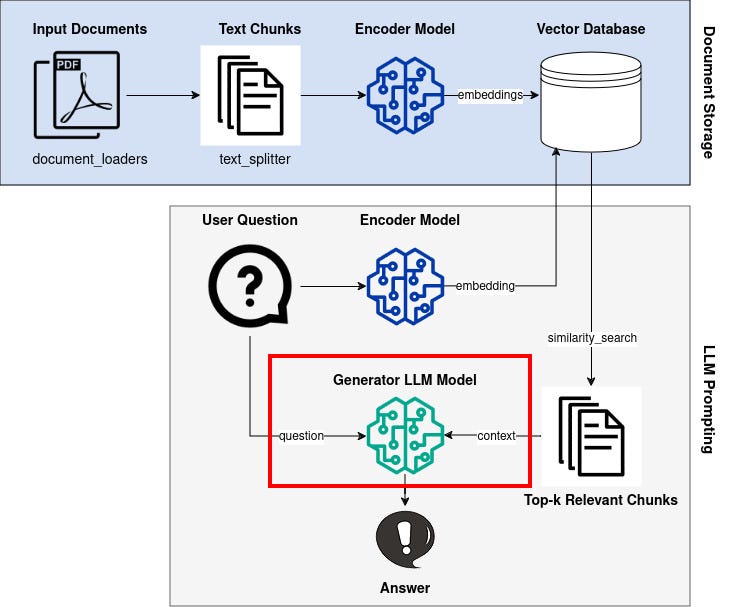
The generator is an LLM that takes text (a question) as input and produces new text as output. The original RAG paper used BART-large as its generator LLM model.
However, nowadays there are many open-source LLMs to choose from. For a RAG chatbot, I want an instruction model that has been fine-tuned on conversational data and that is small enough for my local machine.
For this tutorial, I chose Google’s recently released model Gemma-2b-it. However, feel free to try another model.
To use Gemma we need to agree to Google’s terms of use. By verifying through Hugging Face we can pass our Hugging Face access token to the transformers API.
Create a .env file with the line
ACCESS_TOKEN=<your hugging face access token>
so that we can read the token using the dotenv package.
!pip install python-dotenv
from dotenv import load_dotenv
load_dotenv()

ACCESS_TOKEN = os.getenv("ACCESS_TOKEN")
Now we can initialize our Gemma LLM model.
!pip install torch transformers bitsandbytes accelerate
import os
import torch
from transformers import AutoTokenizer, AutoModelForCausalLM, BitsAndBytesConfig
from dotenv import load_dotenv
load_dotenv()

ACCESS_TOKEN = os.getenv("ACCESS_TOKEN") # reads .env file with ACCESS_TOKEN=<your hugging face access token>

model_id = "google/gemma-2b-it"
tokenizer = AutoTokenizer.from_pretrained(model_id, token=ACCESS_TOKEN)
quantization_config = BitsAndBytesConfig(load_in_4bit=True,
                                         bnb_4bit_compute_dtype=torch.bfloat16)

model = AutoModelForCausalLM.from_pretrained(model_id,
                                             device_map="auto",
                                             quantization_config=quantization_config,
                                             token=ACCESS_TOKEN)
model.eval()
device = 'cuda' if torch.cuda.is_available() else 'cpu'
To reduce memory I’m using 4-bit quantization, which requires an Nvidia GPU.
You can check if your GPU can be used via
print(torch.cuda.is_available())
>> True
Now we can write our LLM model inference function.
def generate(question: str, context: str):
    if context == None or context == "":
        prompt = f"""Give a detailed answer to the following question. Question: {question}"""
    else:
        prompt = f"""Using the information contained in the context, give a detailed answer to the question.
            Context: {context}.
            Question: {question}"""
    chat = [{"role": "user", "content": prompt}]
    formatted_prompt = tokenizer.apply_chat_template(
        chat,
        tokenize=False,
        add_generation_prompt=True,
    )
    inputs = tokenizer.encode(
        formatted_prompt, add_special_tokens=False, return_tensors="pt"
    ).to(device)
    with torch.no_grad():
        outputs = model.generate(
            input_ids=inputs,
            max_new_tokens=250,
            do_sample=False,
        )
    response = tokenizer.decode(outputs[0], skip_special_tokens=False)
    response = response[len(formatted_prompt) :]  # remove input prompt from reponse
    response = response.replace("<eos>", "")  # remove eos token
    return response
The generate() function can be used to simply answer a question or to answer a question with additional context (which we will retrieve from documents).
Here is a visual summary of the model inference process:
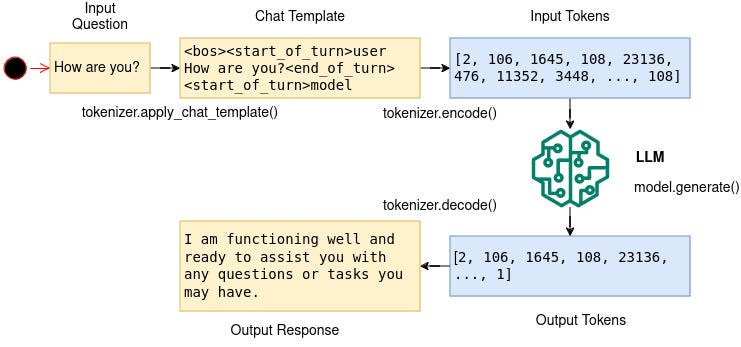
We first build our prompt as a string. This prompt is then formatted according to the training process of the Gemma model. For example, the input question “How are you?” will be formatted into the following chat template:
<bos><start_of_turn>user
How are you?<end_of_turn>
<start_of_turn>model
This is then tokenized with tokenizer.encode(), fed into the LLM with model.generate(), and the LLM’s output tokens are then decoded to make them human-readable with tokenizer.decode().
Let’s test our model with a question without additional context:
print(generate(question="How are you?", context=""))
>> As an AI, I do not have personal experiences or feelings, so I cannot answer this question in the same way a human would. I am a computational system designed to assist with information and tasks.
>>
>> I am functioning well and ready to assist you with any questions or tasks you may have. If you have any specific questions or need assistance with a particular topic, please let me know.
Retriever Component: Encoder Model + Similarity Search
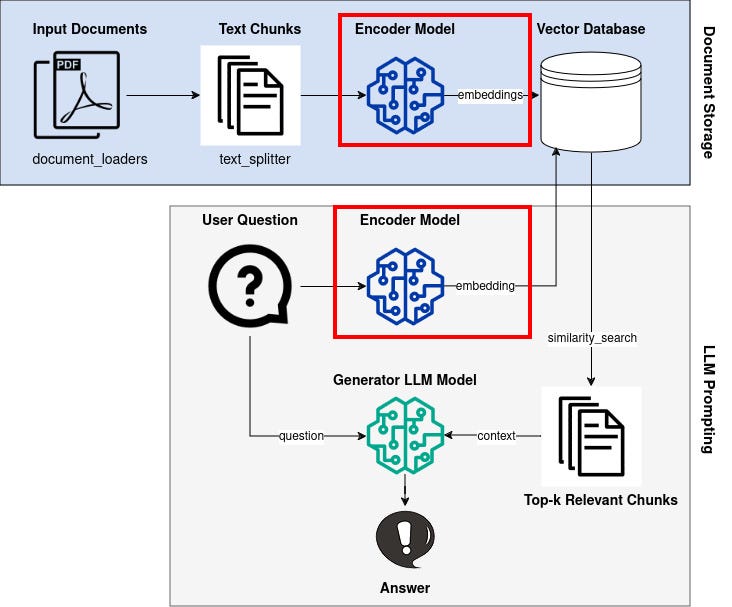
The task of the encoder model is to compress text consisting of multiple sentences into a dense vector representation that encodes all the information into a high-dimensional feature space.
The original RAG paper used a BERT encoder for its retrieval component. However, you can use whatever encoder model you like.
A list of pre-trained encoder models can be found at sbert.net.
For this tutorial, I chose the “all-MiniLM-L12-v2” encoder model, which is only 120 MB in size and encodes text into a 384-dimensional vector.
Alternatively, the MTEB Leaderboard gives a more thorough overview of the latest encoder models. MTEB stands for “Massive Text Embedding Benchmark” which consists of 58 datasets and 112 languages for embedding tasks [2].
To improve performance, I suggest using a model that ranks higher on the MTEB leaderboard.
Let’s implement the encoder model:
from langchain_community.embeddings import (
    HuggingFaceEmbeddings
)

encoder = HuggingFaceEmbeddings(
    model_name = 'sentence-transformers/all-MiniLM-L12-v2',
    model_kwargs = {'device': "cpu"}
)
We can test our encoder using the function embed_query():
embeddings = encoder.embed_query("How are you?")print(embeddings)
>> [-0.03747698292136192, -0.02319679595530033, ..., -0.07512704282999039]
print(len(embeddings))
>> 384To get a better intuition, we can experiment with a small retriever example using the cosine similarity metric.

import numpy as np

q = encoder.embed_query("What is an apple?")
z1 = encoder.embed_query(
    "An apple is a round, edible fruit produced by an apple tree (Malus spp., among them the domestic or orchard apple; Malus domestica)."
)  # from wikipedia
z2 = encoder.embed_query(
    "The cat (Felis catus), commonly referred to as the domestic cat or house cat, is the only domesticated species in the family Felidae."
)  # from wikipedia

print(np.dot(q, z1) / (np.linalg.norm(q) * np.linalg.norm(z1)))
>> 0.7321886823078861

print(np.dot(q, z2) / (np.linalg.norm(q) * np.linalg.norm(z2)))
>> 0.15372599165329065
The cosine similarity ranges from -1 to +1, where -1 means that the vectors are facing in opposite directions, 0 means that the vectors are perpendicular and +1 means that our vectors are facing in the same direction.
In this example, our encoded question q has a higher score with our encoded document z1 than with z2, so we would retrieve the first document.
Document Loader and Text Splitter
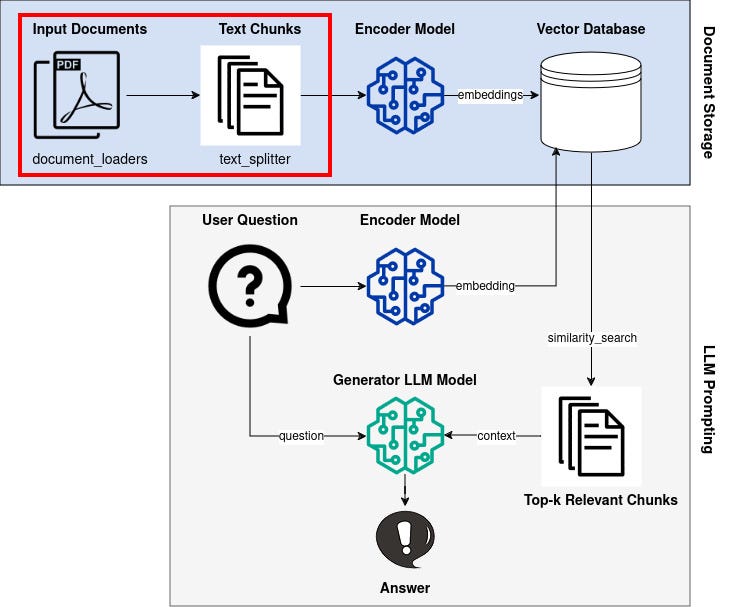
Now let’s build our knowledge base from multiple PDF documents.
Since a single PDF file can have hundreds of pages, we need to break it down into smaller chunks that we can feed into a language model.
The idea is to store smaller chunks of our documents as vectors in a vector database, and then search for useful chunks using a similarity metric when we ask a new question.
!pip install pypdf tiktoken langchain sentence-transformers
from langchain_community.document_loaders import PyPDFLoader
from langchain.text_splitter import RecursiveCharacterTextSplitter

# load PDFs
loaders = [
    PyPDFLoader("/path/to/pdf/file1.pdf"),
    PyPDFLoader("/path/to/pdf/file2.pdf"),
]
pages = []
for loader in loaders:
    pages.extend(loader.load())

# split text to chunks
text_splitter = RecursiveCharacterTextSplitter.from_huggingface_tokenizer(
    tokenizer=AutoTokenizer.from_pretrained(
        "sentence-transformers/all-MiniLM-L12-v2"
     ),
     chunk_size=256,
     chunk_overlap=32,
     strip_whitespace=True,
)

docs = text_splitter.split_documents(pages)
LangChain recommends the RecursiveCharacterTextSplitter for generic text splitting because it tries to keep text paragraphs, sentences, and words together in one chunk.
By using the function from_huggingface_tokenizer() we define that the length of our chunk size is measured by the number of tokens from our encoder model.
If you choose to use a different encoder model, always check the maximum input token length for that model and set the splitter’s chunk size accordingly.
Let’s get some intuition about the chunk size and the chunk overlap:
text = "Lorem ipsum dolor sit amet, consectetur adipiscing elit."

chunk_size=1
chunk_overlap=0
print(text_splitter.split_text(text))
>> ['L', 'o', 'r', 'e', 'm', ' ', 'i', 'p', 's', 'u', 'm', ' ', 'd', 'o', 'l', 'o', 'r', ' ', 's', 'i', 't', ' ', 'a', 'm', 'e', 't', ',', ' ', 'c', 'o', 'n', 's', 'e', 'c', 't', 'e', 't', 'u', 'r', ' ', 'a', 'd', 'i', 'p', 'i', 's', 'c', 'i', 'n', 'g', ' ', 'e', 'l', 'i', 't', '.']

chunk_size=10
chunk_overlap=0
print(text_splitter.split_text(text))
>> ['Lorem ipsum', 'dolor sit', 'amet,', 'consectetur', 'adipiscing', 'elit.']

chunk_size=50
chunk_overlap=0
print(text_splitter.split_text(text))
>> ['Lorem ipsum dolor sit amet, consectetur adipiscing', 'elit.']

chunk_size=20
chunk_overlap=10
print(text_splitter.split_text(text))
>> ['Lorem ipsum dolor', 'ipsum dolor sit', 'dolor sit amet,', 'sit amet, consectetur', 'consectetur adipiscing', 'adipiscing elit.']
While I am only using PDF files for the sake of this tutorial, LangChain also has document loaders for CSV files, HTML files, JSON files, Markdown Readmes, and Microsoft Office files.
Vector Database
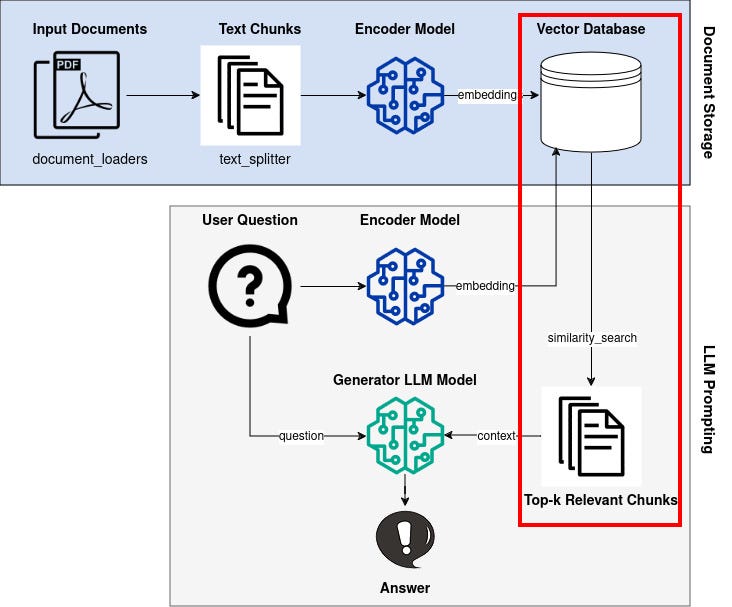
Next, we create our vector database to store the encoded chunks of text from our documents. There are many choices for databases. For this tutorial, I’m going to use Faiss.
Faiss is a vector database library from Meta’s fundamental AI research team for efficient similarity search and clustering of dense vectors. Using LangChain’s community integration, we can use our docs variable from the text splitter to create a Faiss database in RAM.
!pip install faiss-cpu

from langchain.vectorstores import FAISS
from langchain_community.vectorstores.utils import DistanceStrategy

faiss_db = FAISS.from_documents(
    docs, encoder, distance_strategy=DistanceStrategy.COSINE
)
To compute the similarity between vectors, we can choose from different DistanceStrategy options. Common choices to compute similarity are EUCLIDIAN_DISTANCE, COSINE, and DOT_PRODUCT.
To get the top-k most similar vectors, we can input a question to our Faiss database.
The vector database uses our encoder model to encode the question to a 384-dimensional vector and then chooses the top-k vectors that are most similar in the database according to the selected distance strategy.
retrieved_docs = faiss_db.similarity_search("My question", k=5)User Interface with Streamlit
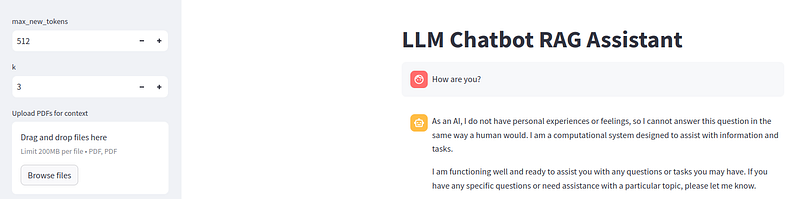
Lastly, I have combined all the above code using classes and functions. For my generator LLM I created a class ChatModel, the encoder is a class Encoder and the Faiss database is a class FaissDb.
Streamlit can be used to quickly create a user interface for our chatbot. First, we need to load our language models using the decorator @st.cache_resource.
!pip install streamlit
import os
import streamlit as st
from model import ChatModel
import rag_util


FILES_DIR = os.path.normpath(
    os.path.join(os.path.dirname(os.path.abspath(__file__)), "..", "files")
) # folder to store uploaded files


st.title("LLM Chatbot RAG Assistant")


@st.cache_resource
def load_model():
    model = ChatModel(model_id="google/gemma-2b-it", device="cuda")
    return model


@st.cache_resource
def load_encoder():
    encoder = rag_util.Encoder(
        model_name="sentence-transformers/all-MiniLM-L12-v2", device="cpu"
    )
    return encoder


model = load_model()  # load our LLM generator model once and then cache it
encoder = load_encoder() # load our encoder model once and then cache it


def save_file(uploaded_file):
    """helper function to save documents to disk"""
    file_path = os.path.join(FILES_DIR, uploaded_file.name)
    with open(file_path, "wb") as f:
        f.write(uploaded_file.getbuffer())
    return file_path
Then, we can create the Streamlit chatbot interface. In the sidebar, the user can upload PDF files for our RAG functionality.
The user’s chat input is stored in our variable user_input. Using this question, we perform a similarity search with DB.similarity_search for the top-k chunks in our Faiss vector database and store it in the variable context.
We feed user_input and context to the generator LLM and get our response answer, which we display to the user.
with st.sidebar:
    # inputs and parameters in the sidebar
    max_new_tokens = st.number_input("max_new_tokens", 128, 4096, 512)
    k = st.number_input("k", 1, 10, 3)
    uploaded_files = st.file_uploader(
        "Upload PDFs for context", type=["PDF", "pdf"], accept_multiple_files=True
    )
    file_paths = []
    for uploaded_file in uploaded_files:
        file_paths.append(save_file(uploaded_file))
    if uploaded_files != []:
        # create vector database from retrieved documents
        docs = rag_util.load_and_split_pdfs(file_paths)
        DB = rag_util.FaissDb(docs=docs, embedding_function=encoder.embedding_function)

# Initialize chat history
if "messages" not in st.session_state:
    st.session_state.messages = []

# Display chat messages from history on app rerun
for message in st.session_state.messages:
    with st.chat_message(message["role"]):
        st.markdown(message["content"])

# Accept user input
if prompt := st.chat_input("Ask me anything!"):
    # Add user message to chat history
    st.session_state.messages.append({"role": "user", "content": prompt})
    # Display user message in chat message container
    with st.chat_message("user"):
        st.markdown(prompt)

    # Display assistant response in chat message container
    with st.chat_message("assistant"):
        user_prompt = st.session_state.messages[-1]["content"]
        context = (
            None if uploaded_files == [] else DB.similarity_search(user_prompt, k=k)
        )
        answer = model.generate(
            user_prompt, context=context, max_new_tokens=max_new_tokens
        )
        response = st.write(answer)
    st.session_state.messages.append({"role": "assistant", "content": answer})
The full code is available on my GitHub. You can clone the repository and run the app using streamlit run <script> with the following commands (don’t forget to create the .env file with the hugging face access token!):
git clone https://github.com/leoneversberg/llm-chatbot-rag.git
streamlit run llm-chatbot-rag/src/app.py
A Real-World Application: Chat with a PDF User Manual
I think that LLMs with RAG capabilities will have a real impact on customer support. One interesting use case is retrieving knowledge from PDF manuals, which can be hundreds of pages long.
I downloaded the 204-page user manual for the Samsung “WF45T6000A” washing machine to see if my RAG LLM chatbot could help me troubleshoot some imaginary problems.
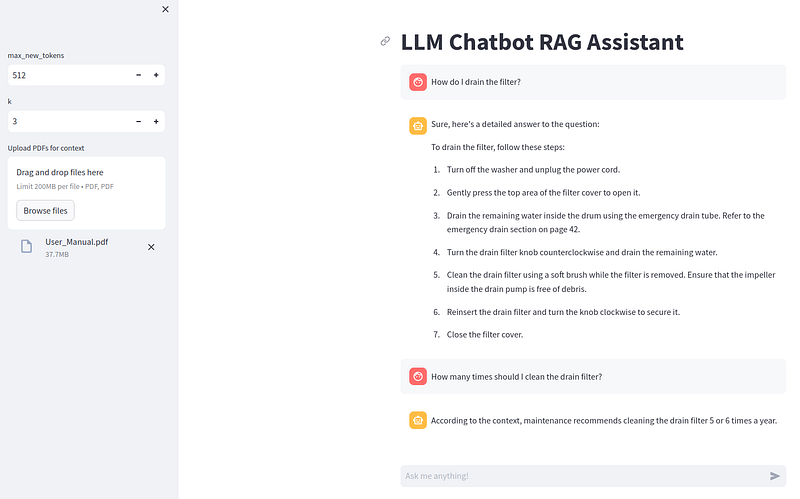
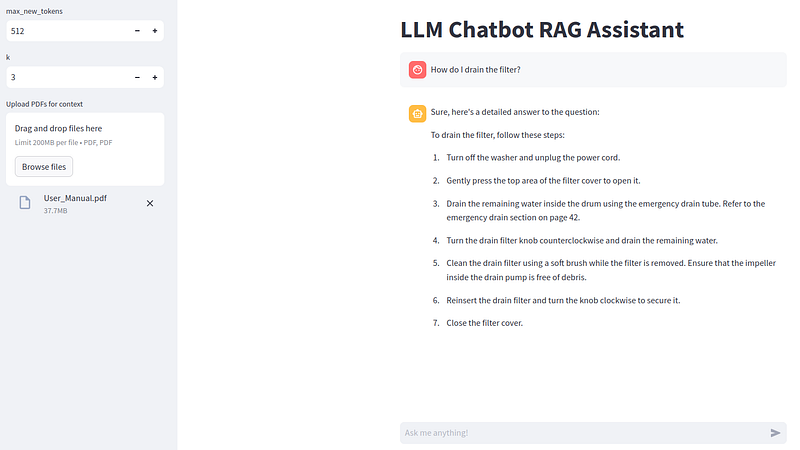
When asked how to drain the washing machine filter, the LLM outputs exactly what is in the user manual:
Here is another question a customer might have about their washing machine:
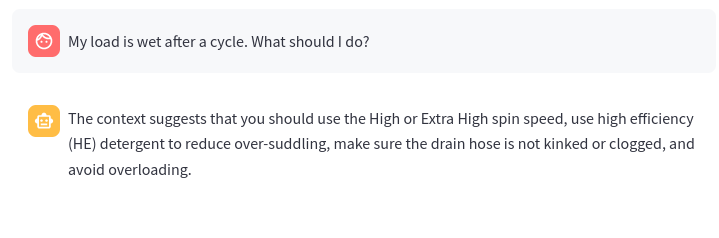
Here the LLM summarizes the user manual, except that it suggests avoiding overloading, whereas the user manual says to avoid loads that are too small.
Sometimes the LLM answers follow the given context very closely, and sometimes general knowledge is included in the answers. This could probably be fixed by using a different prompt template in the model.generate() function.
Conclusion
RAG is an exciting technique that gives LLMs access to external knowledge. LLMs are very good at compressing huge amounts of general knowledge. With RAG, they can be augmented with domain-specific knowledge.
The general idea of RAG is quite simple: we need a retriever component to search for relevant data, and a generator component to output the answer to our question.
After implementing the RAG pipeline step by step, I used a PDF user manual for a washing machine as a real-world example use case.
It is easy to imagine a near future where our home appliances will be connected to LLMs with access to their own user manual. Then, we could simply ask them for help with our problems.
References
[1] P. Lewis et al. (2021), Retrieval-Augmented Generation for Knowledge-Intensive NLP Tasks, arXiv:2005.11401
[2] N. Muennighoff, N. Tazi, L. Magne, N. Reimers (2023), MTEB: Massive Text Embedding Benchmark, arXiv:2210.07316
Programming Resources
- Full working code: https://github.com/leoneversberg/llm-chatbot-rag
- Google’s Gemma model: https://huggingface.co/google/gemma-2b-it
- LangChain documentation for retrieval: https://python.langchain.com/docs/modules/data_connection/
- Streamlit chatbot documentation: https://docs.streamlit.io/knowledge-base/tutorials/build-conversational-apps


