
Data Visualization
How to Build a Gallery of Streamlit Apps as a Single Web App
Download a free template, pop in multiple Streamlit apps and you’re done
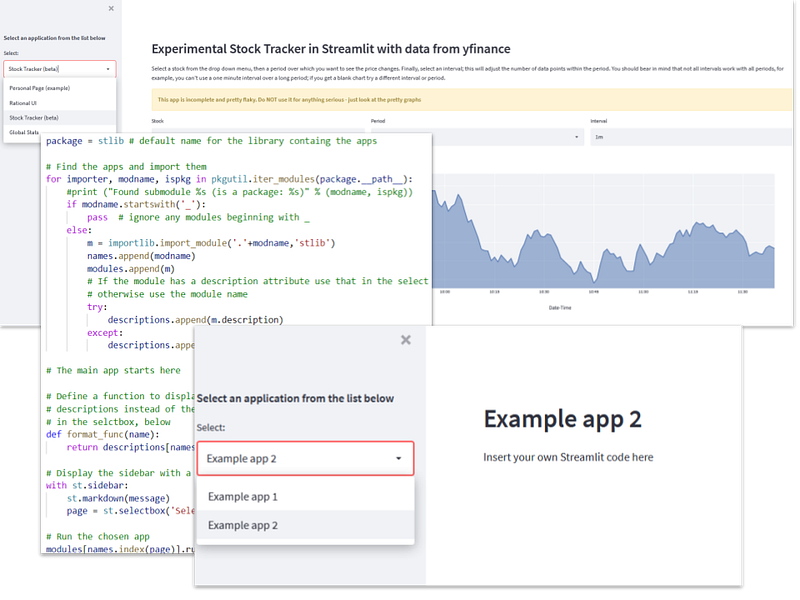
I’ve been playing around with Streamlit for a little while now and have written a handful of experimental apps. While I’m happy enough with them (as far as they go — they are only simple examples), none of them are worthy of a dedicated web page.
So what is the best way of presenting a gallery of apps that can be accessed from a single web page?
You could put all the code in a single app and chose between them with an if statement (as I did in this article) but that’s not very scalable — once you get to more than a couple of apps it gets messy.
So how about creating a library of apps with a dispatcher that calls each one depending of the selection in a drop-down menu. That way the apps are written as stand-alone functions. You just create a library folder to contain the apps and the dispatcher calls the appropriate one.
That sounds better, I think.
Mustrapp a simple framework
So, to that end, I have created an application template called, Mustrapp (Multiple Streamlit Apps), (that you can download for free) which makes the process of creating a multiple Streamlit app very easy.
For the apps to work you need to structure them so that they are in a callable function named run(). And, ideally (but not necessarily), contain a description string that will be used as the text in the drop down menu (if you don’t provide one the module name will be used).
So, an app will look like this:
description = "My first app"
def run():
   st.header("This is my first app")
   st.write("I hope you like it")
if __name__ == "__main__":
run()You can have as many functions as you like in an app but it must start in a function called run and that’s about the only requirement. The last if statement is optional but useful as it allows you to run the individual app as a stand-alone app, or as part of the multi-app. It basically checks to see is the function has been called as a main module (in which case its __name__ will be __main__). If it is called as a library module (which is what we intend to do) then __name__ will be the module name.
Being able to run the app as a stand-alone function can be useful for debugging purposes as you don’t need the rest of the application to be operational.
Let’s say you write the app above and save it in a file app1.py.
You could then write another app, app2.py, that looks like this:
description = "My second app"
def run():
   st.header("This is my second app")
   st.write("Here is an image:")
   st.image("image.png")
if __name__ == "__main__":
run()We then put these files in a folder called, for example, stlib — this will be our library folder where all our apps will live. In order for Python to recognise this folder as a library it needs to contain a file called __init__.py. If you’ve downloaded the template it is already there.
The dispatcher lives in the home folder. This is the program that will be run when we start up the Streamlit app. I’m going to call it index.py.
So our complete app is structured like this:
/home
 |
 |-- index.py
 |
 |-- /stlib
       |
       |-- __init__.py
       |
       |-- app1.py
       |
       |-- app2.py
To run the app you execute this:
streamlit run index.pyAnd this will pop up in your browser:
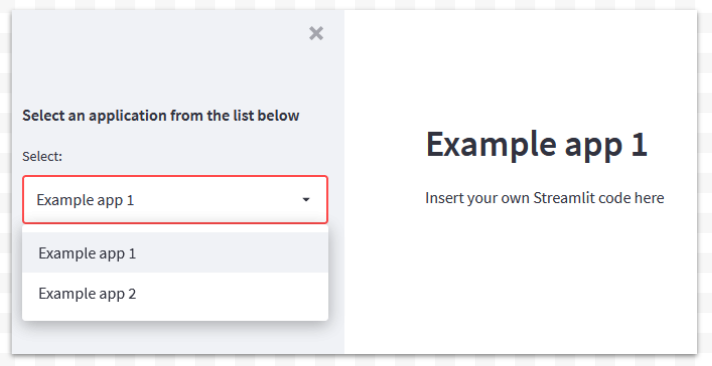
You can see the full code of the dispatcher in a Gist at the very end of this article (it’s too long to include here). And I will also include, at the end, a link to a Github repository where you can clone, or download a zip file of, the complete template including the dispatcher, the directory structure and a couple of dummy apps.
But basically it works like this.
First we import the Streamlit library (of course) along with the other libraries that we need. (It also sets the layout to wide. This is optional but to my mind it looks better if you are going to use a sidebar, as we are doing here — this can be removed if you prefer.)
We then set about identifying the apps in the library (stlib) and record the names, module references and descriptions of the apps in global arrays called names, modules and descriptions. Any module in the stlib library is deemed to be a Streamlit app unless its name begins with the _ character. In this way you can add non-app library modules (e.g. _mylibrary.py), if you need to and they won’t be picked up as Streamlit apps.
Having done this, we create a drop-down menu populated with the module names (the descriptions are displayed, if available) and once selected, the appropriate module is selected from the modules array and its function run() is executed. In other words the app that corresponds to the select is run.
Even if I say it myself, this works quite well. Using the dispatcher app with an arbitrary number of callable apps is easy and it is very straightforward to maintain. Now we can deploy any number of mini-apps in one go, on one web page.
None of this is rocket science but I hope it has been useful. You can see a sample website that uses this template here and you can download, or clone, the complete template from its Github repository.
As ever thanks for reading and if you would like to know when I publish new articles, please consider signing up for an email alert here. I also publish an occasional free newsletter on Substack. Please leave any comments below or you can get in touch via LinkedIn or Twitter.
Here, for interest, is the dispatcher code:


