
How to Build AI Chatbot In 30 Minutes With OpenAI & Next.js 14
Create an AI Chatbot with Any Knowledge and Embed It on Any Website for Free.

Building an AI chatbot in under 30 minutes that remembers conversations and learns from your data? And one that can be embedded on any site? That’s our project today.
This tutorial guides you step-by-step in building an intelligent free ai chatbot.
We’re utilizing OpenAI’s latest Assistant API.
By the end of this tutorial, you’ll know how to create a chatbot from scratch, extend its knowledge base and embedd it to any site. Additionally, you’ll learn to add, modify, or remove knowledge. And you’ll be able to customize how it interacts with customers.
If you’re interested in building your own chatbot, or just curious about the latest Assistant API, you’re going to enjoy this. It’s a great way to see what modern chatbot technology can do.
You can view the live working demo here.

This used to be a lot more difficult
Over 91 hours.
That’s the amount of time I spent building a chatbot this summer.
The sad part? Despite the effort, it wasn’t nearly as effective as the chatbot we are about to build in less than 30 minutes today.
Before the latest OpenAI Developer Days, creating a chatbot involved navigating through a maze of complexities.
Tasks like managing chat history, ensuring context windows remained manageable, conducting vector searches for knowledge retrieval, understanding embedding, learning about language chains and vector databases, and implementing PDF loaders were just the tip of the iceberg.
It’s a lot easier now
Thanks to the advancements in the new Assistant API, enhanced threading capabilities, and a suite of sophisticated tools, building a chatbot has become almost effortlessly simple.
A foundational knowledge of JavaScript and NextJs will be beneficial for a smooth follow-along experience. So, let’s dive in and start this exciting journey of chatbot creation!
Let’s dive in!
Requirements
This implementation is remarkably lightweight and cost-effective. The primary expense you'll encounter are the API calls to OpenAI. However, to get started, you'll need to set up accounts with a few services.
Essential Accounts and Tools:
- An OpenAI Developer Account.
- A Vercel Account for serverless infrastructure to host your NextJS application.
- A GitHub Account to manage your code.
- NextJS version 14 or higher.
Set-up NextJs
We will be using Next.js a JavaScript framework based on React. It will handle the application’s front-end and back-end logic.
If you would like to read more about NextJs click here.
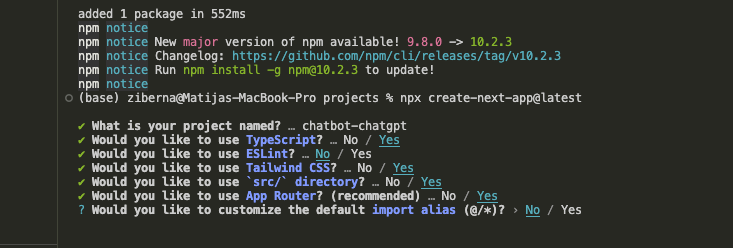
Begin by creating a new project using Next.js’s CLI. This step will generate a dedicated folder named after the app you choose.
npx create-next-app@latest
We’re going to utilize Tailwind CSS for our styling needs. Alongside Tailwind CSS, we will be incorporating the latest App Router.
While ESLint is a widely used tool for maintaining code quality, I recommend avoiding its installation for this particular project.
Settings the environmental variables
In your project’s parent directory, open the .env file. If it doesn't already exist, create a new one. Once opened or created, paste the following variable into the file:
OPENAI_API_KEY=YOUR_OPEN_API_KEY
NEXT_PUBLIC_CHATBOT_NAME=ChattyMan // Name of your chat displayed in UI
NEXT_PUBLIC_SERVER_ADDRESS=http://localhost:3000
You can get the API keys here (you need a developer account).
Frontend
Now that we’ve set up the essential files, it’s time to delve into the actual coding. Let’s begin by focusing on setting up the front end of our application.
Configuring initial page
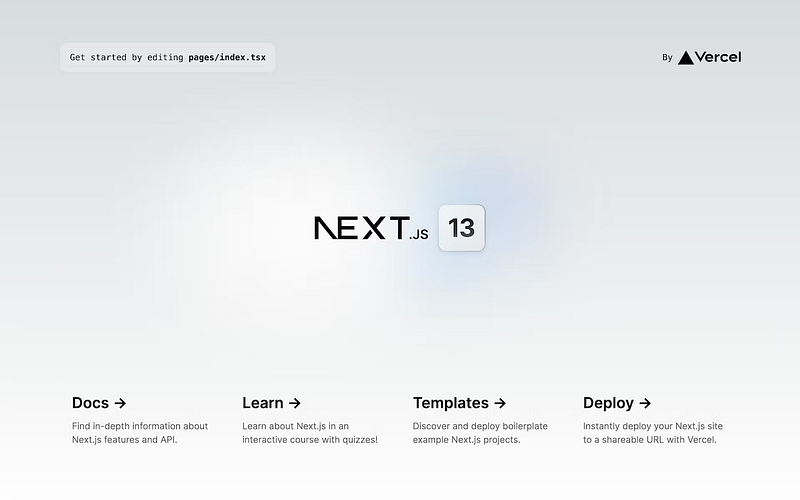
To start, run the npm run dev command in your terminal. This will spin up your Next.js application. Once it's running, navigate to localhost:3000 in your browser. You should be greeted with the default starting screen.
Editing the Home Page in Next.js
The content you see above is located in src/page.tsx. Feel free to edit this file to observe real-time changes.
Important Convention Note: In Next.js 13.5 and above, src/page.tsx corresponds to the root of your website (i.e., https://yourwebsite.com). This is a crucial convention to follow in this version of Next.js.
Setting Up the Chatbot’s Home
The src/page.tsx file, which acts as the home page, initially contains placeholder content. Replace the existing boilerplate with the following components, which we'll create shortly.
For now, simply paste the code and don't worry about any import errors.
// src/page.tsx
"use client";
// import ChatHeader from "./_components/ChatHeader";
// import MessageWindows from "./_components/MessageWindow";
// import InputArea from "./_components/InputArea";
import { useEffect } from "react";
import { mutate } from "swr";

export default function Home() {

  return (
    <main
      id="chatbot-openai"
      className="w-screen h-screen bg-white shadow-lg overflow-hidden flex flex-col"
    >
      {/* <ChatHeader></ChatHeader>
      <MessageWindows></MessageWindows>
      {isLoading && <LoadingSpinner></LoadingSpinner>}
      <InputArea></InputArea> */}
    </main>
  );
}

const LoadingSpinner = () => {
  return (
    <div className="flex justify-center items-center">
      <div className="animate-spin rounded-full h-6 w-6 border-b-2 border-gray-900"></div>
    </div>
  );
};
Don’t worry if you’re not familiar with the components ChatHeader, MessageWindow, and InputArea yet. For the moment, these are commented out in the code since they don't exist. We'll create them soon.
Creating the Components Folder
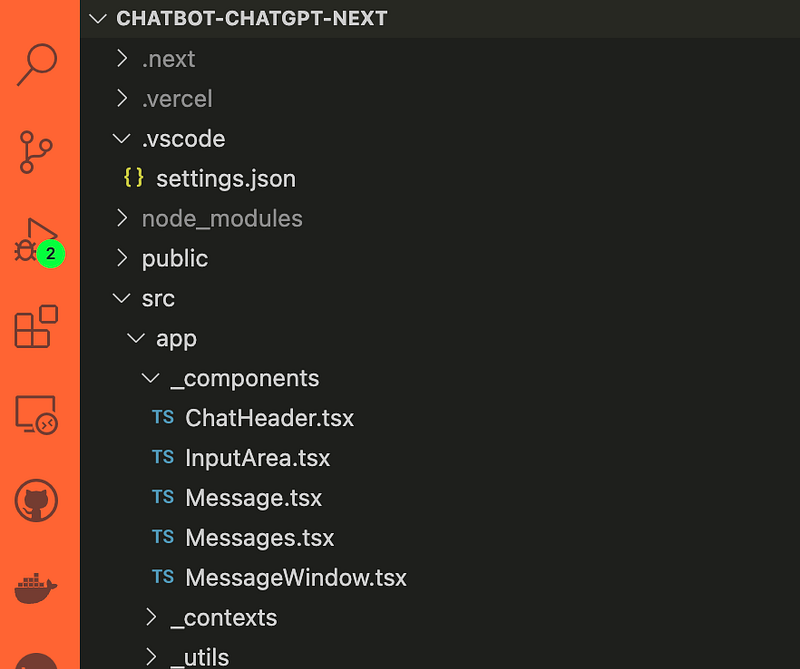
In the app folder, create a new folder named _components. This will be the dedicated space for all the components that make up our chatbot. It's here that we'll create the components we just mentioned.
Understanding the Underscore Convention
Notice the leading underscore in _components. This isn't just a naming choice; it's a meaningful convention in Next.js. The underscore signifies to Next.js that this is a private folder and its contents should not be directly accessible to visitors.
You can learn more about this convention and its importance in Next.js's documentation on routing and colocation: Next.js Routing Documentation.
Component #1 — ChatHeader
Let’s begin our component creation process by starting with ChatHeader.
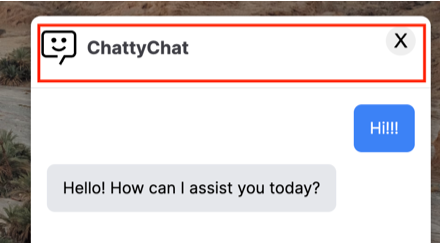
This component will play a key role in defining the visual aspects of our chatbot. It will be responsible for displaying the bot's icon and name.
import Image from "next/image";
import React from "react";
import BotImage from "@/assets/chatbot-icon.svg";

function ChatHeader() {
  return (
    <div className="sticky top-0 w-full bg-white border-b border-gray-200">
      <div className="flex justify-between py-1 mb-4">
        <div className="flex items-center  px-2 gap-2 pt-2">
          <Image className="w-10 h-10" src={BotImage} alt="Chatbot"></Image>
          <span className="text-lg font-bold text-zinc-700">
            {process.env.NEXT_PUBLIC_CHATBOT_NAME}
          </span>
        </div>
      </div>
    </div>
  );
}

export default ChatHeader;
You can personalize the chatbot’s icon by adding your chosen image to src/assets/image_name. Simply import this image into the ChatHeader component. Remember, the image file should be placed in the src/assets folder for easy access and organization.
To customize the chatbot’s name, you can use an environmental variable named NEXT_PUBLIC_CHATBOT_NAME. This variable should be edited in the .env file we defined earlier.
Component #2 — Message
Next, we’ll focus on the MessageWindow component. This component is crucial as it handles the display of both user and bot messages.
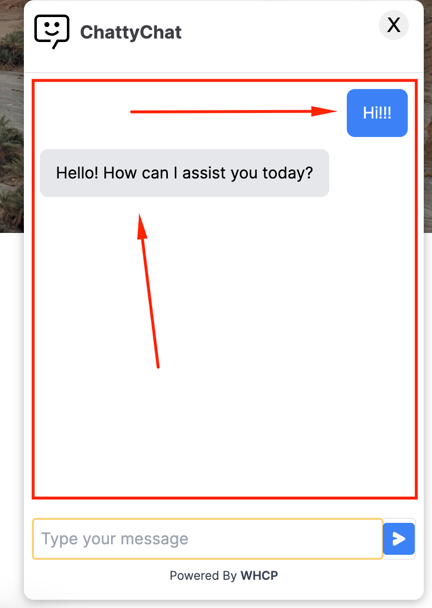
To start, navigate to src/app/_components in your project directory. Here, create a new file named MessageWindow.tsx and paste the following code into it:
// src/app/_component/MessageWindows.tsx
import React from "react";

function MessageWindows() {
  const sortedMessagesByDate = []
  return (
    <div className="flex-grow overflow-y-auto p-4">
      <Messages messages={sortedMessagesByDate}></Messages>
    </div>
  );
}

export default MessageWindows;
The MessageWindow component, which we just set up, will eventually be used to fetch the current messages. These messages will then be passed down to another key component: Messages.
Creating the Messages Component: For now, let’s focus on creating the Messages.tsx file. Navigate to the same directory where you created MessageWindow.tsx and create a new file named Messages.tsx. Then, paste the following code into it:
// src/app/_components/Messages.tsx
import { ThreadMessage } from "openai/resources/beta/threads/messages/messages.mjs";
import React, { useEffect, useRef } from "react";
import Message from "./Message";

function Messages({ messages }: { messages: ThreadMessage[] }) {
  const lastMessageRef = useRef<any>(null);

  // Scrolls to the last message whenever the messages update
  useEffect(() => {
    if (lastMessageRef.current) {
      lastMessageRef.current.scrollIntoView({ behavior: "smooth" });
    }
  }, [messages]);

  return (
    <div>
      {messages.map((m, index) => (
        <Message
          key={index}
          message={m}
          ref={index === messages.length - 1 ? lastMessageRef : null}
        />
      ))}
    </div>
  );
}

export default Messages;
The useEffect function, as shown above, plays a crucial role. It ensures that whenever the message window loads, it automatically scrolls to display the latest message.
Finally, to complete the messaging functionality, let’s create the Message.tsx file. This component is responsible for displaying individual messages, both from the user and the bot. Navigate to the same directory and create a new file named Message.tsx. Then, paste the following code into this file:
// src/app/_components/Message.tsx
import { ThreadMessage } from "openai/resources/beta/threads/messages/messages.mjs";
import React from "react";

const Message = React.forwardRef(
  ({ message }: { message: ThreadMessage }, ref) => (
    <div
      ref={ref}
      className={`clear-both relative overflow-hidden ${
        message.role === "assistant" ? "float-left" : "float-right"
      }`}
    >
      <div
        className={`rounded-lg py-3 px-4 mb-3 ${
          message.role === "assistant"
            ? "bg-gray-200 text-black"
            : "bg-blue-500 text-white"
        }`}
      >
        <p>{message.content[0]?.text?.value)</p>
      </div>
    </div>
  )
);

export default Message;
Component #3— Input Area
A chatbot without a means for user input isn’t very useful. So, before we dive into the back-end logic, let’s create the final front-end component: InputArea.tsx.
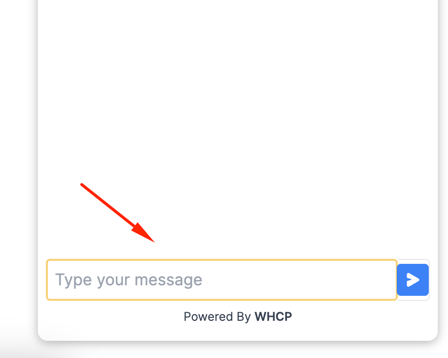
This component will be where users type their messages to interact with the chatbot.
React Hook Form
To handle message processing efficiently, we’ll be using react-hook-form. This library is known for its performance, flexibility, and easy-to-use validation capabilities, making it an ideal choice for form handling in React applications.
First, install react-hook-form using the following command:
npm install react-hook-formOnce the installation is complete, create the InputArea.tsx file and paste the following code into it. Although this code is a bit longer, it's quite straightforward and self-explanatory.
// src/app/_components/InputArea.tsx
import React from "react";
import { useForm } from "react-hook-form";
import Link from "next/link";
import { ThreadMessagesPage } from "openai/resources/beta/threads/messages/messages.mjs";

interface FormFields {
  question: string;
}

function InputArea() {
  const {
    register,
    handleSubmit,
    reset,
    formState: { errors },
  } = useForm<FormFields>();

  const onSubmit = async (data: FormFields) => {
     // To add logic
  };

  return (
    <div className="sticky bottom-0 bg-white p-2">
      <form
        onSubmit={handleSubmit(onSubmit)}
        className="flex items-center border rounded"
      >
        <input
          className="flex-grow p-2 border-0"
          {...register("question", { required: true })}
          placeholder="Type your message"
        />
        {errors.question && (
          <span className="text-red-500">This field is required</span>
        )}
        <button
          disabled={isLoading ? true : false}
          type="submit"
          className="p-2 text-white bg-blue-500 rounded disabled:bg-gray-200"
        >
          <svg
            width="16"
            height="16"
            fill="none"
            xmlns="http://www.w3.org/2000/svg"
          >
            <path
              fill-rule="evenodd"
              clip-rule="evenodd"
              d="M4.394 14.7L13.75 9.3c1-.577 1-2.02 0-2.598L4.394 1.299a1.5 1.5 0 00-2.25 1.3v3.438l4.059 1.088c.494.132.494.833 0 .966l-4.06 1.087v4.224a1.5 1.5 0 002.25 1.299z"
              fill="#fff"
            ></path>
          </svg>
        </button>
      </form>
      <p className="text-center text-xs py-2 text-gray-700">
        Powered By{" "}
        <Link
          target="_blank"
          className="font-semibold"
          href="https://www.we-hate-copy-pasting.com/"
        >
          WHCP
        </Link>
      </p>
    </div>
  );
}

export default InputArea;
The onSubmit function is a critical part of our chatbot. It's designed to send messages from the user interface to the server, and then to the backend.
For now, it’s just a placeholder function.
With the front end now almost fully prepared, it’s time to head to the backend.
Take a quick break if you want. It’s important to return refreshed and ready for the next steps in our development journey.
Backend
As we transition to back-end development, you’ll start to appreciate the ease provided by the Assistant API. Much of the hard work is already behind us, thanks to this powerful tool.
Our immediate goal is to set up a few key API endpoints for:
- Fetching all messages (thread).
- Posting new messages from a user (message).
- Checking the completion status of a task (run).
The first two tasks are straightforward, but the third involves a bit more complexity. It’s essentially about determining whether OpenAI has finished processing our request.
Not An Ideal Implementation
Currently, after sending a message to OpenAI, there’s a wait time before receiving a response.
This is similar to the ongoing text stream in ChatGPT. According to OpenAI’s keynote, a more direct method via API is in development, but for now, we’re left with periodically checking the task’s status.
The run endpoint will indicate whether the task is in progress or completed.
You can learn more about this process in the OpenAI Platform Documentation.
How to create API endpoints in NextJs
To create an API route in Next.js 13.5+, you can start by creating a folder within src/api, like src/api/hello, and then create a file named route.ts within.
This is a key convention in Next.js: only the code in route.ts is considered relevant for the API. In this file, you can define handlers for each HTTP method. For example...
import { NextRequest, NextResponse } from "next/server";

export async function POST(req: NextRequest) {
  return NextResponse.json({
      world:"hello"
  });
}

export async function GET(req: NextRequest) {
  return NextResponse.json({
      hello:"World"
  });
}

// Others methods like PUT, DELETE, OPTIONS
Endpoint #1 — Messages
Let’s proceed by setting up the API endpoint. Start by creating a new file within your project: src/app/api/messages/route.ts. This file will correspond to the endpoint https://yourwebsite.com/api/messages.
As we go through the code, you’ll notice imports from @/lib/openai. This library includes functions essential for communicating with OpenAI services, allowing our chatbot to interact with the OpenAI API effectively.
Now, let’s begin by pasting the following code into route.ts:
// src/app/api/messages/route.ts
import { getMessagesForThread, createThreadAndRun } from "@/lib/openai";
import { NextRequest, NextResponse } from "next/server";

export async function GET(req: NextRequest) {
  const searchParams = req.nextUrl.searchParams;
  const threadId = searchParams.get("threadId");
  if (!threadId) {
    return NextResponse.json({ noMessages: true });
  }
  const messages = await getMessagesForThread(threadId);
  return NextResponse.json(messages);
}

export async function POST(req: NextRequest) {
  const data = await req.json();
  const { question, threadId } = data;
  const { run, thread } = await createThreadAndRun(threadId, question);
  const runId = run.id;
  const newThreadId = thread.id;
  return NextResponse.json({ runId, threadId: newThreadId });
}
The GET function in our API is designated for fetching all messages associated with a specific thread or conversation. This is achieved through the getMessagesForThread function.
When a request is made to https://yourwebsite.com/api/messages, it needs to include a threadId parameter, like this: https://yourwebsite.com/api/messages?threadId=XXXXXXXX.
Each browser session will generate a unique thread ID. This approach allows us to maintain a separate conversation history for each user (or browser session). In essence, every user has their own individual conversation thread with the bot.
The POST request within our API is responsible for initiating a new conversation whenever a new user connects. Think of this as creating a new conversation thread for each new user interaction.
Now, our next step is to develop the getMessagesForThread and other necessary functions to make our GET and POST requests operational.
Endpoint #1 — Status
Before we move on to configuring OpenAI, we need to set up another endpoint, api/status. This endpoint will be used to check whether a certain task run has been completed.
Create a new folder under the API directory named api/status, and within it, create a route.ts file.
Paste the following code into it.
import { statusOfRun } from "@/lib/openai";
import { NextRequest, NextResponse } from "next/server";

export async function GET(req: NextRequest) {
  const searchParams = req.nextUrl.searchParams;
  const threadId = searchParams.get("threadId");
  const runId = searchParams.get("runId");
  if (!threadId || !runId) throw Error("No threadId or runId");
  const status = await statusOfRun(threadId, runId);
  return NextResponse.json({ status });
}
Create OpenaAI interface
It’s time to set up a code interface that allows our Next.js app to communicate with OpenAI’s servers via their API. For this, create a new folder named lib under src. Inside this lib folder, create a file named openai.ts. This file will centralize all the code related to interactions with OpenAI.
Create assistant
The assistant, essentially our chatbot, is a crucial component. We define its behaviour, impart knowledge to it, and it’s essential that this assistant be reused across all conversations for consistency.
That’s why we need to create it and store its configuration, allowing us to retrieve and utilize it in ongoing conversations.
In openai.ts, you'll specify the assistant's instructions, name, the tools it should use, and the model it will operate on.
// src/lib/openai.ts
import OpenAI from "openai";
import fs from "fs";
const secretKey = process.env.OPENAI_API_KEY;

export const openai = new OpenAI({
  apiKey: secretKey,
});

// Database for storing assistant ID.
const assistantIdFilePath = "assistantId.txt";

export const createAssistant = async () => {
  // Try to read the assistant ID from the file
  let assistantId;
  try {
    assistantId = fs.readFileSync(assistantIdFilePath, "utf8");
  } catch (error) {
    console.log("Assistant ID file not found, creating a new assistant");
  }

  if (!assistantId) {
    const assistantInstance = await openai.beta.assistants.create({
      instructions:
        "You are customer support agent trying to help the customer",
      name: "Customer Support Bot",
      tools: [{ type: "retrieval" }],
      model: "gpt-3.5-turbo-1106",
    });

    // Save the assistant ID to a file
    fs.writeFileSync(assistantIdFilePath, assistantInstance.id);

    return assistantInstance;
  } else {
    // If the assistant ID is already stored, return the ID
    return { id: assistantId };
  }
};
Our first step involves initializing OpenAI within our application.
Next, we specify a file name where the assistant’s ID will be stored. This step is crucial as it helps in persistently identifying and accessing our assistant across different sessions and interactions.
The createAssistant function in the provided JavaScript code manages the creation and retrieval of an OpenAI assistant.
- Check Existing Assistant ID: The function attempts to read an assistant ID from a local file (
assistantId.txt). If this file exists and contains an ID, it skips creating a new assistant. - Create New Assistant: If the file doesn’t exist or is empty (indicating no previous assistant was created), the function proceeds to create a new assistant using OpenAI’s API.
- Save New Assistant ID: After creating a new assistant, its ID is saved to
assistantId.txt. - Return Assistant Information: Finally, the function returns the assistant’s instance if it’s new, or just its ID if it was already stored in the file.
This setup allows for efficient use of the OpenAI assistant by reusing the same instance across multiple sessions, reducing the need for creating new assistants each time.
Create a thread & add messages
We need to create three functions responsible for managing threads and messages.
createThreadIn theopenai.tsfile, add the following function. It plays a dual role: if a thread ID is not provided, it will initiate a new conversation thread; if a thread ID is already present, it will continue using the existing thread.getMessagesForThreadAdditionally, include the getMessagesForThread function. This function is dedicated to retrieving all messages from a specific thread, ensuring a continuous and organized chat history.addMessageToThreadAlongside this, add another function responsible for adding new messages to a thread. These functions work together to seamlessly manage conversation flows in your chatbot.
// src/lib/openai.ts
...

export const createThread = async (threadId: string | undefined) => {
  try {
    if (threadId) {
      return await openai.beta.threads.retrieve(threadId);
    }
    return await openai.beta.threads.create();
  } catch (error: any) {
    throw error;
  }
};

export const getMessagesForThread = async (threadId: string) => {
  const messages = await openai.beta.threads.messages.list(threadId);
  return messages;
};

export const addMessageToThread = async (
  threadId: string,
  question: string
) => {
  await openai.beta.threads.messages.create(threadId, {
    role: "user",
    content: question,
  });
};

...
Run
In OpenAI’s framework, the ‘run’ function serves a critical role in checking the completion status of a task. Similar to how you experience a brief wait time in ChatGPT after sending a message, the ‘run’ function in our application performs the same check.
A ‘run’ is considered completed once the response from ChatGPT is final and received.
This will enable our chatbot to check for and handle the completion of tasks as needed.
// src/lib/openai.ts
...

export const createRun = async (assistantId: string, threadId: string) => {
  const run = await openai.beta.threads.runs.create(threadId, {
    assistant_id: assistantId,
  });
  return run;
};

export const statusOfRun = async (threadId: string, runId: string) => {
  let runStatus = await openai.beta.threads.runs.retrieve(threadId, runId);
  return runStatus.status;
};

...
Tying everything together on the back end
The last function we’ll add to the openai.ts. This function manages the assistant, handles thread operations, adds messages, and initiates tasks.
It is the primary point of interaction between our front-end and the OpenAI services.
// src/lib/openai.ts
...
export const createThreadAndRun = async (
  threadId: string | undefined,
  question: string
) => {
  const myAssistant = await createAssistant();
  const thread = await createThread(threadId);
  await addMessageToThread(thread.id, question);
  const run = await createRun(myAssistant.id, thread.id);
  return { run, thread };
};
...
Remember, the comprehensive function we added is pivotal in our /api/messages endpoint. With this in place, our back-end setup is now complete.
Frontend — Part II
With our back end and /api/messages endpoint in place, it's time to set up the front end to communicate with these services. This involves both fetching messages from and sending messages to the back end.
First, let’s focus on displaying messages, even if there are none to show yet.
How it works
Our backend relies on several IDs to identify the conversation and participants:
threadIdto track the conversation.assistantIdto identify which assistant is speaking.runIdfor each specific message, determining its completion status.
We need to effectively manage these variables across our application.
To handle these IDs, we’ll use a combination of local storage and context providers. This approach ensures these variables are stored efficiently and made accessible throughout the application.
Creating Chatbot context
The context we create will encompass all information related to the chatbot. This includes tracking IDs and managing conversation data.
Creating the ChatbotProvider Context
- Create a new folder named
_contextswithinsrc/app. - Inside this folder, create a file named
ChatbotProvider.tsx. - Paste the following code into
ChatbotProvider.tsx:
// src/app/_contexts/ChatbotProvider.tsx
import { ReactNode, createContext, useContext, useState } from "react";
import { useLocalStorage } from "usehooks-ts";

const ChatbotContext = createContext<any>(undefined);

export function ChatbotProvider({ children }: { children: ReactNode }) {
  const [threadId, setThreadId] = useLocalStorage("threadId", undefined);
  const [runId, setRunId] = useLocalStorage<string | undefined>(
    "runId",
    undefined
  );
  const [isLoading, setIsLoading] = useState(false);

  const value = {
    isLoading,
    setIsLoading,
    setRunId,
    runId,
    setThreadId,
    threadId,
  };
  return (
    <ChatbotContext.Provider value={value}>{children}</ChatbotContext.Provider>
  );
}

export const useChatbotContext = () => {
  return useContext(ChatbotContext);
};
Please install the package that will handle local storage for us.
npm i usehooks-tsOur ChatbotProvider is designed to store data in the client's browser, ensuring persistence across sessions. It manages key variables such as threadId, runId, and isLoading.
Now, create a new file:
- Go to the
srcdirectory. - Create a file named
providers.tsx.
"use client";

import { ReactNode } from "react";
import { ChatbotProvider } from "./_contexts/ChatbotProvider";

export function Providers({ children }: { children: ReactNode }) {
  return <ChatbotProvider>{children}</ChatbotProvider>;
}
And lastly, edit src/layout.tsx.
import type { Metadata } from "next";
import { Inter } from "next/font/google";
import "./globals.css";
import { Providers } from "./providers";

const inter = Inter({ subsets: ["latin"] });

export const metadata: Metadata = {
  title: "Chatbot Name",
  description: "Generated by Tutorial",
};

export default function RootLayout({
  children,
}: {
  children: React.ReactNode;
}) {
  return (
    <html lang="en">
      <body className={inter.className}>
        <Providers>{children}</Providers> // Added here
      </body>
    </html>
  );
}
The approach to setting up context in the latest version of Next.js differs from older versions. If you’re curious about these changes and want a deeper understanding, you can refer to my previous article on this topic:
Data-fetching
Before we start retrieving messages on the front-end, we need to install a data-fetching library. We’ll be using SWR, developed by Vercel, for this purpose.
To install SWR, type the following command:
npm i swrFor it to work we need to create fetched create it src/_utils/fetcher.ts
export const fetcher = (url:string) => fetch(url).then(r => r.json())Revisiting Messages components
It’s time to enhance MessageWindow.tsx by adding the necessary code for handling message retrieval.
- Determining the Thread ID: First, we’ll incorporate logic to determine the
threadId. This helps us check if there's an ongoing conversation in the current browser session. - Fetching Messages with SWR: We’ll use the SWR library for data fetching. The fetch operation is conditionally executed if there’s an existing conversation.
- Making a GET Request: To retrieve messages, we make a GET request to
/api/messages?threadId=${threadId}.
import React from "react";
import useSWR from "swr";
import { fetcher } from "../_utils/fetcher";
import { ThreadMessagesPage } from "openai/resources/beta/threads/messages/messages.mjs";

import Messages from "./Messages";
import { useChatbotContext } from "../_contexts/ChatbotProvider";

function MessageWindows() {
  const { threadId } = useChatbotContext();
  const { data: messages, error } = useSWR<ThreadMessagesPage | any>(() => {
    if (threadId) {
      return `${process.env.NEXT_PUBLIC_SERVER_ADDRESS}/api/messages?threadId=${threadId}`;
    }
    return;
  }, fetcher);

  if (error)
    return (
      <div className="p-4 bg-red-500 text-white">Error loading messages...</div>
    );
  if (!messages) return; // It's still loading messages
  if (messages?.noMessages)
    return (
      <p className="bg-red-400 p-4 text-white">
        Sorry there was an error fetching your messages.
      </p>
    );

  const sortedMessagesByDate = messages.data.sort(
    (a: any, b: any) => a.created_at - b.created_at
  );
  return (
    <div className="flex-grow overflow-y-auto p-4">
      <Messages messages={sortedMessagesByDate}></Messages>
    </div>
  );
}

export default MessageWindows;
In MessageWindow.tsx, we'll also address two key aspects:
- Basic Error Handling: We’ll implement a simple error-handling mechanism to manage any issues that arise during message retrieval.
- Sorting Messages: The function
sortedMessagesByDatewill be used to reorder the messages chronologically. This ensures that messages appear in a natural, conversation-like sequence in the chatbot interface.
Small formatting upgrade
To improve the presentation of messages in the chatbot interface, let’s create a formatting utility:
- Create a new file named
formatMessage.tsxin thesrc/utilsdirectory. - Paste the following code into this file to format the messages for a better user interface experience:
export const formatMessage = (text: string) => {
  const parts = text.split(/(".*?")/);
  return parts.map((part, index) => {
    // Check if the part is within quotes
    if (part.startsWith('"') && part.endsWith('"')) {
      return (
        <span key={index} className="italic">
          {part}
        </span>
      );
    } else {
      return <span key={index}>{part}</span>;
    }
  });
};
Edit Message.tsxto add formatMessage
// src/app/_components/Message.tsx
import { ThreadMessage } from "openai/resources/beta/threads/messages/messages.mjs";
import React from "react";

const Message = React.forwardRef(
  ({ message }: { message: ThreadMessage | any }, ref: any) => (
    <div
      ref={ref}
      className={`clear-both relative overflow-hidden ${
        message.role === "assistant" ? "float-left" : "float-right"
      }`}
    >
      <div
        className={`rounded-lg py-3 px-4 mb-3 ${
          message.role === "assistant"
            ? "bg-gray-200 text-black"
            : "bg-blue-500 text-white"
        }`}
      >
        <p>{formatMessage(message.content[0]?.text?.value)}</p> // Wrap here
      </div>
    </div>
  )
);

export default Message;
With the message formatting in place, we’ve now completed setting up the display of messages in our chatbot.
Next, let’s shift our focus to the logic for sending messages from the chatbot.
InputMessage revisited
Recall the onSubmit function we outlined earlier? It's time to complete it. Replace its current content with the following code:
// src/app/_components/InputArea.tsx
...

function InputArea() {
  const {
    register,
    handleSubmit,
    reset,
    formState: { errors },
  } = useForm<FormFields>();

// ADD THIS FUNCTION
 const onSubmit = async (data: FormFields) => {
    mutate(
      `${process.env.NEXT_PUBLIC_SERVER_ADDRESS}/api/messages?threadId=${threadId}`,
      async (currentData: any) => {
        // This is part of an optimistic loading that shows user question immideatly.
        const newMessage = {
          id: "temp-id",
          thread_id: threadId,
          content: [{ text: { value: data.question } }],
          role: "user",
        };
        return {
          ...currentData,
          data: [...(currentData?.data ?? []), newMessage],
        };
      },
      false
    );
    setIsLoading(true);
    reset();

    const config = {
      method: "POST",
      url: `${process.env.NEXT_PUBLIC_SERVER_ADDRESS}/api/messages`,
      data: { ...data, threadId },
    };
    const response = await axios<{ runId: string; threadId: string }>(config);
    setThreadId(response.data.threadId);
    setRunId(response.data.runId);
  };
...
To wrap up our Next.js setup, let’s add the context variables we defined earlier into the same file.
// src/app/_components/InputArea.tsx

function InputArea() {
  const {
    register,
    handleSubmit,
    reset,
    formState: { errors },
  } = useForm<FormFields>();

// ADD THIS
const { threadId, setThreadId, setRunId, setIsLoading, isLoading } = useChatbotContext();

// Existing onSubmit function from above
...
Testing the Chatbot
It’s time to test the chatbot and see our work.
If you haven’t already you can start the chatbot with.
npm run dev
Now, visit http://localhost:3000 to see your chatbot in action. Give it a try and start chatting with it!
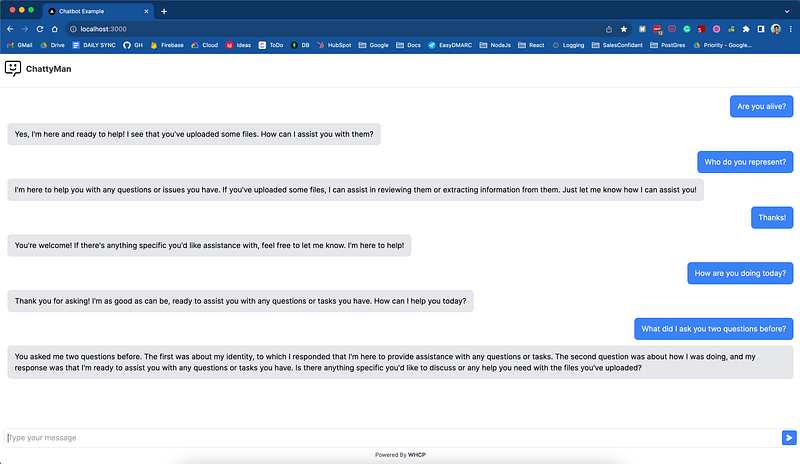
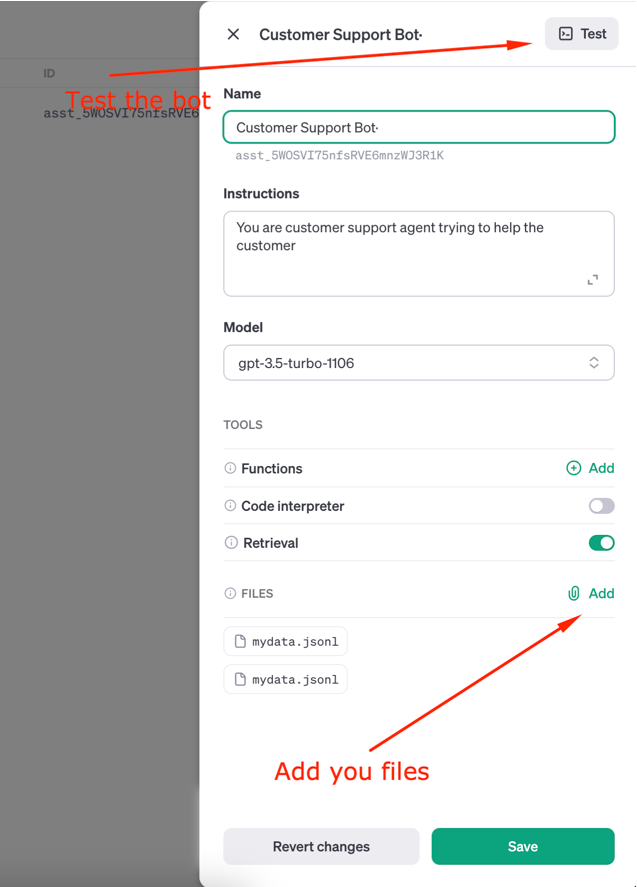
Editing the Chatbot
OpenAI provides a user-friendly interface for managing your chatbot assistants. Configurations and edits can be made directly through their dashboard.
- Accessing the Dashboard: To modify your chatbot, visit the OpenAI Dashboard at OpenAI Assistants.
- Locating Your Assistant: Once there, you should see the new assistant listed with the name you’ve defined in your code
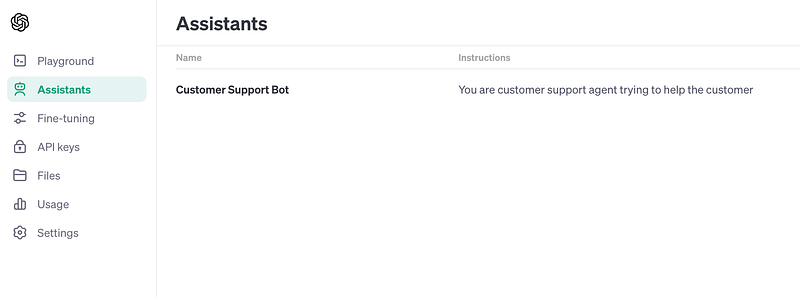
By clicking on your assistant in the dashboard, you can access its settings. Here, you have the option to modify various aspects of your chatbot.
Modifications You Can Make:
- Change its name and description
- Add context files from which the chatbot can retrieve additional knowledge from.
To test the changes, click on the ‘Test’ button located in the top right corner of the dashboard.
Remember to save your modifications. Changes are typically applied immediately, ensuring your chatbot is up-to-date.
Installing a chatbot on any website
What good is a chatbot if it’s not shared on your website to showcase your achievements?
As mentioned in the beginning, we can use a simple iframe to embed the Next.js application we’ve built into any website.
To include the chatbot, you can easily add a bit of CSS and HTML to the page where you’d like to display the chatbot. In the <head> section, add this stylesheet.
<style>
      /* Chatbot */
      #chat-container {
          position: fixed;
          right: 20px;
          bottom: 20px;
          z-index: 1000;
      }

      #chat-button {
          background-color: #007bff;
          color: white;
          border: none;
          border-radius: 50%;
          width: 60px;
          height: 60px;
          font-size: 30px;
          cursor: pointer;
          box-shadow: 0 2px 10px rgba(0, 0, 0, 0.3);
      }

      #close-button {
          color: black;
          border: none;
          border-radius: 50%;
          width: 30px;
          height: 30px;
          font-size: 20px;
          cursor: pointer;
          display: none; /* Initially hidden */
          position: absolute;
          right: 15px;
          top: 10px;
      }

      #chat-iframe {
          display: none;
          width: 40vh; /* Full width on small screens */
          height: 80vh; /* 80% of the screen height */
          border: none;
          box-shadow: 0 2px 10px rgba(0, 0, 0, 0.3);
          border-radius: 10px;
      }

      @media (min-width: 768px) {
          /* For larger screens, we use fixed dimensions */
          #chat-iframe {
              width: 400px;
              height: 600px;
          }
      }
  </style>
Finally, at the bottom of the body of the page where you’d like to display the bot, paste this final piece of code.
<body>
... rest of HTML
  <div id="chat-container">
      <button id="chat-button">💬</button>
      <iframe id="chat-iframe" src="http://localhost:3000/" frameborder="0"></iframe>
      <button id="close-button">X</button>
  </div>

  <script src="https://code.jquery.com/jquery-3.6.0.min.js"></script>
  <script>
      $(document).ready(function() {
          $('#chat-button').click(function() {
              $('#chat-iframe').show();
              $('#close-button').show();
              $(this).hide();
          });

          $('#close-button').click(function() {
              $('#chat-iframe').hide();
              $('#chat-button').show();
              $(this).hide();
          });
      });
  </script>
</body>
I’m using jQuery to manage the interactivity of the Chatbot. Feel free to adjust it in any way you’d like.
Conclusion
Here it is! The fully functioning chatbot with memory, the ability to retrieve knowledge from files, and full personalization.
To recap, we used the latest Next.js 14 to create the chatbot interface UI and make API calls to OpenAI. We also edited the chatbot settings in the OpenAI dashboard. Then, we embedded that chatbot onto our website with the help of an <iframe>.
Thanks to OpenAI, it has never been simpler to create your very own chatbots.
I hope you enjoyed this tutorial. If you’d like to read more content like this, be sure to follow!
In the next one, I’ll cover publishing the bot into production.
Thanks, Matija
Stackademic
Thank you for reading until the end. Before you go:
- Please consider clapping and following the writer! 👏
- Follow us on Twitter(X), LinkedIn, and YouTube.
- Visit Stackademic.com to find out more about how we are democratizing free programming education around the world.


