avatarSuraj Ghimire, MSc

Free AI web copilot to create summaries, insights and extended knowledge, download it at here

2597

Abstract

ive. </b> Believe me; I tell you that upgrading to an SSD drive for your computer will save you lots of time, by my experience. You need not spend large money either. 240GB SSD costs only 50, or even lesser. You can save your other not-so-important data on an external drive or online drive.</p><p id="3ff1">Upgrade to SSD. It boots the computer quickly. Also, if you are buying a new computer, always prefer the one with SSD. Changing your hard drive is very simple. You do not even need to reinstall your system. Buy a USB to SATA cable connector and clone it. It is as cheap as 4.</p><p id="81e6">Be vigilant of cheap products that call them SSD. Buy a genuine one from amazon.</p><h2 id="632f">2. Upgrade your RAM</h2><p id="2add">RAM (also known as random access memory or physical memory) is a primary storage device for your computer. RAM temporarily stores all processes on RAM. You may need additional RAM if you use high-end software. An additional 4 GB RAM will cost you about $20, and it will boost your performance. But before buying one, check if your computer has an empty slot.</p><p id="e473">You can know your physical memory usage by Ctrl + shift + Esc.</p><figure id="a6f8"><img src="https://cdn-images-1.readmedium.com/v2/resize:fit:800/1*vHijKde7iQXD2m4fTdjMuQ.jpeg"><figcaption>screenshot by author</figcaption></figure><p id="bf97"><b>3. Enable only necessary programs during startup.</b> You might have a good deal of software installed on your machine, and every time you boot it, all the corresponding programs startup, which affects overall performance resulting in a delay in booting. To let only the necessary program run while you boot your computer, you may disable auto-start for all applications.</p><p id="e1a1">For this, press Windows Icon and search for <i>MSConfig</i> in the search option, click startup and click Disable all. Don’t worry; this won’t affect your booting. Your windows will automatically enable booting of the software that you need.</p><figure id="c096"><img src="https://cdn-images-1.readmedium.com/v2/resize:fit:800/0*_soYiRSXpBdE6dMZ.JPG"><figcaption></figcaption></figure><p id="db45">This change takes place when you restart your computer.</p><p id="ae44"><b>4. Low space in system drive. </b>Check your system drive. If it has space information shown in red, it has less space, which can affect your computer's performance. This means you delete unnecessary files, move your files from desktop and documents folder to non-system drive (in my case Drive E) or your external pen drives.</p><p id="194b">You can also remove unnecessary

Options

applications if you need no more.</p><figure id="a843"><img src="https://cdn-images-1.readmedium.com/v2/resize:fit:800/1*LHIQrAFCaH16B7euRq9s8g.jpeg"><figcaption>screenshot by author</figcaption></figure><h2 id="65e1">5. Delete temporary files</h2><p id="13ed">Your computer stores all the temporary files in a folder while you last worked on your project. They do not delete even if you restart your computer. So not deleting temporary files for a longer time can consume gigabytes of space and slow down your computer performance.</p><p id="f3a5">To fix this, press the Windows icon, search for ‘<b>run,’</b> type %tmp%, and enter, which will open your folder, which stores temporary files. You may delete each of them as it won’t affect saved or previously worked files. But if you still have some works, unsaved, save, and close your work first.</p><p id="91b1"><b>6. Anti-virus can slow down your computer.</b></p><p id="a8c9">Virus infection can also be a factor in the slowdown of your computer. You can solve it by installing any good antivirus, anti-malware, and other security systems with higher reviews. BitDefender for windows is preloaded and can be a pleasant option.</p><p id="963c">Computer antiviruses prevent us from external malware and virus, but if such antivirus is not selected wisely, its tasks can slow your computer performance.</p><h2 id="b8d6">Conclusion</h2><p id="7301">I have been using a second-hand computer for the last two years, and my tricks had saved me lots of money, especially when I had no funds for a computer. You can boost your computer by investing $60 on SSD +RAM and doing regular cleanings through the command I mentioned above.</p><p id="45d5">Let us know if you have additional tricks to boost your computer performance.</p><p id="0629"><i>If you enjoyed reading this story, I would like to send you my weekly newsletter and updates. <a href="https://surajghimire.substack.com/">Click here to subscribe</a>. I promise I won’t spam you.</i></p><div id="c449" class="link-block"> <a href="https://readmedium.com/how-to-make-delicious-tea-at-home-6c2b9bf067c4"> <div> <div> <h2>How to Make Delicious Tea at Home</h2> <div><h3>A cup of tea that will make your day</h3></div> <div><p>medium.com</p></div> </div> <div> <div style="background-image: url(https://miro.readmedium.com/v2/resize:fit:320/1*BziDyiLLCXoP2QXhyB36EA.jpeg)"></div> </div> </div> </a> </div></article></body>

How to Boost Performances of Your Windows Computer?

Do you hate your slow computer? 6 tips for you
Photo by Vicky Summer on Unsplash

Computers are a machine, and they can give you low performance because of various factors, not necessarily always because the machine is old. Even if used for over five years, we can optimize it to boost its speed and performance.

Once a computer has more and more applications, it gets slow. It also gets slow when you don’t remove the computer cache for a longer time. This slowness can happen at any time: when you (boot) turn on a computer, during your use, and even during shut-down.

I understand your frustration if your computer is slow. If you wonder how expensive it can be to regular service your computer, I share my experience in this post so you can self-service your computer with just basic knowledge.

Those issues can be hardware or software issues.

While you might need to upgrade your computer parts to resolve hardware, software issues can be resolved by a few commands. Let me explain to you six different tips. The first two (hardware issues) are applicable for both Ubuntu and Windows machines. The other four apply only to computers that have Windows installed. This article is not intended for MAC products as I have never used them to date.

1. Upgrade to SSD drive. Believe me; I tell you that upgrading to an SSD drive for your computer will save you lots of time, by my experience. You need not spend large money either. 240GB SSD costs only $50, or even lesser. You can save your other not-so-important data on an external drive or online drive.

Upgrade to SSD. It boots the computer quickly. Also, if you are buying a new computer, always prefer the one with SSD. Changing your hard drive is very simple. You do not even need to reinstall your system. Buy a USB to SATA cable connector and clone it. It is as cheap as 4$.

Be vigilant of cheap products that call them SSD. Buy a genuine one from amazon.

2. Upgrade your RAM

RAM (also known as random access memory or physical memory) is a primary storage device for your computer. RAM temporarily stores all processes on RAM. You may need additional RAM if you use high-end software. An additional 4 GB RAM will cost you about $20, and it will boost your performance. But before buying one, check if your computer has an empty slot.

You can know your physical memory usage by Ctrl + shift + Esc.
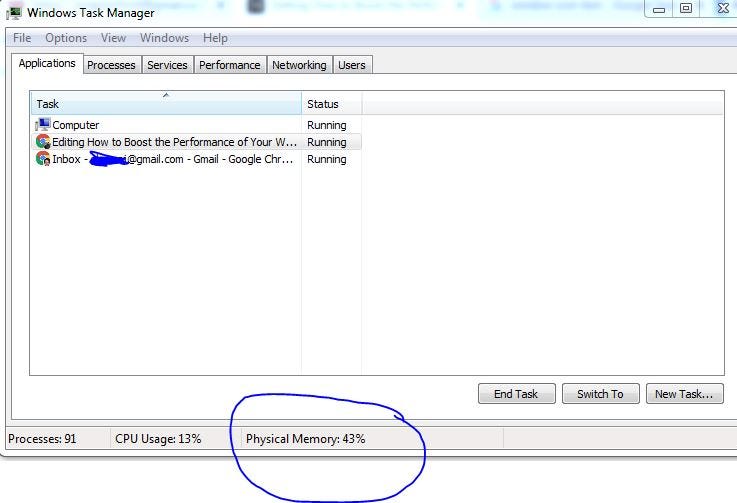
screenshot by author

3. Enable only necessary programs during startup. You might have a good deal of software installed on your machine, and every time you boot it, all the corresponding programs startup, which affects overall performance resulting in a delay in booting. To let only the necessary program run while you boot your computer, you may disable auto-start for all applications.

For this, press Windows Icon and search for MSConfig in the search option, click startup and click Disable all. Don’t worry; this won’t affect your booting. Your windows will automatically enable booting of the software that you need.
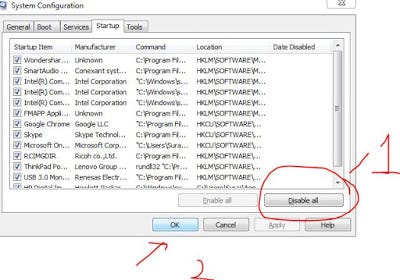
This change takes place when you restart your computer.

4. Low space in system drive. Check your system drive. If it has space information shown in red, it has less space, which can affect your computer's performance. This means you delete unnecessary files, move your files from desktop and documents folder to non-system drive (in my case Drive E) or your external pen drives.

You can also remove unnecessary applications if you need no more.
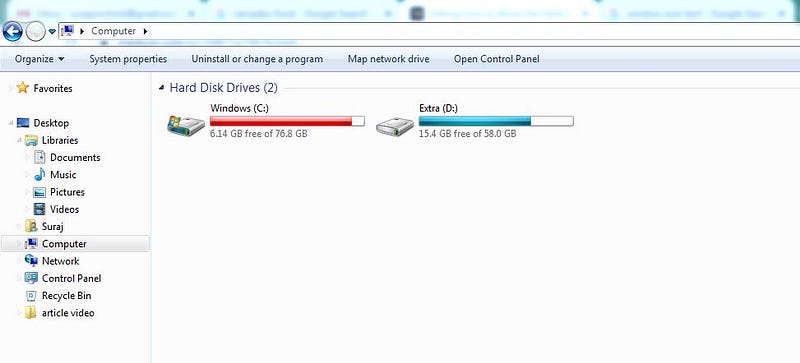
screenshot by author

5. Delete temporary files

Your computer stores all the temporary files in a folder while you last worked on your project. They do not delete even if you restart your computer. So not deleting temporary files for a longer time can consume gigabytes of space and slow down your computer performance.

To fix this, press the Windows icon, search for ‘run,’ type %tmp%, and enter, which will open your folder, which stores temporary files. You may delete each of them as it won’t affect saved or previously worked files. But if you still have some works, unsaved, save, and close your work first.

6. Anti-virus can slow down your computer.

Virus infection can also be a factor in the slowdown of your computer. You can solve it by installing any good antivirus, anti-malware, and other security systems with higher reviews. BitDefender for windows is preloaded and can be a pleasant option.

Computer antiviruses prevent us from external malware and virus, but if such antivirus is not selected wisely, its tasks can slow your computer performance.

Conclusion

I have been using a second-hand computer for the last two years, and my tricks had saved me lots of money, especially when I had no funds for a computer. You can boost your computer by investing $60 on SSD +RAM and doing regular cleanings through the command I mentioned above.

Let us know if you have additional tricks to boost your computer performance.

If you enjoyed reading this story, I would like to send you my weekly newsletter and updates. Click here to subscribe. I promise I won’t spam you.

Productivity
Technology
Self
This Happened To Me
Self-awareness
Recommended from ReadMedium