Use GPT-4 To Automate Emails
Introduction
In today’s digital era, providing exceptional customer support is crucial for businesses to thrive. But having a full fledged support team can be be pretty hard to maintain. One effective way to enhance customer service is by incorporating a fully automated support chat system into your website. By combining the power of Make , formally known as Integromat, (or you can code something if you have the knowledge), GPT-3, and your favorite spreadsheet tool — lets use google sheets for this, you can create a seamless and efficient support experience for your users. So the end goal will be simply a tool that takes in whatever the initial client query is, processes the question, and sends back an automated message based on the message sent OR just use as a triage system.
- Understanding Make
Make is a popular automation tool that allows you to connect various web applications and automate workflows. By using Make, you can integrate your support chat system with other applications, such as customer relationship management (CRM) software, email marketing tools, or project management platforms. This integration enables the seamless transfer of data between systems, ensuring a streamlined support process. You probably have used other tools like Zapier that do the same thing but I personally think Make is a lot more flexible in what it can do by using branches to show more things.
2. Plug in This year’s favorite AI tool
By now you’ve probably have already heard of GPT-4, GPT-4, etc from OpenAI. We’ll utilize their APIs for a simple way to read and interpret the messages.
3. Creating a Structured Knowledge Base with Tables
We’re going to keep it REALLY simple and just use a spreadsheet in google as your ticketing system. This is mostly for illustration but I’m sure you can do the same with your own ticketing system.
Ok now let’s go ahead and stick everything together step by step
The path that we’ll go is:
- Receive an email from a client
- Create a new row in your sheet with the ticket with the email address, subject, and body
- Take all the info from that row and put it into a smart text prompt
- Put that prompt into the GPT-3 Model
- In your prompt, you want to use the model to first categorize the request and then pair it up against some of your most common responses that way you’re pseudo “training” your model.
- The GPT-3 Model will generate a response
- Automatically reply to the client with the response from the model
- **Keep in mind, the gpt-3 responses COULD be super unhinged so make sure that your prompting is super specific. What you do NOT want is to let it just make stuff up on it’s own. I’d recommend using this more of a way to fuzzy match on FAQ’s and respond with the best answer. You could always have a stop gap to NOT send a response if there is nothing in your list that makes sense.
First — Let’s set up a Google Sheet to be your main ticketing system
Second — Setup Make to do what you want
- Go to Make.com
- Create an account if you don’t have one yet — you can stick to the free plan for this and upgrade if you feel like it later
- Now create a new “scenario”
- Click the big + sign
- Search Mail
- Click Watch Mail
- Connect your email account — some more info on the actual connection here: https://www.make.com/en/help/apps/communication/microsoft-365-email?_ga=2.198541871.1266689271.1686526912-945523496.1683417894&_gl=1*18xovzc*_ga*OTQ1NTIzNDk2LjE2ODM0MTc4OTQ.*_ga_MY0CJTCDSF*MTY4NjUyNjkxMi40LjEuMTY4NjUyOTIwOC41Ni4wLjA.#connecting-microsoft-365-email-to-make i had a whirlwind trying to get mine connected
- There’s fancy filters you can play with if you want but for the sake of this lets keep it simple
- Ok now click the plus sign again and you should be able to search google sheets
- Click “add new row”
- You’ll want to pick the spreadsheet you created AND pick the exact sheet you are using within.
- I would use 3 columns — email, subject, body
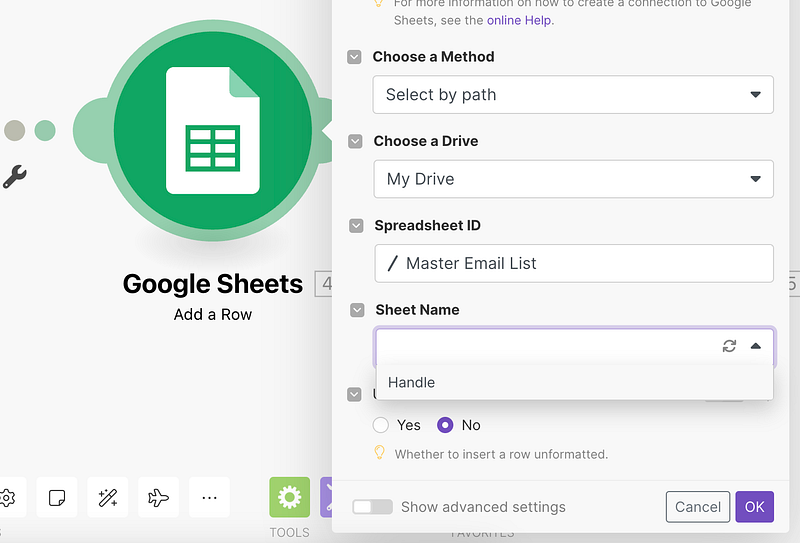
- Click the plus sign again
- Search OpenAI
- Choose the “Completion” option
- You’ll have to add your organization id and API key from OpenAI to use this next piece.
- Go with the Da Vinci — 003 for this
- Now this is the bread and butter you want a fully though out support answer prompt that categorizes the type of support ticket coming across. Again the goal is NOT to just wipe your hands clean but to generate the best initial response and then take it from there. This will help with initial response time per whatever service level agreements you may have set up with clients.
- Here’s a sample prompt BUT obviously cater this to your needs
— You are a dedicated support representative. You are going to respond to client emails based on the logic that we have below.
First read the clients email and categorize it into one of the categories below.
1. Login issues/Reset Password
2. Cancel Subscription
3. How to use functionality
4. Other
If login issues/reset password: Respond with “Thank you for reaching out, we’ll work on getting you back up and running. We’ll reach out once your account has been reset! Let us know if there’s anything else we can do to help”
If cancel subscription: Respond with “Thank you for your patronage. We will gladly work on cancelling your subscription. But before you go would you consider staying for the XYZ awesome possum discount? use promo code 123ducksauce to claim now.”
If how to use functionailty: Respond with “That’s a great question! We’ve got an outline of the workflow here that should help. If that doesn’t do the trick let us know and we can dig in deeper!”
If other: Respond with “Thank you for your email! We’ll look into this and get back to you shortly”
— **Note there IS a character limit so you will want to be REALLY careful not to go over. If you don’t buffer in space for the client email this could end up failing.
Last step is to send the email back out to the client with the response. You would use the same “EMAIL” app from before but this time you would use the “Send an Email” action.
- ** Depending on your needs it MIGHT be better to not actually use this as a system to Auto respond but INSTEAD, set it up so it’s just a triage system.
- That way if you have different levels of support or different teams, this will automatically redirect to the right place.
One final note — if you’re a developer, there’s not reason at all you’d want to use Make/Zapier for this except that it makes the process use a lot less brain power.
Hope that helps all! I’m planning to use something like this in my next SAAS tool so its not a manual comb through of all issues.
I create a simple automation template for Make.com to send personalized, ai generated, automated emails to client leads. If you want that, you can get here for free.