
APPLE SIRI REVAMPED
How to Augment Siri as Your Personal LLM Assistant
A Practical Guide to Equip Siri with Asynchronous LLM and AI Assistant Integration Capabilities on a Mac

According to Apple, “Siri is an easy way to make calls, send texts, use apps, and get things done with just your voice. And Siri is the most private intelligent assistant.”—Is it? This claim is surely debatable. Indeed, since the rise of the novel generative transformers’ technology face-to-face with powerful LLMs (Large Language Models) such as GPT4, Gemini, Mixtral 8×7B, and even Apple’s Ferret, Siri appears outdated, akin to software from the ice age. That despite its strong potential of audio-intelligent integration capabilities within the Apple technology ecosystem.
Every Mac enthusiast may intuitively feel the desire of a Siri, teleported to the 21st century, equipped with transformer technologies, including LLM and LAM (Large Action Model).
Indeed, when you use the current Siri on your Mac, it feels like an old friend appealing for a fundamental upgrade. Perhaps, this was the very emotional motivation that moved me to puzzle how to propose a simple solution for every Mac enthusiast to upgrade its Siri to a Siri-LLM.
While conducting a series of tests on a population of instructed OpenAI Assistant (beta), the idea came to me to connect some of them to Siri, and run some tests via Siri, instead of a chat user interface. However, as you may know, those assistants accessed via API, run asynchronously and time elapse and management must be considered. Borrowed from that project, I thought to suggest a simple version of a local solution. The solution should enable every Mac enthusiast to connect within a couple of minutes, Siri asynchronously to their preferred LLM, and not only GPT assistants, which can be made accessible via API.
What I will not explain in this article is how you may call your favoured LLM. This means when it comes to the API call, of course, you must follow the completion instructions of your selected LLM or the interface you might have. For everybody’s comfort, we will use in this version, Python for coding, Flask for managing a local server, and at your convenience, to avoid Apple scripting, only Apple Shortcuts.
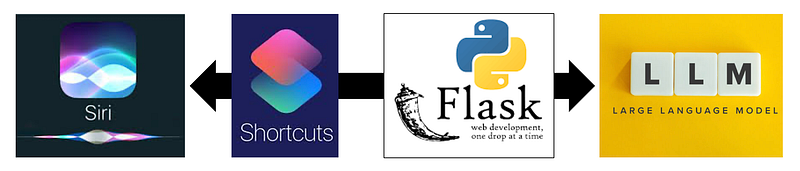
Step 1
Set up a new environment via your terminal:
python -m venv myenv
source myenv/bin/activate
and install Flask:
pip install FlaskOpen a new python file and copy/paste the following code.
from flask import Flask, request, jsonify
import logging
import uuid
import threading
import json
# In addition import all you may need for your API call

app = Flask(__name__)

# In-memory storage for simplicity
sessions = {}

def process_ai_request(session_id, message):
    # AI processing
    # Substitute `model_prompter(message)` with your desired LLM's completion method
    response = model_prompter(message)

    # Update the session with the response
    sessions[session_id]["status"] = "complete"
    sessions[session_id]["response"] = response

@app.route('/siri', methods=['POST'])
def siri_endpoint():
    logging.info("Siri endpoint was called")
    data = request.json
    message = data['message']

    # Generate a unique session ID
    session_id = str(uuid.uuid4())

    # Initialize session status
    sessions[session_id] = {"status": "processing", "response": None}

    # Start AI processing in a separate thread
    ai_thread = threading.Thread(target=process_ai_request, args=(session_id, message))
    ai_thread.start()

    # Return the session ID immediately
    return jsonify({"session_id": session_id})

def log_response(response_data):
    # Log the response data in a pretty-printed JSON format
    app.logger.info(json.dumps(response_data, indent=4))

@app.route('/siri', methods=['GET'])
def check_status():
    session_id = request.args.get('session_id')
    session = sessions.get(session_id, None)

    if not session:
        response_data = {"error": "Invalid session ID"}
        log_response(response_data)  # Log the error response
        return jsonify(response_data), 404

    response_data = {"status": session["status"], "response": session.get("response")}
    log_response(response_data)  # Log the successful response
    return jsonify(response_data)

if __name__ == '__main__':
    app.run(debug=True)
This code snippet is a simple Python web application using the Flask framework. It handles the requests from your LLM. It should be emphasised that this version of the script recognizes asynchronous behaviour of the LLM assistants. In case, you would only like to deal with a simple synchronous completion with a conversation model via API, you might further simplify the code.
- Imports and setup
— First it imports the necessary modules: `Flask` for the web framework, `request` and `jsonify` for handling HTTP requests and responses, `logging` for logging, `uuid` for generating unique session identifiers, `threading` for concurrent processing, and `json` for JSON manipulation.
—At the top, an instance of the
Flaskclass is created. This acts as the central object for the application. - In-memory storage:
—
sessionsis a dictionary used to store session data in memory. Each session represents a separate request to the LLM. - Function
process_ai_request: — This function handles the LLM processing part. You will need to substitutemodel_prompter(message)with your desired LLM’s completion method. — The method further updates thesessionsdictionary with the status and response for the givensession_id. - Endpoint
/siriforPOSTrequests: — This endpoint is responsible for receiving LLM processing requests. — It extracts themessagefrom the incoming JSON data. — A uniquesession_idis generated, and a new session is initialized in thesessionsdictionary with the status ‘processing’. — An LLM processing task is started in a separate thread usingthreading.Thread, passing thesession_idandmessagetoprocess_ai_request. — Keeping the asynchronous in mind, the endpoint immediately responds with the generatedsession_id, without waiting for the AI processing to complete. - Function
log_response: — This function logs response data in a formatted JSON structure for better readability. The code involvesloggerin this version, which you may modify, at our preference. - Endpoint
/siriforGETrequests: — This endpoint checks the status of a request for processing. — It retrieves thesession_idfrom query parameters. If thesession_idis invalid or not found, it returns an error response. Otherwise, it returns the status and response of the session. - Main execution: — If the script is run directly and not imported, the Flask app starts with debugging enabled.
Overall, this script’s functionality is to receive the LLM’s processing requests, handle them asynchronously, and allow users transparently to check the status and response of their requests using session IDs.
Step 2
Now, open “Shortcuts” on your Mac and import and clone the shortcut “SiriGPT”; hereto, the link on iCloud: https://www.icloud.com/shortcuts/784d347222194149bf0480b81d621a3a
Important: The name “SiriGPT” is a placeholder, you should change this name to a name that is proper to your application. Consequently, you should change it in the shortcut code too. This replacement is important because Siri will not recognize “SiriGPT” well.
The first part of the shortcut handles the audio input via Siri and connects to Flask via its local server.
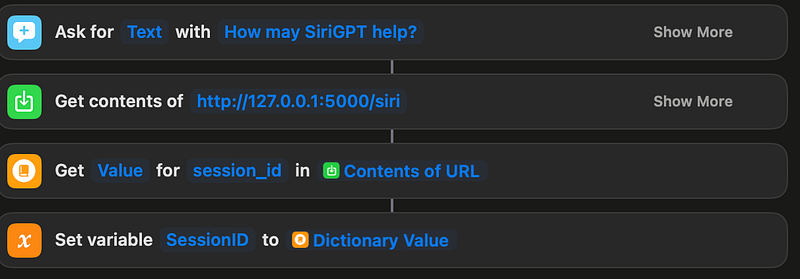
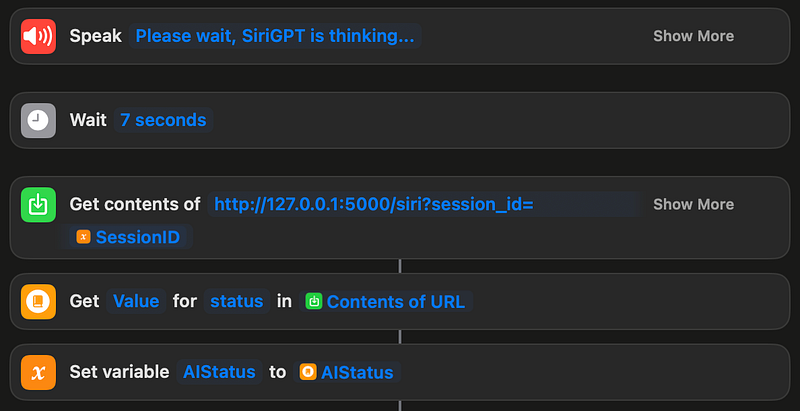
The second part is encapsulated into a Repeat loop to enable asynchronous handling.

In this loop, first a message and a wait time are assigned to the loop. This is necessary to adapt to your LLMs response time. If your LLM can respond very fast and synchronously, you may modify the shortcut and skip the entire asynchronous handling.
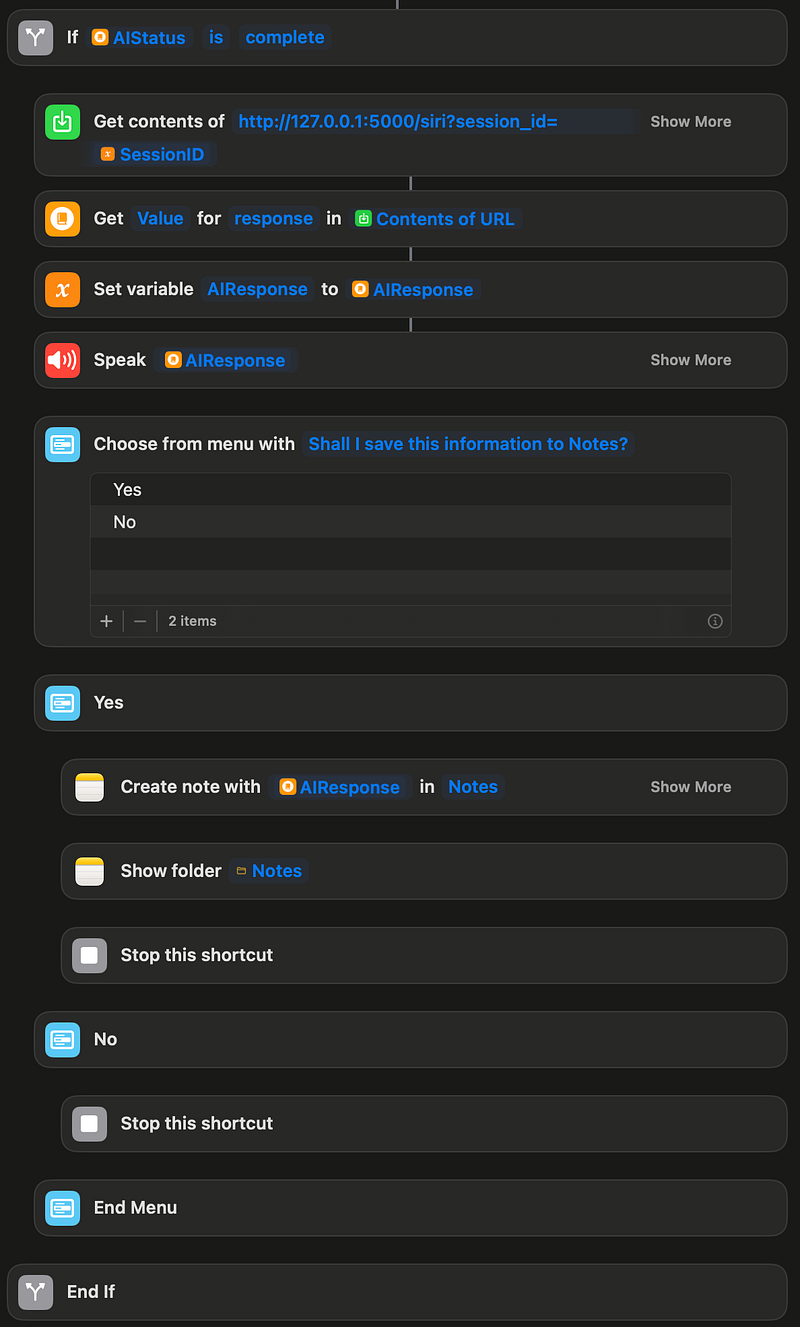
This section is followed, within the same loop, by the part which gets the response of the LLM and speaks it out through the voice of Siri. In addition, I have added a menu, which helps me to save any response, which might be important to me, automatically to a “Notes” folder. You may skip this part or adjust it with your folder of choice in “Notes”. Possibly, it may also serve as a template to redirect the response and save it to other applications.
Step 3
Finally, run your Flask application with python app.py in your terminal. Once it runs, you are set. You can call Siri followed by the name that you have assigned to your shortcut, and Siri will deal with the communication between you and your LLM or AI assistant.
The End or The Beginning
This, indeed, should not be the end. Modifying and developing the shortcut and the pipeline flexibly and adjusting to your use would be the next. You may involve other shortcuts or apps, or introduce an option to select among different LLMs or AI assistants. Moreover, if you use local open source LLMs, such as via “Ollama”, you will be able to operate entirely independent. This way connected, you may involve Siri even in a Retrieval Augmented Generation of knowledge. You even may use the Flask version, presented here, as an entry point to move to a cloud solution, or just on a smaller scale, tunnelling with “ngrok”, to serve all your Apple devices responsive with an augmented Siri.
It’s hoped that Apple will awaken and innovate, perhaps with a liaison of Siri and Ajax, or a future Siri-AGI. Hope so.◼︎
In accordance with the MIT License, all code shared in the above article, including the shortcut, is open source and for free non-commercial use.
👍 Don’t forget to subscribe: https://medium.com/@vaseghisam/subscribe


