
How To Attach Visual Studio Code To A Running Docker Container
Yet Another Thing I Didn’t Know VSCode Could Do Automagically
These past two weeks I’ve been primarily preoccupied with getting some old code running on a flashy new M1 MacBook. The new MacBooks are awesome, but as we all well know: Apple products are not designed for peasants like me who value such lowly concepts as backwards compatibility…

Docker to the Rescue
We already use Docker for our CI/CD pipeline, so it was naturally the first thing we tried after losing a few days to battling with Python versions that refuse to build on ARM platforms. Once we got everything building, all tests passing and the deployments successful from within the Docker container running on my MacBook — requiring the --platform linux/amd64 arguments, which actually comes with a warning not to expect too much — I experimented with getting the same thing working over UTM, but was unfortunately met with abysmal failures trying to run a virtual machine with x64 architecture.
I haven’t have the opportunity yet to experiment with other solutions, but UTM was the recommended one (according to a number of articles and forum threads) and running on the same Docker image as our CI/CD pipeline has the additional benefit of ensuring that we’re all seeing and feeling the same successes and failures so by that point I was confident that we’d found the right solution.
Testing and Debugging With Visual Studio Code
Visual Studio Code’s Python test explorer is great, but we now needed to make testing and debugging available via the Docker container. My initial search results showed this to be possible, but turned up some very impractical and complicated ways of setting it up. Fortunately, one of the GitHub issue discussions I came across made reference to a 2019 announcement introducing built-in Visual Studio Code support for working in remote containers!
I was stunned (and elated!) by how simple this was to set up, and I haven’t even begun to delve into the documentation for setting my machine up for long-term abuse, but for the rest of you who didn’t know this functionality exists, here’s a quick guide to getting started:
Setting up a running Docker for development
The important thing is to have a running Docker container that’s configured with everything you need, and it’s probably a good idea to use a volume mount so that your work is preserved (of course there are alternative methods, but this is the easiest way).
[Beware, users with git-bash on a Windows machine: volume mounting is weird]
> docker run --rm --name mypython -it --entrypoint bash -v $(pwd):/root/myreponame python
(For the unfamiliar, the command above will start an interactive bash prompt in a named instance of the latest python Docker image with the current directory mounted as /root/myreponame or ~/myreponame once you’re logged in as root)
Connecting Visual Studio Code to the running container
After installing the Remote - Containers extension, on the bottom left corner of Visual Studio Code you will see a tiny green button with arrow indicators in it.
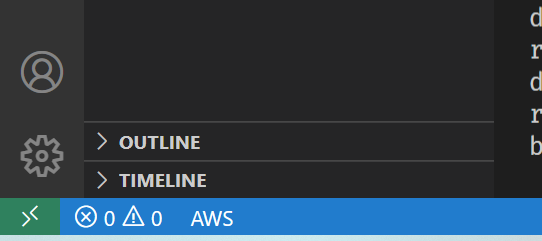
Click the button, and select “Attach to running container…”. Visual Studio Code will then install itself in the container and open a new window, and the tiny green button at the bottom of the new window will show “Container IMAGE_NAME (CONTAINER_NAME)”.

Install whatever extensions you require (it’s possible to avoid doing that more than once, but I haven’t tried it yet), and away you go!
**UPDATE**: I’ve just published Avoiding Visual Studio Code extension reinstalls on running Docker containers for those of you who’d like to do that, it turned out the documentation I linked to above doesn’t handle that use-case :)


