
How to Add Resources in Swift Package Manager
Swift 5.3 brings resource capabilities to SPM

SE-0271 by Anders Bertelrud and Ankit Aggarwal brings Resources to Swift Package Manager. If you have any iOS development experience, you’ll know that you can add non-compiled files with Bundle. In the new Swift Package Manager, based on Swift 5.3 or newer, you can add the same thing. You can add images, sound, and JSON and Swift will generate the bundle for you.
At the time of writing, Swift 5.3 isn’t officially released, but if you want to try it, download a snapshot build at Swift Snapshot.
On each target, know that you can declare recursively or specifically what resources you want to add — more details on this later.
.target(name: "HelloWorldProgram", dependencies: [], resources: nil)If you add a non-compiled file to your target directory, Swift will give you this warning:
error: found 2 file(s) which are unhandled; explicitly declare them as resources or exclude from the target
    /Users/wendyliga/resource-spm/Sources/resource-spm/README.md
    /Users/wendyliga/resource-spm/Sources/resource-spm/Images/image.png
To solve this, Swift 5.3 introduces resources parameters on .target. There are two resources you can define.
Copy
copy will ask Swift to apply copy rule to each resource you declare. If you’re targeting directory with copy, then Swift will retain its structure. So, you only want to use copy if you wish to retain its directory structure. If not, use process instead.
.copy(path:)Example:
.target(
   name: "HelloWorldProgram",
   dependencies: [],
   resources: [.copy("README.md"), .copy("image.png")]
)
Example on directory:
.target(
   name: "HelloWorldProgram",
   dependencies: [],
   resources: [.copy(Images), .copy("README.md")]
)
If you check the compiled bundle (it depends on your configuration but the default will be at project-path/.build/build/your-project-name.bundle), you can see Swift will copy and retain its structure.

Process
process will do almost the same with copy(path:), but instead, just copying the file, process will follow copying and optimizing rules based on the platform it runs on. If you’re targeting a directory, it will recursively add the files inside, but not retain the directory structure.
.process(path:)Example:
.target(
   name: "HelloWorldProgram",
   dependencies: [],
   resources: [.process("README.md"), .process("image.png")]
)
Example on directory:
.target(
   name: "HelloWorldProgram",
   dependencies: [],
   resources: [.copy(Images), .copy("README.md")]
)
By default, you should use process. process is preferred because Swift will add platform efficiency rules based on the file type. But what if you want to add localized resources where the Bundle API is currently supported? We’ll discuss this at the end of this article.
How to Use the Resource
Swift will create boilerplate code for you to easily access resources through Bundle.
extension Bundle {
    /// The bundle associated with the current Swift module.
    static let module: Bundle = { ... }()
}
Example:
import Foundationlet picture = Bundle.module.path(forResource: "image", ofType: "png")print(picture) // Optional("/Users/wendyliga/resource-spm/.build/x86_64-apple-macosx/debug/resource-spm_resource-spm.bundle/image.png")Localized Resources
Thanks to David Hart with SE-0278, Swift 5.3 will support localized resources for Swift Package Manager.
let package = Package(
   name: "resource-spm",
   defaultLocalization: "en",
   ...
)
You should add defaultLocalization to your package init to tell Swift that your package will support localization. defaultLocalization will also be used by Swift as the fallback if any localized resources don’t have precise localization.
Then create your localized resource by creating a language-tag.lproj directory whose language-tag will be based on the IETF Language Tag (learn more at CFBundleDevelopmentRegion documentation).
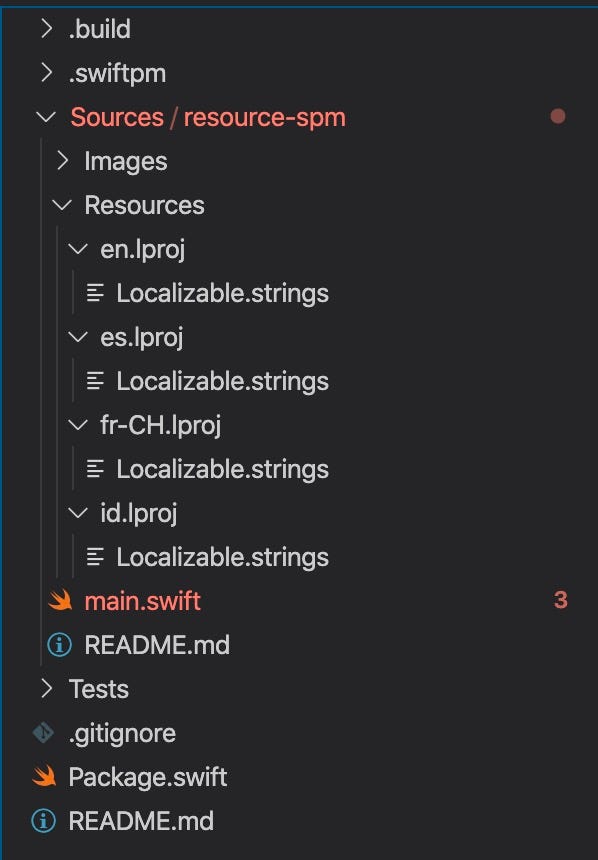
On Package.swift, I add the resources directory declaration:
.process("Resources")In my example, I will create several localizations: en (English) as default, es (Spanish), id (Indonesia), and fr-CH(French (Switzerland), as IETF language tags.
Also as I mentioned previously, you should use .process even in localization context(localization use case must force you to create a directory and it should retain its structure when compiled to bundle). Swift will do its magic to make this happen even without .copy .
Each file will have a hello_tag localized string, for example, France:
"hello_world" = "Bonjour le monde";Then you can call this with:
NSLocalizedString("hello_world", bundle: .module, comment: "")By default, the code above will search for hello_world on available localized strings.
You can do the same thing with other file types, like images, sound, or JSON, by putting each file on its respective localized directory, the same as the Localizable.strings example.
What if I Want to Access Localized Resource Forcibly?
If, for example, you want to access other language resources that are not the current default language on the client, you can access the respective language bundle.
Here’s a little bit of a function helper:
/// source: https://github.com/apple/swift-package-manager/pull/2535/files#diff-cc8e61e90b098f4e9ebc74503408eaa8func localizationBundle(forLanguage language: String) -> Bundle? {
if let path = Bundle.module.path(forResource: language, ofType: "lproj") {
return Bundle(path: path)
} else {
return nil
}
}if let indonesiaBundle = localizationBundle(forLanguage: "id") {
print(NSLocalizedString("hello_world", bundle: indonesiaBundle, comment: "")) // access image
let image = UIImage(named: "MyIcon", in: indonesiaBundle, compatibleWith: UITraitCollection(userInterfaceStyle: .dark))}
Example Project
WWDC Session
There’s WWDC 2020 session that talks about new Resource on Swift Package Manager, give it a visit
Wrapping Things Up
So, are you excited about this new Swift package manager?
Before Swift 5.3, this meant many Swift package manager libraries or executables that want to include other files outside the Swift file, they need to use the xcodeproj format. But that issue is no more — now you can add resources to your SPM project.
You can now add native localization support, bring JSON file or audio files into your SPM project.
That’s it from me. Thanks for your time, see you in the next article!


