
How to add Google Play In-app Review Dialog?
A step-by-step guide how you can let users review your app using Google Play In-app review API and test it out using Internal App Sharing

This is just a quick guide and a simple example of how to add the Google Play In-app review dialog in your app. This is what it looks like after I implemented this in RSS feed reader app.
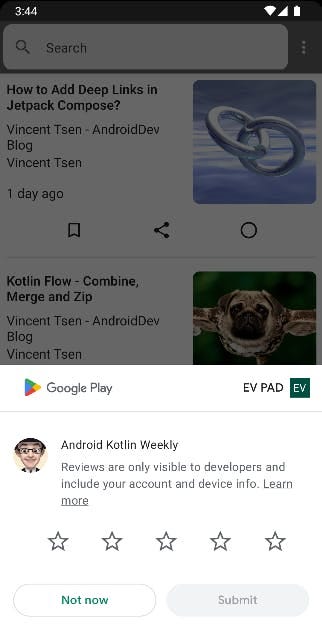
1. Add Review API Libraries
This example of build.gradle.kts ( Kotlin script/KTS) in your app module.
dependencies {
    /*...*/
    implementation("com.google.android.play:review:2.0.1")
    implementation("com.google.android.play:review-ktx:2.0.1")
    /*...*/
}
2. Create ReviewManager in the Activity
It is better to implement the ReviewManger in activity rather than a composable function because its APIs needs an activity. Well, you can technically do it in composable function (through LocalContext), but it is not a good practice because composable functions shouldn't need to know about the activity.
This creates the ReviewManager using ReviewManagerFactory.create() API in your activity. Of course, only when it is accessed because of the lazy delegate is used here.
class MainActivity : ComponentActivity() {
    /*...*/
    private val reviewManager by lazy {
        ReviewManagerFactory.create(this)
    }
    /*...*/
}
3. Add showReviewDialog() Function
Let’s create a function that requests the review flow and launch the review dialog.
class MainActivity : ComponentActivity() {
    /*...*/
    private fun showReviewDialog() {
        val request = reviewManager.requestReviewFlow()
        request.addOnCompleteListener { task ->
            if (task.isSuccessful) {
                val reviewInfo = task.result
                reviewManager.launchReviewFlow(this, reviewInfo)
            }
        }
    }
    /*...*/
}
Then, set this function to be a callback from your composable function.
override fun onCreate(savedInstanceState: Bundle?) {
    /*...*/
    setContent {
        /*...*/
        MainScreen(showReviewDialog = ::showReviewDialog)
    }
}
What I did is simply add a drop-down “Rate Me” menu to the app.
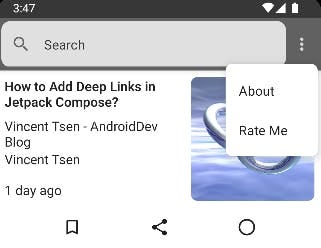
Well, this is for educational purposes and is not recommended to implement this way because there are no callbacks to indicate whether Google Play review dialog is shown or not. If the dialog is not shown (for the reasons below), this appears to be a broken user flow, which we want to avoid!
There are quotas on how many times this API can be called. Clicking the “Rate Me” the second time, won’t show the Google Play review dialog anymore. I also noticed if you have already reviewed the app, call the ReviewManager.launchReviewFlow() API does nothing too.
For more information, you can refer to the official document here.
4. Test In-app Reviews
The issue is you can’t test it in your emulator directly because it requires your app to be published in Play Store.
There are a few ways you can test it out (as you can read from the documentation here) but the easiest way in my opinion is internal app sharing.
Here are the steps to upload your app for internal app sharing:
- In Google Play Console, go to Setup -> Internal App Sharing
- Create an Internal Testers email lists. Separate the emails with a comma.
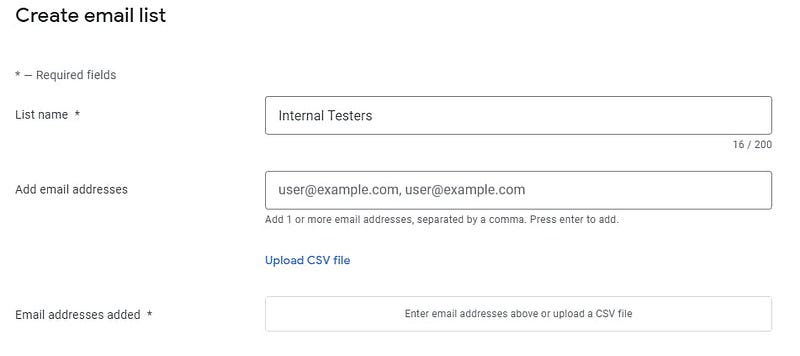
3. In Manage testers, select Restrict access to email lists
4. In Manage uploaders, click this link, https://play.google.com/console/internal-app-sharing. After that, you can upload your app bundle or APK here.
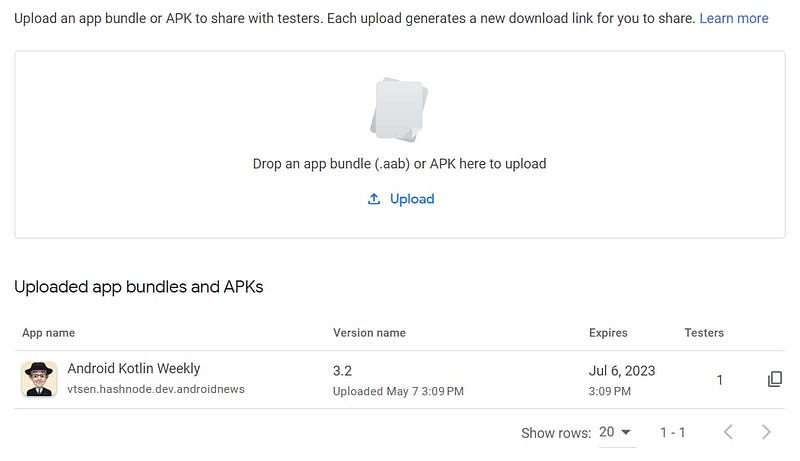
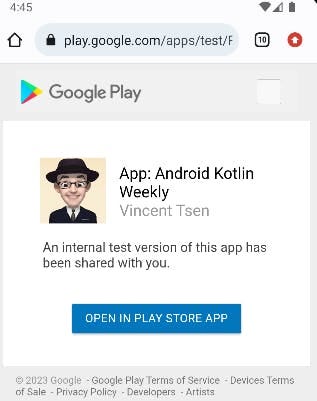
5. Copy the link and sent it to your testers (it could be yourself). The tester needs to open the link on his/her phone and it looks like this. Click OPEN IN PLAY STORE APP.
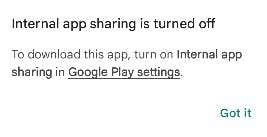
6. You get this if your Google Play has not enabled Internal app sharing. Click the Google Play Settings.
7. In Google Play Settings, go to About, and click Play Store Version 7 times. This enables the developer options.
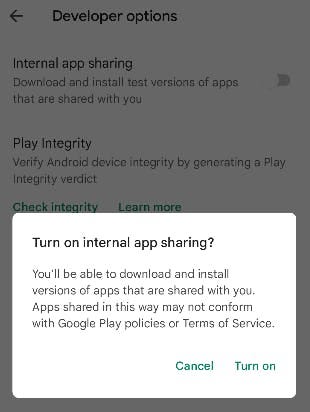
8. Go to General -> Developer options, and enable the Internal app sharing. You get this prompt, so just click Turn on.
9. Go back to step 5, and click OPEN IN PLAY STORE APP again. It brings you to Google Play Store, to install the app.
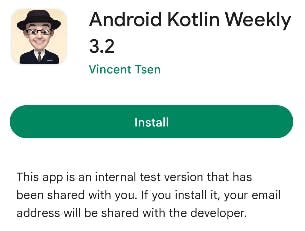
If the app has already been installed previously, it asks you to uninstall it first.
10. Now, you should be able to test the Google Play In-App Review Dialog.
In this testing mode, the quotas do not apply here. You can call this Google Play In-App review API as many times as you wish. The only thing is the Submit button is disabled.
Conclusion
Implementing the Google Play in-app review dialog is quite simple, but testing is a bit tricky. It will be nice if we can test it out directly from the emulator.
Deciding when to trigger the in-app review is also a bit tricky for a very simple app like this one. Unlike games after the player finished a level, you can trigger in-app reviews.
Maybe I can do something like prompting the in-app review after the user installed the app after a certain period? Yeah, I will do that next.
[Updated — July 09, 20 23]: This is an example of getting the duration after the app was first installed using
PackageInfo.firstInstallTimefromPackageManager.
class MainActivity : ComponentActivity() {

    override fun onCreate(savedInstanceState: Bundle?) {
        showReviewDialog()
        super.onCreate(savedInstanceState)
        /*...*/
    }

    private fun showReviewDialog() {
        val packageInfo = if (Build.VERSION.SDK_INT >= Build.VERSION_CODES.TIRAMISU) {
            packageManager.getPackageInfo(packageName, PackageManager.PackageInfoFlags.of(0))
        } else {
            packageManager.getPackageInfo(packageName, 0)
        }

        val installTime = packageInfo.firstInstallTime
        val currentTime = System.currentTimeMillis()
        val durationInMillis = currentTime - installTime
        val durationInDays = durationInMillis / (1000 * 60 * 60 * 24)
        /*...*/
    }
}
Example
GitHub Repository: AndroidNews
Originally published at https://vtsen.hashnode.dev.


