avatarSasha Desideri

Free AI web copilot to create summaries, insights and extended knowledge, download it at here

5047

Abstract

at you bought through a stock service?</p><h2 id="b662">Here is how to upload a picture from your computer:</h2><ol><li>Hit enter for a clean line in your Medium draft. Then click on the “+” icon on the left side of the screen.</li></ol><figure id="deac"><img src="https://cdn-images-1.readmedium.com/v2/resize:fit:800/1*IjFABV6wpCUXM2KyDXAp_Q.png"><figcaption>Screenshot by Author</figcaption></figure><p id="6452">2. From the horizontal menu, choose the first icon, to upload a picture from your computer.</p><figure id="cc24"><img src="https://cdn-images-1.readmedium.com/v2/resize:fit:800/1*NoQ1kTlKf7gZxyvXNAeaRQ.png"><figcaption>Screenshot by Author</figcaption></figure><p id="0354">3. In the right folder, select the picture you want to upload and hit “Open”.</p><figure id="0c27"><img src="https://cdn-images-1.readmedium.com/v2/resize:fit:800/1*OeYlg19BOw9wLJDr-24h2A.png"><figcaption>Screenshot by Author</figcaption></figure><p id="3dfc">3. Medium will now show your picture without a Caption. Click underneath the picture to start typing your caption.</p><figure id="4d8a"><img src="https://cdn-images-1.readmedium.com/v2/resize:fit:800/1*ZAFwg4qT5ILfMt5ddStZDw.png"><figcaption>Screenshot by Author</figcaption></figure><p id="21dd">4. Describe the picture in the most fitting way. If it is a picture taken by you, make sure to include this information. Here’s my example:</p><figure id="ea19"><img src="https://cdn-images-1.readmedium.com/v2/resize:fit:800/1*fL-AjqKcCcgl_ddwtQS3Gw.png"><figcaption>Screenshot by Author</figcaption></figure><p id="cf74">But what if you couldn’t find the right picture on Unsplash but don’t have one of your own? You can use a trusted source. Make sure the website you choose from offers watermark-free pictures that provide credit to the photographer. I’m a big fan of Pexels.com and will use it for the following example.</p><p id="1fcf">Here is how to add a picture from Pexels.com.</p><ol><li>Open a new tab and go to Pexels.com and locate the search bar in the middle of the website.</li></ol><figure id="7631"><img src="https://cdn-images-1.readmedium.com/v2/resize:fit:800/1*aa4uNeGnTTn9zspoA9wm7w.png"><figcaption>Screenshot by Author</figcaption></figure><p id="0b41">2. Type your keyword in the search bar and hit enter.</p><figure id="7f7a"><img src="https://cdn-images-1.readmedium.com/v2/resize:fit:800/1*_i22xS8waEmE7P8gV1QEMw.png"><figcaption>Screenshot by Author</figcaption></figure><p id="8373">3. You will be directed to a result page that will look like this.</p><figure id="2020"><img src="https://cdn-images-1.readmedium.com/v2/resize:fit:800/1*uzPtcHZIek3MLwf9yABCyA.png"><figcaption>Screenshot by Author</figcaption></figure><p id="5549">4. Choose the picture you like and hit the green download button</p><figure id="6de3"><img src="https://cdn-images-1.readmedium.com/v2/resize:fit:800/1*5ld3x2pJqFE7PH5wN15dEQ.png"><figcaption>Screenshot by Author</figcaption></figure><p id="bf8f">5. After your download starts, you’ll be directed to the credits page. DO NOT close this page. It contains the information for the caption.</p><figure id="3a0e"><img src="https://cdn-images-1.readmedium.com/v2/resize:fit:800/1*Vb3pr4q4vw5wB2c1zZLIkQ.png"><figcaption>Screenshot by Author</figcaption></figure><p id="1dab">6. Back in your Medium draft, hit enter to bring in the new line menu. Click on the “+” icon on the left side of the text.</p><figure id="a5da"><img src="https://cdn-images-1.readmedium.com/v2/resize:fit:800/1*xrSI0ylaPIaVLRWXUJPjCg.png"><figcaption>Screenshot by Author</figcaption></figure><p id="7ecd">7. From the horizontal menu, click on the first icon.</p><figure id="f821"><img src="https://cdn-images-1.readmedium.com/v2/resize:fit:800/1*NoQ1kTlKf7gZxyvXNAeaRQ.png"><figcaption>Screenshot by Author</figcaption></figure><p id="94a3">8. Select the correct folder (Where you downloaded the picture from Pexels.com), select the picture, and hit “Open” just like we did when learning to upload pictures from your computer.</p><figure id="97f5"><img src="https://cdn-images-1.readmedium.com/v2/resize:fit:800/1*GrBtG3uB-h1bEJccLKq6QA.png"><figcaption>Screenshot by Author</figcaption></figure><p id="e0dc">9. Your picture will be added to your draft without a Caption. Go back to the Pexels.com tab, and click the Copy icon, to copy the credits of the picture, as shown in the screenshot.</p><figure id="2875"><img src="https://cdn-images-1.readmedium.com/v2/resize:fit:800/1*Vb3pr4q4vw5wB2c1zZLIkQ.png"><figcaption>Screenshot by Author</figcaption></figure><p id="1410">10. Back to your Medium Draft, add the copied text inside the caption underneath your image. You may need to click once on your image to bring back the line.</p><figure id="0dcc"><img src="https://cdn-images-1.readmedium.com/v2/resize:fit:800/1*Fo_JChfo5wm56pWTvKdnoQ.png"><figcaption>Screenshot by Author</figcaption></figure><p id="19e0">11. Now your picture will have a long link as its caption. If you want you can stop here. But if you want your picture’s caption to look more professional

Options

, check out the following steps as well.</p><figure id="79af"><img src="https://cdn-images-1.readmedium.com/v2/resize:fit:800/1*aeIPHRl3qXm4BdUy5YqHfA.png"><figcaption>Screenshot by Author</figcaption></figure><p id="cc13">12. Select the whole link that shows up after the “:” and cut it (Ctrl + X, if you’d like a shortcut)</p><figure id="12c9"><img src="https://cdn-images-1.readmedium.com/v2/resize:fit:800/1*OH4m8TWxCm-_y5HcmQ4g4Q.png"><figcaption>Screenshot by Author</figcaption></figure><p id="0341">13. Select the whole name of the artist (it’s everything included between the “Photo by” and the “:”), and wait for the black menu to pop up. Then click on the third icon, the one shaped like a chain.</p><figure id="bfd9"><img src="https://cdn-images-1.readmedium.com/v2/resize:fit:800/1*fHAiD2uUqrwhjVn7x1Y4LQ.png"><figcaption>Screenshot by Author</figcaption></figure><p id="a5fa">14. This will bring up a black bubble for you to paste the link inside of it.</p><figure id="64d6"><img src="https://cdn-images-1.readmedium.com/v2/resize:fit:800/1*45E9GyUIZAp_f3TA6mPQQQ.png"><figcaption>Screenshot by Author</figcaption></figure><p id="1fc2">15. Paste the whole link inside this bubble (Ctrl+V if you’d like a shortcut).</p><figure id="850f"><img src="https://cdn-images-1.readmedium.com/v2/resize:fit:800/1*7HOLlZb_wS93vyYtP1hfag.png"><figcaption>Screenshot by Author</figcaption></figure><p id="3281">16. Now your artist is credited and if you hover your mouse on their name, you will see the link inside. It’s time to credit the source.</p><figure id="8bf6"><img src="https://cdn-images-1.readmedium.com/v2/resize:fit:800/1*PuC8lmrMfgyAv0IIOQpiNg.png"><figcaption>Screenshot by Author</figcaption></figure><p id="cc0b">17. Write where you took the picture from. In our case Pexels.</p><figure id="875c"><img src="https://cdn-images-1.readmedium.com/v2/resize:fit:800/1*HgHE1XZDjpyxq4HEmC0Zgw.png"><figcaption>Screenshot by Author</figcaption></figure><p id="f861">18. Grab the link of where you took the picture from and copy it in its entirety.</p><figure id="d1a3"><img src="https://cdn-images-1.readmedium.com/v2/resize:fit:800/1*CF2nMMzljxvzPd-EGly3TQ.png"><figcaption>Screenshot by Author</figcaption></figure><p id="869f">19. Repeat the same steps as you just did for the artist. Select the word Pexels, wait for the bubble menu to show up, and click on the third icon.</p><figure id="33a7"><img src="https://cdn-images-1.readmedium.com/v2/resize:fit:800/1*tCkmXC0lkq907Wx3fRMa5g.png"><figcaption>Screenshot by Author</figcaption></figure><p id="1e06">20. Paste the whole link inside the bubble and hit enter.</p><figure id="62f3"><img src="https://cdn-images-1.readmedium.com/v2/resize:fit:800/1*x3KNRDLd8Tz9Se5_thOelg.png"><figcaption>Screenshot by Author</figcaption></figure><p id="e9ac">Bonus: What is this menu that appears above the picture when I left-click on it? The first three icons let you choose the size of the picture in comparison to the text of your post.</p><ul><li>The first icon will make the picture as big as the external margins of your text:</li></ul><figure id="0e7c"><img src="https://cdn-images-1.readmedium.com/v2/resize:fit:800/1*_u2hOWiIRQr77hmbS-TBTw.png"><figcaption>Screenshot by Author</figcaption></figure><ul><li>The second icon will make the picture slightly bigger than your text</li></ul><figure id="b7a3"><img src="https://cdn-images-1.readmedium.com/v2/resize:fit:800/1*Rt5StgQdokD78ijhEB50Ag.png"><figcaption>Screenshot by Author</figcaption></figure><ul><li>The third icon will make the picture fill the screen of any device no matter the resolution, becoming much much bigger than the text.</li></ul><figure id="b8d9"><img src="https://cdn-images-1.readmedium.com/v2/resize:fit:800/1*x0rvuKdluR2c8VzZkNgbFA.png"><figcaption>Screenshot by Author</figcaption></figure><ul><li>The fourth icon allows you to provide the “Alt text”, the textual description of the picture for readers with visual impairments. Your Alt text will be read out loud by the player for those who listen to stories.</li></ul><figure id="bf23"><img src="https://cdn-images-1.readmedium.com/v2/resize:fit:800/1*oBydZptnLiLgtj-EzZLodw.png"><figcaption>Screenshot by Author</figcaption></figure><p id="08a5">Just write your description and hit enter:</p><figure id="0b4f"><img src="https://cdn-images-1.readmedium.com/v2/resize:fit:800/1*4lJFz9Ws2QuCIj5dkdf1kQ.png"><figcaption>Screenshot by Author</figcaption></figure><p id="072b">Once your picture has been fully credited it will look like this:</p><figure id="470a"><img src="https://cdn-images-1.readmedium.com/v2/resize:fit:800/1*s_ZmSgOYRiWwPtH4_a7ctw.jpeg"><figcaption>Photo by <a href="https://www.pexels.com/photo/white-printer-paper-on-brown-wooden-table-4614204/">cottonbro studio</a> on <a href="https://www.pexels.com/">Pexels</a></figcaption></figure><p id="0857">Thank you for reading and I hope this proves useful. If anything is unclear or you have any related questions, please leave them in the comments: I’ll be happy to help!</p></article></body>

How to Add and Caption Pictures On Medium

A Step-By-Step Guide for the Writing Lovers’ Cabin Publication
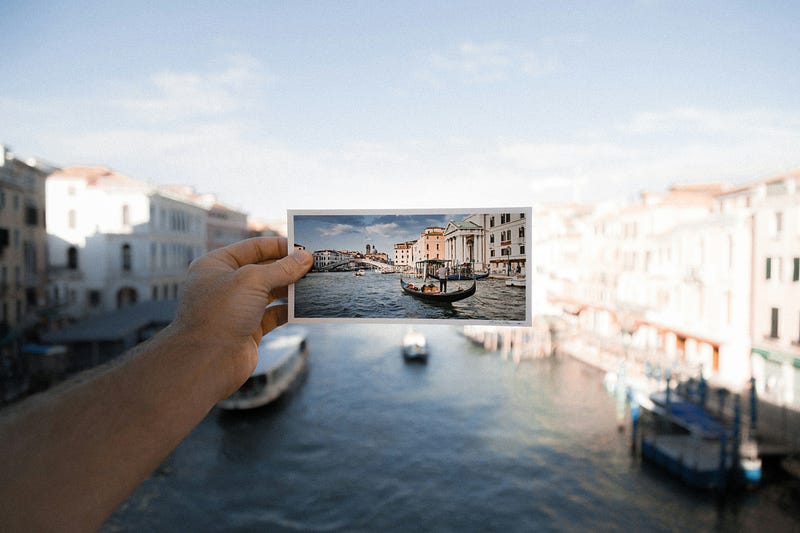
Photo by Jakob Owens on Unsplash

Thank you for taking the time to improve your picture game!

If you are already one of our writers: you’re amazing and we love you, keep up the good work!

If you are reading this and are not one of our writers… would you like to join us?

In our cozy cabins, we only accept human-created, copyright-free, and watermark-free fully credited pictures.

Here are three ways to include such pictures in your medium drafts: via the Unsplash built-in tool, from your private collection, or from a trusted website in this example I’m using Pexels.

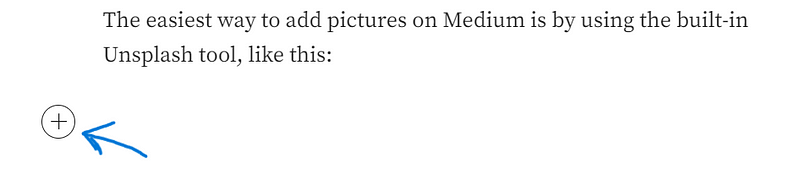
The easiest way to add pictures on Medium is by using the built-in Unsplash tool, like this:

  1. Hit enter for a new line and a “+” icon will appear on the left side. Click on it.
Screenshot by Author

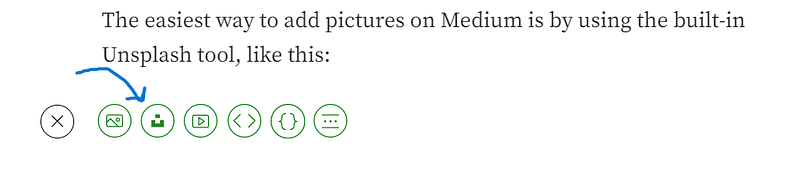
2. From the menu that pops up, select the second icon, as shown in the picture.
Screenshot by Author

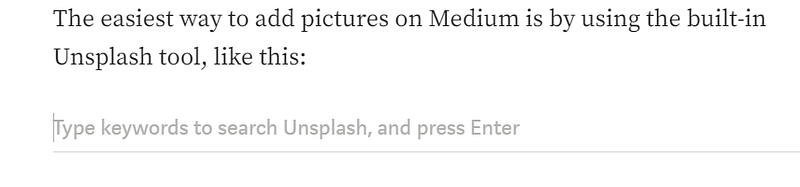
3. This will bring up a prompt asking you to type a keyword to search Unsplash.
Screenshot by Author

4. Type the keyword for the picture you’d like to find, and then hit “Enter”. I have used “Pictures” as an example. This will show you all available results in the Unsplash archive fitting with the chosen keyword. Find and select your picture.
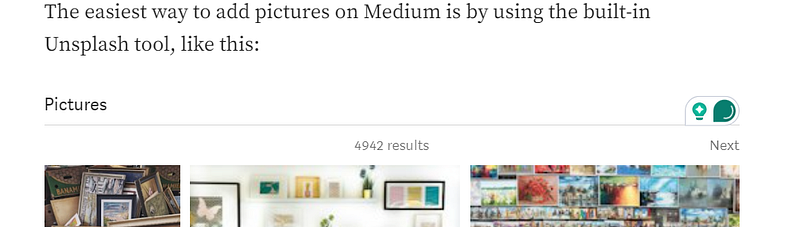
Screenshot by Author

5. Let the built-in tool do the rest!
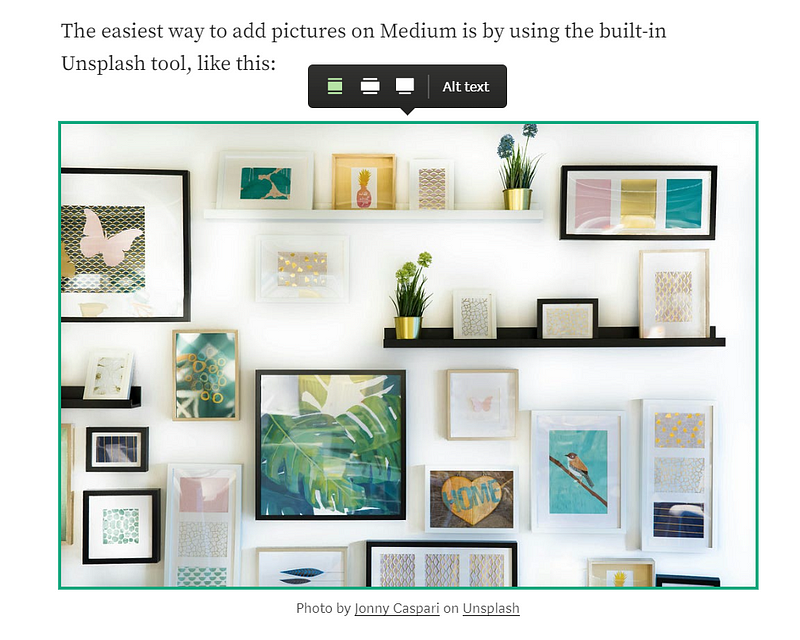
Screenshot by Author

6. You’ll see that there are underlined words in the caption now. This is very important: leave them as they are. They show the link to the credited artist and their picture…
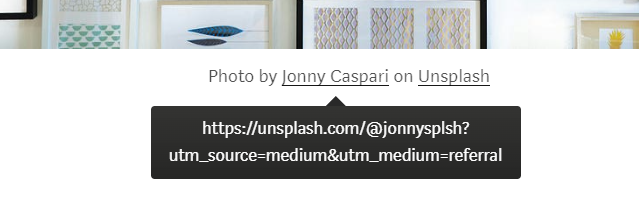
Screenshot by Author

…and the source where the picture was taken from.
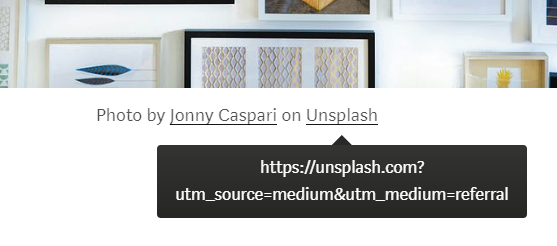
Screenshot by Author

We know that Medium says Captions are not mandatory, because you are assuming the legal responsibility in case of copyright infringement and are liable to lawsuits.

At the cozy cabin, we don’t want these vibes and ask you to credit all of your pictures.

By leaving the links crediting your sources, you are confirming to all your readers and the editors of the publication that your pictures are not infringing copyright.

But what if you want to add a picture you have taken yourself or one that you bought through a stock service?

Here is how to upload a picture from your computer:

  1. Hit enter for a clean line in your Medium draft. Then click on the “+” icon on the left side of the screen.

Screenshot by Author

2. From the horizontal menu, choose the first icon, to upload a picture from your computer.

Screenshot by Author

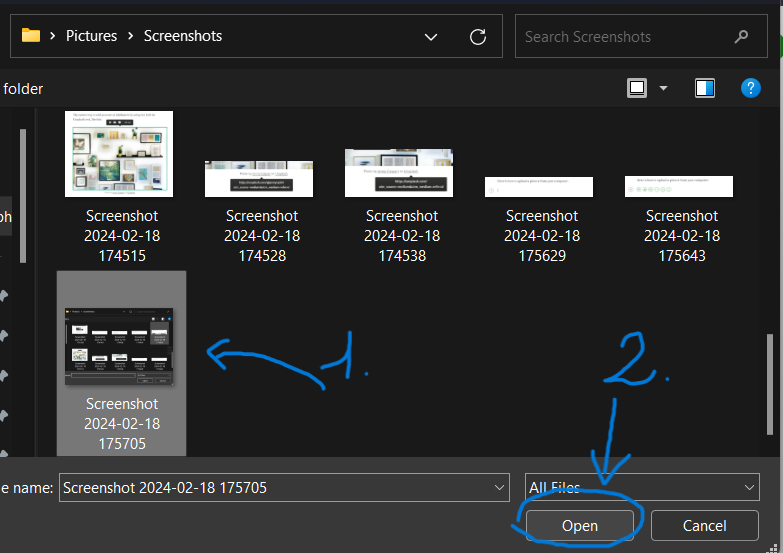
3. In the right folder, select the picture you want to upload and hit “Open”.
Screenshot by Author

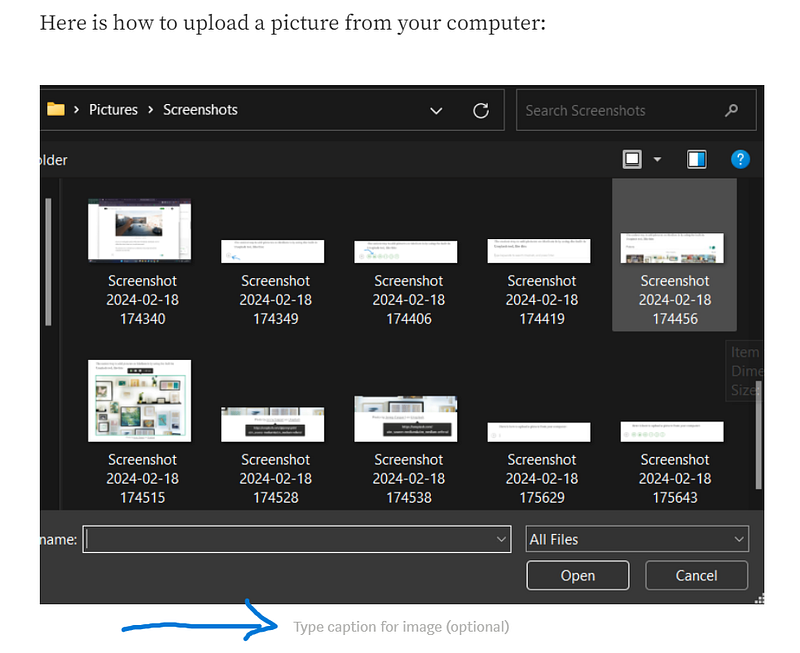
3. Medium will now show your picture without a Caption. Click underneath the picture to start typing your caption.
Screenshot by Author

4. Describe the picture in the most fitting way. If it is a picture taken by you, make sure to include this information. Here’s my example:

Screenshot by Author

But what if you couldn’t find the right picture on Unsplash but don’t have one of your own? You can use a trusted source. Make sure the website you choose from offers watermark-free pictures that provide credit to the photographer. I’m a big fan of Pexels.com and will use it for the following example.

Here is how to add a picture from Pexels.com.

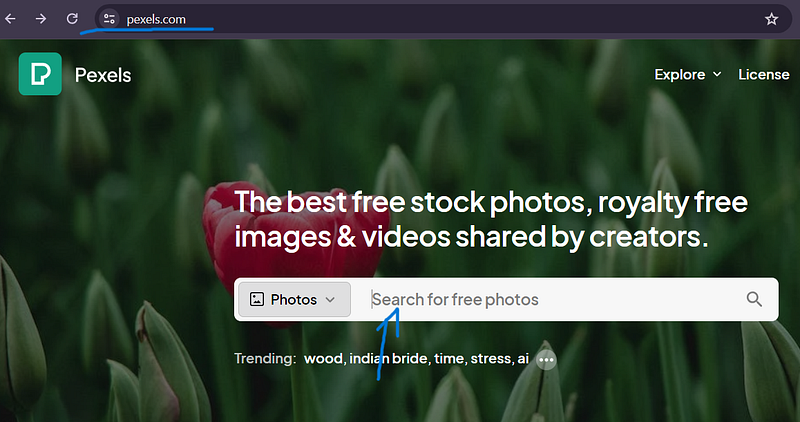
  1. Open a new tab and go to Pexels.com and locate the search bar in the middle of the website.
Screenshot by Author

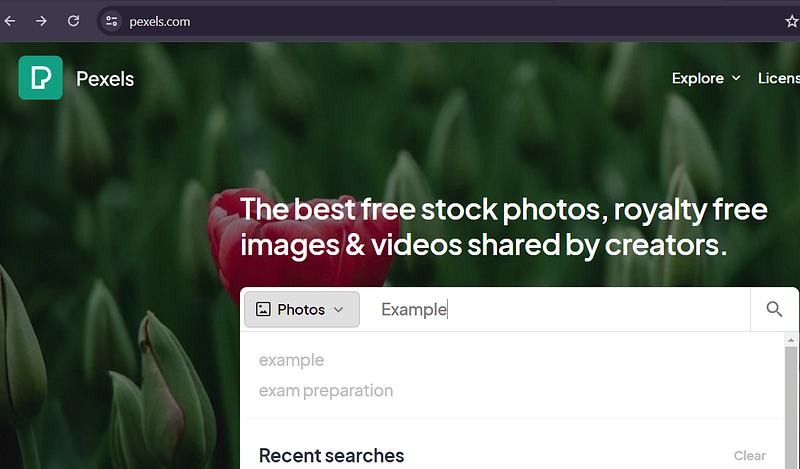
2. Type your keyword in the search bar and hit enter.
Screenshot by Author

3. You will be directed to a result page that will look like this.
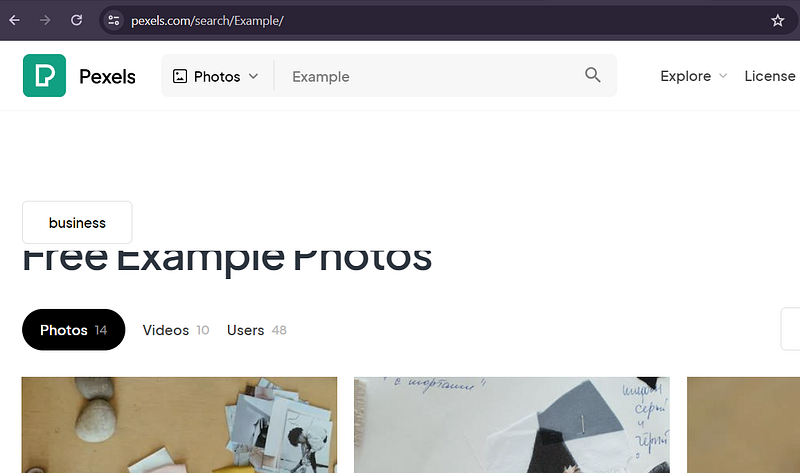
Screenshot by Author

4. Choose the picture you like and hit the green download button
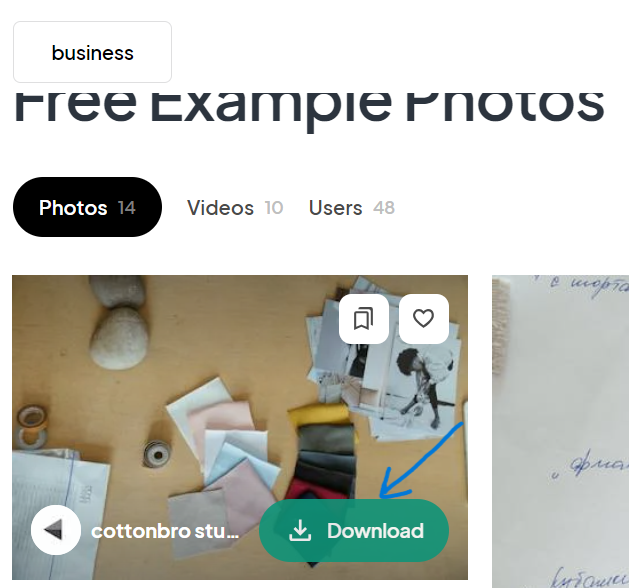
Screenshot by Author

5. After your download starts, you’ll be directed to the credits page. DO NOT close this page. It contains the information for the caption.
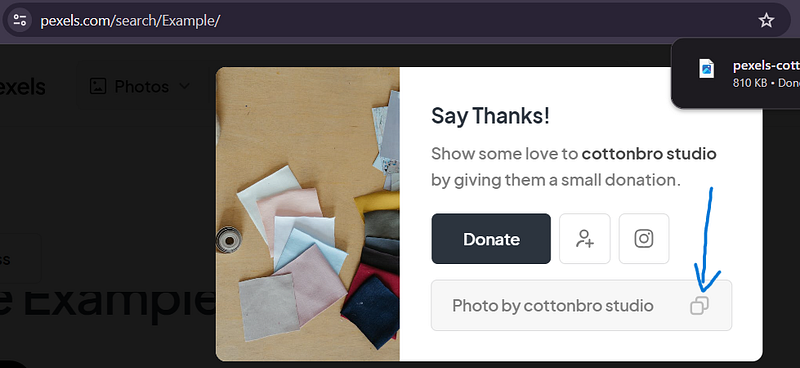
Screenshot by Author

6. Back in your Medium draft, hit enter to bring in the new line menu. Click on the “+” icon on the left side of the text.

Screenshot by Author

7. From the horizontal menu, click on the first icon.

Screenshot by Author

8. Select the correct folder (Where you downloaded the picture from Pexels.com), select the picture, and hit “Open” just like we did when learning to upload pictures from your computer.
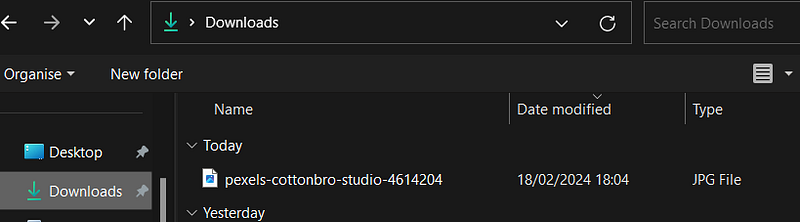
Screenshot by Author

9. Your picture will be added to your draft without a Caption. Go back to the Pexels.com tab, and click the Copy icon, to copy the credits of the picture, as shown in the screenshot.

Screenshot by Author

10. Back to your Medium Draft, add the copied text inside the caption underneath your image. You may need to click once on your image to bring back the line.

Screenshot by Author

11. Now your picture will have a long link as its caption. If you want you can stop here. But if you want your picture’s caption to look more professional, check out the following steps as well.
Screenshot by Author

12. Select the whole link that shows up after the “:” and cut it (Ctrl + X, if you’d like a shortcut)

Screenshot by Author

13. Select the whole name of the artist (it’s everything included between the “Photo by” and the “:”), and wait for the black menu to pop up. Then click on the third icon, the one shaped like a chain.

Screenshot by Author

14. This will bring up a black bubble for you to paste the link inside of it.

Screenshot by Author

15. Paste the whole link inside this bubble (Ctrl+V if you’d like a shortcut).

Screenshot by Author

16. Now your artist is credited and if you hover your mouse on their name, you will see the link inside. It’s time to credit the source.

Screenshot by Author

17. Write where you took the picture from. In our case Pexels.

Screenshot by Author

18. Grab the link of where you took the picture from and copy it in its entirety.

Screenshot by Author

19. Repeat the same steps as you just did for the artist. Select the word Pexels, wait for the bubble menu to show up, and click on the third icon.

Screenshot by Author

20. Paste the whole link inside the bubble and hit enter.

Screenshot by Author

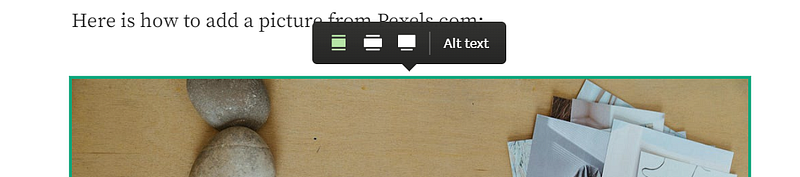
Bonus: What is this menu that appears above the picture when I left-click on it? The first three icons let you choose the size of the picture in comparison to the text of your post.

  • The first icon will make the picture as big as the external margins of your text:
Screenshot by Author
  • The second icon will make the picture slightly bigger than your text

Screenshot by Author
  • The third icon will make the picture fill the screen of any device no matter the resolution, becoming much much bigger than the text.

Screenshot by Author
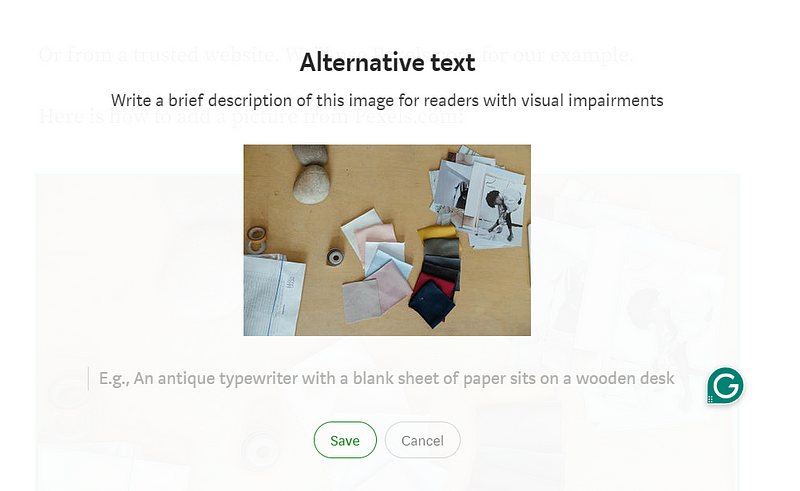
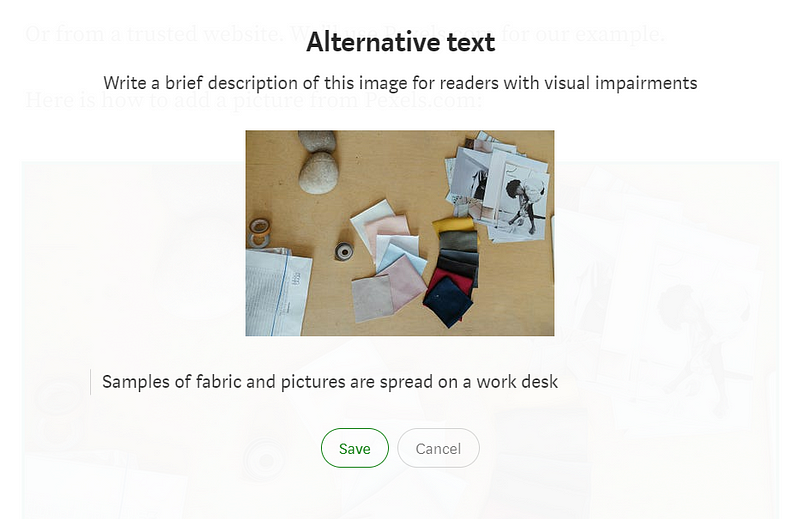
  • The fourth icon allows you to provide the “Alt text”, the textual description of the picture for readers with visual impairments. Your Alt text will be read out loud by the player for those who listen to stories.
Screenshot by Author

Just write your description and hit enter:
Screenshot by Author

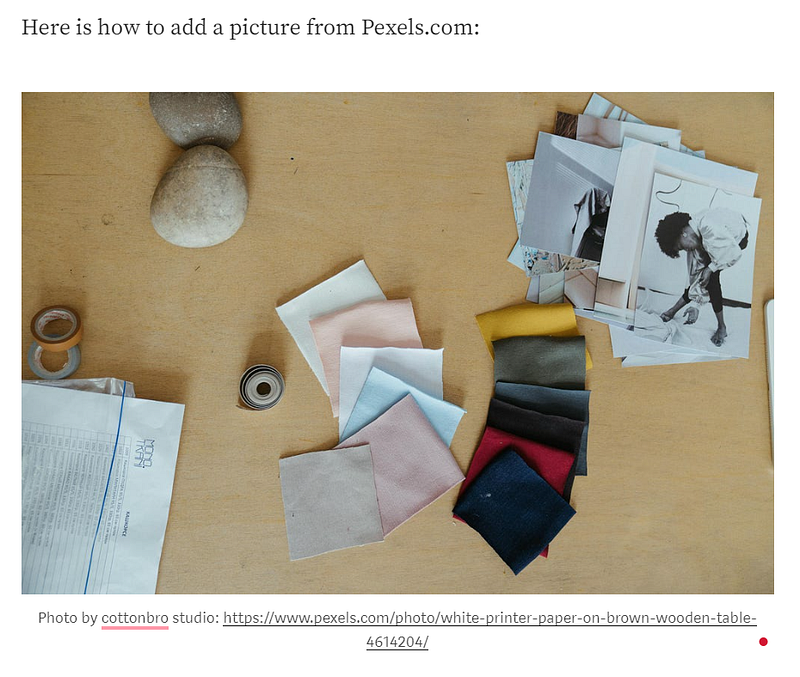
Once your picture has been fully credited it will look like this:
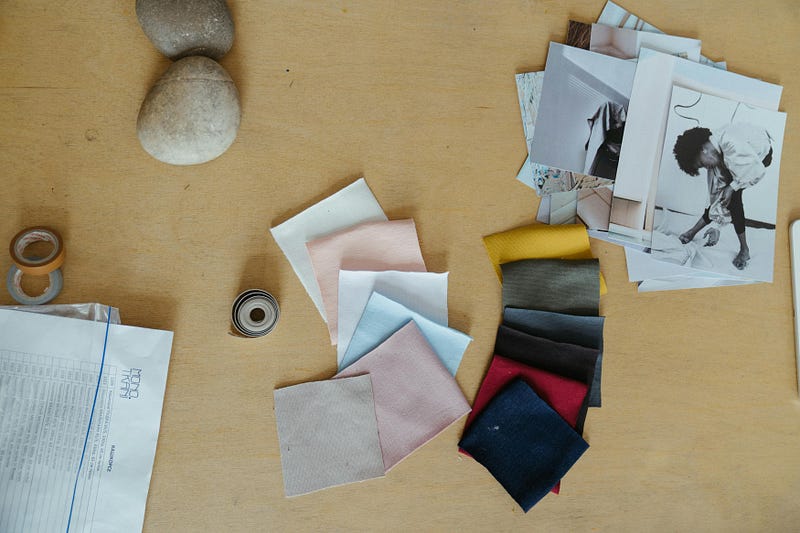
Photo by cottonbro studio on Pexels

Thank you for reading and I hope this proves useful. If anything is unclear or you have any related questions, please leave them in the comments: I’ll be happy to help!

How To
Medium
Pictures
Captions
Writing Lovers Cabin
Recommended from ReadMedium