avatarRob Young

Free AI web copilot to create summaries, insights and extended knowledge, download it at here

7183

Abstract

ore detailed your prompt, the more Midjourney has to work with, leading to a more photorealistic outcome.</p><p id="a3ad">For instance, instead of saying “a photo of a bustling city street,” try “a photo of a bustling city street in New York with yellow taxis, pedestrians holding umbrellas, and neon signs reflecting on wet asphalt.”</p><p id="42be">The latter prompt not only sets the scene but also adds layers of complexity that can make your final image more representative of a high quality photograph.</p><figure id="875a"><img src="https://cdn-images-1.readmedium.com/v2/resize:fit:800/1*K8n9m3-4zvQdnkLCi_MUDQ.png"><figcaption></figcaption></figure><figure id="876d"><img src="https://cdn-images-1.readmedium.com/v2/resize:fit:800/1*Vm7SaGKXSH52Jw6Ipd3w6Q.png"><figcaption>Side by side prompts: (left) /imagine <b>a photo of a bustling city street</b>, and (right) /imagine <b>a photo of a bustling city street in New York with yellow taxis, pedestrians holding umbrellas, and neon signs reflecting on wet asphalt</b></figcaption></figure><p id="bf6b">The detail in image on the right is incredibly accurate to the prompt, if I do say so myself. Even the reflections on the pavement are pretty damn good.</p><p id="1e8f"><b>This is the point where it get’s interesting though — we’re about to become full blown AI photographers.</b></p><h1 id="0c79">Utilizing Technical Parameters</h1><p id="f862">If you’re serious about achieving photorealism, you’ll want to go beyond the run of the mill text prompt and explore Midjourney’s technical parameters. These can be broken up into two categories — <b>prompt parameters</b>, and <b>text-based photography parameters</b>. Both of these categories allow you to control various aspects of the generated image, such as aspect ratio, image quality, and even the depth of field, shutter speed, and other photography concepts.</p><h2 id="9471">Prompt Parameters</h2><p id="822c">These are native inputs that are built into the Midjourney platform to control various aspects of your image. There’s quite a few of them and you can find them all here:</p><div id="3781" class="link-block"> <a href="https://docs.midjourney.com/docs/parameter-list"> <div> <div> <h2>Midjourney Parameter List</h2> <div><h3>Parameters are added to a prompt to change how an image generates. Parameters can change an image's aspect ratios…</h3></div> <div><p>docs.midjourney.com</p></div> </div> <div> <div style="background-image: url(https://miro.readmedium.com/v2/resize:fit:320/0*dvP4MB_8zCgi45ZM)"></div> </div> </div> </a> </div><p id="1b55">These should be included at the end of your prompt after two dashes like this: ––. Let’s touch on a few that I use in almost every prompt.</p><p id="534f">Aspect Ratio</p><p id="b681">To control aspect ratio, you simply use a double dash, a space, and a ratio. For example, if you want to create an image to use as a laptop background, you would type <b>––ar 16:9</b> at the end of your prompt.</p><p id="fbef">Quality</p><p id="b388">You can control image quality using the <b>––q</b> parameter. The model accepts specific quality parameters .25, .5, and 1. This dictates the amount of time spent generating the image. To maximize quality, you would type <b>––q 1</b>.</p><p id="3ec6">No</p><p id="c95c">You can use the <b>––no</b> parameter or <b>negative prompting</b> to tell the model what you <b><i>don’t</i></b> want. This is important for photorealism, because Midjourney does still struggle with certain aspects like text. You can try to avoid text in the photo by typing <b>––no text.</b></p><h2 id="a6a8">Text-Based Photography Parameters</h2><p id="e68e">These technical parameters aren’t technically parameters (you like that?). They’re really text-based additions, fed in just like basic text prompts, that give the model very detailed instructions on what type of visual appearance you’re trying to achieve. I’ve found that using photography language, and even specifying photography settings, is highly effective.</p><figure id="26a1"><img src="https://cdn-images-1.readmedium.com/v2/resize:fit:800/1*dlZpNqR7kPVPpSxKXZB4Bw.png"><figcaption>Prompt: /imagine <b>a close up portrait photo of a sunflower with long exposure bokeh in the background. Shallow depth of field. f1.2. ISO 100. ––ar 16:9 ––q 1 ––v 5.2</b></figcaption></figure><p id="625a">Now we’re getting photorealistic, amiright??</p><p id="8aa3">In this prompt, I’ve incorporated several of the elements that we’ve discussed already (like specificity and parameters), but you might also notice some new stuff that we haven’t talked about.</p><p id="54df">That’s the text-based photography parameters. But what are they, you ask?</p><p id="2913">If you’re a photographer, those <b>f1.2 </b>and <b>ISO100</b> phrases are familiar. If you’re not, those phrases are elements referred to as the “exposure triangle” — aperture, shutter speed, and ISO.</p><p id="5fdd"><b>Aperture</b></p><blockquote id="bf7f"><p><b><i>What it is:</i></b><i> The size of the opening in the lens through which light enters the camera.</i></p></blockquote><blockquote id="60e1"><p><b><i>Effect on Image:</i></b><i> A larger aperture (lower f-number like f/1.8) allows more light in, resulting in a brighter image and a shallower depth of field (blurry background, also known as “bokeh”). A smaller aperture (higher f-number like f/16) allows less light and gives a deeper depth of field (more of the scene is in focus).</i></p></blockquote><figure id="96ee"><img src="https://cdn-images-1.readmedium.com/v2/resize:fit:800/1*KtC92rXw6NYRw6ZwQiNXdg.png"><figcaption>Prompt: /imagine <b>a beautful bride at night in the city. Colorful bokeh. f1.2. ISO 100. Nikon Z9. ––ar 16:9</b></figcaption></figure><p id="767d"><b>Shutter Speed</b></p><blockquote id="6b6c"><p><b><i>What it is:</i></b><i> The amount of time the camera’s shutter is open, exposing the sensor to light.</i></p></blockquote><blockquote id="f83a"><p><b><i>Effect on Image:</i></b><i> A faster shutter speed (e.g., 1/1000s) freezes motion but lets in less light, making the image darker. A slower shutter speed (e.g., 1/30s) can capture more light but may result in motion blur if the subject moves. Although I didn’t stipulate an exact shutter speed, this is the “long exposure” phrase in the prompt.</i></p></blockquote><figure id="2a58"><img src="https://cdn-images-1.readmedium.com/v2/resize:fit:800/1*fHdSNGjHqIXm5QUEMBI6yA.png"><figcaption>Prompt: /imagine <b>a low light photo of cars passing on a city street with long exposure light trails. 5s shutter speed ––ar 16:9</b></figcaption></figure><p id="82f2"><b>ISO</b></p><blockquote id="e0ab"><p><b><i>What it is: </i></b><i>The sensitivity of the camera’s sensor to light.</i></p></blockquote><blockquote id="4ca1"><p><b><i>Effect on Image: </i></b><i>A lower ISO (e.g., 100) results in less noise (graininess) but requires more light for a proper exposure. A higher ISO (e.g., 1600) allows for shooting in lower light conditions but may introduce noise into the i

Options

mage</i>.</p></blockquote><figure id="18b1"><img src="https://cdn-images-1.readmedium.com/v2/resize:fit:800/1*gYAlMeOMccIF83WJd0p9Bg.png"><figcaption>Prompt: /imagine <b>a long exposure low light portrait of city lights reflecting off of wet pavement with bright, colorful bokeh in the background. Shallow depth of field. ISO 100. ––ar 16:9 ––no text</b></figcaption></figure><h1 id="f000">Experimenting with Styles and Modes</h1><p id="00e3">Midjourney isn’t a one-trick pony; it offers a variety of styles and modes that can significantly influence the look and feel of your generated art. Whether you’re aiming for a vintage look, a futuristic vibe, or something in between, Midjourney is pretty versatile.</p><p id="65cd">But how does this relate to photorealism? Different styles and modes can add unique textures, lighting effects, and artistic flairs that bring your image closer to a photorealistic masterpiece. For example, you might choose a “realistic” mode to minimize stylized elements, focusing solely on the lifelike aspects of the image.</p><p id="d161">You can also prompt Midjourney to create photographs in a certain photography style, such as a photo that you might see on Instagram:</p><figure id="8786"><img src="https://cdn-images-1.readmedium.com/v2/resize:fit:800/1*W09BYXqmkoy3rYHeog3D6w.png"><figcaption>Prompt: /imagine <b>a close up instagram style portrait photo of hot water being poured from a dark kettle into pour over coffee. Studio lighting. f1.2. ISO 100. 1/250. ––ar 16:9</b></figcaption></figure><p id="5888">Don’t be afraid to experiment. Sometimes, combining a specific style with a detailed prompt can result in an unexpectedly photorealistic image. The key is to test different combinations and observe how they affect the final output. Which brings us to our next topic: testing and refining your strategy.</p><h1 id="6d60">Iterative Testing and Refinement</h1><p id="8c6a">By now, you should have a pretty good foundation to start creating photorealistic images. That said — don’t expect to hit the bullseye on your first try. Generative art is a process, and achieving the level of realism you desire often requires multiple iterations. Test, iterate, test, iterate, re-test, re-iterate… you get it.</p><h2 id="a5b8">Why Iterative Testing?</h2><blockquote id="cf30"><p><b><i>What it is:</i></b><i> The practice of generating multiple versions of an image based on different prompts, settings, or post-processing techniques.</i></p></blockquote><blockquote id="aef5"><p><b><i>Why it’s Important:</i></b><i> Each iteration provides valuable insights into how different elements affect the final output. This iterative process helps you understand what works and what doesn’t in your quest for photorealism.</i></p></blockquote><h2 id="a05d">Tips for Effective Iteration</h2><blockquote id="da88"><p><b><i>1. Start Broad, Then Narrow Down:</i></b><i> Begin with a general idea and then refine it through subsequent iterations.</i></p></blockquote><blockquote id="7345"><p><b><i>2. Document Your Process:</i></b><i> Keep track of the prompts and settings you use for each iteration. This makes it easier to understand what changes lead to different outcomes.</i></p></blockquote><blockquote id="90cf"><p><b><i>3. Compare and Analyze:</i></b><i> Put your iterations side by side to compare them. Look for elements that enhance or detract from the photorealism and adjust accordingly.</i></p></blockquote><p id="ca57">Remember, generative AI is a new technology. Prompt strategies will likely be developed and discovered that aren’t readily known yet. That’s the cool part — we’re at the start of some potentially game changing tech that isn’t just fun — it lets you <b>/imagine</b> and visualize things you never knew were possible. Like this portrait of a pig wearing an Elizabethan gown in present day New York City:</p><figure id="ab4f"><img src="https://cdn-images-1.readmedium.com/v2/resize:fit:800/1*7A-1MFXb5r8zPBX-df5ejw.png"><figcaption>Prompt: /imagine <b>a portrait photo of a pig wearing an Elizabethan gown in present day New York City</b></figcaption></figure><h1 id="f5a2">Final Thoughts: Best Practices and Tips</h1><p id="e617">Art is often a collaborative endeavor, even in the digital realm. Midjourney has a vibrant community of artists, hobbyists, and enthusiasts who share their experiences, tips, and tricks.</p><h2 id="5f26">Join a Community</h2><blockquote id="d167"><p><b><i>Why Engage with the Community?</i></b></p></blockquote><blockquote id="1e2d"><p><i>Learning from others can fast-track your journey to photorealism. You can discover new techniques, get feedback on your work, and even find inspiration for your next project.</i></p></blockquote><blockquote id="167e"><p><b><i>Where to Find the Community:</i></b></p></blockquote><blockquote id="8092"><p><i>Look for online forums, social media groups, or Discord channels dedicated to Midjourney or generative art in general. Engage in discussions, ask questions, and don’t hesitate to share your own insights.</i></p></blockquote><h2 id="a927">Ethical Considerations</h2><p id="b0a6">As you delve deeper into the world of AI-generated art, it’s crucial to be mindful of ethical considerations.</p><blockquote id="c6ca"><p><b><i>Copyright and Permissions:</i></b><i> Always make sure you have the rights to use any images or elements that you incorporate into your work. If you’re using someone else’s creation as a base or inspiration, get permission and give proper credit.</i></p></blockquote><blockquote id="e91b"><p><b><i>Ethical Use of AI:</i></b><i> Be aware of the broader ethical implications of using AI in art, such as potential biases in the algorithms or the environmental impact of high computational loads.</i></p></blockquote><h2 id="e9ac">Staying Updated</h2><p id="5e24">The field of generative art is ever-evolving, and Midjourney is no exception.</p><blockquote id="2fd3"><p><b><i>Why Stay Updated: </i></b><i>New features, modes, and technical capabilities can significantly impact your ability to create photorealistic art.</i></p></blockquote><blockquote id="87ab"><p><b><i>How to Stay Updated:</i></b><i> Follow Midjourney’s official channels, subscribe to newsletters, and keep an eye on community discussions to stay in the loop about the latest updates and features. Better yet? <b>Follow me on Medium for much, much more content like this!</b></i></p></blockquote><p id="14fb">I hope you’ve found this guide useful — if you liked it, leave a clap and follow! Thank you for reading, no go create some photorealistic images!</p><figure id="d20a"><img src="https://cdn-images-1.readmedium.com/v2/resize:fit:800/0*oERS_gFoFFbZ8Pzj.png"><figcaption></figcaption></figure><p id="3c58"><b>This story is published on <a href="https://generativeai.pub/">Generative AI</a>. Connect with us on <a href="https://www.linkedin.com/company/generative-ai-publication">LinkedIn</a> to get the latest AI stories and insights right in your feed. Let’s shape the future of AI together!</b></p><figure id="8f0b"><img src="https://cdn-images-1.readmedium.com/v2/resize:fit:800/0*1j35VCo0Ywc9_JWb.png"><figcaption></figcaption></figure></article></body>

The Best Guide on Photorealism in Midjourney

This isn’t just another guide; it’s your roadmap to mastering photorealism in Midjourney. Whether you’re an art aficionado with years of experience or someone who’s just stumbled upon the magic of AI art, this guide is for you.
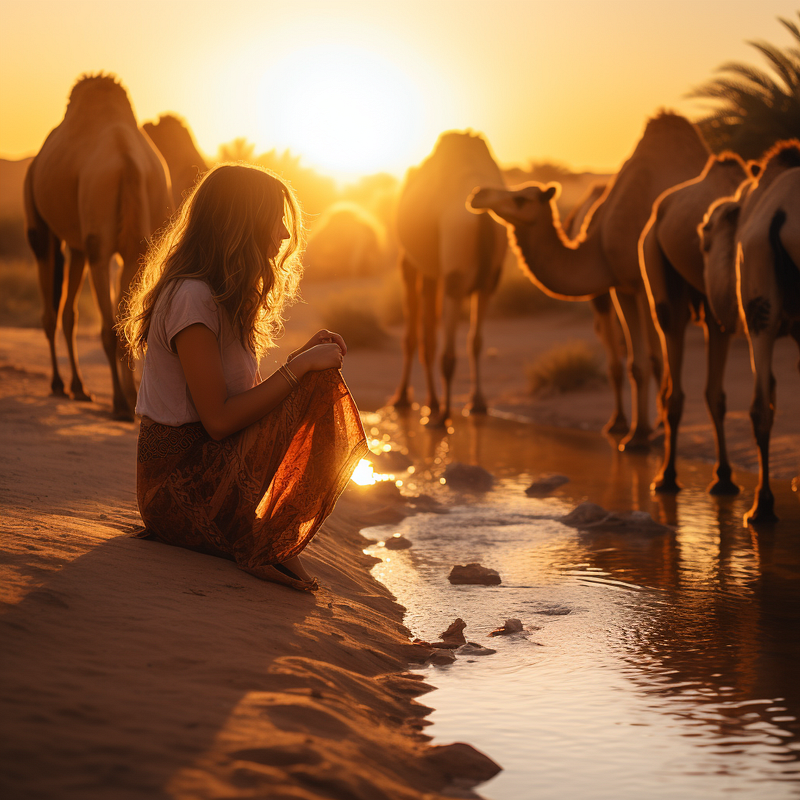
This photo isn’t actually real — it’s the end product of approximately 46 seconds in Midjourney.

So, you’ve dabbled in AI-generated art and you’re hooked. You’ve played around with Midjourney, crafting cool designs and images with just a few lines of text. But now you’re wondering, “How do I make this look real — like, photographically real?” You’re in the right place.

We’ll kick things off with the ABCs of Midjourney — what it is and how those mystical prompts work. Then, we’ll dive into the nitty-gritty: the advanced techniques that can turn your AI art from ‘cool’ to ‘can’t-believe-it’s-not-a-photo’ real. And because art doesn’t exist in a vacuum, we’ll also explore the community around Midjourney, ethical do’s and don’ts, and how to keep your skills razor-sharp with the latest updates.

If you like this type of totally free content, please follow for more! I post how-to’s multiple times per week. Claps are always appreciated too :)

The photo at the top of this article, as the caption explains, is entirely fake and took 46 seconds in Midjourney V5.2. You may have even spotted that it’s fake before reading the caption, although there aren’t many tells. The woman’s nose and jaw silhouette are maybe a little weird. Something a little strange might be going on with the camels. But — it’s pretty damn good for a 6 second prompt and roughly 40 seconds of generation time in “fast mode.”

The point of the photo is that this was damn near impossible to achieve like 6 months ago. Midjourney, and other generative AI platforms like Stable Diffusion, Dall-E, Leonardo AI, et al. have come a long way in a short period of time, and it’s frankly kind of wild.

First, let’s hit the basics.

What is Midjourney?

You probably already know this, but if you don’t, Midjourney is a generative AI tool that transforms text-based prompts into images. Sometimes they’re captivating images, and sometimes you make stuff like this guy dressed as a clown riding a buffalo on Mt. Everest.
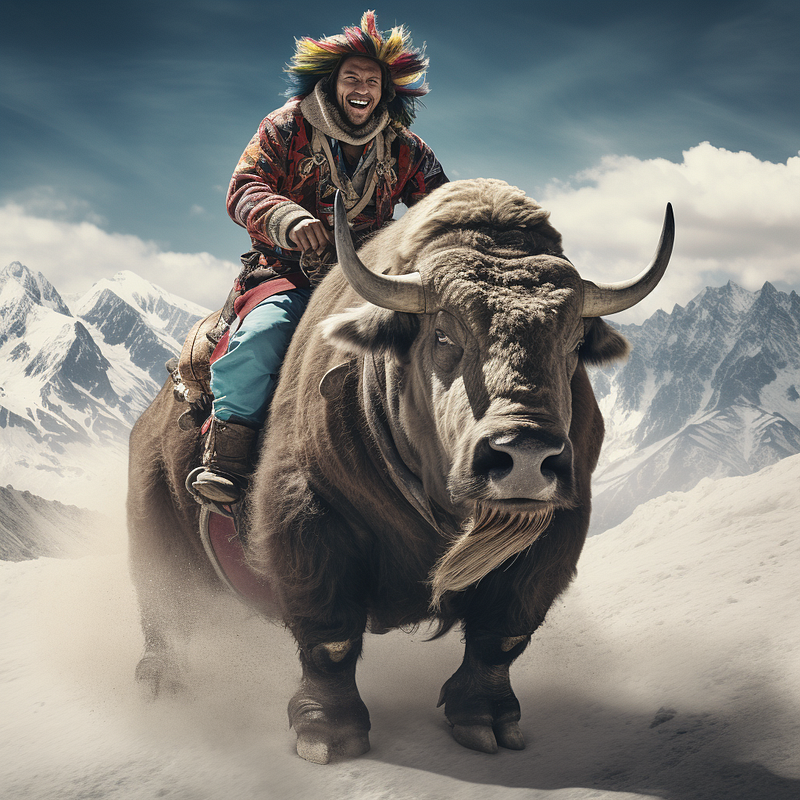
Prompt: /imagine a photo of a guy dressed as a clown, riding a buffalo on Mt. Everest

That’s the point — it doesn’t need to be real. You make whatever your little heart desires (ahem, within reason. There are “rules” for you risk takers out there).

But Midjourney is not just any image generator; it’s a truly astonishing platform that offers a wide range of capabilities, from crafting simple landscapes to generating intricate, multi-layered compositions.

But let’s get real — every tool has its limitations. While Midjourney excels in many areas, it’s essential to know where it shines and where it might need a little extra prompting to get over the line of photorealism.

Understanding these nuances is the first step in your journey toward creating photorealistic art.

The Basics of Crafting Prompts

If you want to get really deep and learn pretty much everything there is to know about crafting prompts, head over to my other guide on Medium here:

If you’re still here, keep on keeping on!

You’ve probably heard the saying, “A picture is worth a thousand words.” In Midjourney, it’s the opposite — a few well-chosen words can generate a picture that speaks volumes. Prompts are the cornerstone of Midjourney, acting as the creative input that the AI uses to generate your artwork.

So, how do you go about crafting a prompt?

For starters, all of your prompts in Midjourney will start with /imagine.

This is the interface in Discord where you will type your prompts

Start simple. If you’re new to Midjourney, begin with straightforward descriptions like “a photo of a serene lake at sunset” or “a photo of a cat lounging on a sofa.” These basic prompts give you a feel for how the platform interprets language into visuals.
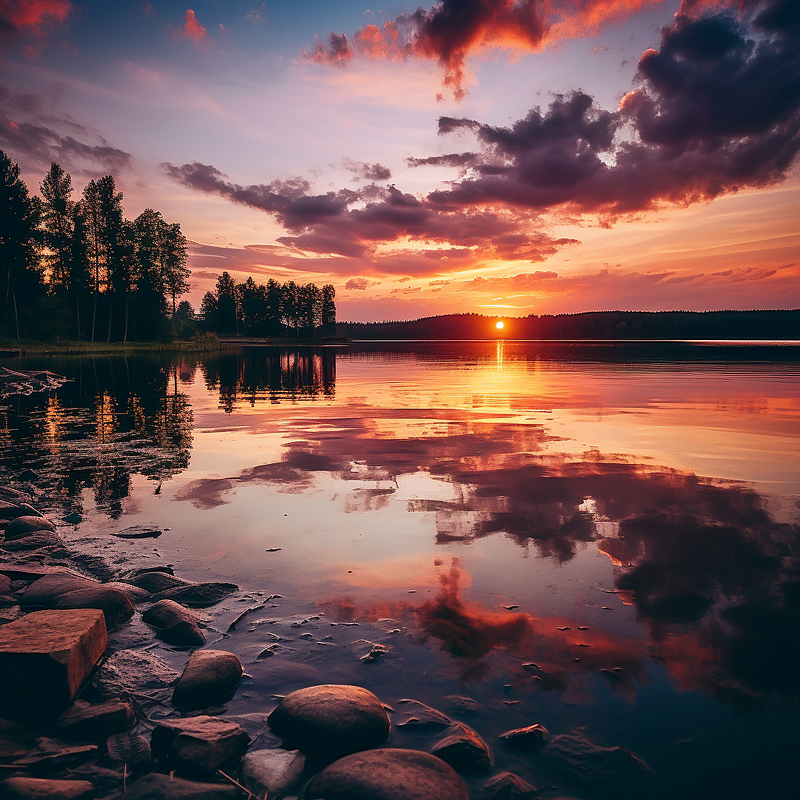
Prompt: /imagine a photo of a serene lake at sunset

The first major learning: the more specific you are, the more control you have over the final output. Instead of just saying “a photo of a serene lake,” you could specify “a photo of a serene lake with reflections of autumn leaves and a setting sun.” The latter gives Midjourney more to work with, resulting in a more detailed and potentially photorealistic image.
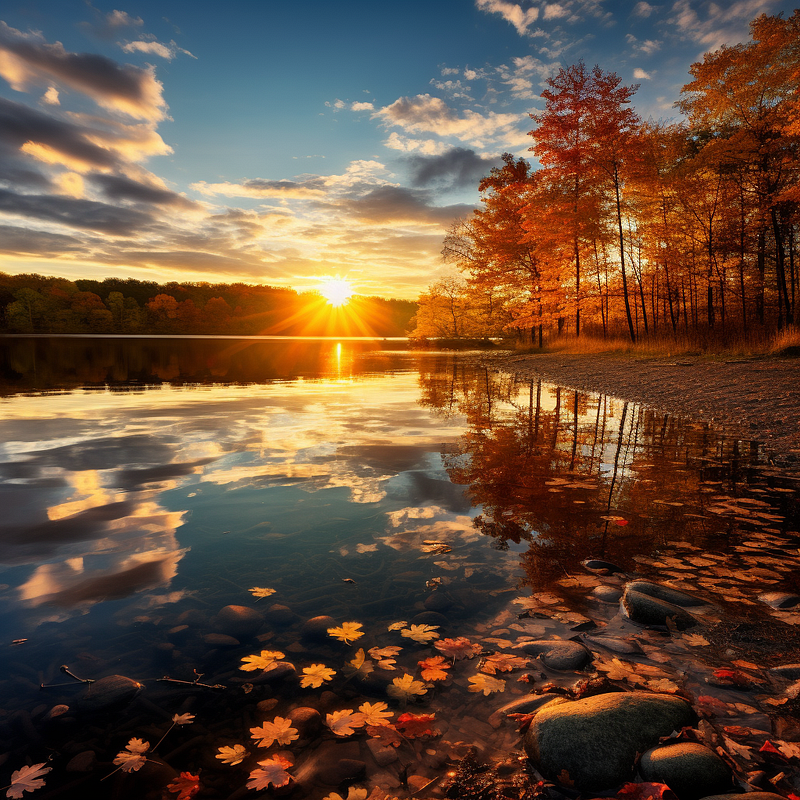
Prompt: /imagine a photo of a serene lake with reflections of autumn leaves and a setting sun

The second major learning: tell Midjourney you want a photo. It took most people (“most people” is actually just me) an embarrassingly long time to realize that including the “photo” term in the prompt would actually lead to photorealistic images. I know, it sounds stupid to you now — but /imagine being a noob for the first 3 months of Midjourney trying to generate photorealistic images without realizing you should put “photo” in the prompt. I did that. You don’t have to.

Crafting Specific Prompts

As you can see above, if photorealism is the aim, then specificity is your game. The more detailed your prompt, the more Midjourney has to work with, leading to a more photorealistic outcome.

For instance, instead of saying “a photo of a bustling city street,” try “a photo of a bustling city street in New York with yellow taxis, pedestrians holding umbrellas, and neon signs reflecting on wet asphalt.”

The latter prompt not only sets the scene but also adds layers of complexity that can make your final image more representative of a high quality photograph.
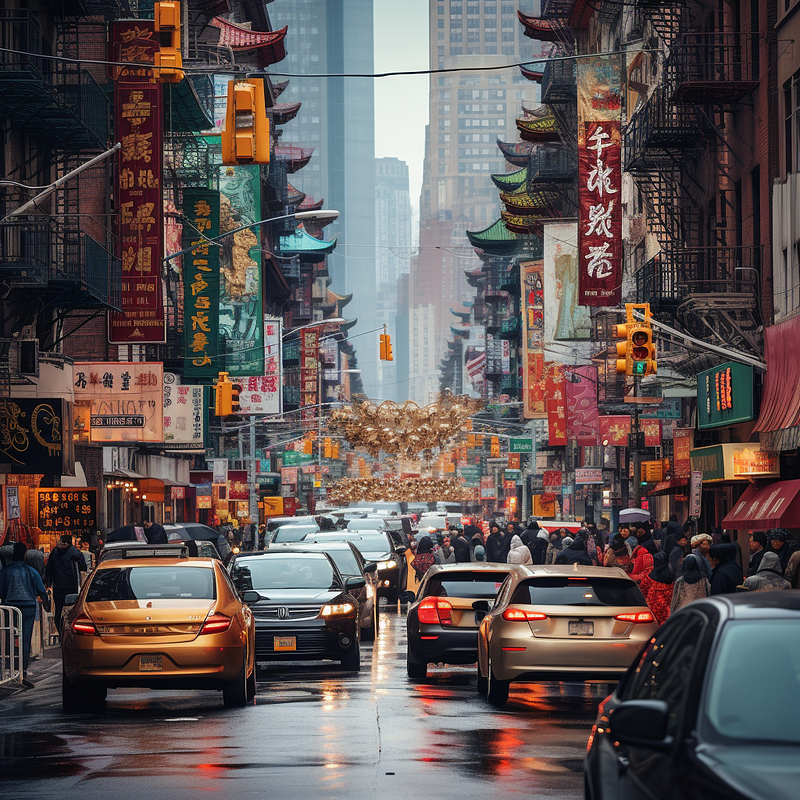
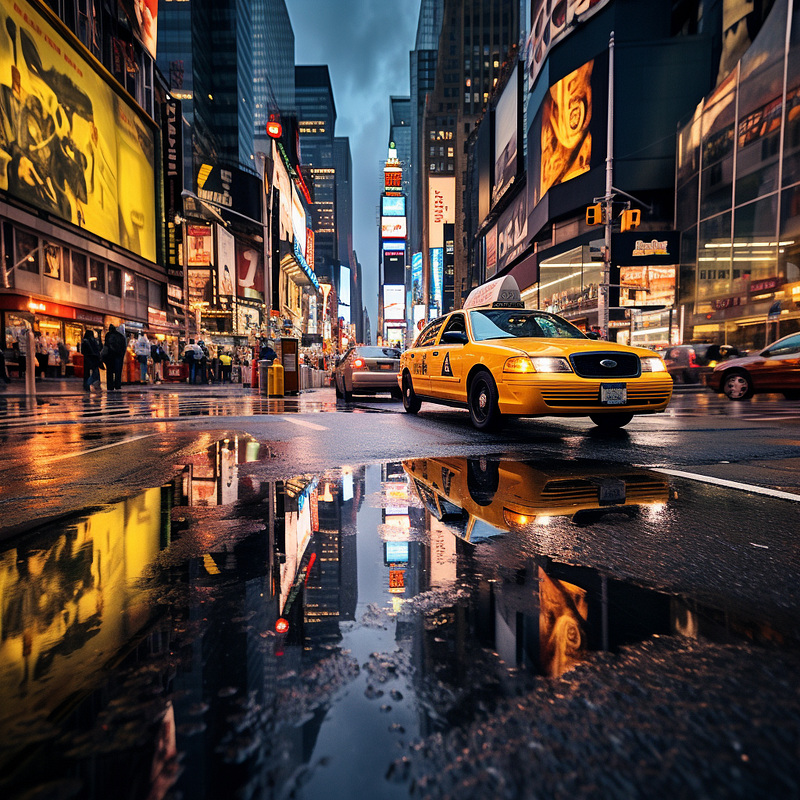
Side by side prompts: (left) /imagine a photo of a bustling city street, and (right) /imagine a photo of a bustling city street in New York with yellow taxis, pedestrians holding umbrellas, and neon signs reflecting on wet asphalt

The detail in image on the right is incredibly accurate to the prompt, if I do say so myself. Even the reflections on the pavement are pretty damn good.

This is the point where it get’s interesting though — we’re about to become full blown AI photographers.

Utilizing Technical Parameters

If you’re serious about achieving photorealism, you’ll want to go beyond the run of the mill text prompt and explore Midjourney’s technical parameters. These can be broken up into two categories — prompt parameters, and text-based photography parameters. Both of these categories allow you to control various aspects of the generated image, such as aspect ratio, image quality, and even the depth of field, shutter speed, and other photography concepts.

Prompt Parameters

These are native inputs that are built into the Midjourney platform to control various aspects of your image. There’s quite a few of them and you can find them all here:

These should be included at the end of your prompt after two dashes like this: ––. Let’s touch on a few that I use in almost every prompt.

Aspect Ratio

To control aspect ratio, you simply use a double dash, a space, and a ratio. For example, if you want to create an image to use as a laptop background, you would type ––ar 16:9 at the end of your prompt.

Quality

You can control image quality using the ––q parameter. The model accepts specific quality parameters .25, .5, and 1. This dictates the amount of time spent generating the image. To maximize quality, you would type ––q 1.

No

You can use the ––no parameter or negative prompting to tell the model what you don’t want. This is important for photorealism, because Midjourney does still struggle with certain aspects like text. You can try to avoid text in the photo by typing ––no text.

Text-Based Photography Parameters

These technical parameters aren’t technically parameters (you like that?). They’re really text-based additions, fed in just like basic text prompts, that give the model very detailed instructions on what type of visual appearance you’re trying to achieve. I’ve found that using photography language, and even specifying photography settings, is highly effective.
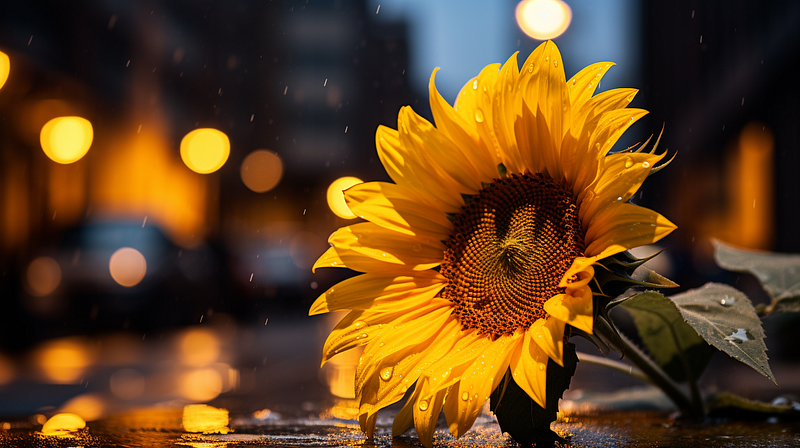
Prompt: /imagine a close up portrait photo of a sunflower with long exposure bokeh in the background. Shallow depth of field. f1.2. ISO 100. ––ar 16:9 ––q 1 ––v 5.2

Now we’re getting photorealistic, amiright??

In this prompt, I’ve incorporated several of the elements that we’ve discussed already (like specificity and parameters), but you might also notice some new stuff that we haven’t talked about.

That’s the text-based photography parameters. But what are they, you ask?

If you’re a photographer, those f1.2 and ISO100 phrases are familiar. If you’re not, those phrases are elements referred to as the “exposure triangle” — aperture, shutter speed, and ISO.

Aperture

What it is: The size of the opening in the lens through which light enters the camera.

Effect on Image: A larger aperture (lower f-number like f/1.8) allows more light in, resulting in a brighter image and a shallower depth of field (blurry background, also known as “bokeh”). A smaller aperture (higher f-number like f/16) allows less light and gives a deeper depth of field (more of the scene is in focus).
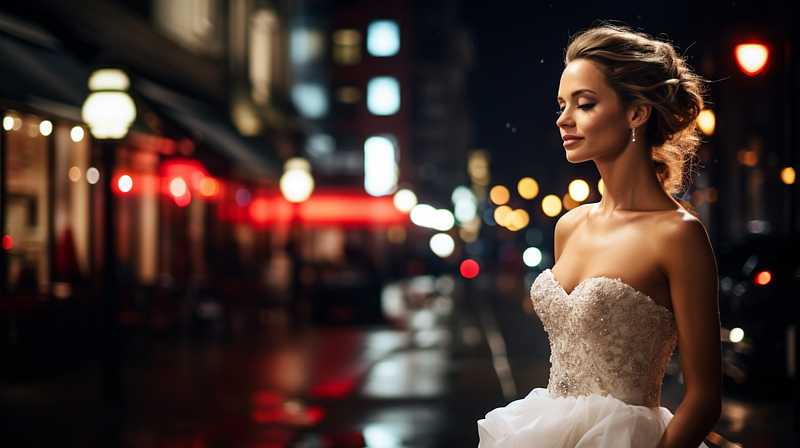
Prompt: /imagine a beautful bride at night in the city. Colorful bokeh. f1.2. ISO 100. Nikon Z9. ––ar 16:9

Shutter Speed

What it is: The amount of time the camera’s shutter is open, exposing the sensor to light.

Effect on Image: A faster shutter speed (e.g., 1/1000s) freezes motion but lets in less light, making the image darker. A slower shutter speed (e.g., 1/30s) can capture more light but may result in motion blur if the subject moves. Although I didn’t stipulate an exact shutter speed, this is the “long exposure” phrase in the prompt.
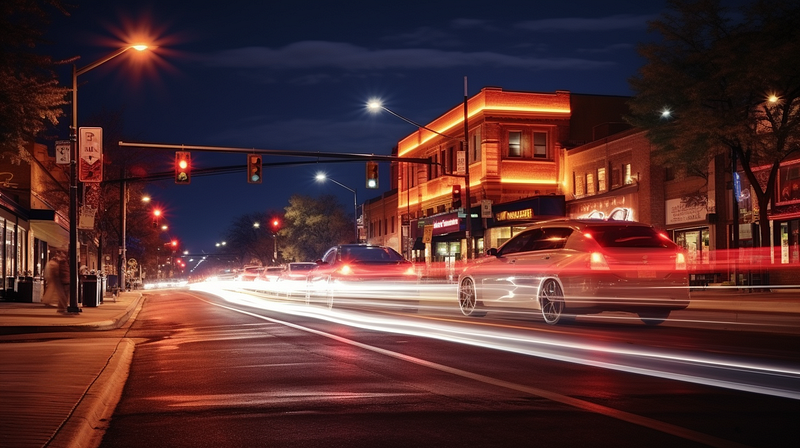
Prompt: /imagine a low light photo of cars passing on a city street with long exposure light trails. 5s shutter speed ––ar 16:9

ISO

What it is: The sensitivity of the camera’s sensor to light.

Effect on Image: A lower ISO (e.g., 100) results in less noise (graininess) but requires more light for a proper exposure. A higher ISO (e.g., 1600) allows for shooting in lower light conditions but may introduce noise into the image.
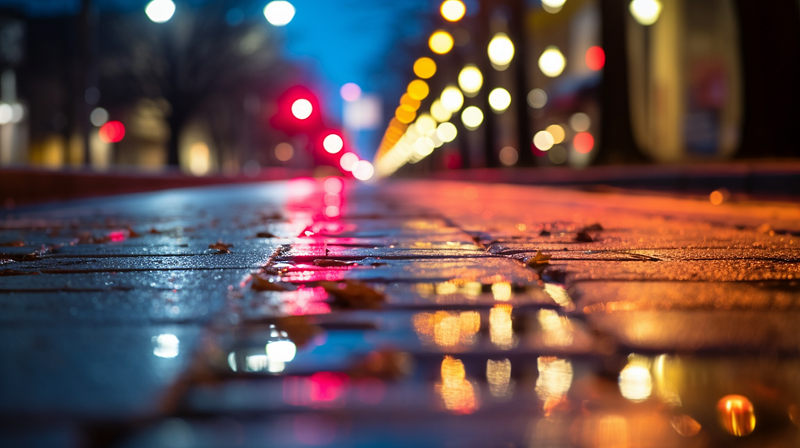
Prompt: /imagine a long exposure low light portrait of city lights reflecting off of wet pavement with bright, colorful bokeh in the background. Shallow depth of field. ISO 100. ––ar 16:9 ––no text

Experimenting with Styles and Modes

Midjourney isn’t a one-trick pony; it offers a variety of styles and modes that can significantly influence the look and feel of your generated art. Whether you’re aiming for a vintage look, a futuristic vibe, or something in between, Midjourney is pretty versatile.

But how does this relate to photorealism? Different styles and modes can add unique textures, lighting effects, and artistic flairs that bring your image closer to a photorealistic masterpiece. For example, you might choose a “realistic” mode to minimize stylized elements, focusing solely on the lifelike aspects of the image.

You can also prompt Midjourney to create photographs in a certain photography style, such as a photo that you might see on Instagram:
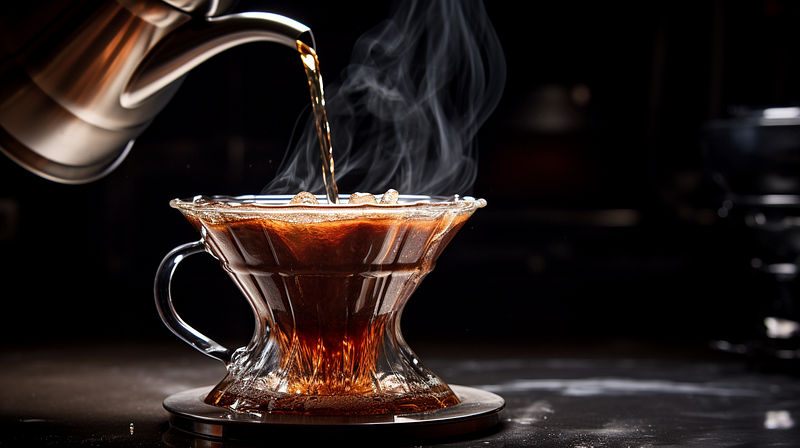
Prompt: /imagine a close up instagram style portrait photo of hot water being poured from a dark kettle into pour over coffee. Studio lighting. f1.2. ISO 100. 1/250. ––ar 16:9

Don’t be afraid to experiment. Sometimes, combining a specific style with a detailed prompt can result in an unexpectedly photorealistic image. The key is to test different combinations and observe how they affect the final output. Which brings us to our next topic: testing and refining your strategy.

Iterative Testing and Refinement

By now, you should have a pretty good foundation to start creating photorealistic images. That said — don’t expect to hit the bullseye on your first try. Generative art is a process, and achieving the level of realism you desire often requires multiple iterations. Test, iterate, test, iterate, re-test, re-iterate… you get it.

Why Iterative Testing?

What it is: The practice of generating multiple versions of an image based on different prompts, settings, or post-processing techniques.

Why it’s Important: Each iteration provides valuable insights into how different elements affect the final output. This iterative process helps you understand what works and what doesn’t in your quest for photorealism.

Tips for Effective Iteration

1. Start Broad, Then Narrow Down: Begin with a general idea and then refine it through subsequent iterations.

2. Document Your Process: Keep track of the prompts and settings you use for each iteration. This makes it easier to understand what changes lead to different outcomes.

3. Compare and Analyze: Put your iterations side by side to compare them. Look for elements that enhance or detract from the photorealism and adjust accordingly.

Remember, generative AI is a new technology. Prompt strategies will likely be developed and discovered that aren’t readily known yet. That’s the cool part — we’re at the start of some potentially game changing tech that isn’t just fun — it lets you /imagine and visualize things you never knew were possible. Like this portrait of a pig wearing an Elizabethan gown in present day New York City:
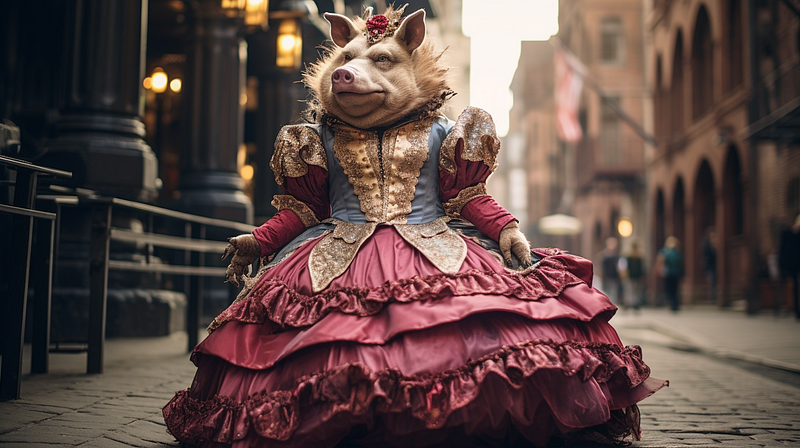
Prompt: /imagine a portrait photo of a pig wearing an Elizabethan gown in present day New York City

Final Thoughts: Best Practices and Tips

Art is often a collaborative endeavor, even in the digital realm. Midjourney has a vibrant community of artists, hobbyists, and enthusiasts who share their experiences, tips, and tricks.

Join a Community

Why Engage with the Community?

Learning from others can fast-track your journey to photorealism. You can discover new techniques, get feedback on your work, and even find inspiration for your next project.

Where to Find the Community:

Look for online forums, social media groups, or Discord channels dedicated to Midjourney or generative art in general. Engage in discussions, ask questions, and don’t hesitate to share your own insights.

Ethical Considerations

As you delve deeper into the world of AI-generated art, it’s crucial to be mindful of ethical considerations.

Copyright and Permissions: Always make sure you have the rights to use any images or elements that you incorporate into your work. If you’re using someone else’s creation as a base or inspiration, get permission and give proper credit.

Ethical Use of AI: Be aware of the broader ethical implications of using AI in art, such as potential biases in the algorithms or the environmental impact of high computational loads.

Staying Updated

The field of generative art is ever-evolving, and Midjourney is no exception.

Why Stay Updated: New features, modes, and technical capabilities can significantly impact your ability to create photorealistic art.

How to Stay Updated: Follow Midjourney’s official channels, subscribe to newsletters, and keep an eye on community discussions to stay in the loop about the latest updates and features. Better yet? Follow me on Medium for much, much more content like this!

I hope you’ve found this guide useful — if you liked it, leave a clap and follow! Thank you for reading, no go create some photorealistic images!

This story is published on Generative AI. Connect with us on LinkedIn to get the latest AI stories and insights right in your feed. Let’s shape the future of AI together!

Midjourney
Photography
Photorealism
Prompt
Prompt Engineering
Recommended from ReadMedium