
How Integrating Google Calendar and ToDoIst Helped Me Manage a Stressful Workload
This is right up your alley if you love visually based planners and are distractable as a squirrel

What is Calendar Blocking?
If you’ve dabbled in self-improvement books, YouTube or podcasts you’ve probably heard of Calendar Blocking. It’s a popular technique touted by many as a way of visually planning out time, particularly when you’re juggling many duties.
In essence, it involves having a weekly schedule with hourly slots where you visually colour in the times where you have tasks. This way, instead of having some disembodied task list that feels like it will get done quickly, you have a concrete dedication of time.
Half of the battle of time management is this weird optimism our brains have for how long something takes. This system helps your brain visualize exactly how much time something will take, ensure you have time in your schedule to do it, and constantly review whether you’re giving an accurate estimation.
A pretty amazing system for something simple, right?
The problem I needed to solve
For a long time, I’d been doing this on paper, in a cute agenda with coloured markers. While it’s artistic and pretty, it got to a point where it wasn’t practical because I had to move meetings around all the time. A lot of whiteout and ugliness ensued every time that happened.
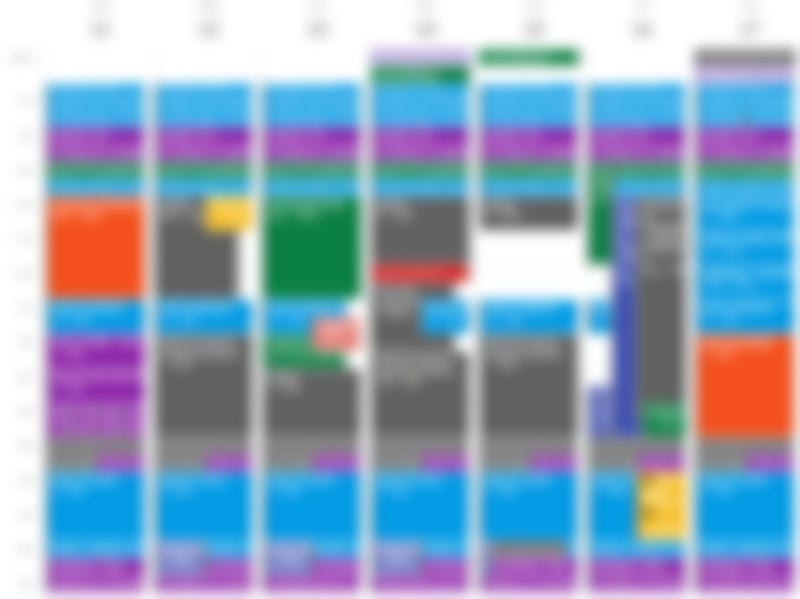
Part of me also missed that sense of satisfaction from aggressively scratching something off a to-do list. Crossing something off a calendar didn’t feel the same, visually. In fact, seeing all the events on my calendar was kind of overwhelming. See Figure 1. for what my schedule looks like when calendar- blocked.
My New System
My new system involved using Google Calendar to visually block out time needed for tasks, and Todoist to help me focus on one task at a time. After experimenting with so many task managers and calendar apps, I finally found the combination that worked for me.
(This is not a sponsored post, this combination just surprisingly worked well for me).
The key is that Google Calendar manages the visual blocking side of this amazing Calendar Block system and Todoist shows those same calendar events in a list form. This link shows the tutorial of how to set it up.
Because of the integration, anything you add to Google Calendar syncs with Todoist and vice versa, allowing users to get the best of both worlds. For me, the biggest benefits are:
- Being able to visualize time on a calendar without being overwhelmed.
- Using a system that allows me to examine how I’m managing my priorities, so I’m aligning my actions with my values and goals.
- Having integrations to capitalize on organization systems to reduce feeling overwhelmed and stressed.
- Giving me a sense of reward for 🌟 “doing the thing” 🌟
Visualize and interact with how you’re using your time
Moving Calendar Events
Sure, paper calendars helped me visualize my events, but using Google Calendar helped me move around events as I needed to. This is especially helpful because I might be adding events and tasks to my next week as I go, but I also schedule dedicated time to make sure to move around tasks in the most efficient order possible.
For example, I might unintentionally schedule a bunch of errands scattered throughout the week. During my weekly planning session, I might look ahead and try to batch them together on one day so that I only have to leave the house once.
This also works wonders for doing tasks that need utmost concentration. It’s so frustrating to only inch a written piece forward 50 words at a time and be interrupted by meetings when you’re finally in the flow. I also make sure that any of those tasks where that concentration and detail-oriented are scheduled back to back for this reason.
Have a “waiting station” for unscheduled tasks
Another issue I ran up against for only using Google Calendar or paper calendars to track tasks is when I received a task and didn’t have time to plop it somewhere in my calendar just yet. This usually happens in meetings where you accrue new missions (I mean, tasks**).
I know some people use their emails as a “waiting spot” for these tasks, yet others have a paper notebook for this. It serves as the dumping ground for potential things to do.
But in order for them to get done, these tasks have to be placed in a spot where you’ll read them again and ensure they have a spot in your calendar.
With this system, I can add an un-dated task to the list. At a designated time of the day, I can make sure to review all of the tasks on the lists and plop them into the rest of my week, conscious of what priorities I have on that list.
More effectively prioritize your time using this system
Visualizing priorities based on colour
By using colours to represent my top priorities that weigh into my time (e.g., research, learning, writing, self-care) and gray to represent uncategorized tasks that enter my day, I can see how balanced my day is.
I check for a few things:
- Whether the amount of time scheduled in my calendar matches the actual value and meaning those tasks have in my life: Some things (TAships, I’m looking at you) can eat up time because of the urgency that others place on you, slowly taking over the entire calendar before you know it.
- Whether I’m getting enough rest: Rest, healing and self-care are just as important to me as what I produce for the world. I firmly adhere to “filling my own cup” in order to contribute back into the community. For this, I make sure that my days start out on my terms and end with time to rejuvenate.
- Whether I’m prioritizing for energy: While I try to ensure that I’m batching similar tasks in a day to minimize attention switching, there’s also a balance to this. For example, though I want uninterrupted time to work on statistical analysis, there’s no way I can do 3 days of back-to-back analysis by interleaving it with other tasks (e.g., reading, writing). Some tasks require “percolation” time, where allowing space in between steps enhances the result because you’ve had the chance to sleep on it.
This system allows for integration between commonly used apps to minimize the work it takes to schedule events
Online Meetings
Having a portion of this scheduling system on Google Calendar means that anyone can invite you to an online meeting (Zoom or otherwise) from any scheduling app and have it show up on your calendar.
Right in the event, they can embed Zoom links or Google Maps locations and any other meeting details. My favourite is when meeting organizers are able to attach documents or meeting agenda items right in the calendar invite. That way, I can prep for each meeting by simply clicking into the event and reviewing the documents all conveniently embedded there.
Accessible on every device
Todoist and Google Calendar are both available on every device I own, which is important. Too many apps (Clubhouse, I’m looking at you) are restricted by operating system and this shift is specifically to exclude users who might prefer the features of one type of product over another.
With more widely able apps like Todoist and Google Calendar, content and tasks stored with either are accessible whether sitting at your desk or on the run.
External integrations to make task-linking easy
Perhaps my favourite part of combining these two apps is that I can add tasks straight from Gmail and from browsing in Google Chrome.
Adding an email
For example, if an email requires actionable steps but requires a bit more time that I can’t fit into my email-checking portion of my day, I schedule a specific time of day (e.g., 15 minutes) to tackle it. By adding emails to Todoist straight from Gmail, it links back to the email so you can simply click the task to return to the draft that you were working on.
Adding a website
Sometimes, you might come across a webpage that you need to revisit later. My biggest issue was adding them to my bookmarks and never looking at them again. So many registrations for events missed and potential to-read articles lost to a disorganized system!
With Todoist, you can add an extension to the Google Chrome browser to add website links directly to the task list. By scheduling the task directly into a timeslot, I know I’ll have ample time to sign up for an event and/or read a longer article. The task item in the app would also directly take me to that link with just one click.
Every successful habit needs a reward
For a new habit of adopting an organization system to occur, there needs to be a reward. Truthfully, nothing will beat the satisfaction of manually scratching out a to-do item from a physical list. Alas, a physical list cannot be visually manipulated and integrated, so I settle for the next best option.
A virtual “tick” on that checklist: visually and auditorily
For me, this system gives me visual and auditory feedback on getting something done. From Todoist, there’s an option to get this satisfying “bloop” play every time you check something off. Something as simple as that has conditioned me into getting those small annoying tasks done and off my list.
What’s even more incredible to me is the feature that allows you to delete Google Calendar events if you’ve completed the task. Though you’ve seen how overwhelming my Google Calendar looks at the beginning of the week, think about how satisfying it is to see chunks of those events visually removed from my calendar.
Also, there’s no longer this stress of “outstanding” or “delayed” tasks because I always schedule them right into the next slot. Rather than feeling this sense of shame of “not completing things in time”, not completing a task within the estimated timeframe now gives me new information on how long tasks typically take me. This key information, when implemented into future project plans, helps create more feasible timelines.
This system helps me get to Inbox Zero
Inbox Zero is another way I reward myself — I honestly get this rush of joy when I hit that “zero emails left” part of my day.
This satisfying status would not be possible without the Todoist-Google Calendar blocking system, because there are inevitably emails that you need to “address later”.
Rather than sitting visually and adding to this building existential dread of “wow, I have 6 more devastating emails I need to write back to”, I deliberately schedule the tougher emails into my calendar so I know I have enough time to address them with compassion and professionality.
[optional, for graph nerds] Visualize your success!
As Google Calendar and Todoist have both partnered with IFTTT, a “no-coding” automation service, you can also link your completed tasks to a single Google Sheets to visually track your productivity via graphs.
From time to time, I use this integration to track how I’m spending a shorter period of time (e.g, 2 weeks), just to see whether the way I’m spending time aligns with my values. This is a more graph/ math-based way than that purely visual check I do with Google Calendar earlier in this article, but for nerds like me, that satisfaction of numbers and graphs certainly adds to that sense of accomplishment.
To wrap up, this is the system that’s worked the best for juggling my grad school classes, TAships, 2.5 side hustles while maintaining time to relax.
It works for me because:
- I’m an incredibly visual person who needs to be able to move things around flexibly.
- The visualization supports being able to envision what my priorities are based on how I’ve planned things, and make sure that they actually align with what I want to be doing in life.
- The cross-platform integration means the information is portable and transferrable across to-do list and calendar format.
- Having an organization system with built-in rewards further cements whether it’s a system that will become a viable habit to support your scheduling needs.
Let me know which parts you think would be most helpful for you, or if you would make any tweaks to make calendar blocking work for you! It’s all about tailoring advice than any “one-size-fits-all” plan.
Hi I’m Lucy Dan 蛋小姐 (she/her/她) and I’m distractible as a squirrel but after 21 years of education she balances responsibilities precariously on organization and self-care systems like this.
Hop down the rabbit hole? 🐰🕳


