
How I’ve Implemented My $100 Second Brain Using iOS Shortcuts
Let’s level up your Second Brain game
I was particularly not a big fan of Second Brain apps. Coz
- I never tracked my habits, though I followed.
- I never tracked my expenses, though I spent less.
- I used Apple Reminders for to-do lists, Safari for reading lists, and macOS folders for projects.
But over the time, things have got overwhelming. And not keeping a track of them in a single place felt like my life’s getting out of my hands.
I NEEDED a Second Brain, BADLY.
I’ve spent time researching for such apps, CLI tools, websites, Obsidian & Notion templates, and finally stumbled upon the perfect one (for me, and for people like me).
It’s “Notion Second Brain” — by Easlo.
Get it for $99 using my affiliate link (Purchasing power parity discount available).
“Looks like a normal Second Brain tool, right? Why do you call it perfect?”
*Confident laugh* Well, that’s actually made perfect by another toolkit called “Second Brain Shortcuts”. Get it for $10 using my affiliate link.
These are 8 Apple Shortcuts that let you post data to the template using Notion API — without you manually opening Notion.
Both these toolkits well integrate to provide the best Second Brain experience for Apple users.
Contents
1 — How to setup (Steps) (1) — Get Notion Second Brain (2) — After importing Second Brain… (3) — Get Second Brain Shortcuts (4) — Create and link Notion API (5) — Integrate it with your Second Brain (6) — Bonus 2 — Let’s try the setup (1) — Let’s log habit in Second Brain (2) — Let’s log expense in Second Brain (3) — Let’s create task in Second Brain (4) — Let’s create resource in Second Brain (5) — Let’s create project in Second Brain 3 — Finally,
How to setup (Steps)
#1. Get Notion Second Brain
After you buy it, you’ll be provided the template’s download link. Click on ‘Duplicate’ at the top-right corner to import it to your own Notion workspace.
#2. After importing Second Brain…
You’ll see 4 categories — Dashboards, Productivity, Knowledge, Lifestyle —
With each having a handful of subcategories. See them below (zoom if too small) →
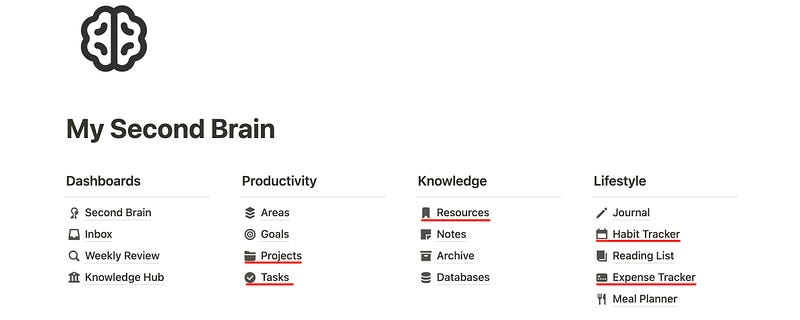
Observed it? I’ve underlined
- 🗂️ Projects
- ☑️ Tasks
- 🔖 Resources
- 🗓️ Habit Tracker
- 💳 Expense Tracker
Why?
Those are the ones you could fill in using Apple Shortcuts without the need to opening Notion.
#3. Get Second Brain Shortcuts
There are 8 shortcuts in the bundle →
Backend Shortcuts (No need to open):
- 🔑 Notion API Key: Connects all other shortcuts to Notion.
- 🥞 Get Database ID: Gets the Database ID of your tables.
- 🥞 Get habits
Frontend Shortcuts (The ones you’ll actually use):
- 🗓️ Log Habit in Second Brain
- 💳 Log Expense in Second Brain
- ☑️ Create Task in Second Brain
- 🔖 Create Resource in Second Brain
- 🗂️ Create Project in Second Brain
#4. Create and link Notion API
- Go to Notion API Key page,
- Click on ‘New Integration’,
- Give it a name, and save it.
- Copy your API Key.
- Check every option under ‘Capabilities’.
Done?
- Trigger the ‘🔑 Notion API Key’ shortcut.
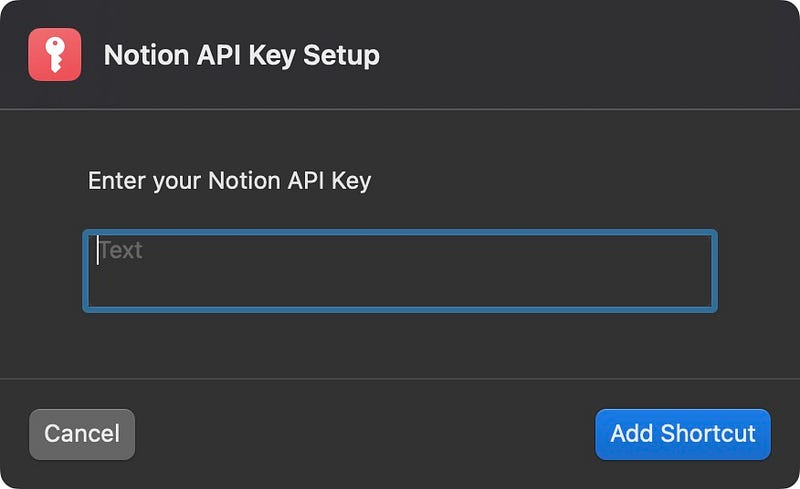
- Paste the copied API key (
starts with secret_) & save it.
#5. Integrate it with your Second Brain
- Head over to ‘Notion Second Brain’ template,
- Click on ⋯ at the top-right corner,
- Click ‘➕ Add Connections’,
- Select the integration you’ve just created.
You’ve just completed setting up your Second Brain!
Bonus
Add all the shortcuts all into a separate folder for easy identification,
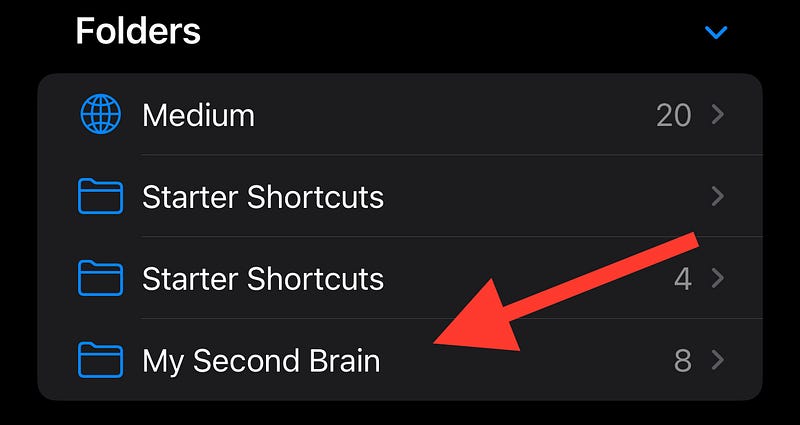
and to be able to add them into a widget for quick access.
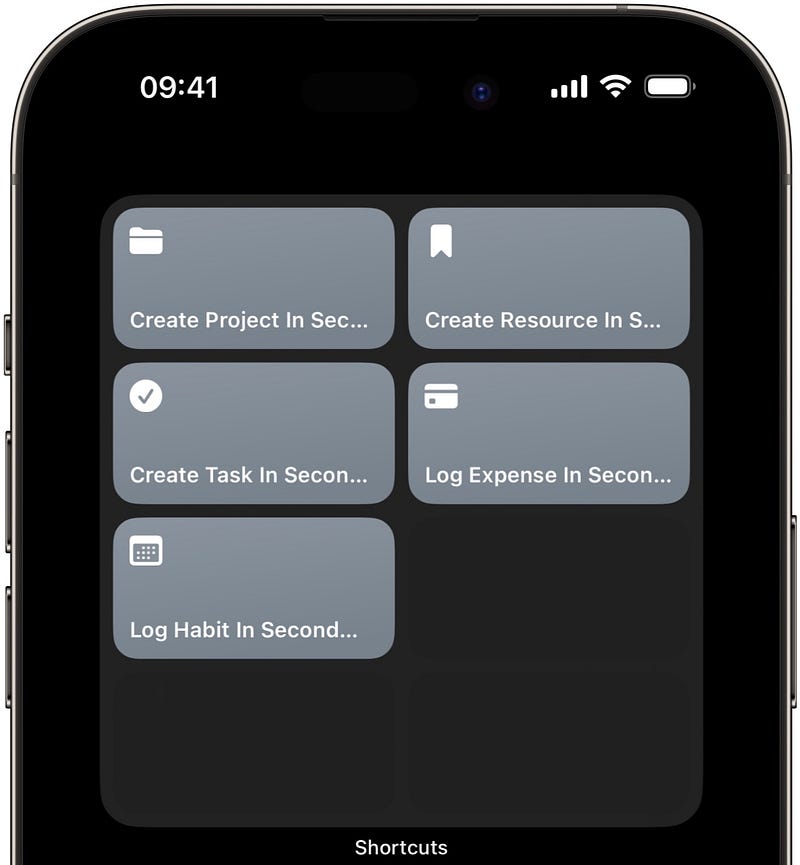
You may wanna remove the backend shortcuts from the folder (like I did) as you won’t use them.
Let’s try the setup
#1. Let’s log habit in Second Brain
- Trigger ‘🗓️ Log Habit in Second Brain’.
- Select all you’ve done today.
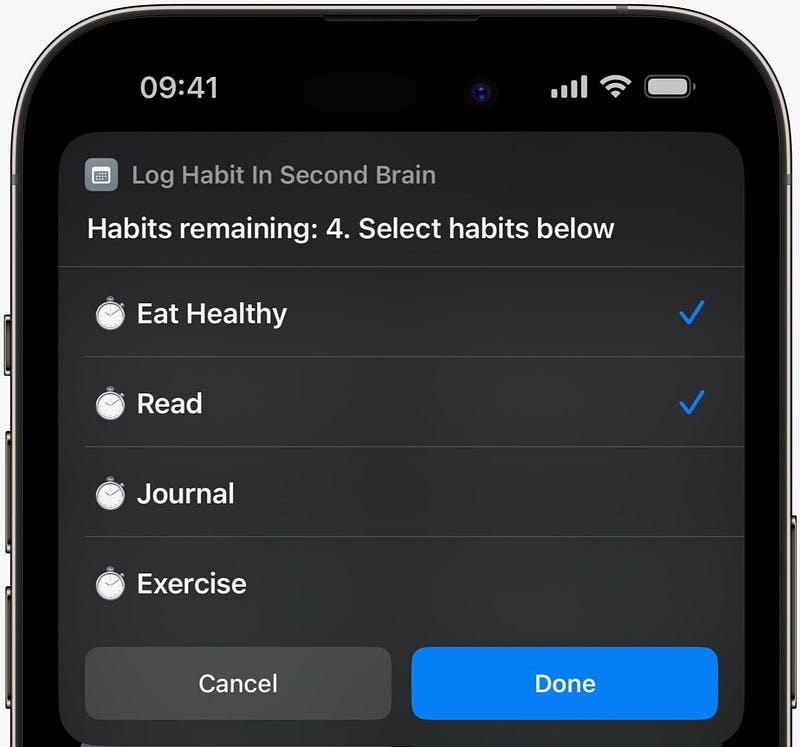
- Click Done.
Now you can see them reflecting in your Second Brain under ‘🗓️ Habit Tracker’.

Amazing, right?
Best part,
Let’s say you’ve exercised in the morning.
Now you don’t need to wait till evening to check off exercise along with the other habits. Just check it off in the morning, and it won’t be suggested in the evening.
Thanks to ‘🥞 Get habits’, that’s the one that retrieves unchecked habits for the day.
Note
If you’ve mistakenly selected a wrong habit, you can’t uncheck it via this Shortcut. You get to do it manually. — This applies to all the shortcuts.
#2. Let’s log expense in Second Brain
- Trigger ‘💳 Log Expense in Second Brain’.
- Type the name of your expense.
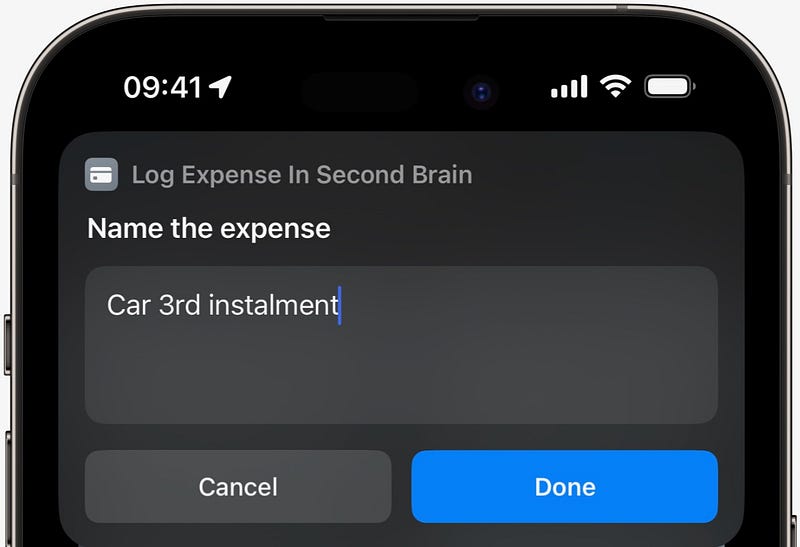
- Type the amount
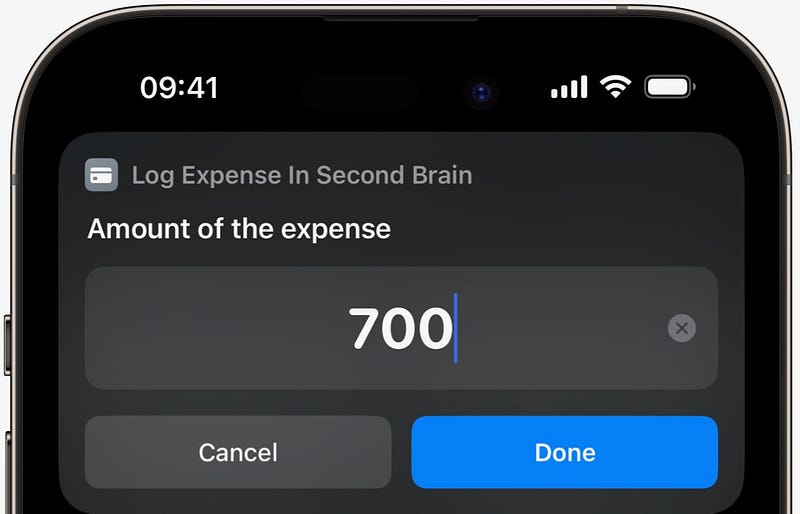
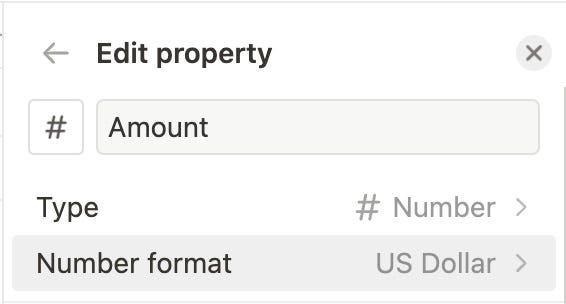
(The amount will be posted in USD by default, but if you use a different currency, you can change it in Notion.
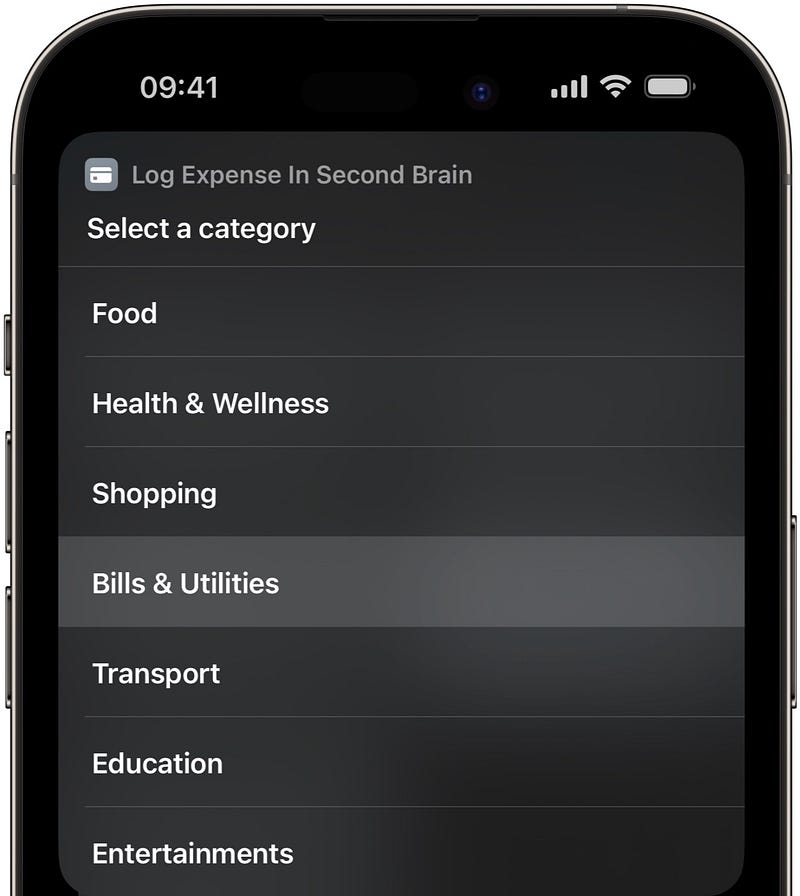
- Select the category out of:
- Click Done.
And your expense’s posted to ‘💳 Expense Tracker’ in the Second Brain!
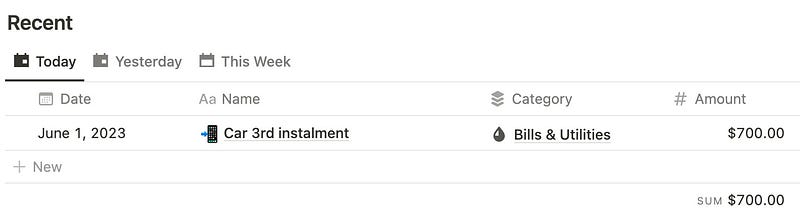
The more expenses you add, the more it gets useful.
Coz alongside your expenses, it even shows their sum for the present day, previous day, and the current week on the dashboard.
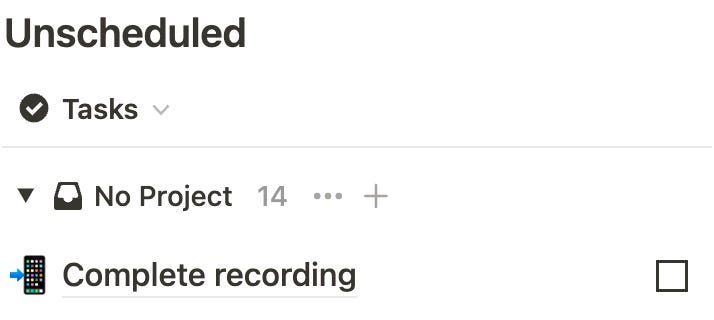
#3. Let’s create task in Second Brain
- Trigger ‘☑️ Create Task in Second Brain’.
- Type the task name and hit Done.
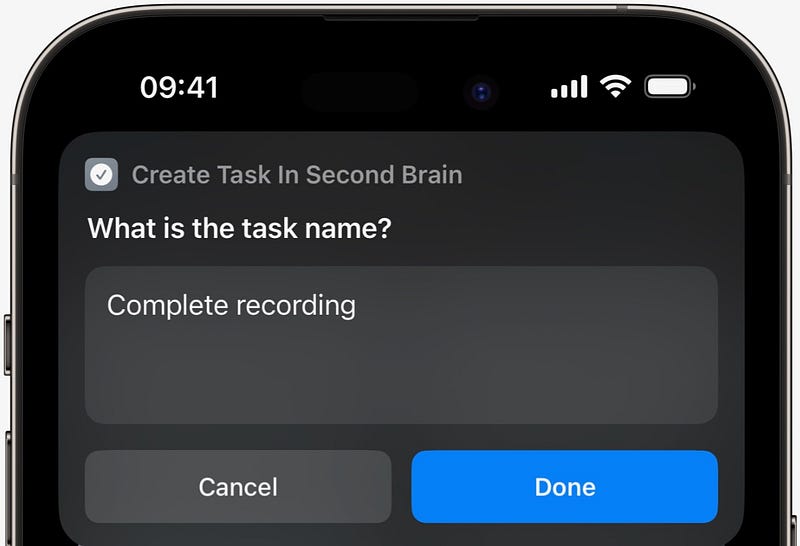
It’s now posted to your Second Brain. Once you complete it, check it off over there (□ → ☑).
#4. Let’s create resource in Second Brain
Resource means the link of an article, video, course, Twitter thread etc. you found useful, and wanna save for later. Assume it as reading list.
To create a resource,
- Copy the url of the resource.
- Trigger ‘🔖 Create Resource in Second Brain’.
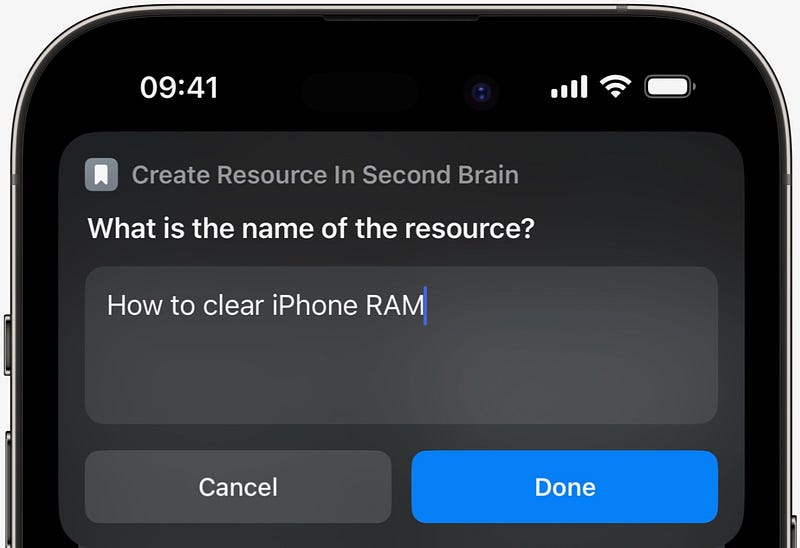
- Type its name.
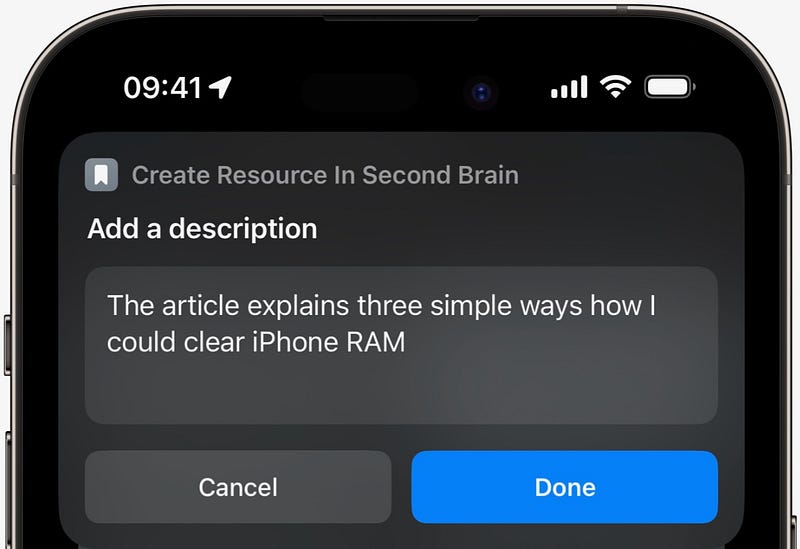
- Add a description.
- Select the resource type out of:
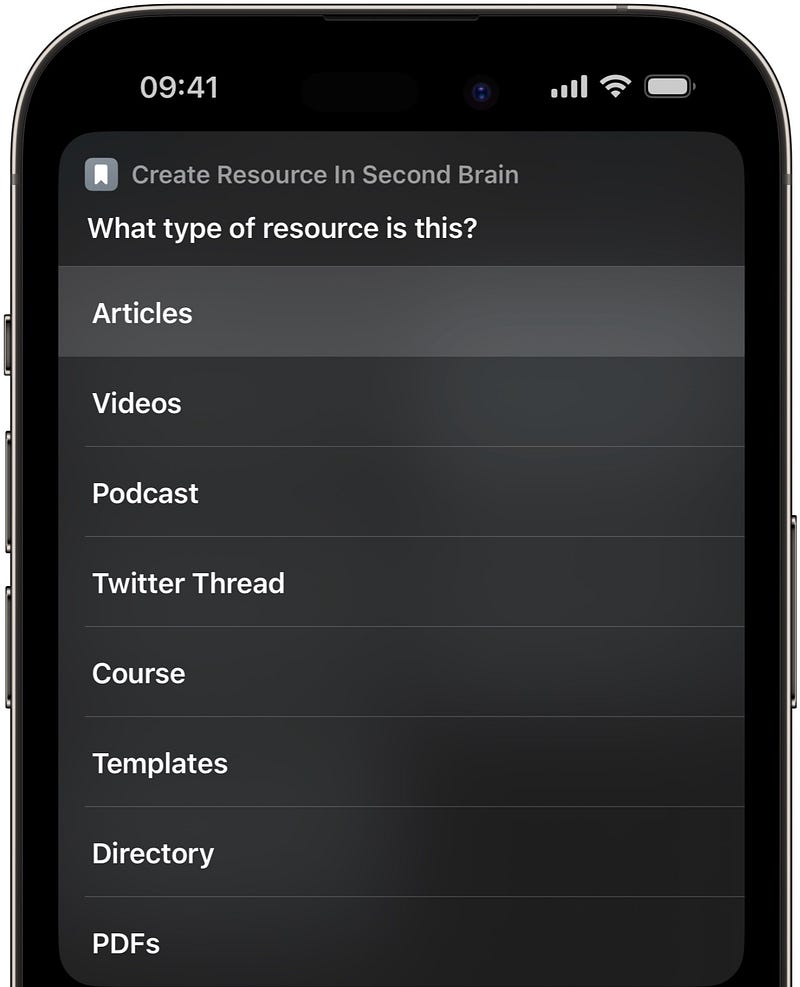
And the resource’s added!

“Wait, but I didn’t paste its link, right?” It’s taken from your clipboard! How cool!
#5. Let’s create project in Second Brain
The “Projects” folder is where you add your projects with your tasks, goals, timeline, and priority.
To create a project,
- Trigger ‘🗂️ Create Project in Second Brain’.
- Give your project name & click Done.
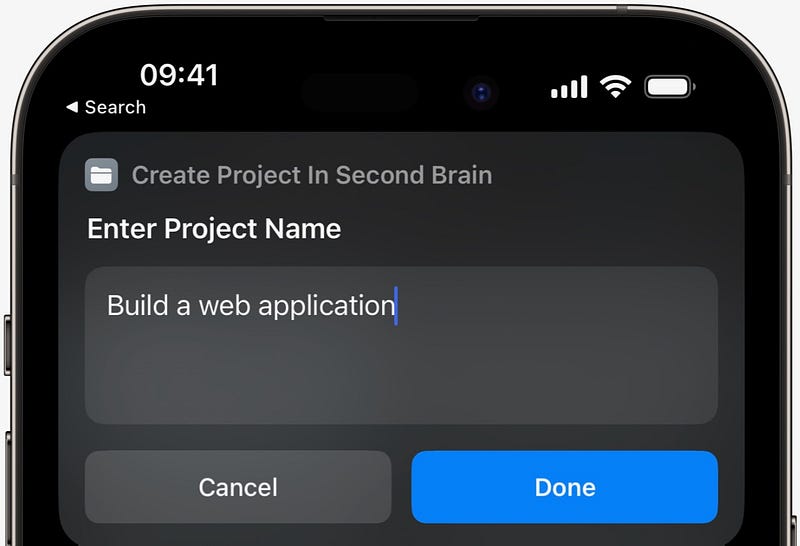
Now it’s visible in the ‘🗂️ Projects’ section.
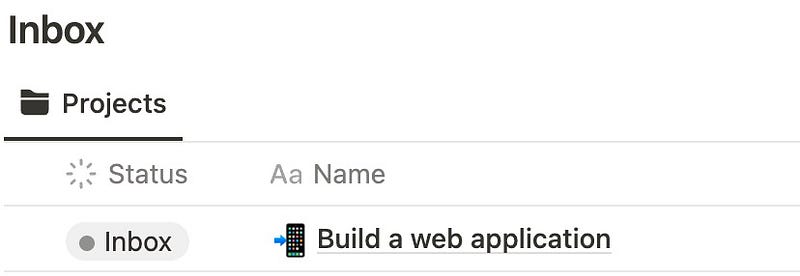
You can now add all its relevant resources, notes, comments, tasks etc. manually in Notion.
Finally,
That’s your new superpower.
Honestly, as a guy who’s never used Notion in his life, it first felt overwhelming to log everything manually. But these little saviour Shortcuts made it too easy to manage my things.
They’re completely worth their money.
Best part,
- You can run these shortcuts on your iPhone, iPad, Mac, and even Apple Watch!
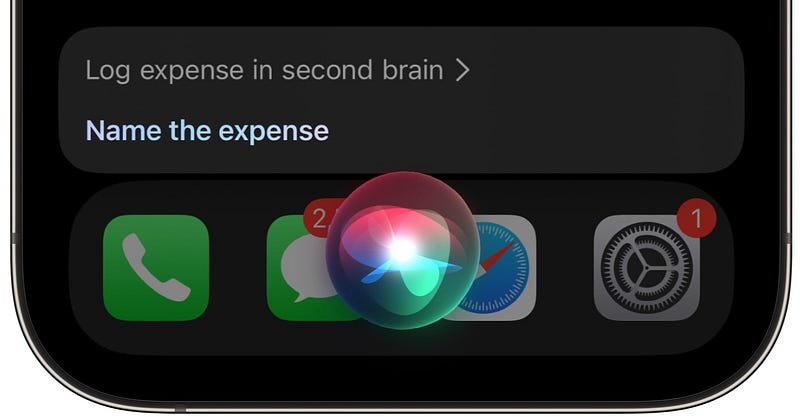
- If you’re an avid Siri user, instead of triggering the shortcut by yourself, say, “Hey Siri! Log expense in second brain”, for example, and you can do it!
Loved it? For more useful Apple shortcuts,
If you enjoyed this story, join 380+ others to get notified whenever I publish a new story!


