
How I Use My Mid-2012 Macbook Pro in 2020
PC and Mac enthusiasts alike, you are probably cringing at this. But here is the truth from a former university student, and current bioinformatician: I used my mid-2012, not Retina unibody MacBook pro for all my work for years, without the slightest hitch. What’s more, I recommend that people on a budget who are in desperate need for an Apple laptop do the same, even in God’s year 2020. Here’s how I did it.

- Upgrades. I managed to grab my mid-2012 13" model for a bargain price of about £300 ($376), and it came with 2 x 2 GB sticks of DDR3 RAM, as well as 500 GB of HDD storage. Thankfully, it is very straightforward to swap both for better options. (And you get to feel like a computer person while doing it.)
After loitering in a nearby Apple store and chatting with some of the staff there, I found out that I should be alright to upgrade my RAM to as much as 16 GB. This is despite publicly available information posted by Apple online, who recommend a maximum of 8 GB memory for this model. It was then that I found out that a visit to the Genius bar is almost always the right thing to do as an Apple customer. Whatever they read off of those iPhones and iPads while you are waiting patiently for them to save your high-value device? You can’t get it elsewhere. So I purchased 16 GB of DDR3L RAM (for about £70/$88) and it blew those 4 GB of built-in memory out of the water.
My next stop was a storage upgrade, as I suffered some massive irretrievable data losses more than once at the hands of HDDs. I updated to an SSD that rendered my machine both faster and safer from unexpected hard drive failures. I chose a 2.5 inch SSD for this, in the same storage option (500 GB), but here you are free to go wild and upgrade to your heart’s (and wallet’s…) desire. This was another £60 ($75) for me.
If needed, swapping the battery should be an option too, but mine is at 760 cycles at the moment and still lasting about 5 hours (the advertised maximum was 7 hours at the time of release).
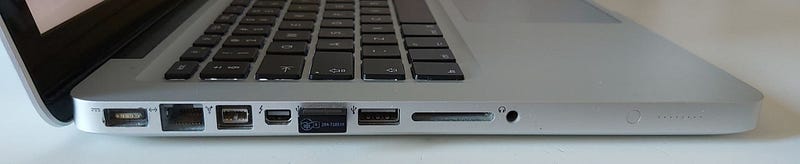
2. Use those ports. This machine comes with a CD-ROM, as well as 2 USB-A ports, a mini-display port, an Ethernet port, an SD card slot and a FireWire port. Apart from the latter, I have found a use for all these connectivity options and I suggest you take advantage of them too. I have my laptop set up so that I can use a wireless mouse (and sometimes keyboard) and an external display (with a cheap, handy dongle costing me £8) at all times.
Oh, and the keyboard is stellar. The trackpad is excellent too, as expected from Apple. However, it is the keyboard that stands out in 2020: key travel and feedback on this machine beat most recent laptops, including the newest scissor switches in the MBPs. Nothing can match up to the feeling of using this OG Magic keyboard, thanks to the thick, sturdy unibody chassis.
A final thought, about the camera: if you are afraid of looking like a potato on video calls because you are using an old 720p FaceTime camera, fear not. You wouldn’t be faring any better using a brand new 2020 16" machine costing around £2500, either. The mic array and camera have carried me through the quarantine (including countless job interviews) just fine.
3. Performance. The Dual Core i5 handles my workflows surprisingly well. With a modest multi-core score in Geekbench 5 (a meagre 1379, to be precise), it looks as though it might not even be worth reading this article from this point on. But hear me out! This i5–3210M processor is much more resilient than I was giving it credit for. It runs in complete silence most of the time (yes, even when MS Teams attempts to set it on fire) and it just… works. I was (still am) a big PC fangirl before I got stuck with this second-hand machine because I couldn’t afford a new laptop (the irony). Even I have to admit that it is nice, as a programmer, to use a UNIX machine, and a very cheap, capable one at that. This processor could handle my virtual machines, my programming tasks, all my data wrangling (even if slow at times) and, most importantly, all the research software I needed as a student (and if you are a scientist, like me, you know how aggressively bad some pieces of research software can be). I struggle to imagine an average user having a hard time getting their work done on this laptop. That is for two reasons. On one hand, it is (probably) Intel’s fault: over the last 5 years, the CPU performance improvements seemed comically minute to the everyday user. On the other hand, I believe this machine is a prime example of how a good product can retain its edge, even after 8+ years.
Now, the downsides:
- macOS upgrades. It is likely that macOS Catalina will be the last upgrade supported on this machine. There’s nothing inherently bad about this, as security patches are not as pressing for Mac users as they are for Windows users (this is your reminder to update Windows, by the way. Do it.) The default shell is zsh for Catalina, which might be annoying for some people when firing up Terminal, but that’s about the extent of my grievances.
- Portability. At its 2.06 kg, and the 7 hours on battery at most, portability is not exactly this laptop’s most attractive feature. That being said, it did not discourage me from carrying it with me every day for full days at university/work, for years. There are better things out there, for sure, but do they run macOS, have excellent build quality and cost under £500? No. I didn’t think so.
- Display. Don’t let the spec sheet fool you. The 1280 x 800 display is, by all means, modest in terms of resolution, colour accuracy, etc. However, it is brighter than previous machines I have owned, including the HP Envy 15. So if your workspace is naturally bright during the day, you’ll appreciate this luminous display, even with its large bezels.
Final thoughts, to my broke friends out there who really want a Mac: I am recommending wholeheartedly to go for this model if you can. I know I will not be upgrading mine any time soon (as the 14" MBP seems to be at least a year away). The configuration I outlined for you here supported my WFH lifestyle without any problems or anxieties on my part, while my family members ran into countless problems (thermal throttling, Windows crashing, hard drives failing) with their newer, modern PCs.
I am in no way affiliated with Apple or Crucial or anybody I happen to mention in this article. If you would like to check out the full spec sheet of the mid-2012 13" MBP, you can find it here. Here are the SSD and the RAM options I mentioned, as well as an option for a suitable battery (again, none of these affiliate links). Happy building your budget Mac!


