
How I use Fantastical on a daily basis across Mac, iPhone and iPad
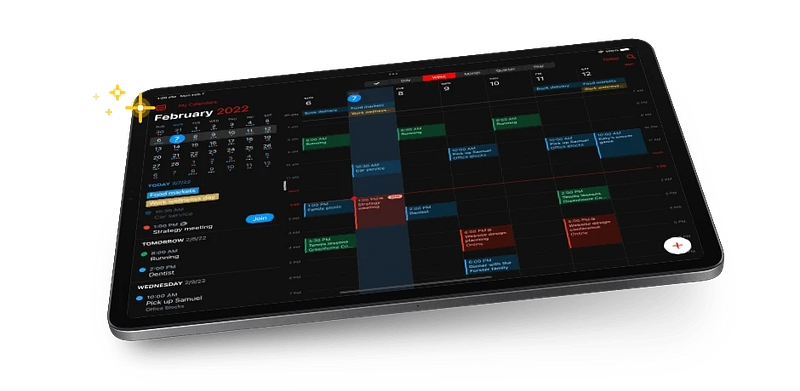
Developer: Flexibits Website: https://flexibits.com/fantastical Price: Free with a subscription tier starting at £5/month
Fantastical has been a controversial/groundbreaking app, depending on your point of view, since it started charging a subscription back in 2020.
It split the Mac community into two parts: those people who couldn’t fathom paying for a calendar and those who were happy to pay for what they considered a best-in-breed app that was essential to their daily work.
Three years later, they’ve repeated the trick by increasing that subscription by nearly 50% which has caused people (myself included) to evaluate just how much value they’re getting from their subscription.
I have until the end of the year (when my subscription will renew at the increased price) to answer that question. This article is partly written to justify my original decision to pay for a calendar and also to help me understand whether the increased subscription of £5/month will be of value to me.
So why am I paying for a calendar?
Let’s address the elephant in the room, first. There are a host of calendar apps on the App Store — in fact, your Mac device comes with a free calendar out of the box, so why would I even think about paying for 3rd party app?
Well, here are a few of the reasons why I’ve subscribed to Fantastical for the last three years.
Design
If you’re a regular reader of my work, you know that it’s important to me that an app is well designed and looks attractive — especially if it’s an app that’s going to get used multiple times every day, like. a calendar.
Look and design is always subjective but, for me, Fantastical is the best-looking calendar for iOS devices. Whether you’re accessing it from a desktop or mobile device, it always looks sharp and colourful and your schedule is easily accessible over daily, weekly and now quarterly periods.
Calendar Sets
Fantastical will pull in calendar information from all major providers such as Google, Apple, Microsoft and any other CalDav provider. While there is nothing special there, where Fantstical stands out, is that it allows you to pull those calendars into personalised “Sets” which can then be displayed across the calendar with customised colouring.
What’s more, these Sets are tightly integrated with Apple’s Focus Modes meaning that, during the day, Fantastical shows my “Work” Calendar Set (comprising of individual calendar accounts from clients as well as my own CalDav calendar from Fastmail.
Come 5 o’clock, that automatically shifts. All my calendar sets are displayed so that I can plan my next day. Then, at weekends, my “Personal” calendar set kicks in which comprises of own Outlook calendar and my wife’s Gmail calendar.
Natural Language Processing
Getting events into Fantastical is easy too. The platform has the best Natural Language Processing (NLP) of any app that I’ve used. This means that rather than having to scroll to a particular time, on a particular day before entering event details, I can simply type:
Meet with John Green for coffee on 11th September at 10.00 at The Coffee Cup
Fantastical will then translate all of that and make sure that an appointment gets put in my calendar at the right time and also send an invite out to John Green (assuming that he’s in my Contacts).
This is the time to point out that when you pay for Fantastical, Flexibits will also provide you with access to Cardhop — their Contact Manager — for free, which also looks and behaves a whole lot nicer than Apple’s standard “Contacts” app.
Menu Bar Options
This may sound like a little thing, but Fantastical has an option that will put your next event on your Mac’s menu bar. Not only that, it will provide you with details on how long you have left until the event starts.
If that event happens to be an online meeting (think Teams, Zoom and Google Meet), it will also provide you with a clickable icon next to your event which will take you directly into your meeting room.
This is one of my favourite features in the entire app. Rather than having to find the link within the calendar, I can simply get to where I need to be with a single click on the menu bar.
Widgets
Fantastical offers over a dozen attractive widgets which can be used on both iPhone and iPad.
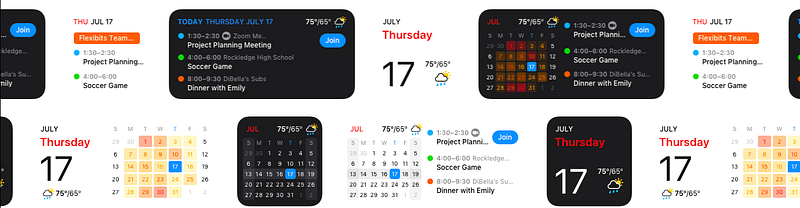
I tend to use the widgets most on my iPad as an always-on dashboard that sits on my desk during the work day, allowing me to easily see upcoming meetings during the day.
Proposals and Openings
Around the time that their subscription pricing was first announced, Flexibits announced some additional functionality that sweetened the deal for a lot of people.
The introduction of Proposals did away with the email chains that normally happen when trying to sort out a time for a meeting. You know the type:
- Person A: I can do Tuesday at 10…
- Person B: Sorry, that’s not going to work, I’ve got a meeting then. How about Wednesday at 11?
- Person A: I’m off Wednesday morning but I’m back in the afternoon if you’re around …
- etc. etc.
With Proposals, I can send over a range of proposed times for the meeting and let the other person select the one that works for them best. Fantastical will block out all of the proposed time slots until a decision is made (so that things aren’t booked over the top of them). It will then remove them all except for the time that has been chosen by the other person once that decision has been made.
When sending out proposed times to a group of people, Fantastical will manage responses and confirm the time that the most people can make.
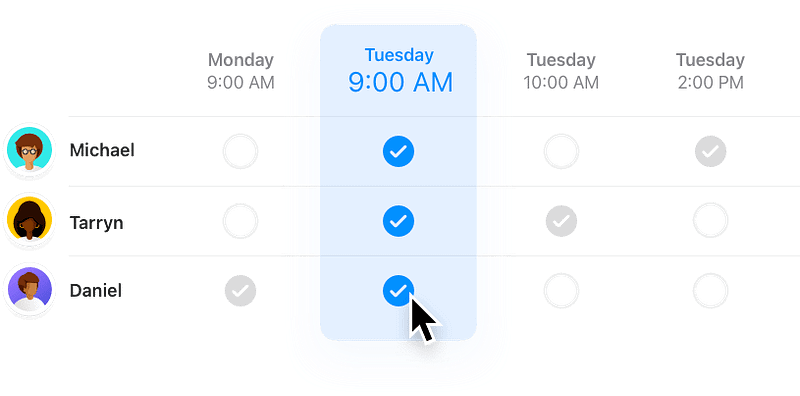
Soon after this release, Flexibits went one stage further and released Openings to allow people to book time in my calendar without me even needing to send out an invite. I simply tell Fantastical when I’m free for these types of meetings and people can visit my unique URL and place some time in my calendar for a call.
I’m getting the functionality of Doodle or Calend.ly without having to pay an additional subscription (which was actually higher than the Fantastical sub the last time I checked).
How I use Fantastical
While I can access my calendars across OSX, Mobile devices and Watch, I typically use Fantastical on my Mac Mini and iPad.
On my Mac Mini, Fantastical gets a desktop all by itself meaning that I can simply press CTRL+2 and I’m instantly shown an overview of my time across a certain period in an attractive and easy-to-view manner.
I’m able to put events in the calendar incredibly quickly using Fantasical’s NLP functionality coupled with something like Raycast or Alfred. All I need to do is type “cal” and my NLP command and the event will go into my calendar (with all relevant invites going out) without me even needing to see the app.
The other way I use it is via the menu bar, as I mentioned above. I couldn’t begin to tell you how much time I’ve saved just being able to click on a Zoom icon in a menu bar to start a meeting rather than having to scroll through my calendar to find the relevant link.
On my iPad, Fantastical is largely widget-based. I tend to use my tablet as a dashboard that sits on top of my desk during the day. Therefore, the Fantastical widget sits alongside other widgets (such as my task manager) to give me an instant overview of what is upcoming.
At the end of the day (or for weekly/quarterly reviews), I will open up the full app so that I can see what is coming up and plan my time accordingly.
The widgets are also used on my Phone (filtered by Focus Mode) to allow me to get a glimpse of upcoming events in a day whether that’s as part of my professional or personal life.
One last thing …
Thank you very much for taking the time to read the article above — I hope you found it useful. If you did, then you might be pleased to know that I’ve finally got myself sorted out, socially. You can now find me on Bluesky and Mastodon. I’d love to carry on the conversation there.
If that’s not up your street, then feel free to follow me here or hit the clapping hands so that other people like you will find the article. Hopefully, they’ll find it useful too!


