avatarhejrene | Rene

Free AI web copilot to create summaries, insights and extended knowledge, download it at here

1537

Abstract

e had a quick 5-second preview and decided to open a link, I use Arc Max to pull out the main points of the article. I’ve found that having a general understanding of the article beforehand helps me retain more information as I read.</p><p id="a1c0">I utilize the “Ask On Page” feature in Arc Max to produce this bullet point list. I also copy this list in a note on Mem.ai. To activate ‘Ask On Page’, just press Command+F on your keyboard.</p><figure id="b726"><img src="https://cdn-images-1.readmedium.com/v2/resize:fit:800/1*Se8UF6jjYQbb_a6acf4Tgg.png"><figcaption>Example of the prompt: “generate key points of the article” in Arc Browser. Screenshot of a Forbes article.</figcaption></figure><p id="1afb"><b>Summary </b>After going through the article, I use Arc Max to craft a concise summary, which I then copy to Mem. I also add my own thoughts and notes there. To get this summary from Arc Max, I use the command: “write a summary, no keypoints” (but of course other prompts might work just as good).</p><figure id="dbd4"><img src="https://cdn-images-1.readmedium.com/v2/resize:fit:800/1*4uY3Afs9AGpj0gf8KzbkPQ.png"><figcaption>Example of a page summary. Screenshot of a Forbes article.</figcaption></figure><h2 id="67a0">Ask Questions / Use ChatGPT</h2><p id="d34a">Using the same Command+F keyboard shortcut, we can pose detailed questions about the website’s content, diving deeper than the summary provides.</p><p id="7180">If we need even more in-depth information on a topic, we can quickly access ChatGPT using the Option

Options

+Command+G shortcut. This directly prompts ChatGPT and, if you’re logged in, launches ChatGPT, giving you a thorough response.</p><h2 id="ba61">Mem It</h2><p id="4211">I always make sure to save everything — the site link, keypoints, summaries, Q&A sessions, and even ChatGPT content — into a Mem.ai note for easy reference later.</p><p id="f8dd"><i>If you are wondering what sets Mem apart?</i></p><p id="34f1">It’s the unique feature, Mem Chat. With it, you can effortlessly ask questions of your saved content, generate new insights from your existing knowledge base, and even let Mem give study questions to you.</p><h2 id="14b7">Conclusion</h2><p id="b2af">Using Arc and its Arc Max AI functionalities has truly streamlined my research process. It allows me to preview links before diving in, extract keypoints for a foundational understanding before fully reading an article, pose questions, generate summaries, and, when I need a deeper understanding, I can always turn to ChatGPT with just a keyboard shortcut.</p><blockquote id="d65b"><p>Hej there! Can I ask you a favour (it will really help me out to grow this blog)?</p></blockquote><blockquote id="a119"><p>If you find this article insightful and enjoy reading it, <b>consider following me please </b>for more content about Apple, Mem, productivity, and the general landscape of AI, as they help me reach a wider audience, enabling others to benefit from my stories and personal experiences. <b>Thanks for reading and enjoy your day!</b></p></blockquote></article></body>

How I Use Arc Max to Research Almost Anything

I’ve been a dedicated Safari user for a long time, but then I discovered Arc. What really caught my attention were the advanced AI features in Arc Max. It made transitioning from Safari a breeze and boosted my productivity.

I still rely on Safari for tasks like shopping (thanks to Apple’s keychain), but when it comes to research, Arc is my go-to. Let me show you how you can use Arc Max to quickly research just about anything and create notes in Mem.
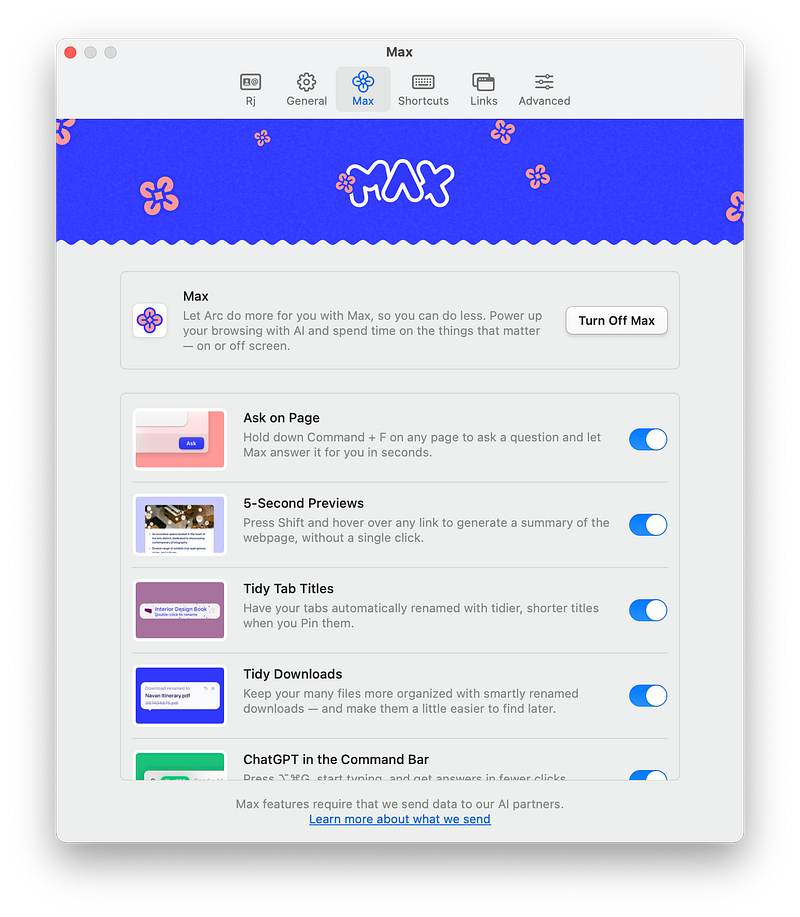
Screenshot of the Arc Max settings.

Preview Anything with 5 Second Previews

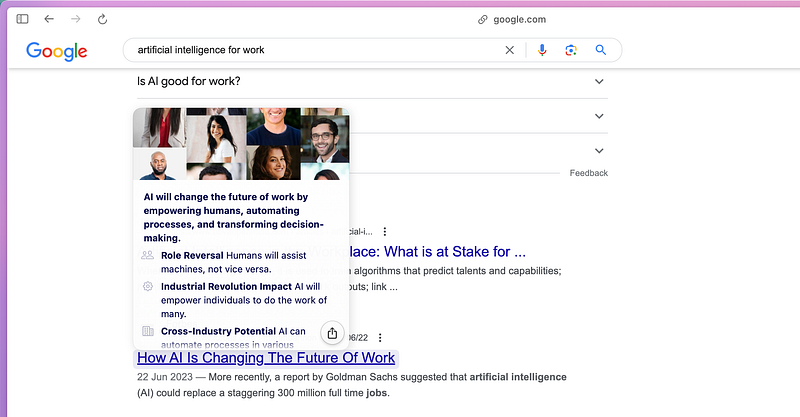
Let’s say we’re looking into “Artificial Intelligence for the workplace” and we start with a Google search. With Arc, all you have to do is hover over any link, and it’ll give you a quick AI-generated preview highlighting the main points. This makes it super easy to decide if I want to visit the site or skip it.
Ask On Page — Bullet Point List and Summary

Bullet Points Once I’ve had a quick 5-second preview and decided to open a link, I use Arc Max to pull out the main points of the article. I’ve found that having a general understanding of the article beforehand helps me retain more information as I read.

I utilize the “Ask On Page” feature in Arc Max to produce this bullet point list. I also copy this list in a note on Mem.ai. To activate ‘Ask On Page’, just press Command+F on your keyboard.
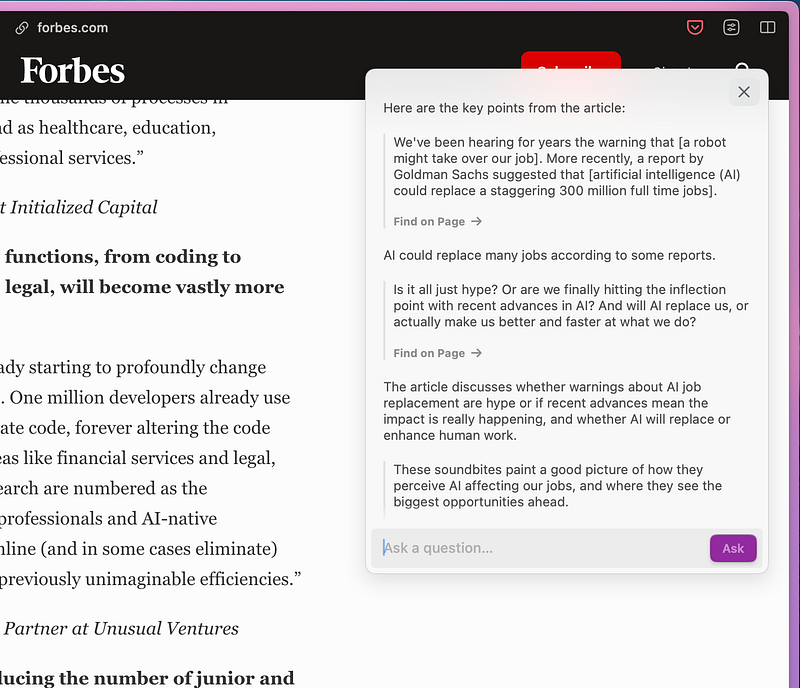
Example of the prompt: “generate key points of the article” in Arc Browser. Screenshot of a Forbes article.

Summary After going through the article, I use Arc Max to craft a concise summary, which I then copy to Mem. I also add my own thoughts and notes there. To get this summary from Arc Max, I use the command: “write a summary, no keypoints” (but of course other prompts might work just as good).
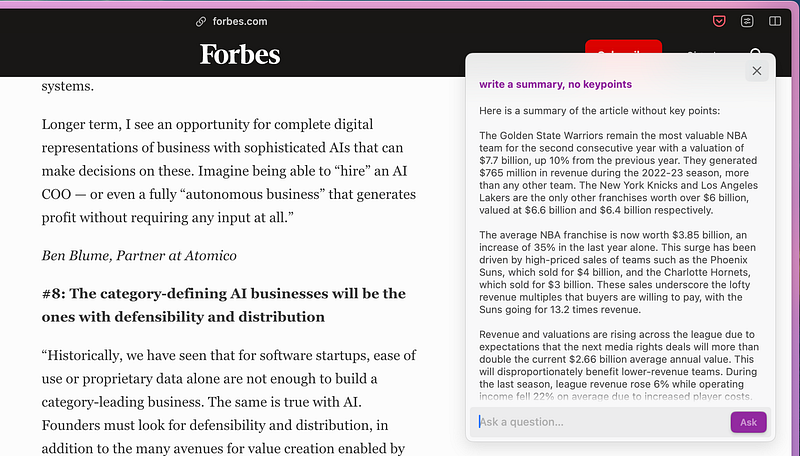
Example of a page summary. Screenshot of a Forbes article.

Ask Questions / Use ChatGPT

Using the same Command+F keyboard shortcut, we can pose detailed questions about the website’s content, diving deeper than the summary provides.

If we need even more in-depth information on a topic, we can quickly access ChatGPT using the Option+Command+G shortcut. This directly prompts ChatGPT and, if you’re logged in, launches ChatGPT, giving you a thorough response.

Mem It

I always make sure to save everything — the site link, keypoints, summaries, Q&A sessions, and even ChatGPT content — into a Mem.ai note for easy reference later.

If you are wondering what sets Mem apart?

It’s the unique feature, Mem Chat. With it, you can effortlessly ask questions of your saved content, generate new insights from your existing knowledge base, and even let Mem give study questions to you.

Conclusion

Using Arc and its Arc Max AI functionalities has truly streamlined my research process. It allows me to preview links before diving in, extract keypoints for a foundational understanding before fully reading an article, pose questions, generate summaries, and, when I need a deeper understanding, I can always turn to ChatGPT with just a keyboard shortcut.

Hej there! Can I ask you a favour (it will really help me out to grow this blog)?

If you find this article insightful and enjoy reading it, consider following me please for more content about Apple, Mem, productivity, and the general landscape of AI, as they help me reach a wider audience, enabling others to benefit from my stories and personal experiences. Thanks for reading and enjoy your day!

Artificial Intelligence
Browsers
Productivity
Personal Development
AI
Recommended from ReadMedium