
How I set up my data science workflow with nixOS, part I: setting it up
… story of a journey and a tutorial
I first discovered NixOs when I read that replit was investing in nixOs
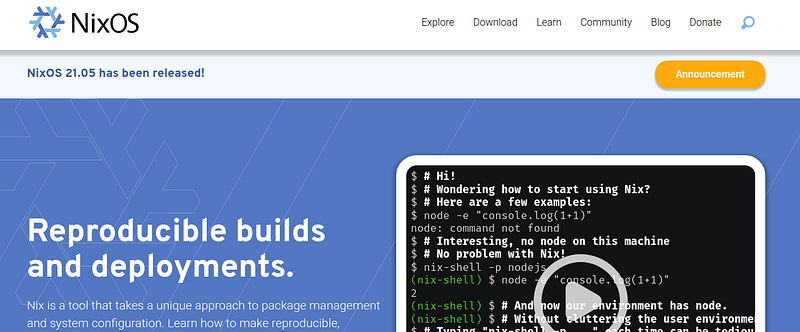
I had not heard about NixOS, and being curious, I started exploring as to what was this by visiting nixos_org’s webpage:
Nix is a tool of package management available in any distro and for macs; NixOS is a linux distro, but with it is significantly different from other distros in that everything is modular and written in the NiX language and nix packaging system. I like how intuitive it is, but because it is different, you need to learn about it; but once you get the hang of it, it is a very beautiful operating system, :-)
So, it it helps, here are the step by step processes of what I discovered and learned as I went about replacing my old Archlinux and set up a working data science system in my Thinkpad x220i with 8 GB RAM and 256 SSD hard drive. See if you find it useful or feel free to ask questions. In this part, I am going to describe how I installed the operating system, and in the subsequent parts, I will describe my workflow of data analyses using emacs, ess, and org-mode.
Step 1: I ‘burnt’ a fresh NixOS ISO on a usb and booted into the computer
I used a Thinkpad X220i for this purpose. The Thinkpad had lots of files I collected over the years — these went into a USB stick, and I obtained a fresh copy of the NixOS iso from the following file:
https://channels.nixos.org/nixos-21.05/latest-nixos-gnome-x86_64-linux.iso
Then I burnt the ISO image to a blank USB drive with the following code
lsblk # this gave me the drive address of my usb after I inserted# used the following code to "burn" the ISO to usb
# to make it a bootable USBsudo dd if="latest-nixos-gnome-x86_64-linux.iso of="/dev/sdb" bs=1m# If you are on a Mac, do this insteadsudo dd if="latest-nixos-gnome-x86_64-linux.iso of="/dev/rsdb"# check the devices list with diskutil list first
# that rsdb stands for "raw sdb" and writes the image VERY FAST!Then, keeping the USB in the slot, I “rebooted” my computer.
Nothing happened. It rebooted into its old Archlinux OS.
At which point, I remembered that to boot into the new OS via the USB stick, I needed to get into BIOS and change the boot source, :-) by pressing the F12 key right after stopping the computer and restarting by pressing the power key. It sounded a “blip” and went into a blue screen with the listing as to where would I prefer to start. I selected USB and pressed Enter and the computer now booted into the OS in the USB stick. Within a minute the computer booted into a Gnome display based Operating system, identified my wifi, and it was a pleasing, fast OS (this is on a computer with 8 GB RAM, 256 GB SSD).
I wanted to install the new OS into my Thinkpad; with the other OS’s that I have used in the past (Ubuntu and Debian and Archlinux and Manjaro and ….), this would be trivial; for them, all I had to do was to activate the “installer” from within the USB and within minutes I’d boot into a new spiffy operating system. Not with NixOS though, :-) as there was no installer and I had to do everything on the CLI. Yet, this was much more enjoyable. Well, next step then:
Step 2: I nervously partitioned the hard drive, wiped out data, and “burned the bridge” and was about to start again …
The first thing I’d do was to open a second computer (or a tablet) or perhaps even a phone to browse to the NixOS webpage and browse its documentation here:
https://nixos.org/manual/nixos/stable/#sec-installation
It was really useful to have a second computer at hand, but I could have issued the following command at the prompt to bring up the help page as well:
nixos-help
That would have brought up a webpage with installation and configuration instructions as well. In any case, the first step was to create partitions. This turned out to be quite complex and confusing, but that was only because I never used a CLI tool such as parted before. The NixOs help file provided these instructions for the Master Boot Record (MBR). (N.B. There are other instructions for the UEFI; look up the helpfile or instructions on the NixOS installation manual on their website. It is really well documented and you should have no problems)
$ sudo su .... (1)
// working with the uSB installer, I did not have to enter password
// this changed me to the superuser and now
# umount /dev/sda
// I had to unmount the /dev/sda before partitioning, otherwise
// it'd not work, once they were unmounted, then:# parted /dev/sda -- mklabel msdos
// the ' -- ' is important and this creates a FAT partition# parted /dev/sda -- mkpart primary 1MiB -8GiB// this creates a primary partition filling 248 GB
// leaving about last 8 GB# parted /dev/sda -- mkpart primary linux-swap -8GiB 100%
// this creates the linux-swap that fills the last 8 GB
So, by then, I had partitioned the hard drive and removed data from the hard drive. I ran into several error messages and warnings, and as the manual instructed, I typed in each case “Ignore” (remember this advice while working with parted, do not hit enter or hit cancel, these things do not work!). This is risky business and you can “brick” your computer or make it unbootable, so please make sure you read the parted users’ manual. You can find that manual here:
Next, I formatted the drives /dev/sda1 and /dev/sda2 as follows:
# mkfs.ext4 -L nixos /dev/sda1
// sets the first partition as ext4
# mkswap -L swap /dev/sda2
// second partition was kept as Linux swap
// important that you keep the names as they appear in the manual
# mount /dev/disk/by-label/nixos /mnt
// Now mount the disk to the /mnt
Move to step 3.
Step 3: Generated and worked on the configuration file and installed the system
Once I had recreated partitions in the drive and wiped out all old data and the old operating system, I was ready to install the new operating system. The real power of NixOs is in the configuration file configuration.nix that sat at the time of installation in /mnt/etc/nixos/configuration.nix . Critical: the point to note here is /mnt part, if I omitted that part, it’d modify the USB file. This file was to be modified where I would add information on network and what other software I wanted, time zones, and other information. This file is well documented in the help file. So, this file had to be generated and edited as follows:
# nixos-generate-config --root /mnt
// note that this time it is --root
// it has to be mounted on the partition
# nano /mnt/etc/nixos/configuration.nix
I am going to talk about the configuration file editing later, but basically, you will only need to edit the configuration.nix file, NOT the hardware-configuration.nix file. The nixos-generate-config command generates two files: a configuration.nix file and a hardware-configuration.nix file. You edit only the configuration.nix file. After I had edited the configuration.nix file with the bare minimum information to get started, I was ready to install.
In order to do that, I had to issue nixos-install as the system would go into installation mode. It downloaded the necessary files, and built whatever it had to build.
So, the installer did it’s job and after a while, I was asked to set the root passwords. At that point I knew that I was successful in setting up the new OS, :-), I had to reboot.
This was the critical part for me. I had to remember that when I rebooted, I had to keep the USB stick in the slot till the computer shut down, and at that point, I'd have to remove the USB stick, not before! :-), I ran into a problem for removing the USB stick too early!After rebooting, I ended up with a gnome desktop and selected the wifi, set the password, and it was ready to go.
Step 4: I edited the configuration file and installed programmes I wanted
The configuration file is the most interesting thing about Nixos. In other distro installations, I had to change the settings as the distro went about installing itself, and the distro in its process of installation, quietly added the files in the “proper” places, and I did not have to worry about where it would be adding what. The configuration file works like a magic in NixOS and this is where I, the user, “controls” what I want and what settings should go where.
Besides, in my opinion, the configuration file is also the one that makes this distro so much more reproducible and powerful for me to work. I have saved my configuration file on a github repo and you can take a look at it if you want (it’s a nix file, so you will have to download it I suppose). Once you set up your partitions, you can copy and paste data from another person’s configuration file, and you can pretty much bet that your computer will have the same configuration as the person’s whose config file you copied! How cool is that?
Now, the configuration file can be edited anytime, before or after installation. I wanted to have a minimal system to start with and then I wanted to add/edit it, so I went with a bare minimum configuration, but YMMV. Editing the configuration file also requires more than a minimum understanding of the nix programming language and nix package management, but here again, the excellent NixOS documentation holds your hand. At the time of installation, I had no understanding of any of these and I hadn’t yet started learning these. On hindsight, I feel that I should have at least browsed the documentation and that would have saved me some grief and time. So, if I were to do this over again, I’d read through the documentation at least once and then get hands-on.
What if you do not have NixOS? Doesn’t matter. You can install nix package manager on any linux or MacOS system you like and play with it. Do that first if you want. Basically, in terms of installing and setting up NixOS, that’s all there to it: (1) partition your drive; (2) set up the configuration.nix, and (3) nixos-install. Boom.
That, in my opinion, makes it not only simple, clutter-free, but also very powerful. Let’s get to the configuration file.
Here is my configuration file as it stands now. I have commented on the different lines to explain the relevant parts of it.
# Edit this configuration file to define what should be installed on
# your system.  Help is available in the configuration.nix(5) man page
# and in the NixOS manual (accessible by running ‘nixos-help’).
{ config, pkgs, ... }: # ... (1){
imports =
[ # Include the results of the hardware scan.
./hardware-configuration.nix
]; # ... (2)# Use the systemd-boot EFI boot loader. # ... (3)
boot.loader.systemd-boot.enable = true;
boot.loader.efi.canTouchEfiVariables = true;
boot.loader.grub.device = "/dev/sda";
boot.loader.grub.enable = true;
boot.loader.grub.version = 2;networking.hostName = "arin"; # Define your hostname.
# Set your time zone.
   time.timeZone = "Pacific/Auckland";
# The global useDHCP flag is deprecated, therefore explicitly set to false here.
# Per-interface useDHCP will be mandatory in the future, so this generated config
# replicates the default behaviour.
# Enables wireless support via wpa_supplicant. networking.useDHCP = false; # ... (4)
networking.interfaces.enp0s25.useDHCP = true;
networking.interfaces.wlp3s0.useDHCP = true;
networking.interfaces.wlp2s0.useDHCP = true;
networking.networkmanager.enable = true;# networking.networkmanager.unmanaged = [
# "*" "except:type:wwan" "except:type:gsm"
#];# Configure network proxy if necessary
# networking.proxy.default = "http://user:password@proxy:port/";
# networking.proxy.noProxy = "127.0.0.1,localhost,internal.domain";# Select internationalisation properties.
# i18n.defaultLocale = "en_US.UTF-8";
# console = {
# font = "Lat2-Terminus16";
# keyMap = "us";
# };# Enable the X11 windowing system.
services.xserver.enable = true;# Enable the GNOME Desktop Environment.
services.xserver.displayManager.gdm.enable = true;
services.xserver.desktopManager.gnome.enable = true;# Configure keymap in X11
services.xserver.layout = "us";
# services.xserver.xkbOptions = "eurosign:e";# Enable CUPS to print documents.
# services.printing.enable = true;# Enable sound.
sound.enable = true;
hardware.pulseaudio.enable = true;# Enable touchpad support (enabled default in most desktopManager).
services.xserver.libinput.enable = true;# Define a user account. Don't forget to set a password with ‘passwd’. # ... (5) users.users.arin = {
isNormalUser = true;
extraGroups = [ "wheel" "networkmanager" ]; # Enable ‘sudo’ for the user.
};# List packages installed in system profile. To search, run:
# $ nix search wgetnixpkgs.config.allowUnfree = true; # ... (6)
# install script for R with packages
environment.systemPackages = with pkgs; # ... (7)
let
r-with-my-pkgs = rWrapper.override{
packages = with rPackages;
[lavaan tidyverse];
};
in
[
vim # Do not forget to add an editor to edit configuration.nix! The Nano editor is also installed by default.
wget
git
emacs
jabref
texlive.combined.scheme-basic
vivaldi
vivaldi-widevine
vivaldi-ffmpeg-codecs
python39Full
libreoffice
pandoc
openjdk
neovim
r-with-my-pkgs
gimp
obs-studio
teams
audacity
];
# Some programs need SUID wrappers, can be configured further or are
# started in user sessions.
# programs.mtr.enable = true;
# programs.gnupg.agent = {
# enable = true;
# enableSSHSupport = true;
# };# List services that you want to enable:# Enable the OpenSSH daemon.
# services.openssh.enable = true;# Open ports in the firewall.
# networking.firewall.allowedTCPPorts = [ ... ];
# networking.firewall.allowedUDPPorts = [ ... ];
# Or disable the firewall altogether.
# networking.firewall.enable = false;# This value determines the NixOS release from which the default
# settings for stateful data, like file locations and database versions
# on your system were taken. It‘s perfectly fine and recommended to leave
# this value at the release version of the first install of this system.
# Before changing this value read the documentation for this option
# (e.g. man configuration.nix or on https://nixos.org/nixos/options.html).
system.stateVersion = "21.05"; # Did you read the comment?}
Let’s go over this file and the notes by the numbers:
- This file is written in nix programming language and the
{...}indicate a function and parameters are comma-separated, so we see{config, pkgs, ...}that indicate the whole document is a function within which statements get inserted - Then begin another
functionwhere the statements are separated by;where the first statement is that ofimports = [ ./hardware-configuration.nix ];This tells you that you can keep othernixfiles within/etc/nixos/folder and use theimportsstatement to add them to an array that is separated by spaces and enclosed within[]. I find this is a very powerful feature of nixos where you can practically define your own distribution by writing nix scripts. - This part is REALLY important in the configuration file and if you set things wrong, you will waste a lot of time! So, the first thing is to check what system you have (UEFI or MBR); there are some ways of checking your system, summarised here: https://itsfoss.com/check-uefi-or-bios/. Once you know what system you have, be careful to follow the instructions in the outputs of
nixos-help. Now note that these are a set of boolean operators and you will definitely need to set theboot.loader.grub.device="/dev/sda/"this last part is important, as do not set it at sda1! - I found that for making the system find the wireless routers properly right from the point of installation, using
networking.networkmanager.enable=true;and using with gnome and withe these other configurations pain-free; other options that go withnetworking.wireless.enable=true;to be quite complex, so I’d recommend sticking with this to avoid finding to your dismay messages such aswifi adaptor not foundpost installation! - The
userpanel is also something that sets apart nixos from any other linux distro I have installed before. This is fantastic; you do something like:
   users.users.arin = {
     isNormalUser = true;
     extraGroups = [ "wheel" "networkmanager" ]; # Enable ‘sudo’ for the user.
};- First line:
users.users.<username>is the important bit, this sets the username of the user, in my case it wasarin - Third line:
extraGroups = []is the critical part, where you want to allow this user dosudoand be also able to control the network manager; this was my case as I wanted to create an user in my name and I wanted this. YMMV - Beyond this, you do not really need to do much; note that I have not even set a password for that user. You can do that post-installation.
6. Another important distinction between nixos and other linux distros I have come across, here you decide that you want unfree software to be installed. By default, nixos raises no complaint if you use FOSS, but it will complain if you want to install “unfree” software unless you let them know that you will install “unfree” software. So, if you plan to install proprietary software, definitely type this. Also note that we have initiated this as a Boolean variable and NOT enclosed this within curly brackets, i.e., it’s NOT a function but a variable.
7. Another critical issue. What do the following code do and why do we need this?
environment.systemPackages = with pkgs; # ... (7)
     let
       r-with-my-pkgs = rWrapper.override{
            packages = with rPackages;
             [lavaan tidyverse];
        };
    in
 [ ... ]
Before I get into explaining this piece of code, let me introduce the concept of environment.systemPackages. NixOS allows you to install packages only for a specific user OR you can install packages system-wide. I find it more convenient to install packages that are system-wide. For this reason, if I pass the name of the package within the list, NixOs will then correctly configure the package, the dependencies, everything, compile the package, and make it ready for you. Nothing breaks!
So, no more scattering of the dependencies and packages across /etc and then /usr/bin or /opt/bin ; rather, everything is within /nix/store/<hash> and so if you want to uninstall a package, remove it from the list or comment it out in the configuration.nix next time and rebuild it, :-), and for keeping the system clean after package removal, do nixos-collect-garbage. Things cannot get simpler than this! OK, so this is environment.systemPackages=[].
But what’s that code above doing there then? I wanted to set up a fully working R ecosystem because I use R to get my work done. Now, if you work with R, you know that you can install individual packages within R by doing something like install.packages("foo") and then when you work with R, you call these packages with library(foo) and the system works just fine. And here’s the big difference: if you install R (the package is called rWrapper in nixos), by placing rWrapper within the [], you would be able to call R from a command line and the base R would load just fine. But those of us who work with R for data science, we need packages such as tidyverse and data_table and we usually install them from within R. You may think you can do install.packages("some_package") from within R, but it will not work. You may also think if you installed other packages such as rPackages.tidyverse separately by passing them to the environment.Systempackages=[... ] will work; they will install fine, but if you were to invoke them from an R console, they will not work because they were installed separately, not _wrapped_ by R as packages!
It took me a while to get my head around this concept, :-); that above code helps you to overcome these issues by defining another package and nesting these packages within them.
So this is what you do with the let ... in statement. Remember that the let ... in statement must be followed by the in going somewhere, :-), in this case, we will be passing the definitions to the list of packages we want. So, we create this new package definition r-with-my-packages (you can of course give it any name you like), and then we state that this is a package override. What that means for NixOs is it will still install rWrapper package but will add additional packages that can be called from WITHIN R; we pass the names of packages that are available in the rPackages and nixos passes them to the wrapper. This is what that little piece of code doing. You can likewise use Python, Julia, and Octave in similar manner. It gets even more flexible with other packages (this is a topic I will discuss later as I am learning the system, :-) ) but this is really useful. Why?
Useful because it helps keep the system tidy. I have had experiences (and I am sure, many of you as well), when I wanted to install tidyverse in other machines, they failed because of missing dependencies (many people call this “dependency hell”), and then I had to spend time in identifying reading the error codes as to what was missing and then install that … and while installing that, there was another piece of software missing, and I had to install THAT, and so on. None of that in here. If you ever need a new package and such a package is available in the rPackages repo within nixos, you edit the configuration.nix file and add to the list. Job done!
Step 5: I will need to remember nixos-rebuild switch and nix-collect-garbage
Ok, so now that we have a working system (once I got the hang of it, the whole thing took a little over half an hour to go from cold old operating system to a fully working living new OS, I can tell you this thing is unbelievable!) and we can tweak this endlessly, let’s set it up for productivity and data science. To this end, I will install the trusly old emacs package and within the emacs, I will install ess and within ess, I will use R to run my analyses. Instead of using plain-vanilla ess, I will use org-mode to get my work done. This will need some further tweaking but before I get into these (this will be in part 2 of this series), a couple of other things:
First, nixos-rebuild switch. This is what you should do once you have edited the /etc/nixos/configuration.nix and if you want to see the changes reflected right away. This thing is scarily fast! I could not believe how quickly it installed a basic latex installation and R with tidyverse and lavaan packages! I thought it must have been a freak the way it worked, :-), and boy, was I mistaken! Everything worked, and when I checked, the new system barely took up 30 GB of space! What?
Second, nix-collect-garbage. This magic command is for cleaning up the system after you have installed and uninstalled programmes or removed stuff from your devices. Keeps your system tidy and organised.
Concluding remarks from part 1
OK, so in this part, we started with an old operating system, and installed nixos in it. Then we added software we would like to work with (in this case, R and emacs and some other software we may find useful). I think the real worth of nixos is the efficiency of the operating system and it made my 8 GB RAM, thinkpad x220i blazingly fast! The gnome display manager was pleasing to work with after years of working with i3 and polybar; it was different for a change. Even the LibreOffice, which was so slow to start with in my old Archlinux based distro, which I think is one of the best lightweight efficient OS, is quite fast to boot and work. It’s a great OS all in all.
In any case, this was a first take on setting up the OS and installing some programmes. In the next chapter, we will dive into using emacs, org-mode, ess, and will work with an actual data analysis example. We will show how to use this for analysis and writing. In the third part of this series, I will show you how to use Curvenote, a web based content authoring system and using Jupyter notebooks to get your work done, to write and publish.


