
Tools That Help Me Work From Home

Working from home has been a difficult adjustment. Unlike so many others, I actually prefer to work in an office as opposed to from home because it provides a defined physical boundary that separates when I practice law and when I don’t. When I worked in a law firm, I preferred to stay late at the office rather than leave at a regular time and work from home simply because then I could tell myself that I didn’t need to look at e-mails or any work-related documents until the following day. Although that didn’t always happen (I would still occasionally read e-mails on my phone), it was sufficient enough that it didn’t impact my sleep.
Now that the world has been turned upside down and I also made the decision to start my own law firm, I am no longer bound by the traditional 9–5 (or for me it was 8:30 AM — 7:00 PM). I am quickly learning that this has its pros and cons.
As the captain of my own ship, it’s never been so important to create an efficient and well-thought out task-management system that will help me focus, reduce friction, and allow me to shut-down for the day with minimal anxiety.
Separating the Personal and Professional
Bullet Journal
I used to organize my personal and professional life in my Bullet Journal. However, since becoming an entrepreneur I have way too many multi-faceted projects to track and dumping it all in one notebook is way too intimidating. Now, I only use my Bullet Journal to organize my personal life: meals, finances, household errands, etc.
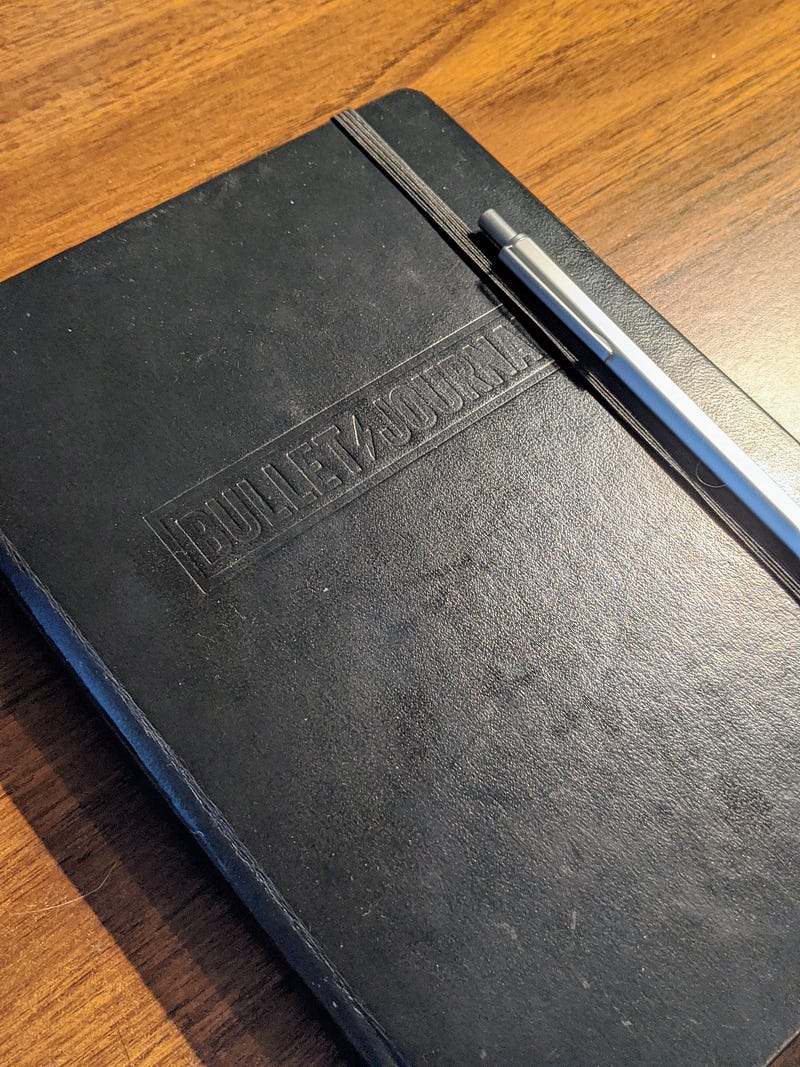
How I use it hasn’t changed too much. As I take my first sips of coffee, I open up my Bullet Journal to record three things that I’m grateful for (especially important during this time), write out a simple meal tracker, and record any personal tasks that I need to accomplish that day. I’ve also developed a habit of using my Bullet Journal to brainstorm potential article topics.
Todoist
After experimenting with every task management application under the sun (Trello, Things 3, Microsoft To Do, physical index cards, etc.), I’ve settled on Todoist to manage all my work tasks.
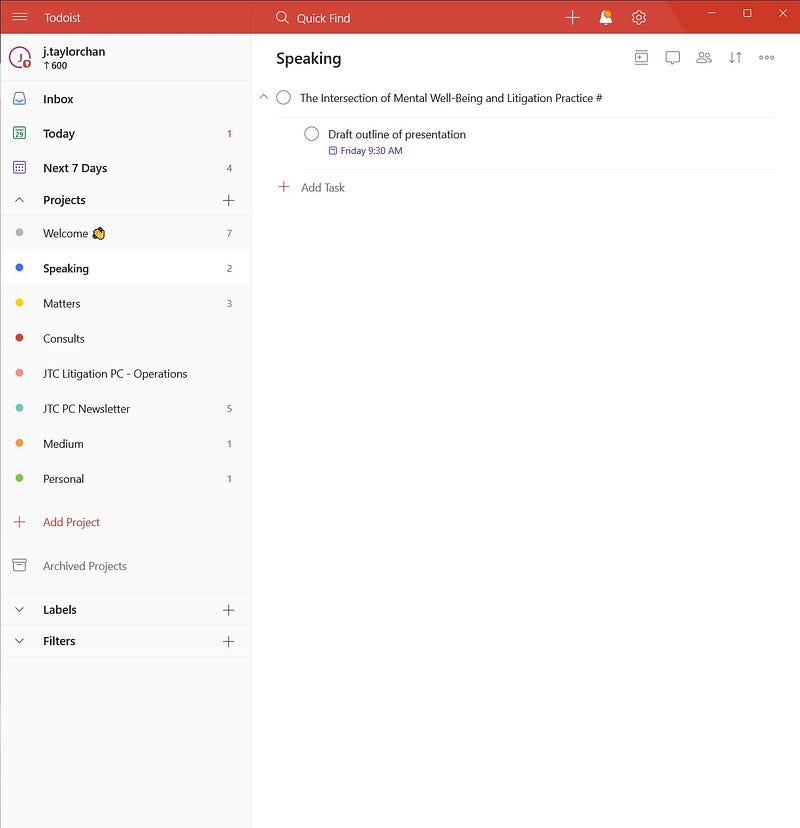
The design of the app just works for me. I find that it’s the perfect combination of simplicity, sophistication, and efficiency.
I lean heavily on categorizing my tasks by project. Gone are the days where my only task was to focus on billable work. Now I have to coordinate monthly reviews with my bookkeeper, track business expenses, check in on my business accounts, and engage in a number of non-billable activities that are good for my business — such as speaking at legal events, writing my Firm’s newsletter, and attending bi-monthly meetings as an Executive of the Workers’ Compensation Law Section of the Ontario Bar Association. It’s enough to make my head spin!
Projects organizes the madness in a straightforward way. Here are the list of my current projects:
- Speaking — These cover all tasks related to, obviously, speaking engagements. I create a “task” for each seminar/conference and then the actual tasks are created as “sub-tasks” of each
- Matters — These are all my tasks related to client work. I have a “task” for each client and then create specific “sub-tasks” as required.
- Consultations — These tasks are for the paid consultations I have with potential clients of my Firm.
- JTC Litigation PC — This is the home of all the operations-related tasks for my business. You can find tasks such as e-mailing my bookkeeper, ordering cheques for my accounts, and other mundane but essential to-dos there.
- JTC PC Newsletter — This covers all tasks related to my Firm’s weekly newsletter, which summarizes research from the fields of forecasting, decision-making, and behavioural economics. Every new article is a “task” and there usually is four specific “sub-tasks” that correlates to specific stages of the writing process (research, rough draft, edit of draft, and publish).
- Medium — This is where I record all tasks relating to my articles on Medium. Even though I brainstorm topics in my Bullet Journal, I still like to ensure I have a task system for this writing. As per the project folder for my Firm’s newsletter, each article is a defined “task” with sub-tasks for each stage of the development of the article.
- Personal — Though I mostly track and record work-related tasks in Todoist, I include a few “big picture” personal tasks in Todoist to ensure that they get completed. These tend to involve creating and reviewing my budget, quarterly work goals, and occasional habit-related goals.
I also rely on the schedule feature of Todoist. I schedule my tasks throughout the week so that the work feels manageable and I don’t run into any problems with running out of time or forgetting to complete something. I have Todoist synced with Google Calendar so I don’t have to always check Todoist to see what I’m supposed to be working on that day.
Microsoft Outlook
Although I use G Suite, amongst other business tools, to manage my business e-mail, I prefer to use Microsoft Outlook as my e-mail app. However, when you use Microsoft Outlook on a Windows laptop, it does not seamlessly sync Google Calendar as it does on an Apple laptop (I’m really not sure why). In order to take advantage of the full capabilities of G Suite in Microsoft Outlook, you will have to install G Suite Sync. The installation process is easy and straightforward.
Microsoft Outlook calendar is my one source of truth. There, I have my Google Calendar which displays all my meetings and my tasks from Todoist. However, by default the tasks show up as “all day” so I schedule each task for a specific block of time in that day. As I mentioned before, time blocking is a phenomenal time management method. Not only does it eliminate any guesswork about what you should be working on but by assigning a specific time for each of your tasks, you can rest assured that all of your tasks are accounted for and will be completed at some point.
Recurring Events
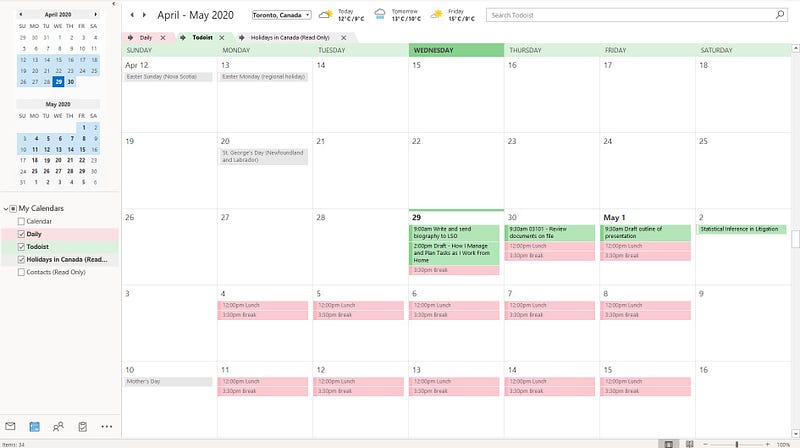
Recurring events are crucial for a productive workday. I am a strong advocate for taking meaningful breaks throughout the day so I setup two daily recurring events during the workweek: a lunch break and an afternoon break. From Monday to Friday, I eat between 12:00 PM — 1:00PM and I take my dog out for a long walk between 3:30 PM — 4:30 PM. Barring circumstances where a client is only available to speak with me during those times (which is very infrequent), I will schedule meetings around these two blocks of time.
Concluding Thoughts
For me, time blocking still remains the most effective method to simultaneously maintain my focus on a single task and reduce anxiety about other work that I should be doing. It also ensures that when I’ve finished my last scheduled block, I’m done work for the day. I can rest assured that any work that remains is schedule over the next few days. As a result, I can happily turn off my laptop and go tend to the other equally important aspects of my life. As someone prone to the hustle culture, time blocking ensures I don’t push myself to workaholism.
Since I’ve been using the above productivity system, I can confidently say that I’m starting to experience some of the benefits of working from home. I take more breaks. I go outside during the afternoon. I save more money since I no longer buy my lunch or commute to work. I work less but better, and am much more rested. Of course, it’s not all sunshine and rainbows but finding an upside amidst this pandemic — no matter how small — is important.
How about you? How do you manage and plan your tasks as you work from home? If you have any tips or tricks, I’d love to hear them in the comments.