
How Hemingway Editor Can Improve Your Writing Routine
Best of all, you can access all of its editing features for free!

Hemingway Editor is a fantastic program to add to your writing toolkit. The great American novelist Ernest Hemingway wrote simple and effective prose. Most of Hemingway’s work has a readability between 4th and 6th grade. His books were accessible to any adult. Inspired by this simplicity, Hemingway Editor makes your document easier to read.
Compared to Grammarly, this editor offers a lot more details about your writing. Grammarly requires a Premium subscription to take advantage of all their writing tools. In contrast, all the writing features in Hemingway Editor are free. I had several annoyances and misgivings with Grammarly. As an example, it would mark all contractions as errors. While Grammarly did identify problematic sentences, without Premium, the writing issue is unclear. While Grammarly gives you a final score out of 100 on your piece, Hemingway Editor is less judgmental. It simply tells you the readability of your writing. Once you identify your audience, it becomes much easier to ensure your writing is easy to read.
I recently stopped using Grammarly because of these annoyances. After working with the free version for months, I purchased the desktop version. Rather than a subscription, Hemingway Editor sells for a one-time price of $20. I want to share my favourite features in the app, in hopes that you might also find use in it.
The User Interface
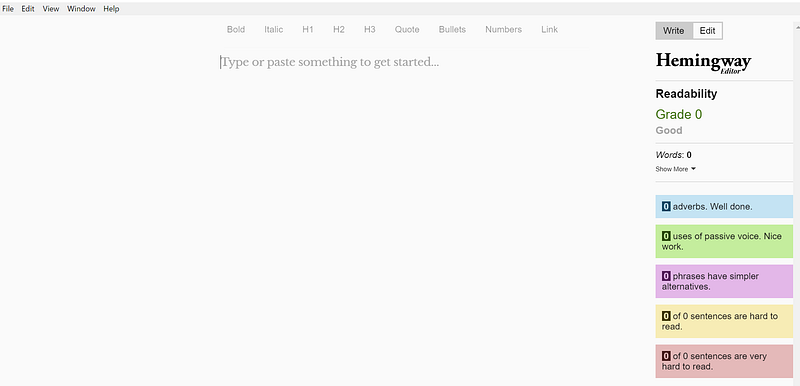
I like a blank, minimal user interface. When you open the editor, you can see the blank screen. It is an uncluttered interface with two taskbars: one on top of the editor and one on the right. The taskbar above the editor formats your writing. The panel on the write helps you with editing. The top of this panel features a switch, that lets you move between writing and editing mode. Switching into editing mode, the right hand-taskbar disappears. I start my writing in the Write mode. This ensures I can write without my text or errors highlighted. In a way, it helps maintain my flow.
Once I am happy with what I have written I can proceed to edit. Since I don’t see a word count, I find myself using less filler sentences. My articles became tighter and simpler to understand. The editing panel helps you weed out adverbs and passive voice, making your writing bold. It detects complicated phrases and offers alternatives. When I am editing, I go through the highlighted text indicating hard or very hard sentences. Often I find more succinct or clear ways to convey my writing. The color coding makes it easy for me to skim the structure and clarity of my draft. It helps me decide how much time to spend editing a piece.
Targetting Your Audience
I write on different websites and science-communication outlets across the internet. In some cases, my audience already has a deep understanding of a particular topic. In that case, I make my readability level more difficult. Otherwise, when I write for Medium, I want a simple article to engage a more general audience. The readability metric in Hemingway helps me achieve my readability goals.
I love that Hemingway Editor makes it easy to tailor my writing to different audiences. I find the grading system used by Grammarly rigid and unclear. Readability is a better metric for writing clear, engaging articles.
Desktop Features
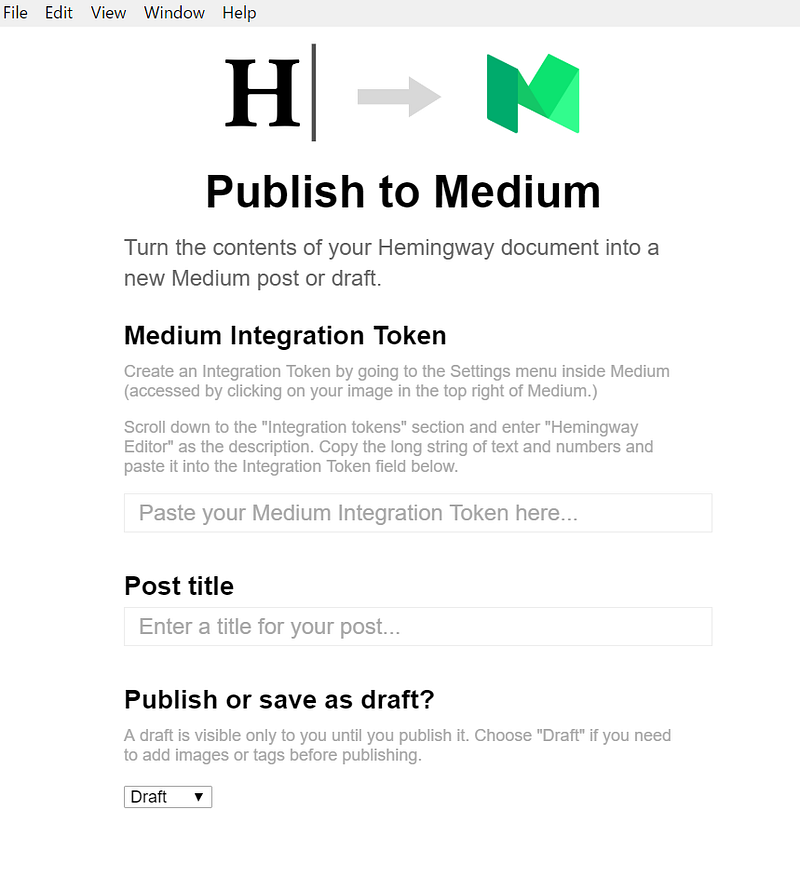
The desktop app allows you to tap into the power of Hemingway Editor offline. Compared to other services, it is a cheap one-time buy. When using the desktop app, you can save and export your writing files in different formats. You can even import your writing to Medium or Wordpress. In seconds, my draft goes up onto my Medium profile. It keeps me from refreshing my notifications for claps and views every ten minutes. This mechanism enables me to waste less time and remain focused for longer.
Sometimes we want to aim for a specific length or reading time. Luckily, the right-hand taskbar shows you a word, sentence and paragraph count along with an estimated reading time.
Keyboard Shortcuts
- Cmd/Ctrl + J: Toggle between Write and Edit Mode
- Cmd/Ctrl + L: Make the Write/Edit and the entire righthand side panel appear and disappear
- Cmd/Ctrl + K: Insert a link
- Cmd/Ctrl + [: Outdent bulleted paragraph
- Cmd/Ctrl + [: Indent bulleted paragraph
Final Thoughts and Gripes
While I enjoy the minimal user interface, I do miss out on a few basic features. With Hemingway Editor, there is no spelling or grammar check. I am left relying on my own wits to find these. Often grammar mistakes are marked as hard to read sentences. This distinction would be a useful addition for the editor. I have yet to find a method for importing pictures or videos into Hemingway Editor. When I import drafts into Medium, I must manually add these media. But, since the editor itself is free to the world, I can’t complain much.
Purchasing Hemingway Editor and supporting its creators was an easy choice for me. If your writing needs are similar, this editor could improve your writing too. The minimal interface and easy-to-use features make this one of the best free tools on the market.
Note: I am not in anyway paid by or affiliated with Hemingway Editor


