How do I manage my 10000+ links?
Sometimes, the simplest way might be the best way.

Public Services for Bookmarks Management
For a long time, I used delicious to manage bookmarks. I stopped using it when it was acquired by Yahoo. After that, I started to use pocket for several years. For a while, many bookmarks I saved before could not be found, and they were displayed as blank. Pocket didn’t give me powerful support to solve it. In addition, to have a full-text search, I need to upgrade to a premium account. Gradually, I rarely use it anymore.
Finally, I discovered raindrop which has a more friendly UI and nice features. Now, I mainly use raindrop.
Solution for the Private Bookmarks Management
As a developer, I am comfortable with shell script. Therefore, I use plain text to manage my private bookmarks.
The format is simple:
[URL];Description or TagsBefore I started to use the plain text file to store my private bookmarks, I saved most of them in my OneNote pages by adding text links.

Therefore, the challenge is to extract the hundreds of links from my OneNote pages. MS Graph Explorer makes it possible. The next sub-section tells how to use MS Graph Explorer to get OneNote page content in HTML format.
Extract link URLs from OneNote with Graph Explorer
Log in Graph Explorer with MS account and go to the section OneNote
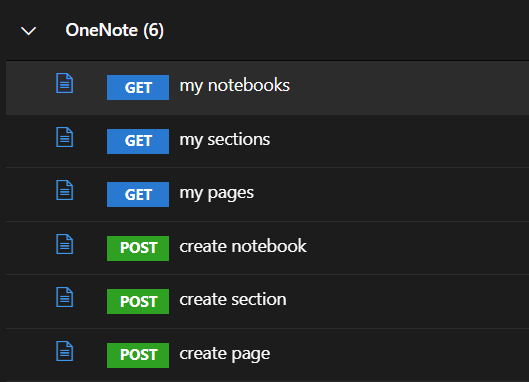
Click GET my notebooks, click the button Run Query
It will return all metadata of the OneNote books under your name.
In the response, you can find sectionsUrl and sectionGroupsUrl which can be used to access sections.
Copy and paste sectionsUrl in the text field on the top position of the page, and Run Query to get sections response which contains pagesUrl. You can use pagesUrl to access pages.
The response of the pages contains contentUrl which can be used to access page content.
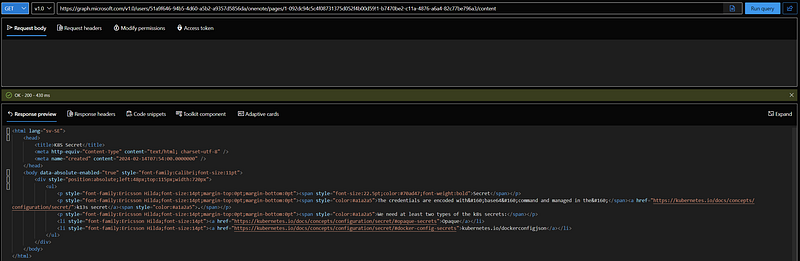
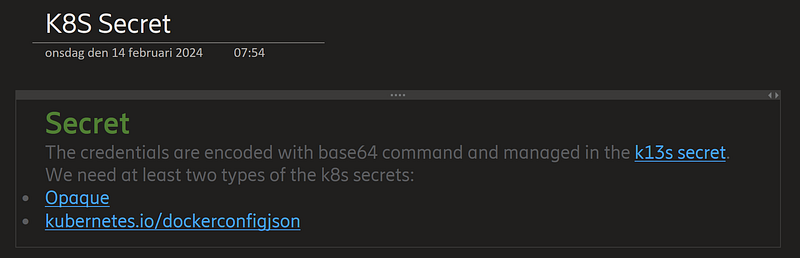
Its OneNote page content is as follows:
To export bookmarks from the pocket is easy: Log in and go to https://getpocket.com/export, click Export HTML file to export all saved links to the HTML file.
After getting HTML content of the OneNote page and pocket, I can use a shell command to extract the URLs of the links in the OneNote page.
- Copy the HTML content to one plain text file and save it.
- Run shell command to extract the URLs and redirect to the links file.
> grep -Eo 'http(s?)://[^ "\)]*' nt.html | tee -a links.conf
https://kubernetes.io/docs/concepts/configuration/secret/
https://kubernetes.io/docs/concepts/configuration/secret/#opaque-secrets
https://kubernetes.io/docs/concepts/configuration/secret/#docker-config-secrets
Use Shell Commands to Manage the Private Bookmarks
Now, I have more than 10,000 bookmarks saved in my private plain text file — links.conf.
function _warn(){
    echo -e "\033[35mWARNING:\033[0m ${1}"
}
function _check_exists(){
    if [[ "${1}" == "" ||  ! -e "${1}" ]];then
        _warn "${1} doesn't exist!"
        return ${FALSE}
    fi
    return ${TRUE}
}
# /////////////////////////////////////////////////////////////////////////////////
# LINK MANAGEMENT FUNCTIONS
# 1. ALL LINKS ARE STORED IN links.conf FILE
# 2. ; IS USED AS DELIMITER OF LINK URL AND LINK DESCRIPTION
# /////////////////////////////////////////////////////////////////////////////////
export LINK_CONF_PATH="${ABSORB_REPO_ROOT}/resources/config/links.conf"
function alk(){
    _check_exists "${LINK_CONF_PATH}"
    if [ $? -ne $TRUE ];then
       return $FALSE
    fi
    if [ $# -lt 1 ];then
       _warn "Usage: alk  [link url; link description]"
       return $FALSE
    fi

    link_info="${1}"
    grep -iq "${link_info}" "${LINK_CONF_PATH}"
    if [ $? -ne $TRUE ];then
       echo "${link_info}" >> "${LINK_CONF_PATH}"
    else
       grep -Hn "${link_info}" "${LINK_CONF_PATH}"
    fi
}

function flk(){
    _check_exists "${LINK_CONF_PATH}"
    if [ $? -ne $TRUE ];then
       return $FALSE
    fi
    if [ $# -lt 1 ];then
       _warn "Usage: flk  [link regex]"
       return $FALSE
    fi
    link_regex="${1}"
    grep -iE "${link_regex}" "${LINK_CONF_PATH}" | cut -d';' -f1 | sort | uniq | ccat
}
Now, I can use the commands below to save bookmarks.
> alk "https://marketplace.visualstudio.com/manage/publishers/wenijinew;Vscode, Extension, Visual Studio Code"If the link already exists, then it will be printed directly rather than added once more.
/resources/config/links.conf:10959:https://marketplace.visualstudio.com/manage/publishers/wenijinew;Vscode, Extension, Visual Studio CodeTo get bookmarks, I can run the below commands:
> flk vscode
https://api.github.com/repos/sumneko/vscode-lua/releases
https://marketplace.visualstudio.com/manage/publishers/wenijinew

> flk bash
https://mywiki.wooledge.org/BashGuide
https://stackoverflow.com/questions/37587074/scp-command-not-working-inside-expect-in-bash-script
https://tldp.org/HOWTO/Bash-Prompt-HOWTO/index.html
https://tldp.org/LDP/Bash-Beginners-Guide/html/Bash-Beginners-Guide.html
https://wiki.archlinux.org/index.php/Bash/Prompt_customization
https://wiki.bash-hackers.org/scripting/terminalcodes
https://www.gnu.org/software/bash/
https://www.gnu.org/software/bash/manual/bash.html
https://www.gnu.org/software/bash/manual/bash.html#Bourne-Shell-Builtins
https://www.gnu.org/software/bash/manual/html_node/Controlling-the-Prompt.html
http://tldp.org/HOWTO/Bash-Prompt-HOWTO/clockt.html
http://tldp.org/HOWTO/Bash-Prompt-HOWTO/x405.html

> flk 'bash.*guide'
https://mywiki.wooledge.org/BashGuide
https://tldp.org/LDP/Bash-Beginners-Guide/html/Bash-Beginners-Guide.html
Now, I use both Raindrop and my terminal commands to manage bookmarks. I feel good.