avatarRizky Maulana Nurhidayat

Free AI web copilot to create summaries, insights and extended knowledge, download it at here

3297

Abstract

gcaption>Markdown Jupyter Notebook (Image by Author)</figcaption></figure><p id="b3f6">It’s pretty cool!!!</p><p id="39be">Next, is the example of <b>Raw NBConvert</b> cell type. Here it is.</p><figure id="18d6"><img src="https://cdn-images-1.readmedium.com/v2/resize:fit:800/1*T2dEgP9cr8DR5uXVIJEs-Q.png"><figcaption>Raw NBConvert Jupyter Notebook cell (Image by Author)</figcaption></figure><p id="470e">There is no result expect just a text. I think, Raw NBConvert is similar with comment in Python but in interactive version.</p><p id="9eb2">The last is <b>Heading</b> cell type, here is the example</p><figure id="5c80"><img src="https://cdn-images-1.readmedium.com/v2/resize:fit:800/1*5Y4f-Q8g0MlJkBIfzYx8ew.png"><figcaption>Heading cell type in Jupyter Notebook (Image by Author)</figcaption></figure><p id="0995">The cell will give you a result as follows</p><figure id="fd1a"><img src="https://cdn-images-1.readmedium.com/v2/resize:fit:800/1*srbkgnI24qzStCtKZCweeA.png"><figcaption>Heading cell type in Jupyter Notebook (Image by Author)</figcaption></figure><p id="5a24">You can create a different size of your heading with <b>Markdown</b> cell type as mentioned before.</p><p id="68a3">This article will guide you to change the Jupyter Notebook theme. If you inspect some pictures above, you will realize that the default themes of Jupyter Notebook is white. Yups, I will give you a tutorial to change it into dark mode.</p><p id="e82f">First, you need to install jupyter notebook themes, using this code</p><div id="4fde"><pre><span class="hljs-comment"># install jupyterthemes</span> pip <span class="hljs-keyword">install </span><span class="hljs-keyword">jupyterthemes </span> <span class="hljs-comment"># upgrade to latest version</span> pip <span class="hljs-keyword">install </span>--upgrade <span class="hljs-keyword">jupyterthemes</span></pre></div><p id="b5cc">If you face some problems, the simplest solution is upgrading your Jupyter Notebook. If you got a problem with permissions, just change the permission. Please leave a comment if you got another problem. Maybe, I can give you some alternatives.</p><p id="a055">After installing <b>jupyterthemes</b>, you can read the documentation by writing</p><div id="3775"><pre><span class="hljs-attribute">jt -h</span></pre></div><p id="7f57">in your Terminal or Command Prompt.</p><p id="d0f1">There are 9 different themes that is provided by <b>jupyterthemes</b>, they are chesterish, grade3, gruvboxd, gruvboxl, monokai, oceans16, onedork, solarizedd, and solarizedl. You can check the list by writing this code</p><div id="0303"><pre><span class="hljs-attribute">jt -l</span></pre></div><p id="c4de">It will give you this list</p><figure id="8316"><img src="https://cdn-images-1.readmedium.com/v2/resize:fit:800/1*On4cPg23_UI97rLf_gZQ1Q.png"><figcaption>List of themes in jupyterthemes (Image by Author)</figcaption></figure><p id="ed12">To change your Jupyter Notebook themes, you can write <b>jt -t name_themes</b></p><div id="e485"><pre><span class="hljs-attribute">jt -t chesterish</span></pre></div><p id="9964">After do it, you can refresh your Jupyter Notebook file. Here is the example of all of themes provided by <b>jupyterthemes.</b></p><figure id="1b50"><img src="https://cdn-images-1.readmedium.com/v2/resize:fit

Options

:800/1*sgHkIHoa1LXZNZDOyBU8vA.png"><figcaption></figcaption></figure><figure id="cc0b"><img src="https://cdn-images-1.readmedium.com/v2/resize:fit:800/1*hGLu2ZWWb4gq1wSrs3kb0g.png"><figcaption></figcaption></figure><figure id="a66f"><img src="https://cdn-images-1.readmedium.com/v2/resize:fit:800/1*0EY9oMiuHn5wP3OI_FIqhw.png"><figcaption>Dark Mode themes in Jupyter Notebook (Image by Author). <b>Left</b>: chesterish themes, <b>middle</b>: <i>onedork</i><b>, Right</b>: oceans16.</figcaption></figure><p id="8aa6">If you are not interested in dark mode, you can try this following themes</p><figure id="a3ae"><img src="https://cdn-images-1.readmedium.com/v2/resize:fit:800/1*Noiu-eKvub08g0dvCX0dMg.png"><figcaption></figcaption></figure><figure id="929e"><img src="https://cdn-images-1.readmedium.com/v2/resize:fit:800/1*vwZERJVR0cURcckhXhmkGQ.png"><figcaption></figcaption></figure><figure id="c53c"><img src="https://cdn-images-1.readmedium.com/v2/resize:fit:800/1*LeFgE--3TYK0y9eAn1Yxgw.png"><figcaption>Alternative themes in Jupyter Notebook (Image by Author). <b>Left</b>: gruvboxd themes, <b>middle</b>: <i>monokai</i><b>, Right</b>: solarizedd.</figcaption></figure><p id="95b6">Or this light mode themes</p><figure id="713d"><img src="https://cdn-images-1.readmedium.com/v2/resize:fit:800/1*FdDVVaJXhbd-_j2TTcPGXA.png"><figcaption></figcaption></figure><figure id="a1e0"><img src="https://cdn-images-1.readmedium.com/v2/resize:fit:800/1*HC_0nOhmHEK8b2azGcMntw.png"><figcaption></figcaption></figure><figure id="65fd"><img src="https://cdn-images-1.readmedium.com/v2/resize:fit:800/1*TVAh3LCEwXMOYGPMrD9Abg.png"><figcaption>Light themes in Jupyter Notebook (Image by Author). <b>Left</b>: grade3 themes, <b>middle</b>: solarizedl<b>, Right</b>:gruvboxl.</figcaption></figure><p id="c13e">Just choose your favorite themes :D.</p><p id="e035">To change it into default themes, you can write this code</p><div id="28ef"><pre><span class="hljs-attribute">jt -r</span></pre></div><p id="27ac">Here is the default themes.</p><figure id="b198"><img src="https://cdn-images-1.readmedium.com/v2/resize:fit:800/1*cTcJ8IND8U7M4XF4u-I7iw.png"><figcaption>Default Jupyter Notebook themes (Image by Author)</figcaption></figure><p id="7e15">If you think this article is over here. No!! :D. I will give another cool method to change the Matplotlib parameters using <b>jupyterthemes</b>.</p><p id="a3a0"><b><i>jupyterthemes</i> </b>provide you some cool fonts to be applied in your plot, they are</p><figure id="e240"><img src="https://cdn-images-1.readmedium.com/v2/resize:fit:800/1*FYVKabPYK8l_4SZPd6grEA.png"><figcaption>Provided fonts by <b>jupyterthemes </b>(Source: <a href="https://github.com/dunovank/jupyter-themes">Dunovank</a>)</figcaption></figure><p id="0caa">How to use it, here it is (source: <a href="https://github.com/dunovank/jupyter-themes">Dunovank</a>)</p> <figure id="78d3"> <div> <div>

            <iframe class="gist-iframe" src="/gist/rizman18/81b12ec6dfd0e32fa4650c16d4150362.js" allowfullscreen="" frameborder="0" height="undefined" width="undefined">
          </div>
        </div>
    </figure></iframe></div></div></figure><p id="a5ff">That’s all. Try all of the possibilities. Cheers.</p></article></body>

DATA SCIENCE MADE SIMPLE

How Can I Customize Jupyter Notebook Into Dark Mode

A story to customize Jupyter Notebook themes and adjust Maptlotlib parameters easily
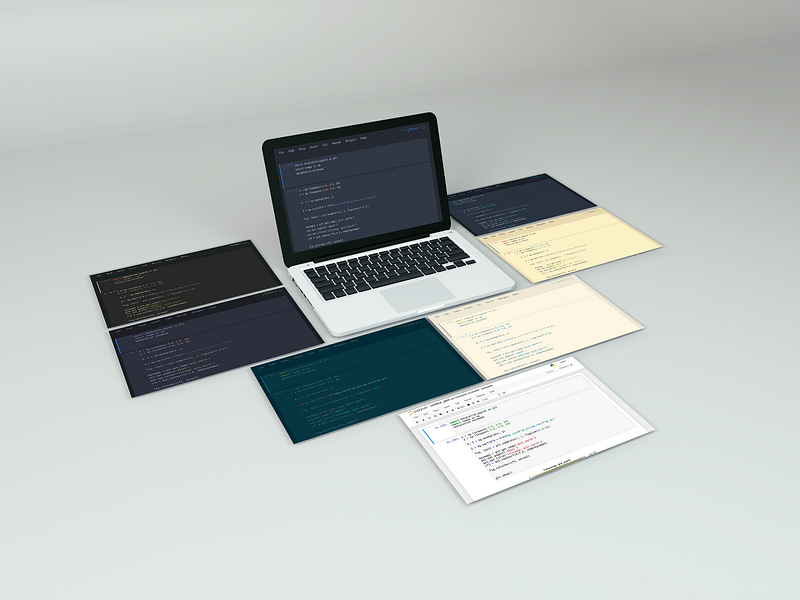
Mock up design by Behance Designer

Jupyter Notebook is an interactive compiler that allows users to create and share documents that contain live code, equations, visualizations, and narrative text. It is a spin-off project from IPython. Almost all of us just know Jupyter Notebook only can compile Python code. Surprise, Jupyter Notebook also can compile Julia, R, Haskell, and Ruby.

The simplest way to install Jupyter Notebook is by installing via Anaconda. Anaconda gives you a completed package for your Python or R programming. To open it, you just find Jupyter Notebook in your application list. You can also open it via Command Prompt by typing jupyter notebook and press Enter. In Linux, you can install it via pip. You can do the same procedures in Windows to open it, but just type it in Terminal.

After you open it, you will be shown a display like this.
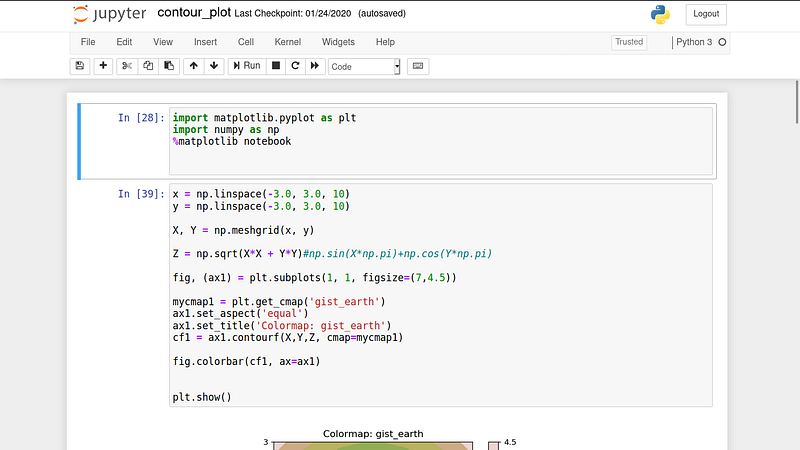
Jupyter Notebook default themes (Image by Author)

At least, there are 4 types of cell you can create, they are

  1. Code, you can run a code in this type of cell.
  2. Markdown, you can create an HTML ‘code’ in this cell.
  3. Raw NBConvert, this kind of cell is providing you a raw text.
  4. Heading, you can create a heading for your interactive file.

This is the example of Code cell type that run of R-code and Python-code. The indicator is shown at the top right corner. You can see symbol of R and Python on it.
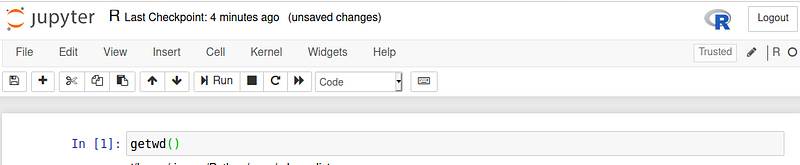
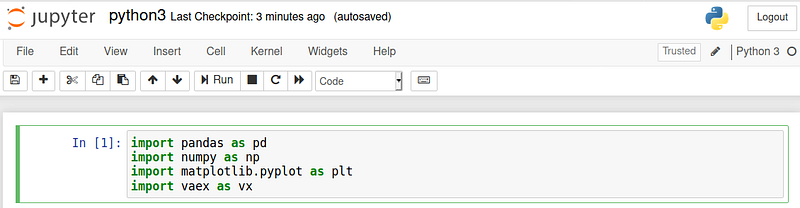
Code cell of R (left panel) and Python (right panel) language (Image by Author)

If you want to be guided on how to install R in Jupyter Notebook, you can leave a comment below.

This is the Markdown cell. I show you the example of enhancing your Jupyter Notebook by creating a nice cell using HTML. The first line will produce a centered title and the second line produce two paragraphs followed by a picture and its link.
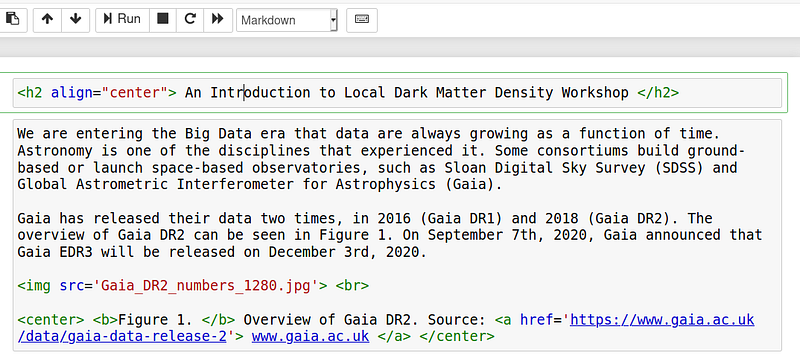
Markdown Jupyter Notebook (Image by Author)

After you run two cells above, you will get results like this
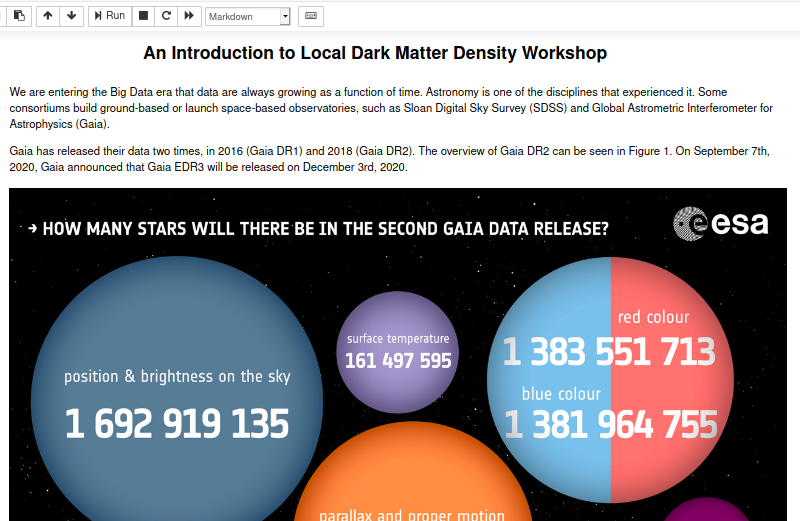
Markdown Jupyter Notebook (Image by Author)

It’s pretty cool!!!

Next, is the example of Raw NBConvert cell type. Here it is.

Raw NBConvert Jupyter Notebook cell (Image by Author)

There is no result expect just a text. I think, Raw NBConvert is similar with comment in Python but in interactive version.

The last is Heading cell type, here is the example

Heading cell type in Jupyter Notebook (Image by Author)

The cell will give you a result as follows
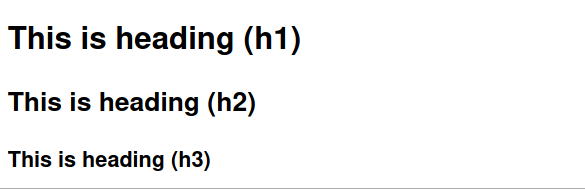
Heading cell type in Jupyter Notebook (Image by Author)

You can create a different size of your heading with Markdown cell type as mentioned before.

This article will guide you to change the Jupyter Notebook theme. If you inspect some pictures above, you will realize that the default themes of Jupyter Notebook is white. Yups, I will give you a tutorial to change it into dark mode.

First, you need to install jupyter notebook themes, using this code

# install jupyterthemes
pip install jupyterthemes

# upgrade to latest version
pip install --upgrade jupyterthemes

If you face some problems, the simplest solution is upgrading your Jupyter Notebook. If you got a problem with permissions, just change the permission. Please leave a comment if you got another problem. Maybe, I can give you some alternatives.

After installing jupyterthemes, you can read the documentation by writing

jt -h

in your Terminal or Command Prompt.

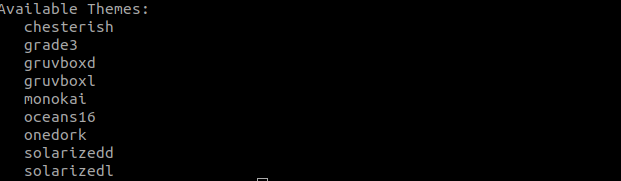
There are 9 different themes that is provided by jupyterthemes, they are chesterish, grade3, gruvboxd, gruvboxl, monokai, oceans16, onedork, solarizedd, and solarizedl. You can check the list by writing this code

jt -l

It will give you this list

List of themes in jupyterthemes (Image by Author)

To change your Jupyter Notebook themes, you can write jt -t name_themes

jt -t chesterish

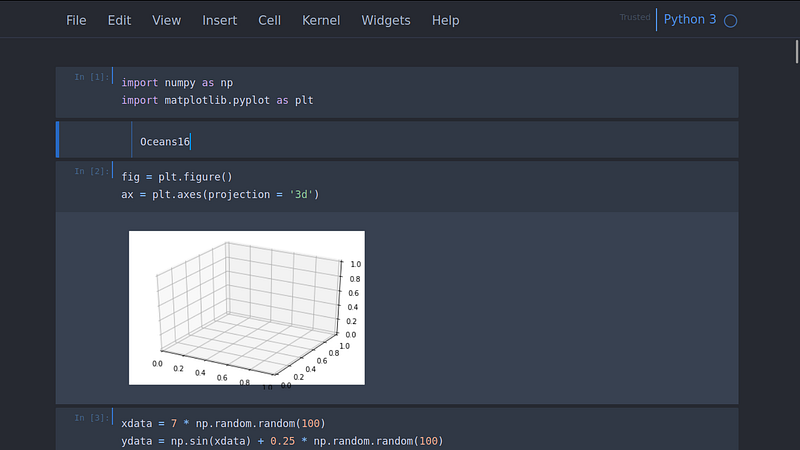
After do it, you can refresh your Jupyter Notebook file. Here is the example of all of themes provided by jupyterthemes.
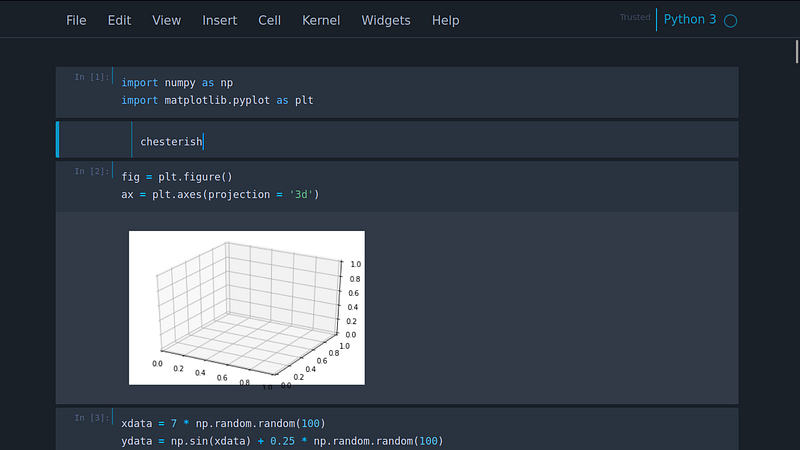
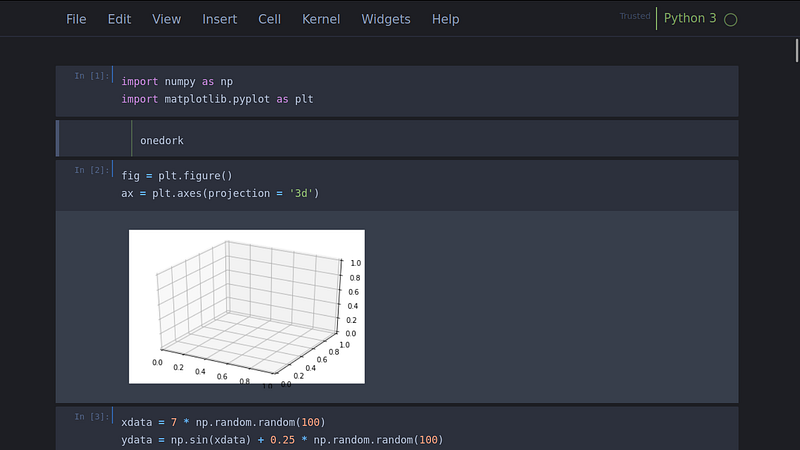
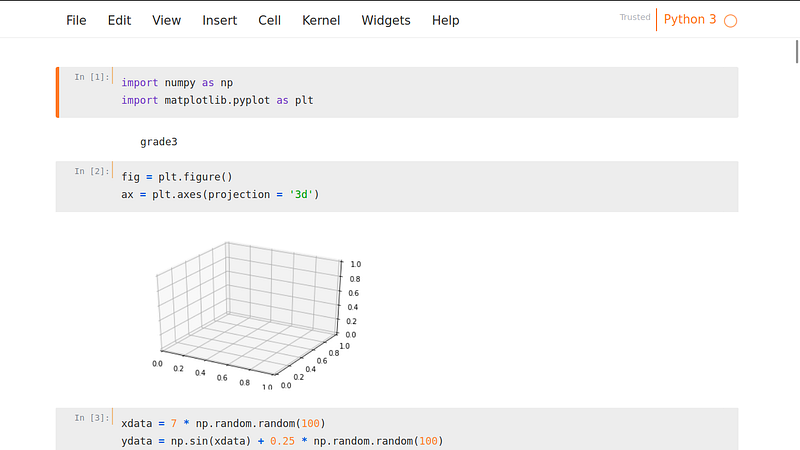
Dark Mode themes in Jupyter Notebook (Image by Author). Left: chesterish themes, middle: onedork, Right: oceans16.

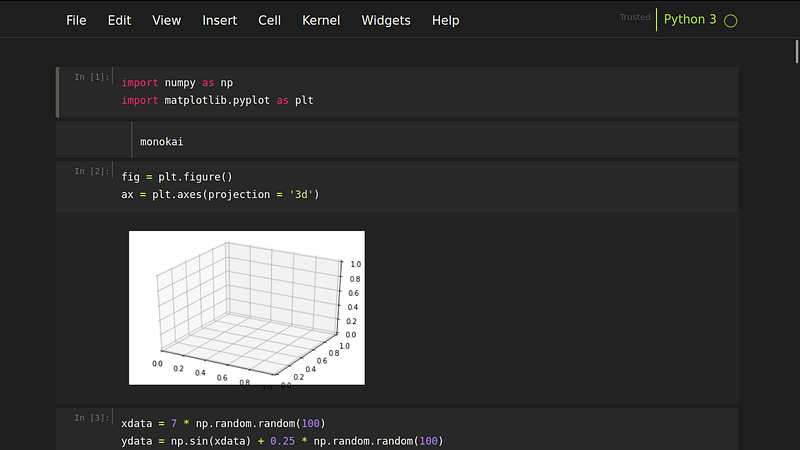
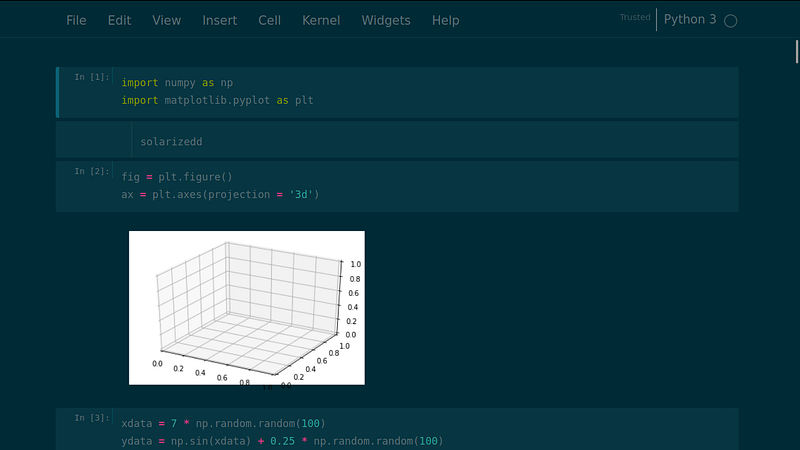
If you are not interested in dark mode, you can try this following themes
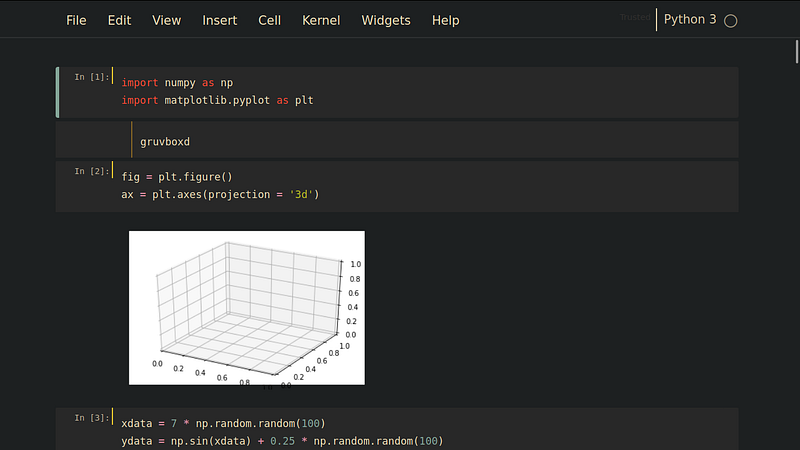
Alternative themes in Jupyter Notebook (Image by Author). Left: gruvboxd themes, middle: monokai, Right: solarizedd.

Or this light mode themes

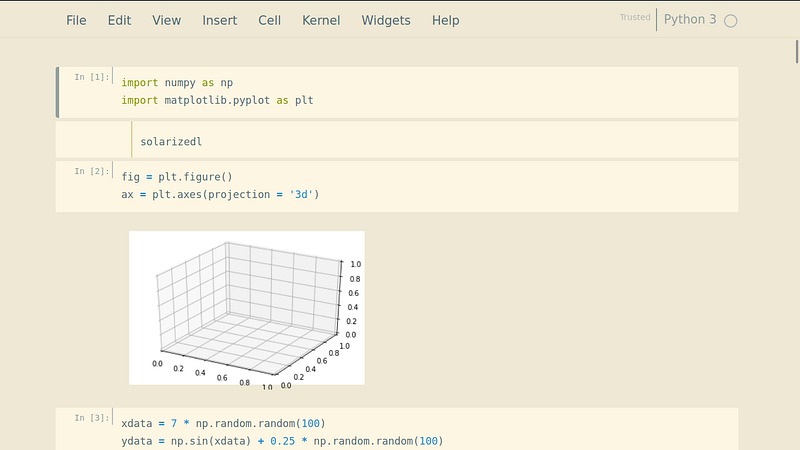
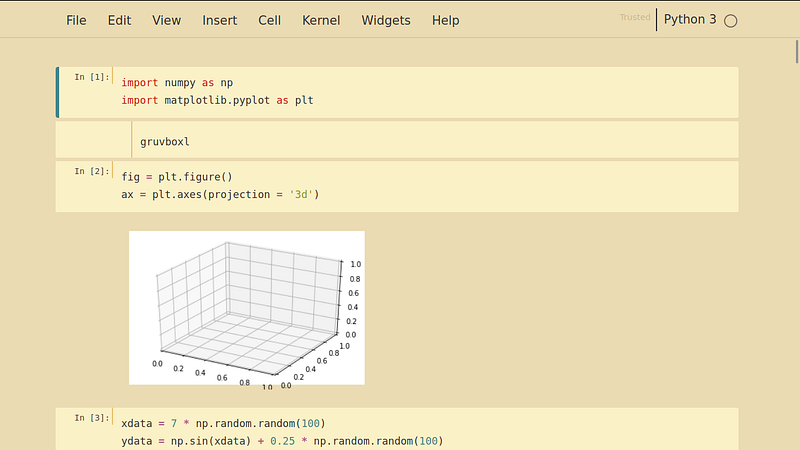
Light themes in Jupyter Notebook (Image by Author). Left: grade3 themes, middle: solarizedl, Right:gruvboxl.

Just choose your favorite themes :D.

To change it into default themes, you can write this code

jt -r

Here is the default themes.

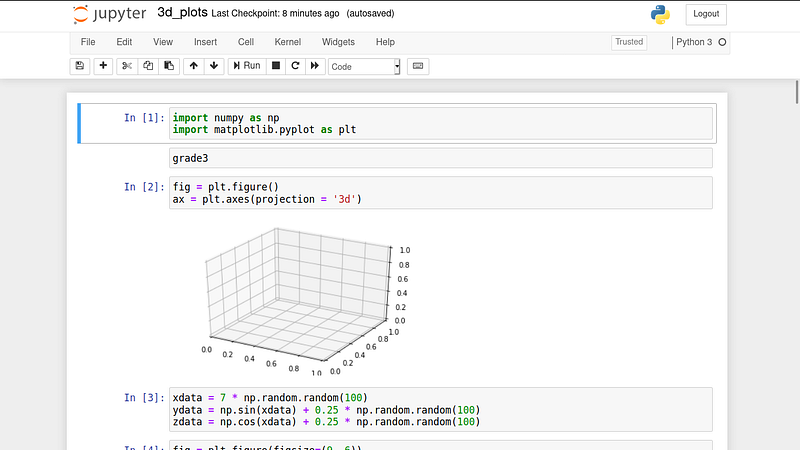
Default Jupyter Notebook themes (Image by Author)

If you think this article is over here. No!! :D. I will give another cool method to change the Matplotlib parameters using jupyterthemes.

jupyterthemes provide you some cool fonts to be applied in your plot, they are
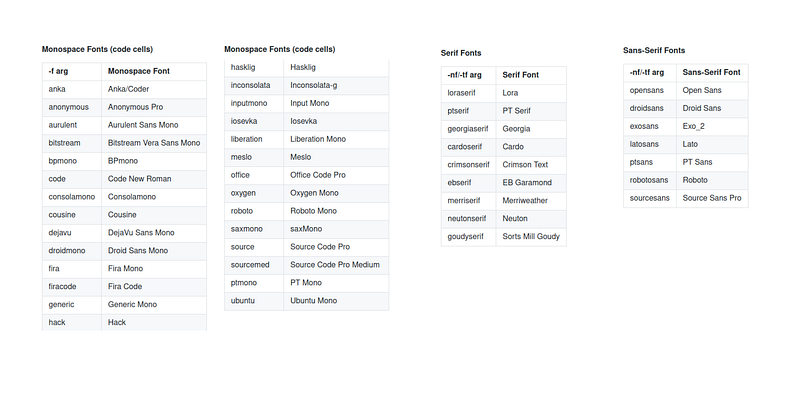
Provided fonts by jupyterthemes (Source: Dunovank)

How to use it, here it is (source: Dunovank)

That’s all. Try all of the possibilities. Cheers.

Python
Jupyter Notebook
Matplotlib
Data Visualization
Data Science
Recommended from ReadMedium