avatarBrittany Jezouit

Free AI web copilot to create summaries, insights and extended knowledge, download it at here

1807

Abstract

: Describe what’s in the photo.</h2><p id="259c">Pretend your friend just asked, “What’s that a picture of?”. Describe the picture. That’s it!</p><h2 id="e7df">Don’t: Put on your creative writing hat.</h2><p id="f0c3">Alt text is not the place for flowery language or complex descriptions. Keep it simple and short.</p><h2 id="84d5">Don’t: Use your article title and/or SEO hacks in the alt text.</h2><p id="f6ca">This is not what alt text is for! Doing this won’t help your SEO, and more importantly, it won’t help someone who is using a screen reader to understand what the image is.</p><p id="e236">For example, the alt text for this article’s feature image is “Image of hands holding camera with magenta-pink background.” It’s not “How to add alt text” or “Alt text guide by Brittany Jezouit” or “Image of camera for an article about adding alt text”. If it’s not in the photo, don’t put it in the alt text.</p><h2 id="9ec4">Don’t: Stress too much about the details.</h2><p id="f489">Shorter alt text is better — describe the most important things in the image. That means you might not be able to describe everything in the image, and that’s okay.</p><h1 id="6d17">How to Add Alt Text</h1><h2 id="5d97">1. Click on “Edit story” to Edit Your Article.</h2><figure id="aecd"><img src="https://cdn-images-1.readmedium.com/v2/resize:fit:800/1*pDGGxUR85a6w_aWuLWo1tw.png"><figcaption></figcaption></figure><h2 id="7dd3">2. Find Your Photo.</h2><p id="b97e">Make sure that it has a photo credit in the “Type caption for image” section. For example, the photo below is credited to <a href="https://unsplash.com/@goosegrease?utm_source=unsplash&amp;utm_medium=referral&amp;utm_content=creditCopyText">Derek Oyen</a> on <a href="https://unsplash.com/s/photos/penguin?utm_source=unsplash&amp;utm_medium=referral&am

Options

p;utm_content=creditCopyText">Unsplash</a>.</p><figure id="fe7b"><img src="https://cdn-images-1.readmedium.com/v2/resize:fit:800/1*w12qCWWw37zhwdbfH7gyOw.jpeg"><figcaption>Photo by <a href="https://unsplash.com/@goosegrease?utm_source=unsplash&amp;utm_medium=referral&amp;utm_content=creditCopyText">Derek Oyen</a> on <a href="https://unsplash.com/s/photos/penguin?utm_source=unsplash&amp;utm_medium=referral&amp;utm_content=creditCopyText">Unsplash</a></figcaption></figure><h2 id="7da9">3. Click on the Image and Select “Alt Text” in the Image Menu to Add an Alt Text Description to Your Photo.</h2><p id="1ad9">Note: Currently, Medium can’t add alt text to images in grids, so don’t worry if there’s no option to add alt text to those images.</p><figure id="6b09"><img src="https://cdn-images-1.readmedium.com/v2/resize:fit:800/1*mbX60bVPiXt2DRBdd2z56g.png"><figcaption></figcaption></figure><h2 id="23f8">4. Write Your Alt Text.</h2><p id="13f6">The character limit for alt text is 125 characters, which is short, but just do the best you can. Your alt text should be descriptive, objective, and should give the reader a general sense of what’s in the image. If they’re reading your article and they can’t see the image, the alt text should stand in so that the image makes sense in the context of the article.</p><p id="a3d5">If you’re using images from Unsplash (or other photo websites), the image may already have a description that you can use to help write yours.</p><figure id="581b"><img src="https://cdn-images-1.readmedium.com/v2/resize:fit:800/1*ogBYo179UOweonWTMU4_jQ.png"><figcaption></figcaption></figure><h1 id="a221">5. Hit the “Save” Button.</h1><p id="843c">That’s it! Congrats, you’ve just made your article a little more accessible and inclusive for your readers.</p></article></body>

FROM THE EDITOR

How (and Why) to Add Alt Text to Your Medium Articles

Creating a more accessible reading experience
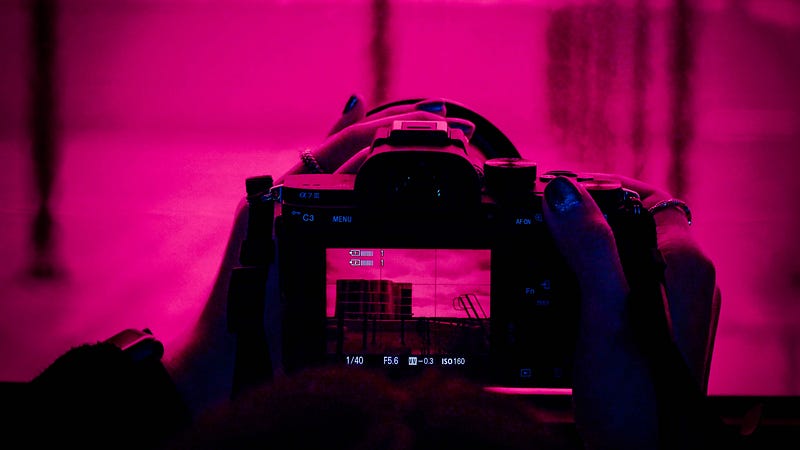
Photo by Adam Do on Unsplash

What is Alt Text?

Alternative text, or “alt text,” is the written description that accompanies an image on a website. It’s sometimes referred to as “alt description” or “alt tags” elsewhere on the internet. Adding alt text is a simple way to make articles more accessible for all readers.

Alt text is useful for visually impaired readers who are using screen readers to read your article. It also comes in handy if the reader can’t download the images in the article to view them, and it may help with the search engine optimization (SEO) of the article.

At Better Marketing, we’ve added alt text descriptions as a requirement in our style guide. If you submit an article to our publication, please take a few minutes to add alt text to your photos.

How to write Alt Text

Alt text describes what’s actually in the image. For example, the alt text for this article’s feature image could be something like “Image of hands holding camera.”

Here are quick dos and don’ts for writing alt text descriptions:

Do: Describe what’s in the photo.

Pretend your friend just asked, “What’s that a picture of?”. Describe the picture. That’s it!

Don’t: Put on your creative writing hat.

Alt text is not the place for flowery language or complex descriptions. Keep it simple and short.

Don’t: Use your article title and/or SEO hacks in the alt text.

This is not what alt text is for! Doing this won’t help your SEO, and more importantly, it won’t help someone who is using a screen reader to understand what the image is.

For example, the alt text for this article’s feature image is “Image of hands holding camera with magenta-pink background.” It’s not “How to add alt text” or “Alt text guide by Brittany Jezouit” or “Image of camera for an article about adding alt text”. If it’s not in the photo, don’t put it in the alt text.

Don’t: Stress too much about the details.

Shorter alt text is better — describe the most important things in the image. That means you might not be able to describe everything in the image, and that’s okay.

How to Add Alt Text

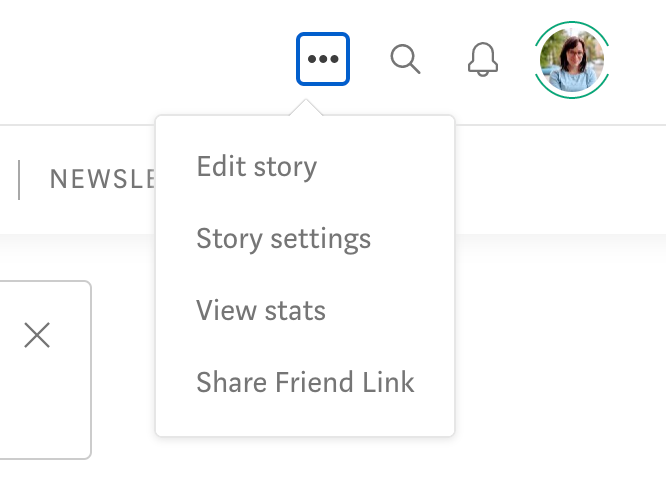
1. Click on “Edit story” to Edit Your Article.
2. Find Your Photo.

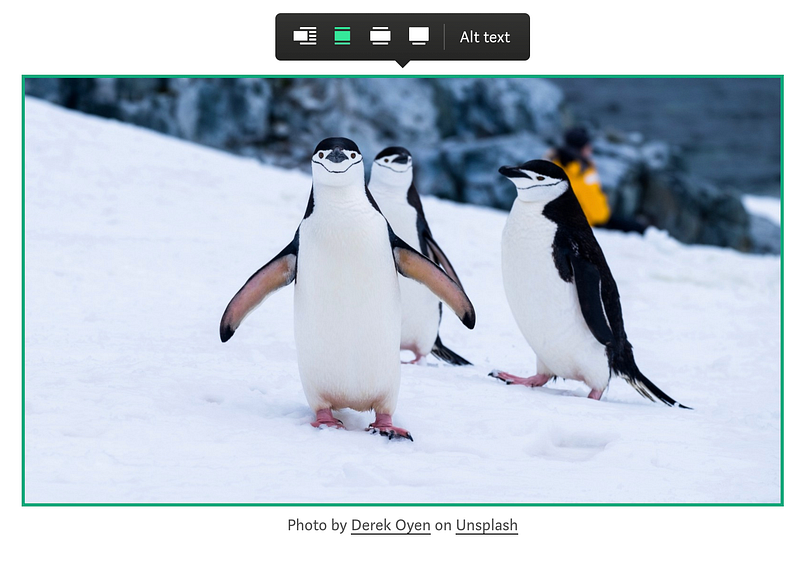
Make sure that it has a photo credit in the “Type caption for image” section. For example, the photo below is credited to Derek Oyen on Unsplash.

Photo by Derek Oyen on Unsplash

3. Click on the Image and Select “Alt Text” in the Image Menu to Add an Alt Text Description to Your Photo.

Note: Currently, Medium can’t add alt text to images in grids, so don’t worry if there’s no option to add alt text to those images.
4. Write Your Alt Text.

The character limit for alt text is 125 characters, which is short, but just do the best you can. Your alt text should be descriptive, objective, and should give the reader a general sense of what’s in the image. If they’re reading your article and they can’t see the image, the alt text should stand in so that the image makes sense in the context of the article.

If you’re using images from Unsplash (or other photo websites), the image may already have a description that you can use to help write yours.
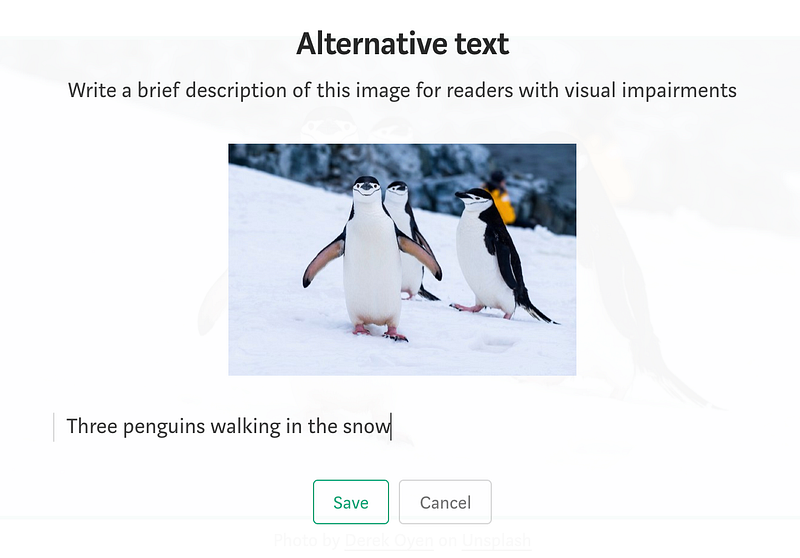
5. Hit the “Save” Button.

That’s it! Congrats, you’ve just made your article a little more accessible and inclusive for your readers.

Accessibility
Publishing
Blogging
Marketing
From The Editors
Recommended from ReadMedium