avatarJIMOH Mofoluwasho

Free AI web copilot to create summaries, insights and extended knowledge, download it at here

4033

Abstract

el account by visiting the Vercel website, follow all the steps to register a new account. If you already have a Vercel account, you can simply just log in instead.</p><p id="661f"><b>3. Create a Git Repository for the project</b></p><p id="338c">Log into your Github account and create a new repository for the project. The repo can be public or private. In my case, I want to make it private. Choose a name for your repository. For this tutorial, the name chosen is “deploy to Vercel”. After creating the new repo, follow Github’s guidelines to link it with your local project.</p><figure id="bfbc"><img src="https://cdn-images-1.readmedium.com/v2/resize:fit:800/0*ngv41DjheVQcivNb.png"><figcaption>Repository created for project on Github</figcaption></figure><p id="6258"><b>4. Stage, Commit your files and push to online repository</b></p><p id="5f06">After editing our application, we initialize git in our project (If you created your React application with the command above, you don’t need to initialize git in your project as this comes automatically with the installation). We just have to stage and commit our changes as shown below.</p><figure id="9158"><img src="https://cdn-images-1.readmedium.com/v2/resize:fit:800/0*3AGz1NpGu255GPKm.png"><figcaption>Staging and committing changes</figcaption></figure><p id="2618">After committing the files, you can push to Github using the following command: “git push -u origin main”. If you open your project repository on github, you’ll see that all your local files and folders (save the ones explicitly stated in your .gitignore file) have been uploaded to Github.</p><figure id="a096"><img src="https://cdn-images-1.readmedium.com/v2/resize:fit:800/0*DctVxZhLl_JcDx-Q.png"><figcaption>Project pushed to online repository</figcaption></figure><p id="6f42"><b>5. Link your Github account with Vercel and import project from Github</b></p><p id="44cc">Now, hop back into your Vercel dashboard and link your Vercel account with your Github account. After that, create a new project by clicking on the “New Project” button.</p><figure id="f535"><img src="https://cdn-images-1.readmedium.com/v2/resize:fit:800/0*WYGVaRs_7-uDy4OX.png"><figcaption>Creating a new project on Vercel</figcaption></figure><p id="3dba">Click on the dropdown button shown below, and you will see a list of your Github repositories. Choose the one for the project (“deploy-to-vercel” in this case)</p><figure id="f00d"><img src="https://cdn-images-1.readmedium.com/v2/resize:fit:800/0*7yEv52IpU0hGVI0e.png"><figcaption>Importing project from Github</figcaption></figure><p id="faf1">Choose the account you wish to use. You can also create a new team.</p><figure id="7051"><img src="https://cdn-images-1.readmedium.com/v2/resize:fit:800/0*QOXPKF_9I35YHx4s.png"><figcaption>Selecting an account</figcaption></figure><p id="85bb"><b>6. Deploy your application</b></p><p id="0783">Having done everything correctly so far, it’s safe to say this is the time to finally deploy your application. After selecting the account you wish to use, click on “deploy” to deploy your application. You can change your project name. If your application is not in your repository root directory, you can change that here as well to point to the right folder. Furthermore, if you have environment variables you want to specify, you can do that here. Also, if you are deploying an application written with another framework, you can change that from the “Build and Output Settings” dropdown.</p><figure id="d96d"><img src="https://cdn-images-1.readmedium.com/v2/resize:fit:800/0*kcPAxtPLcidrWztv.png"><figcaption>Deploying the application</figcaption></figure><p id="ec9b">After clicking on the “deploy” button, you need to wait for about one to two minutes for Vercel to install all dependencies needed for the project and complete the deployment process.</p><figure id="591f"><img src="https://cdn-images-1.readmedium.com/v2/resize:fit:800/0*YcYa6huMZXGi70FL.png"><figcaption>Application being built</figcaption></figure><p id

Options

="9892">That’s it. Our application has been successfully deployed to Vercel.</p><figure id="9076"><img src="https://cdn-images-1.readmedium.com/v2/resize:fit:800/0*Toyv60KtVO6sI0GA.png"><figcaption>Visiting the newly deployed application</figcaption></figure><p id="5021">Now to see our application live, click on the visit button. You can see the online version of the same application we viewed locally.</p><figure id="7b8b"><img src="https://cdn-images-1.readmedium.com/v2/resize:fit:800/0*NcKwefqdrdJIrT10.png"><figcaption>Application now showing on Vercel</figcaption></figure><h1 id="1dea">II. Using Vercel CLI</h1><p id="e995">This method is also as simple if not simpler than the first one explained above. If you do not want to link your Github account to Vercel or you do not want to just set up Github repositories for all your pet projects, then this method is for you. Just as I did with the first method, I will be giving step by step process of deploying your React application to Vercel using Vercel CLI</p><p id="66af"><b>1. Install Vercel globally</b></p><p id="2c19">To do this, go on and run <code>npm install -g vercel</code> or <code>sudo install -g vercel</code> for mac users. This will install Vercel globally on your machine.</p><figure id="858e"><img src="https://cdn-images-1.readmedium.com/v2/resize:fit:800/0*If6GMkavtsKfxQF2.png"><figcaption>Installing Vercel globally</figcaption></figure><p id="09d9"><b>2. Vercel Login</b></p><p id="1521">After installing Vercel globally on your machine, at the command line, type <code>vercel</code>. This will prompt you to log into your account if you are not already logged in.</p><figure id="7aad"><img src="https://cdn-images-1.readmedium.com/v2/resize:fit:800/0*MRYx3Qg0GpFPNVX-.png"><figcaption>Logging in to Vercel</figcaption></figure><p id="d7cc"><b>3. Set up a project and deploy</b></p><p id="e70f">Having being logged in, to set up a project, type “vercel” at the prompt again. Follow the prompt and answer the questions appropriately.</p><figure id="c80e"><img src="https://cdn-images-1.readmedium.com/v2/resize:fit:800/0*xNdBW5k0kSjMIdtu.png"><figcaption>Setting up the project</figcaption></figure><p id="43bf">a. Set up and deploy — <i>y (because we are setting up a new application)</i></p><p id="b88e">b. Which scope do you want to deploy to? <i>(I’ll just go ahead and use my account)</i></p><p id="bd5c">c. Link to existing project — <i>n (because it’s a fresh project we are creating)</i></p><p id="04e3">d. What’s your project name? <i>(vercel-demo)</i></p><p id="b8f2">e. In which directory is your project created? <i>(We leave it as it is since we are running the command from the project root folder)</i></p><p id="3bf9">f. Want to override the setting? <i>n (because Vercel is going to look at your project and try to figure out how you created the project. In this case, it detected that I used “react-scripts” to create the project. So, I’ll just use the default that Vercel has found)</i></p><p id="a03b">Vercel will now build the application (installing all dependencies etc.). If you open your Vercel dashboard, you will see that the application has been created.</p><figure id="06e0"><img src="https://cdn-images-1.readmedium.com/v2/resize:fit:800/0*bEp3aBRVbXqVdNtG.png"><figcaption>Project created</figcaption></figure><p id="2fdf"><b>4. Open Project</b></p><p id="3f1c">You can visit the newly created project by clicking on the “visit” button on your project page shown below.</p><figure id="0187"><img src="https://cdn-images-1.readmedium.com/v2/resize:fit:800/0*r_ZtuVHOPGhkLJo2.png"><figcaption>Visiting the newly deployed application</figcaption></figure><p id="54d6">Now, see our complete application. We can now view an online version of our application hosted on Vercel.</p><figure id="27e7"><img src="https://cdn-images-1.readmedium.com/v2/resize:fit:800/0*nhhYjSbsEDq_xkJu.png"><figcaption>React application showing on Vercel</figcaption></figure><p id="4fd1">That’s it, guys. Thanks for reading.</p></article></body>

Hosting Your React Application on Vercel

Photo by Ferenc Almasi on Unsplash

In this article, I will be showing you how you can deploy your React application on Vercel. React is one of the largest frontend frameworks used in Web Development today. Vercel is a cloud platform for static sites and serverless functions. It allows developers to host websites and web services that deploy instantly, and require no supervision and configuration. A few of the main advantages of Vercel are fast refresh, flexible data fetching, and easy integration with Github, Gitlab, and Gitbucket.

Luckily for us, Vercel has free plans for hosting static websites and single-page applications (SPAs). Be reminded that the free plans target only small and short-term projects (as the number of deployments is limited). For larger projects, you should upgrade your account.

Apart from Vercel, there are other platforms on which you can host your static applications.

We have:

a. Netlify

b. Heroku

c. Github Pages

d. Surge

e. Firebase

f. Render

Note that this article is not a comparison between Vercel and other hosting platforms, neither is it an advertisement for Vercel. I just found Vercel very useful and handy for deploying my static websites.

Pre-requisites

For your to properly grasp the concepts in this article, I want to believe that you have the knowledge of the following

a. React (basically creating a new react application and writing few lines of code)

b. Git commands and Github / Gitbucket / Gitlab (The same methods apply to all of them)

c. NPM installed on your machine (To install React and Vercel CLI)

Now, there are two ways of hosting your React application (Or any static application for that matter) on Vercel. They are:

a. Linking to your Github repository from your Vercel Dashboard

b. Using Vercel CLI Both methods are very fast and effective.

In this tutorial, I will be explaining both methods practically.

I. Linking to Github repository

I shall be doing this in steps. This way, it becomes very easy to understand and follow.

1. Create a new React application

You need to create a new React application. Use the command below

npx create-react-app Vercel-app

Once this is done, cd into your project root directory and run yarn start or npm start to run your application. To see your newly created app, go to your server and visit this url: localhost:3000.

Let’s modify the app.js file, located in the “src” folder as follows:
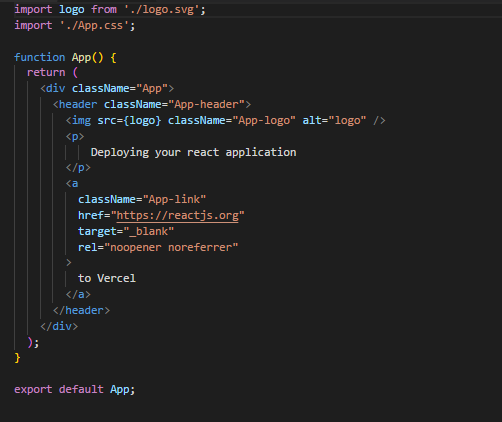
Editing the App.js file; screenshot by author

Refresh your browser (You may not need to though as the application reloads by itself) and you’ll see this:
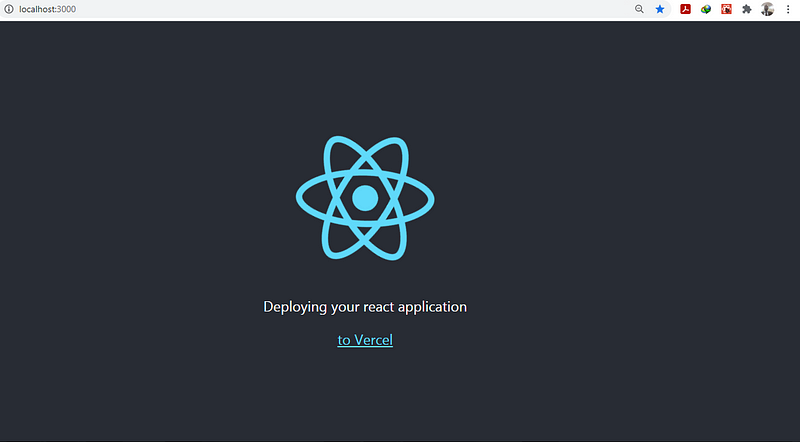
Application running locally; screenshot by author

Our application is now up and running.

2. Create a new Vercel account or log in to an existing account

You can create a new Vercel account by visiting the Vercel website, follow all the steps to register a new account. If you already have a Vercel account, you can simply just log in instead.

3. Create a Git Repository for the project

Log into your Github account and create a new repository for the project. The repo can be public or private. In my case, I want to make it private. Choose a name for your repository. For this tutorial, the name chosen is “deploy to Vercel”. After creating the new repo, follow Github’s guidelines to link it with your local project.
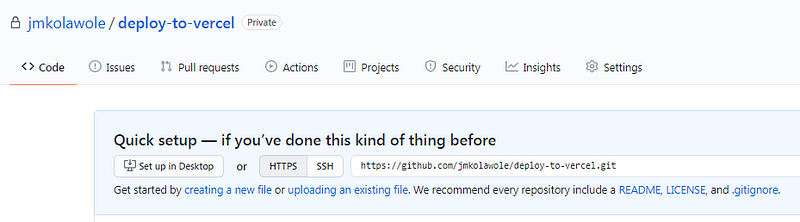
Repository created for project on Github

4. Stage, Commit your files and push to online repository

After editing our application, we initialize git in our project (If you created your React application with the command above, you don’t need to initialize git in your project as this comes automatically with the installation). We just have to stage and commit our changes as shown below.
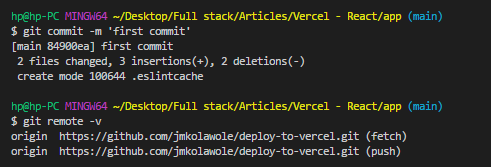
Staging and committing changes

After committing the files, you can push to Github using the following command: “git push -u origin main”. If you open your project repository on github, you’ll see that all your local files and folders (save the ones explicitly stated in your .gitignore file) have been uploaded to Github.
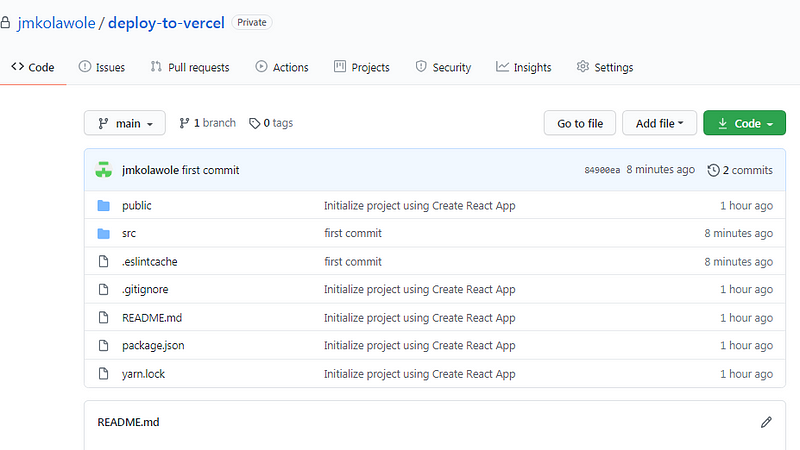
Project pushed to online repository

5. Link your Github account with Vercel and import project from Github

Now, hop back into your Vercel dashboard and link your Vercel account with your Github account. After that, create a new project by clicking on the “New Project” button.
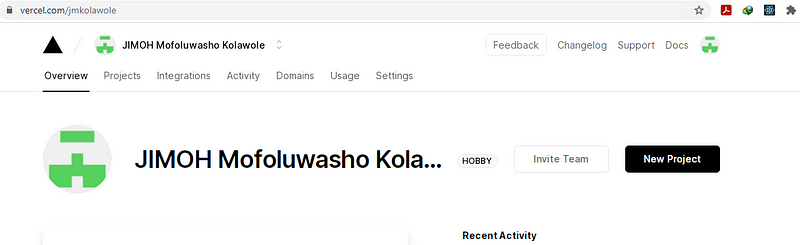
Creating a new project on Vercel

Click on the dropdown button shown below, and you will see a list of your Github repositories. Choose the one for the project (“deploy-to-vercel” in this case)
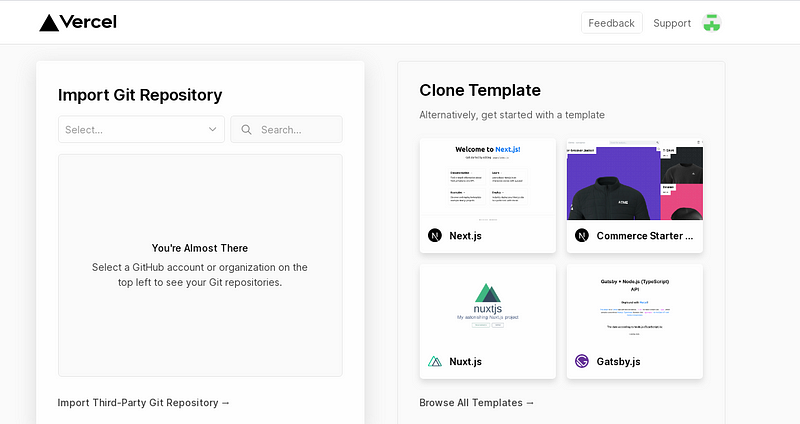
Importing project from Github

Choose the account you wish to use. You can also create a new team.
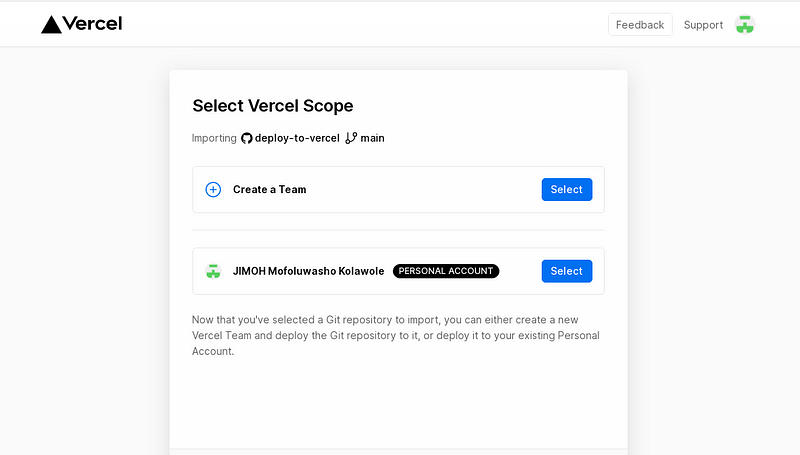
Selecting an account

6. Deploy your application

Having done everything correctly so far, it’s safe to say this is the time to finally deploy your application. After selecting the account you wish to use, click on “deploy” to deploy your application. You can change your project name. If your application is not in your repository root directory, you can change that here as well to point to the right folder. Furthermore, if you have environment variables you want to specify, you can do that here. Also, if you are deploying an application written with another framework, you can change that from the “Build and Output Settings” dropdown.
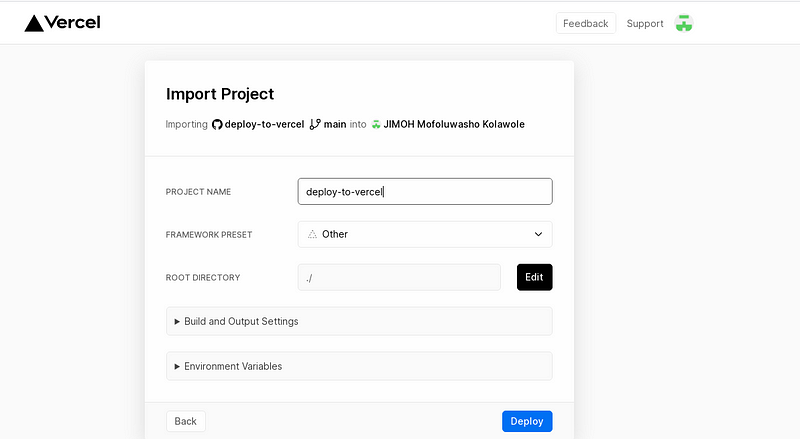
Deploying the application

After clicking on the “deploy” button, you need to wait for about one to two minutes for Vercel to install all dependencies needed for the project and complete the deployment process.
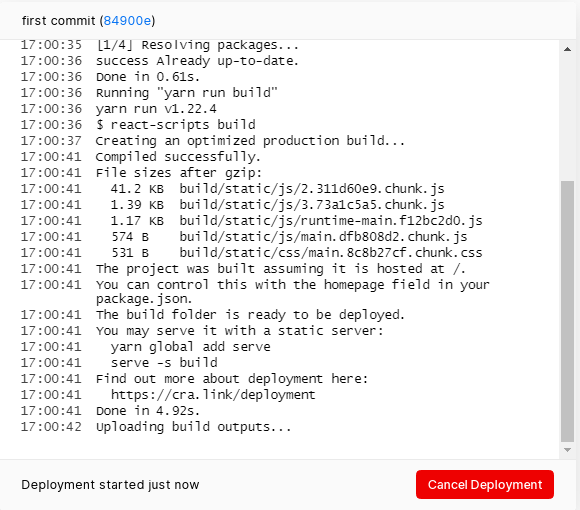
Application being built

That’s it. Our application has been successfully deployed to Vercel.
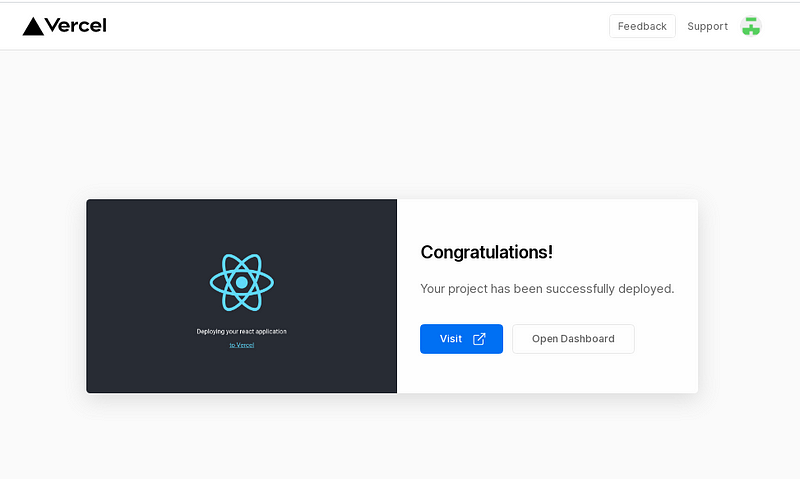
Visiting the newly deployed application

Now to see our application live, click on the visit button. You can see the online version of the same application we viewed locally.
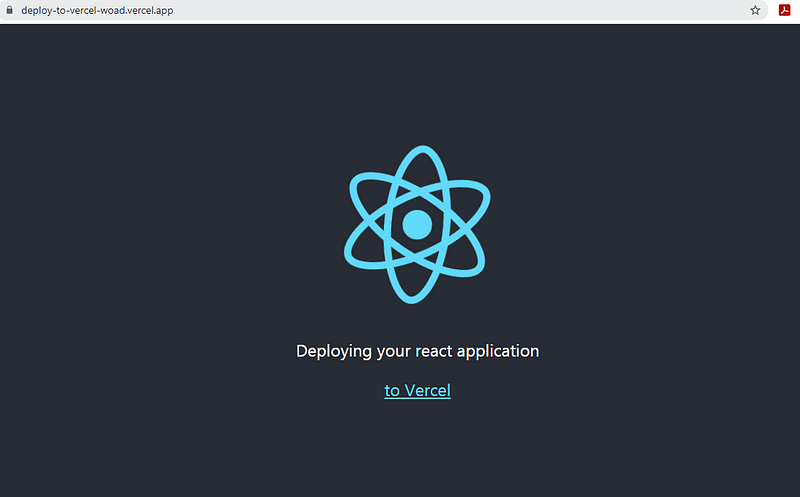
Application now showing on Vercel

II. Using Vercel CLI

This method is also as simple if not simpler than the first one explained above. If you do not want to link your Github account to Vercel or you do not want to just set up Github repositories for all your pet projects, then this method is for you. Just as I did with the first method, I will be giving step by step process of deploying your React application to Vercel using Vercel CLI

1. Install Vercel globally

To do this, go on and run npm install -g vercel or sudo install -g vercel for mac users. This will install Vercel globally on your machine.
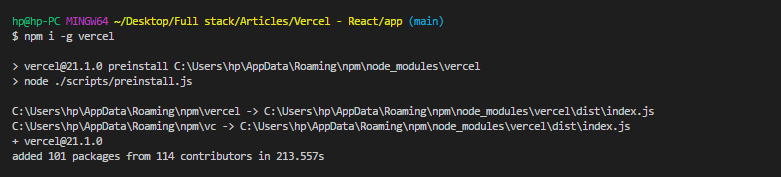
Installing Vercel globally

2. Vercel Login

After installing Vercel globally on your machine, at the command line, type vercel. This will prompt you to log into your account if you are not already logged in.

Logging in to Vercel

3. Set up a project and deploy

Having being logged in, to set up a project, type “vercel” at the prompt again. Follow the prompt and answer the questions appropriately.
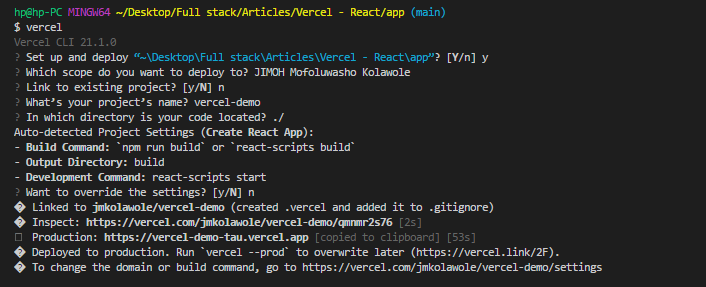
Setting up the project

a. Set up and deploy — y (because we are setting up a new application)

b. Which scope do you want to deploy to? (I’ll just go ahead and use my account)

c. Link to existing project — n (because it’s a fresh project we are creating)

d. What’s your project name? (vercel-demo)

e. In which directory is your project created? (We leave it as it is since we are running the command from the project root folder)

f. Want to override the setting? n (because Vercel is going to look at your project and try to figure out how you created the project. In this case, it detected that I used “react-scripts” to create the project. So, I’ll just use the default that Vercel has found)

Vercel will now build the application (installing all dependencies etc.). If you open your Vercel dashboard, you will see that the application has been created.
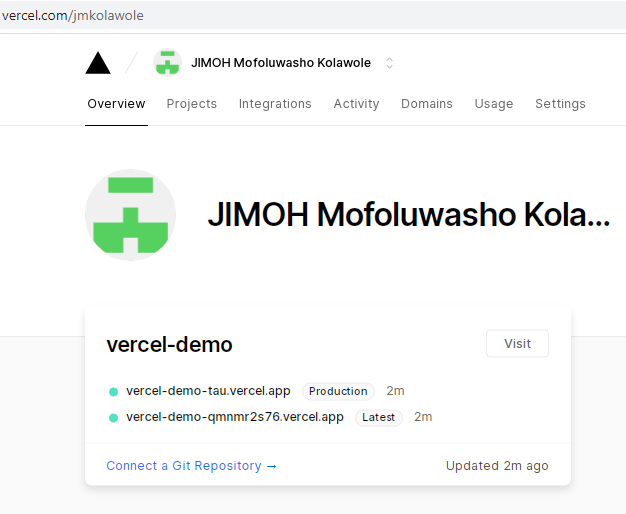
Project created

4. Open Project

You can visit the newly created project by clicking on the “visit” button on your project page shown below.
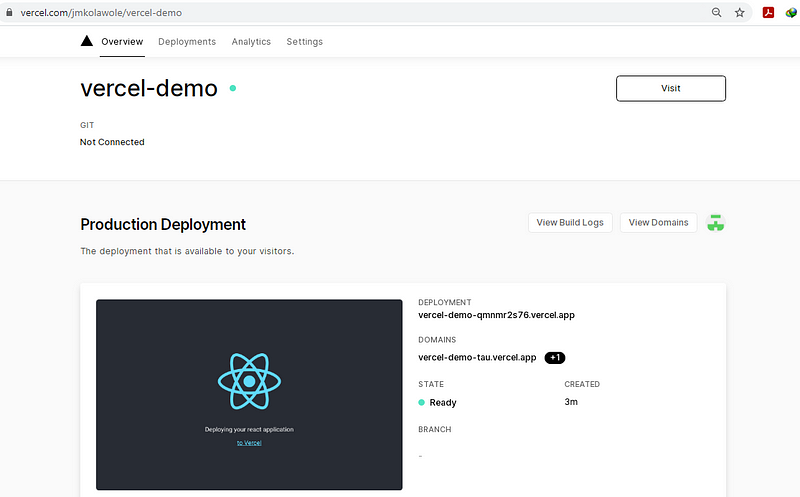
Visiting the newly deployed application

Now, see our complete application. We can now view an online version of our application hosted on Vercel.
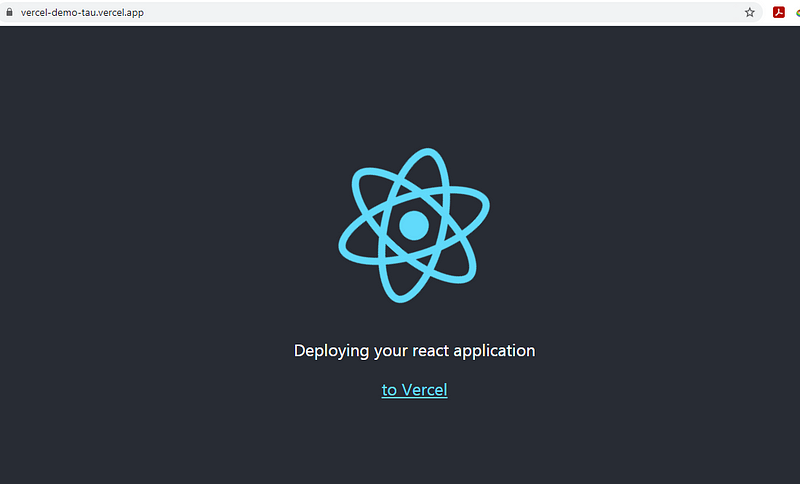
React application showing on Vercel

That’s it, guys. Thanks for reading.

React
Vercel
Single Page Applications
Cloud Hosting
NPM
Recommended from ReadMedium