
Hookmark: The App You Didn’t Know You Needed?
Hookmark* has been on my radar since 2021 but it’s only in the last few months where it’s become indispensable to my system, and in the last few weeks that my eyes have been opened to the opportunities Hookmark offers my system.
It is so simple it’s almost complicated, and I think my lack of adoption before this year was that I couldn’t see how this was directly applicable to my workflows.
So let me show you some examples to help illustrate its power to see if Hookmark is indeed the app you didn’t know you needed.
In this article I’ll give you a brief overview of what it is and show you some examples of what it can do! If you want tutorials for how to get started and to achieve these examples, you can follow along with the tutorial here:
So what is Hookmark?
In short, Hookmark is a Mac app that creates missing links between content across apps. Read on to see some examples of the power this has!
It’s not possible to create links between all apps, I believe this is because not all apps have compatible linking capabilities. There is a list of link-friendly mac apps here which I regularly refer to:
How to Download it
You can download Hookmark here. There is a 30 day free trial, after which you can upgrade or stick to the free plan. What I demonstrate needs the Pro Plan but some might be able to just use the Standard tier.
I have also been given a 20% off Pro to share: PKM-BETH-3C123 (valid until 31st October)
You can also access Hookmark if you have a Setapp subscription which is great value for money.
Key Keyboard Shortcuts
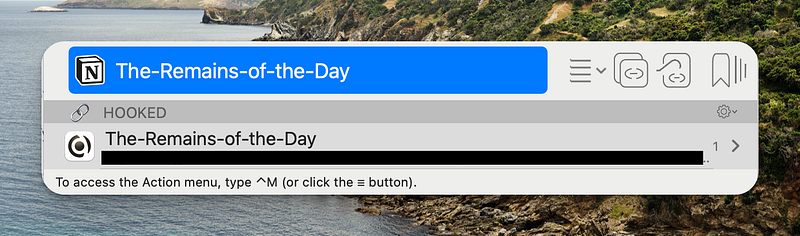
To open Hookmark you will always use Control (^) + H. This opens the floating Hookmark window.
Then you can open the menu or use one of many shortcuts to define your next step.
Simple links (section 1 of this article )= Command C
Hook to New (section 2 of this article)= Command N or option Command N depending where you’re hooking new content to
Copied Links (section 3 of this article)= Command C and Command V.
Section 1: Simple Links
You can copy a link from a page in one app, to paste in countless others. Clicking on this link not only opens the app, but navigates to the linked page.
Here’s some examples:
Zotero -> your note-taking app
Open Hookmark and copy the link. Open the note-taking app** you’d like to paste it in and simply paste. If you click on the link in your note-taking app, it will open up Zotero and select the source you initially copied.
If you read/highlight PDFs in Zotero and take notes elsewhere, this could be very useful for you.
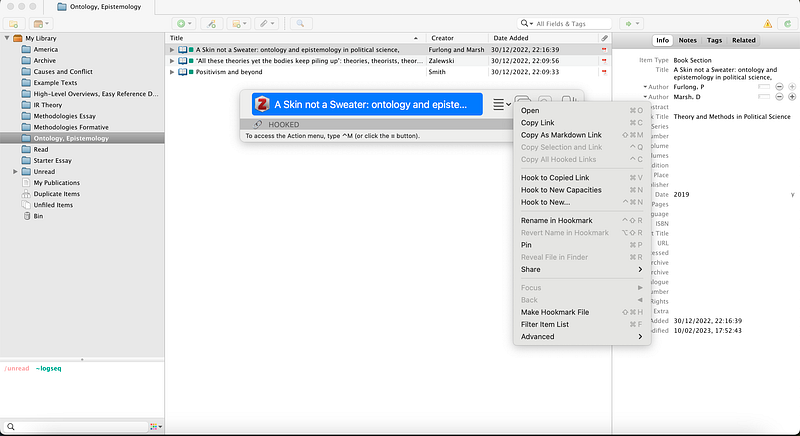
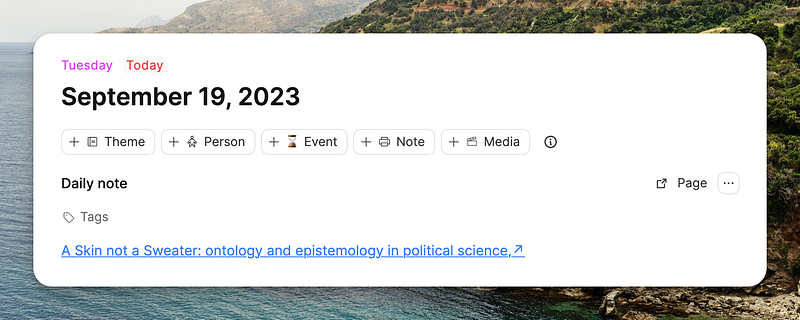
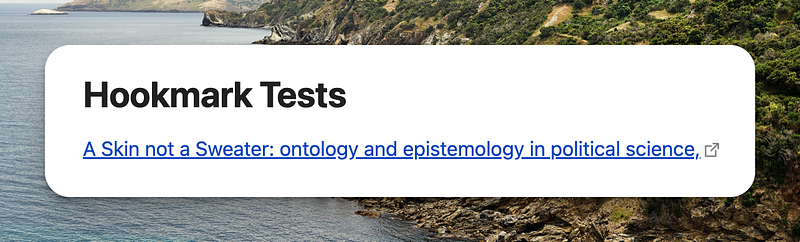
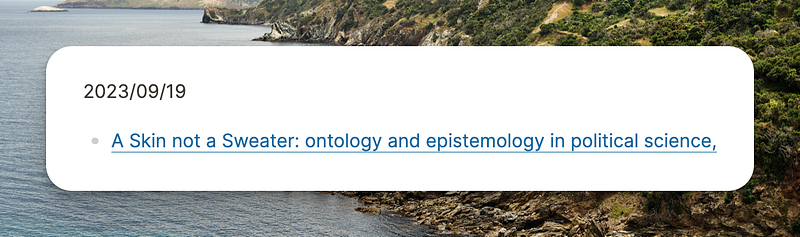
You can also paste a markdown version of this link into Obsidian, Logseq and more.
Links into your task manager
Some task managers (list here) let you paste links from Hookmark.
This works with Todoist, Noteplan, Agenda and more.
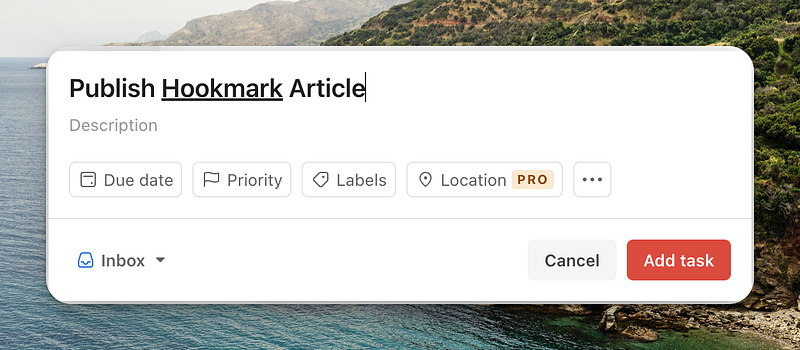
This would be great for linking previous meeting notes, or the person’s name from your CRM or any contextually relevant information to the task you’re dealing with.
Section 2: Hook to New
This is my favourite command.
This is when you’re in one app, and you create a piece of content in another app using Hookmark. In doing so, you automatically create a link from A to B. This is exactly the same as when you are in a page in your note-taking app of choice, and you create a new page from within it. Doing so creates a backlink.
I use this mostly between Notion and Capacities, so I have defined the default ‘new’ location to be Capacities. There are instructions on how to define this here.
I track my library in Notion , and any notes from the books in Capacities. When I have something to note down about a book, I’ll go to the page in Notion, Hook to New Capacities and then the pages are forever connected and with next to no effort, I have a page where I want it in Capacities.
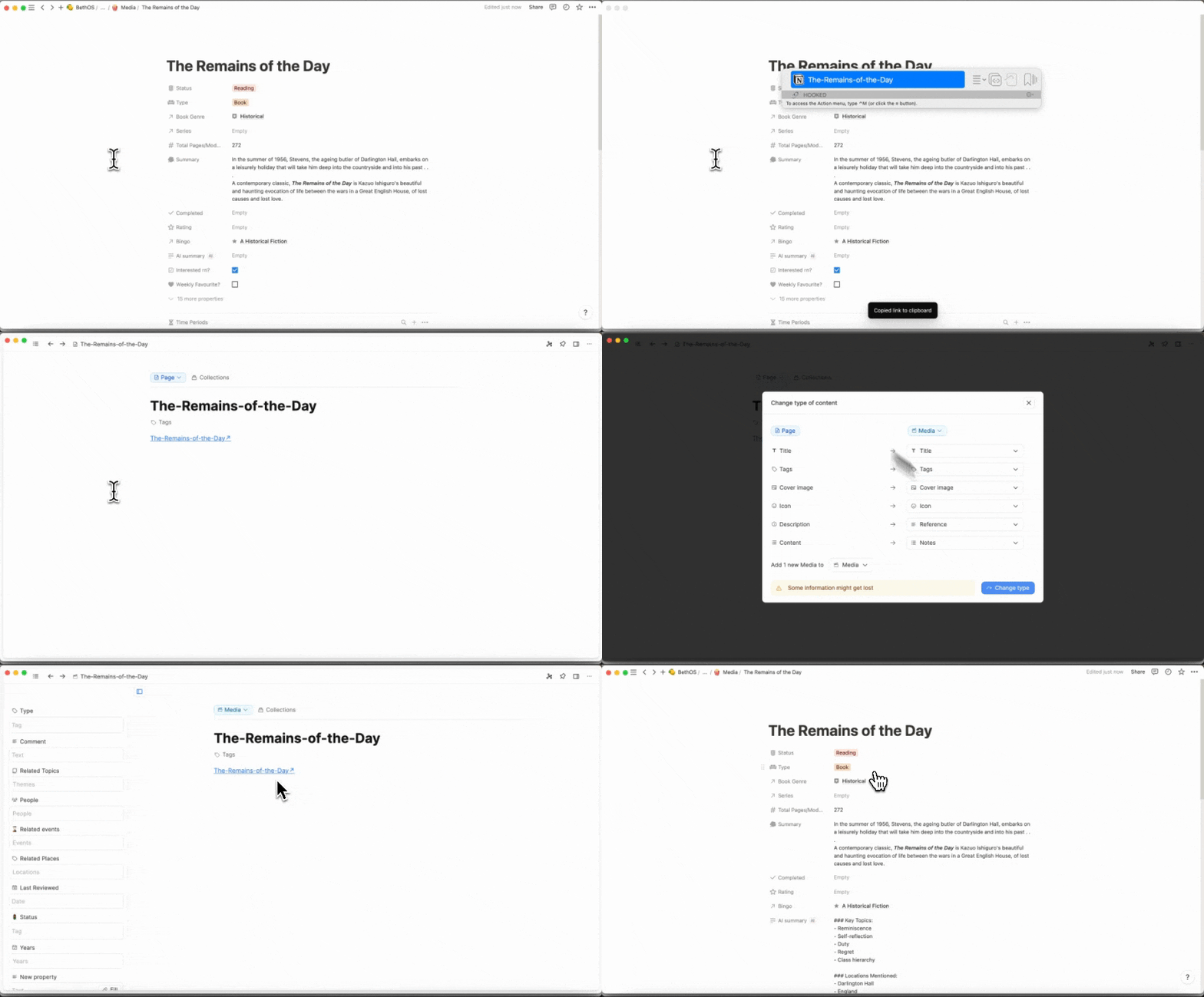
I also use it from Arc to Capacities a lot- makes for even quicker capture. You’ll note from the video below that the thumbnail was imported into Capacities automatically too. If I am taking notes on a person, I can open their Wikipedia page, hook to new and their name and image comes into Capacities. I can then just rename the page. it saves me a few steps for sure!
There are countless other options, but I recommend reviewing the link-friendly mac app list to see what apps can be used with this command, as then you’ll know what might work for your use-cases.
3. Hook to Copied Link
A key thing to note before moving on that a link and hook to new are different. A link is just that, a clickable command that moves us from A to B. Conversely a Hook is an established bi-directional link meaning, we can not only move from A to B, but A to B are bi-directionally connected. Links aren’t connected, hooks are.
One point of linking in the first place is to connect contextually important information. In my Notion to Capacities book example, both pages in both apps are contextually related because they’re about the same book. But there are more contextually related items I’d like to view together. The Hook to Copied Link example helps you work towards this.
If I was writing an essay on the book I’ve taken notes on, I might also want to quickly access the google/word Doc in which I’m writing my essay.
To do this, we’re going to touch on both the functions shown in the previous sections.
To start, you go to the next source you want to link, copy that link (see section 1) and then open the Hookmark window created in section 2. Then just paste. That will add your new link!
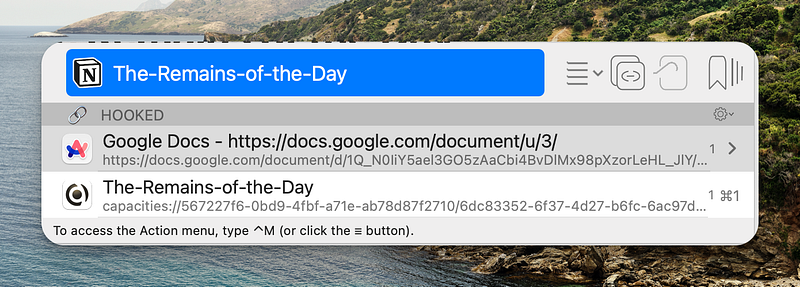
So there’s three examples of my 3 most used Hookmark functions, I hope this was a useful snapshot into the power of this app. I will definitely keep exploring and make more content to showcase its power. If you want to see slower tutorials and a few more examples, do watch the video.
I am also so enamoured with this way of working that I want to see if I can create an entirely interconnected system as an exercise. That’s not to say I’ll stop using the 16 apps I previously mentioned, but I think this could. be a fun experiment. I’ll be sure to share my thoughts!
It’s also made me realise that whilst “systems need to meet your needs” remains true, there are some apps that show you how to meet needs you didn’t know you even had, hence the name of this post!
I think for people united by a love of note-taking apps and connection, Hookmark is a natural extension to help us bolster these workflows and mindsets beyond just a note-taking app.
Again, if you’d like to try Hookmark, give the 30 day trial a go first, and if you want to purchase a licence you can either do so with my 20% off code (PKM-BETH-3C123 (valid til 31st October)), through Setapp, or through the pricing page where you can see all the different tiers.
Let me know what Hookmark workflows you come up with! We can all learn from each other :) Super exciting!
*I was kindly gifted Hookmark Pro but I would absolutely repurchase it myself.
**Remember not all apps are link-friendly but it’s always worth a try to see if a link could work.


