
Highlight Your Keyword: How To Use Spacy and Streamlit To Extract The Keywords
Language is one of our most basic ways of communicating, but it is also a rich source of information we use all the time.
What is the Natural Language processing?
Natural language processing, or NLP, is Technology that empowers computers to comprehend and generate appropriate responses in a human-life manner. Through NLP, machines are trained to read, understand, and interpret written and spoken human language and create narratives that describe, summarize, or explain data in a human-like manner.
What is the Spacy?
Spacy is a popular open-source library for NLP in Python. It will be used to build information extraction and natural language understanding systems and to pre-process text for deep learning such as tagging, text classification, named entity recognition, and many other tasks.
In this article, we will build a chatbot to extract the keywords application using Spacy and Streamlit. Whether you are a beginner or an experienced programmer, I will explain every step in detail to deliver the information.
Now, let’s get practical! We’ll develop our chatbot to extract the keywords with minimal Python syntax.
1. Set up your environment
1. You want to start by creating a venv on your local machine.
First, open your terminal and create a virtual environment.
python -m venv venv
Then activate it:
venv\Scripts\activate
You should see (Venv) in the terminal now.
Now, let’s install the required dependencies:
matplotlib==3.3.1
numpy==1.18.5
pandas==1.0.5
spacy==2.3.2
wordcloud==1.8.0
streamlit==0.64.0
Pillow==7.2.0
python-bidi==0.4.2
Finally, we’ll need to set an environment variable for the OpenAI API key:
Now that we’re all set, let’s start!
Create a file named “Extract_Keywords.py,” where we will write the functions for answering questions.
Let’s import the required dependencies:
import streamlit as st
import yake
import pandas as pd
import numpy as np
from wordcloud import WordCloud
import matplotlib.pyplot as plt
import spacy
from spacy import displacy
import re
from bidi.algorithm import get_display
We will use Streamlit to create a web application where the user can extract keywords from a text and The HTML_WRAPPER template we will use later to display results or other information stylishly.
HTML_WRAPPER = """<div style="overflow-x: hidden; border: 1px solid #e6e9ef; border-radius: 0.25rem; padding: 1rem; margin-bottom: 2.5rem">{}</div>"""

st.sidebar.title("YAKE!")
st.sidebar.markdown("""
Extract keywords from sample document
""")
st.sidebar.header('Parameter')
Let’s create configuring user input elements in a Streamlit app to control the behavior of a keyword extraction process. The values that users provide through these elements can be used to tailor the extraction process according to their preferences.
#side bar parameters
x_ngram = st.sidebar.slider("Select max ngram size", 1, 10, 3)
x_dethre = st.sidebar.slider("Select deduplication threshold", 0.5, 1.0, 0.9)
x_numkeywords = st.sidebar.slider("Select number of keywords to return", 1, 50, 20)
option_algo = st.sidebar.selectbox('deduplication function', ('leve','jaro','seqm'),2)
option_lan = st.sidebar.selectbox( 'Language', ('English','Italian', 'German', 'Dutch', 'Spanish', 'Finnish', 'French', 'Polish', 'Turkish', 'Portuguese', 'Arabic'), 0)
This block of code assigns the values collected from the Streamlit sidebar (the user’s input)
- language = option_lan is used to inform the keyword extraction process about which language to consider when analyzing the text.
- max_ngram_size = x_ngram is assigned the value of
x_ngram, which contains the maximum ngram size selected by the user from the Streamlit sidebar. - deduplication_thresold = x_dethre is used to determine when to consider keywords or sequences as duplicates based on some similarity measure.
- deduplication_algo = option_algo is used to identify and remove duplicates based on string similarity.
- windowSize = 1 represents the size of a window of words or characters around a particular word that the keyword extraction process should consider
- numOfKeywords = x_numkeywords contains the number of keywords the user wants to be returned from the keyword extraction process.
language = option_lan
max_ngram_size = x_ngram
deduplication_thresold = x_dethre
deduplication_algo = option_algo
windowSize = 1
numOfKeywords = x_numkeywords
This code provides a user-friendly interface in a Streamlit web app where users can read, input, or modify text content based on a default text file associated with their chosen language.
#User text in content
file = open(str(option_lan) + ".txt")
DEFAULT_TEXT  = file.read()
file.close()

st.header('Content')
text = st.text_area("Please input the content", DEFAULT_TEXT, 330)
We will use the YAKE library to extract relevant keywords based on user-defined and specified parameters from a provided text.
#use yake to extract keywords
custom_kw_extractor = yake.KeywordExtractor(lan=language, n=max_ngram_size, dedupLim=deduplication_thresold, dedupFunc=deduplication_algo, windowsSize=windowSize, top=numOfKeywords, features=None)
keywords = custom_kw_extractor.extract_keywords(text)

#get keywords and their position
ents = []

text_lower = text.lower()
Let’s Find and Record Occurrences of the First Keyword using the ‘’re.finditer “ method from Python's regex module, the code searches for all occurrences of the keyword in the lowercased version of the user-provided text (text_lower).
For each match m, a dictionary d is created with the start and end positions of the keyword match.
keywords_list = str(keywords[0][0])
for m in re.finditer(keywords_list, text_lower):
    d = dict(start = m.start(), end = m.end(), label = "")
    ents.append(d)
Let’s Process and record the remaining keywords. This loop processes each of the subsequent keywords in the keywords list (it starts from index 1 since the keyword at index 0 was already processed):
kwords = str(keywords[i][0]): This extracts the keyword from the tuple.keywords_list += (', ' + kwords): This appends the current keyword to thekeywords_liststring, separated by a comma. By the end of the loop,keywords_listit will contain all keywords separated by commas.
for i in range(1, len(keywords)):
    kwords = str(keywords[i][0])
    keywords_list += (', ' + kwords)
    for m in re.finditer(kwords, text_lower):
        d = dict(start = m.start(), end = m.end(), label = "")
ents.append(d)- Let’s sort the keyword occurrences to ensure that the keyword occurrences are processed in the order they appear in the text.
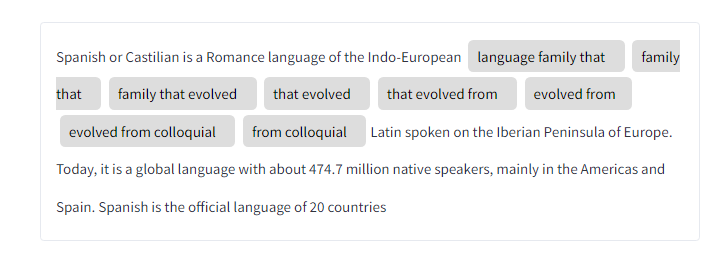
- We will be preparing Data for spacy visualization. The text will be visualized with highlighted entities (keywords). spaCy provides a tool called
displacywhich can be used to visualize text with highlighted entities, relationships, etc. The preparedexstructure fits the requirements for such a visualization.
#sort the result by ents, as ent rule suggests
sort_ents = sorted(ents, key=lambda x: x["start"])

st.header('Result')
#use spacy to higlight the keywords
ex = [{"text": text,
       "ents": sort_ents,
       "title": None}]
This code takes the detected keywords and visualizes their occurrences within the user-provided text using spaCy’s displacy tool, and then displays this visualization in the Streamlit app, wrapped in a styled container.
html = displacy.render(ex, style="ent", manual=True)
html = html.replace("\n", " ")
st.write(HTML_WRAPPER.format(html), unsafe_allow_html=True)
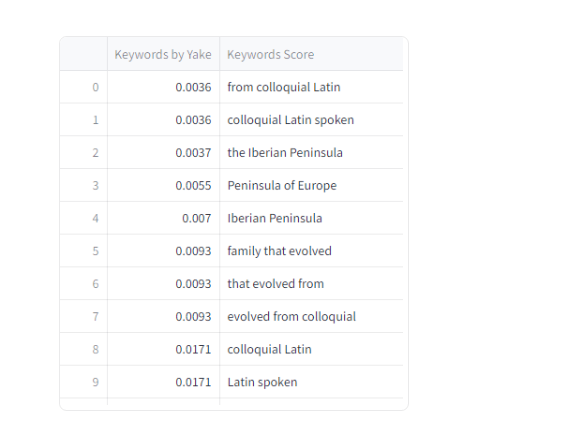
Let’s extract keywords and their scores, organize them into a pandas DataFrame with rearranged columns, and display the result as a table in the Streamlit app.
df = pd.DataFrame(keywords, columns=("Keywords Score", "Keywords by Yake"))
l=[1,0]
df = df[[df.columns[i] for i in l]]
st.dataframe(df)
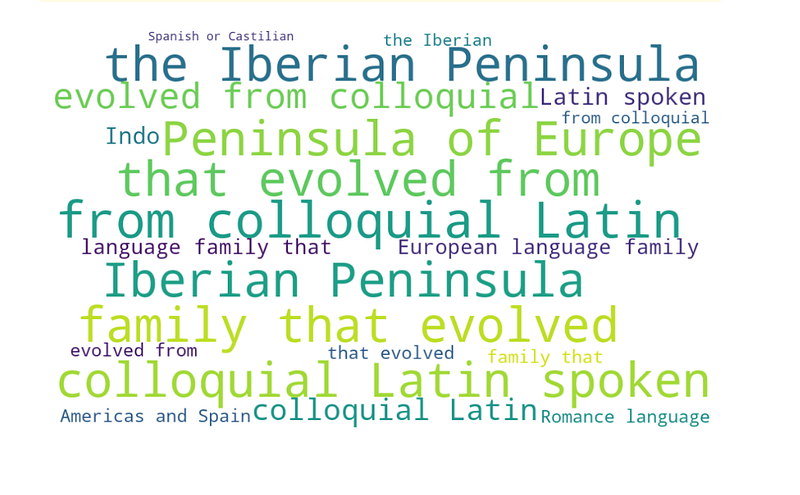
We will transform a list of keywords into a format suitable for bidirectional text display and then create a word cloud visualization of those keywords with specified parameters.
#create and generate a word cloud image:
bidi_text = get_display(keywords_list)
wordcloud = WordCloud(width = 1000, height = 600, background_color="white", collocations=False, regexp = r"\w[\w ']+", font_path='tradbdo.ttf').generate(keywords_list)plt.imshow()It is a function from thematplotliblibrary used to display images. Here, it’s displaying thewordcloudimage. Theinterpolation='bilinear'parameter helps in smoothing the displayed image.
After generating a word cloud, this code segment ensures it’s displayed in a potential notebook environment and a Streamlit web application.
#display the generated image:
plt.imshow(wordcloud, interpolation='bilinear')
plt.axis("off")
plt.show()
st.pyplot()
Let’s try it out!
Now, run the application by typing ‘streamlit run app.py’ in the terminal.
Result
Conclusion :
Spacy and Streamlit are useful tools that simplify users' process of extracting keywords using NLP. The application lets users highlight their keywords in visual forms.
Don’t hesitate to contact us if you have any queries!
Try out the code. Let me know what you think. All suggestions are welcome.
Please visit my site for additional tutorials and insights on Data Science, machine learning, and artificial intelligence.
Reference :
🧙♂️ We are AI application experts! If you want to collaborate on a project, drop an inquiry here, stop by our website, or book a consultation with us.
📚Feel free to check out my other articles:


