
Here’s How to Run SQL in Jupyter Notebooks
Jupyter Notebooks as a SQL IDE?
Let’s face the facts — databases are everywhere. Even though, when learning data science you’ve only dealt with CSVs, that will hardly resemble reality since most companies tend to store data into databases.

In today’s article, I quickly want to go over the concept of using Jupyter Notebooks or JupyterLab as a SQL IDE. Prior to this, I’ve worked with various Python libraries to connect to the database, but this nifty little trick will save you a bunch of time and typing.
After reading the article you will be able to execute any SQL query/procedure directly through the Notebook, and also to store the result of any query to a variable you can then use later in your analysis.
I don’t want to dwell any more with the intro, let’s jump straight into the good stuff.
A bit of Setup
To begin, you’ll need to install one library to make sure you can run SQL directly in the Notebooks, so paste the following into any Jupyter cell:
!pip install ipython-sql
When writing the article I was dealing with the Oracle database. If you are also, make sure cx_Oracle is installed. If not just quickly look online for a required library. In my opinion, those would be:
pyodbc— for SQL Servermysql— for MySQLpsycopg2— for PostgreSQL
Now we will use the sqlalchemy library to create an engine needed to connect to the database. This will be required only once per connection string — meaning you won’t have to do it each time when making a connection.
Here are some general-looking connection strings for various databases:
- PostgreSQL:
postgresql://scott:tiger@localhost/mydatabase - MySQL:
mysql://scott:tiger@localhost/foo - Oracle:
oracle://scott:[email protected]:1521/sidname - SQL Server:
mssql+pyodbc://scott:tiger@mydsn - SQLite:
sqlite:///foo.db
Here’ an example for Oracle DB:

Now we can load in previously installed SQL module:
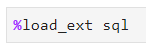
And connect to the database with a connection string specified earlier. Notice how the column content is prefixed with the percent sign:

If you’ve got the same output as I did it means that everything went well and you are good to proceed!
Let’s Begin
Okay, now you’re ready to go. To start out I’ll show how to pass a multi-line SQL query to a Juypter cell. Without this magic commands, you would have to import various libraries, make a connection to the database, surround the query with brackets and then execute it, but now it’s just a matter of prefixing the code with %%sql or %sql which I will demonstrate below.
Mark entire cell as a SQL block
Let’s start with this one, as it will allow you to enter multi-line SQL statements. The only requirement is to make a %%sql prefix on the start. I’ve decided to select the first five rows from some table:

And yeah, that’s it! If you were to execute this cell this is the output you’d get:

It kind of looks like a Pandas DataFrame, but it isn’t, it only showcases how the table looks.
Single Line Statements — Store result to a Variable
You are not limited to multi-line statements, and you can store the result of a SQL query to a variable. Here you will have only one percent sign instead of two: %sql
Let’s see this in action — I’m going to select a single value from a phone_number column:

You can see that if I print it, the output isn’t something you’d expect, and here’s how to address that issue:
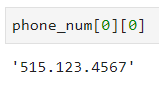
It was just a matter of simple indexing, nothing to be worried about.
What else can you do?
It’s been all fun and games until now, but you might be wondering what else ipython-sql can provide to us. Well, a lot, and I’m gonna cover two things. This won't blow your mind but are a good thing to know. Let’s start.
Converting to Pandas DataFrame
It’s just one nice additional feature of ipython-sql saving you a bit of time so you don’t have to make the conversion manually. I will select some set of data from the database and then call .DataFrame() method of it:

We can now check both the DataFrame and its type, just to verify everything is as expected:

Yeah, the data look right, the type is okay, so we can proceed.
Plotting
Let’s say you’re in a hurry and want to quickly fetch some data from a database and make a bar chart. To demonstrate, I’ll import matplotlib and make everything a bit bigger just for the sake of it, and then store a result of some SQL query to a variable.
Once done, you can call .bar() method to make a bar chart:

And the corresponding plot would look like this:
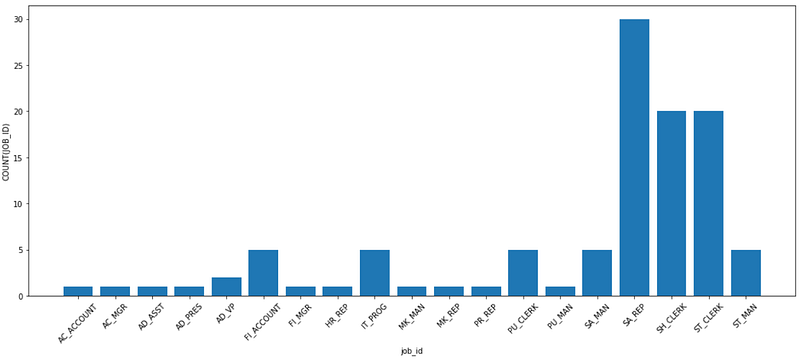
That’s quite nice for just a line of code, plotting-wise. Note that you could also use .pie() to show a pie chart — feel free to look for other options on your own.
Before you go
I don’t think that anything from the article had a wow-factor for you, but I also hope that you can appreciate the simplicity of performing database queries in this format.
This could also be an alternative to standard SQL IDE’s if performing queries is all you do and there’s no need for anything more advanced.
Anyhow, I hope you’ve managed to get something useful from the article. Thanks for reading.
Loved the article? Become a Medium member to continue learning without limits. I’ll receive a portion of your membership fee if you use the following link, with no extra cost to you.


