
Here are Three Amazing Use Cases for the iPhone 15 Action Button
Personally one of the best new features of the iPhone 15 is the Action Button. I know this is a controversial take for some, but I like the option to map almost anything onto it. Here are five pretty useful use cases.
A note before I start: I am explaining the way you can setup a shortcut in Apples Shortcut app, because you can not only fine tune such a macro, but also add even more steps. As long as an installed app supports Siri Shortcuts you can add an app to the Action Button pretty easy. I’ll explain this at the end in detail.
ChatGPT Voice Conversation
For me, the primary use case for the iPhone 15 Action button right now is the Voice Conversation feature with ChatGPT. It provides a natural language communication experience with ChatGPT, even though it still operates as text behind the scenes. Paired with the action button, it offers a quick way to converse with the AI and ask simple questions on-the-go — such as clarifications, spellings, translations, and explanations.
Make sure to have the official ChatGPT app installed and Voice Conversation should be available to you (e.g., as a Plus subscriber).
Instructions:
- Open the Apple Shortcuts app. Create a new shortcut. Search for “ChatGPT” and select the “Start voice conversation with ChatGPT” option, which launches the ChatGPT app. This action is predefined by OpenAI. Do not add anything else.
- Navigate to the iPhone’s Action Button settings. (Tip: Use the spotlight search for quick access.). On the final page of the action button settings, select “Shortcuts” and then choose the shortcut you’ve just created.
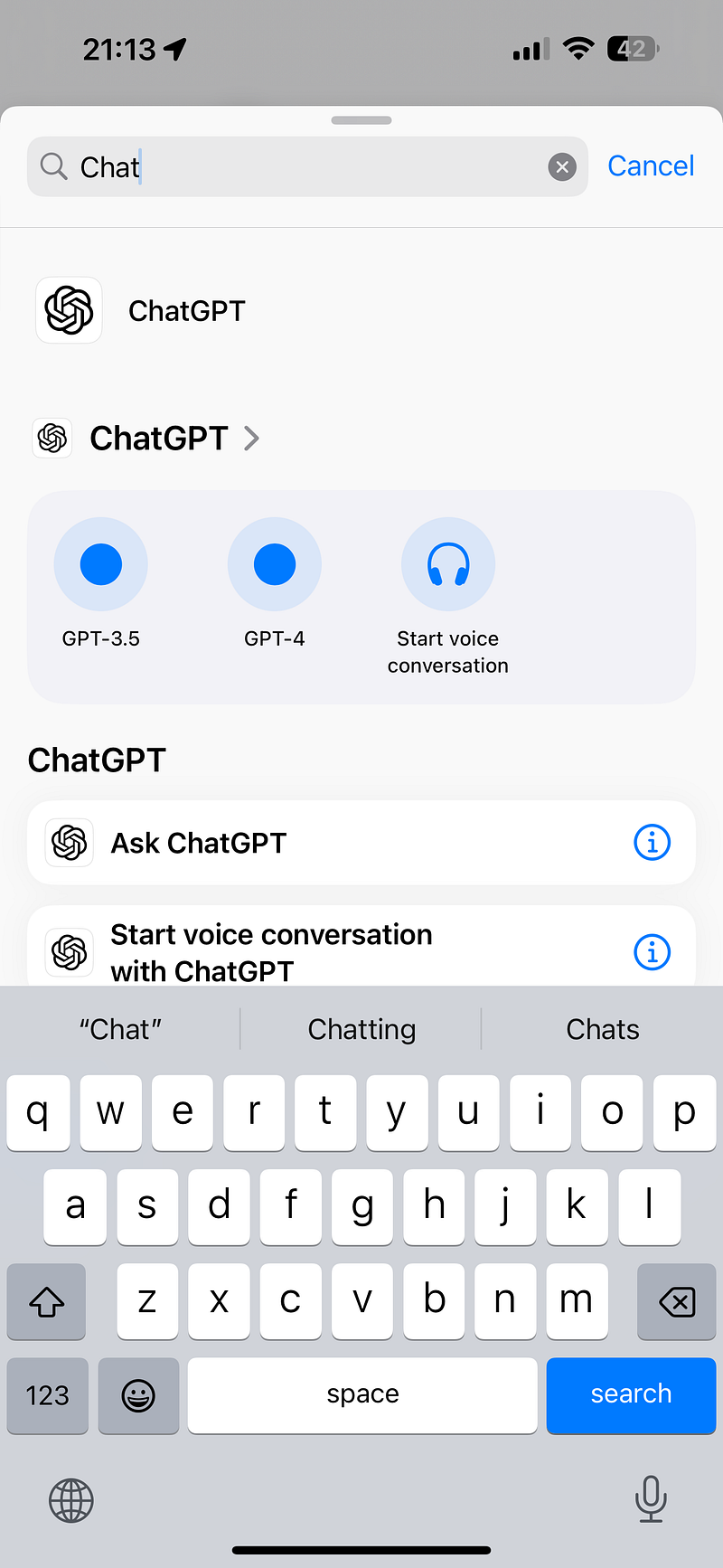
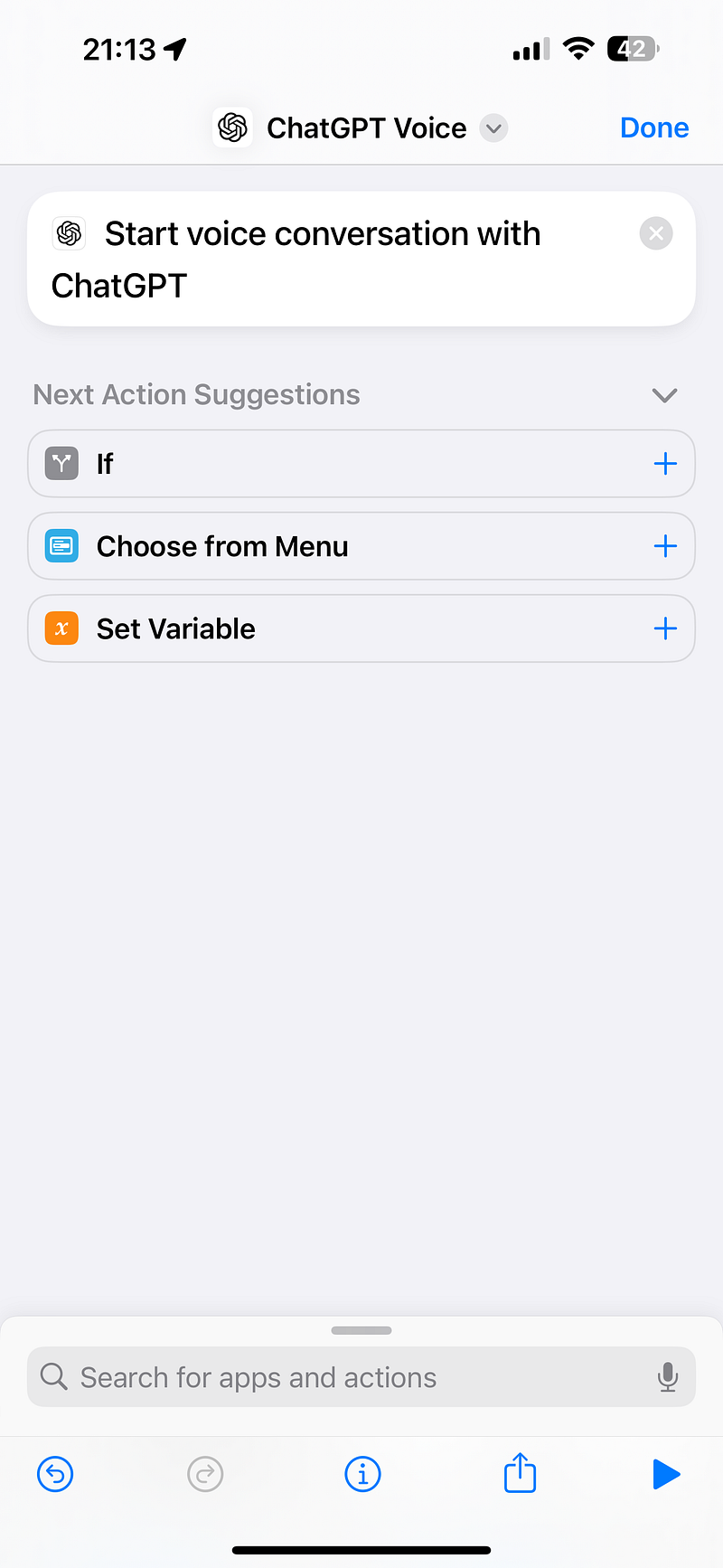
Now, every time you long-press the action button, you’ll be directed straight into a new voice conversation with ChatGPT.
Open Mem.ai
I primarily use Mem.ai for my note-taking. To streamline this, I’ve added a Shortcut to the action button that directly opens the Mem.ai website. This eliminates the need to first unlock my iPhone and either open the iOS app or Safari to access the website, making my daily tasks more efficient.
Here’s how to do this (and this is pretty straight forward):
- Again create a new shortcut in Apples Shortcut app.
- Search for “URL”, choose it and add the website https://mem.ai into the field.
- Next search of “Open URLs” and it will be automatically connected to the url. Save!
- In the Action Button settings choose Shortcuts and your new shortcut.
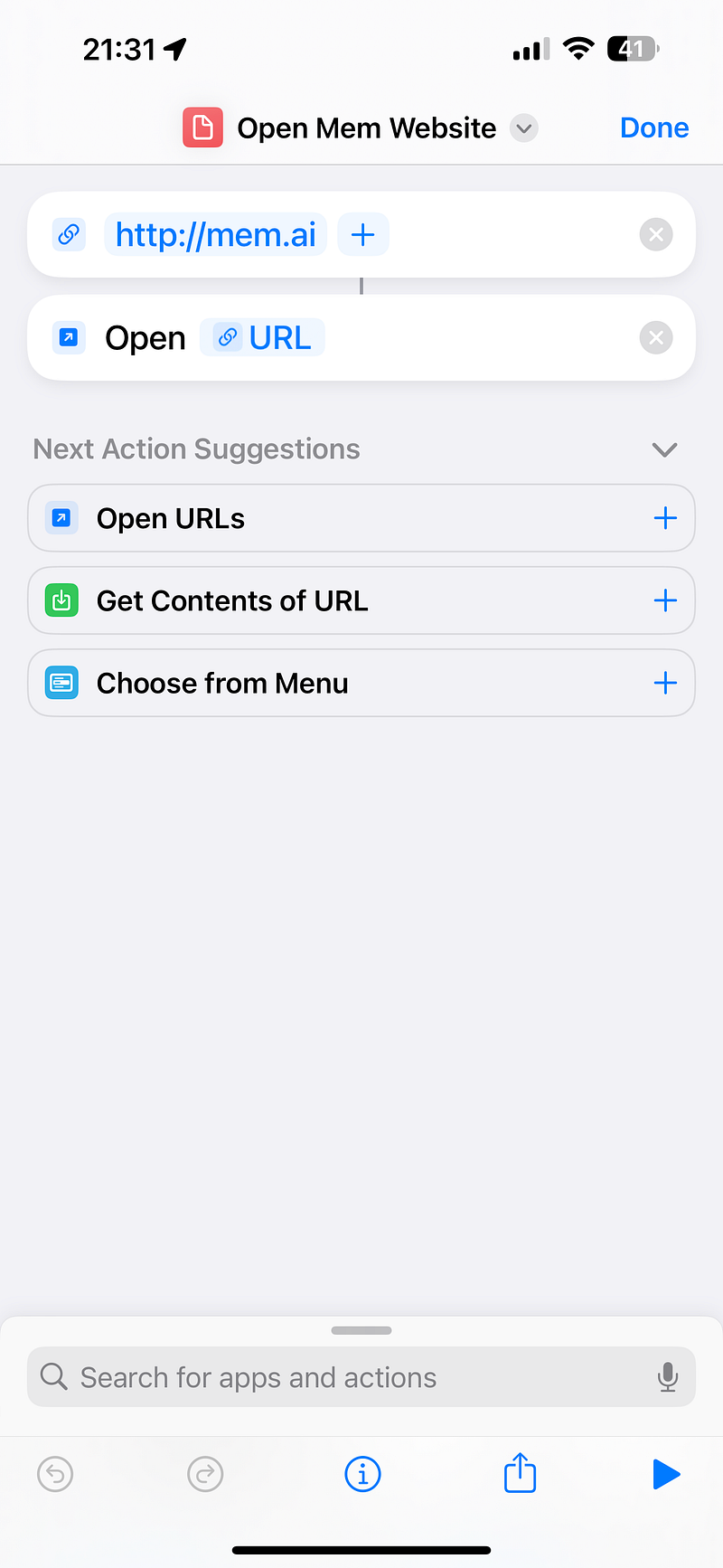
Now every time you long-press the Action button Safari will open with the Mem.ai website.
Open Google Assistant
If you’re a user of Google services, you will be already familiar with the Google Assistant. It has a robust iOS app and offers integrations like getting started through Siri or adding a shortcut to your home screen. Conveniently, this shortcut can also be associated with the iPhone 15’s action button.
Personally, I lean towards ChatGPT combined with web search for my queries. However, as Google adds more AI capabilities into its Assistant and search functions, I might reconsider. So here’s how to add the Assistant to the Action Button:
- Open the Shortcuts app and search for “Assistant”.
- Select “Ask Assistant” and save.
- Navigate to the Action Button settings and add the newly created shortcut.
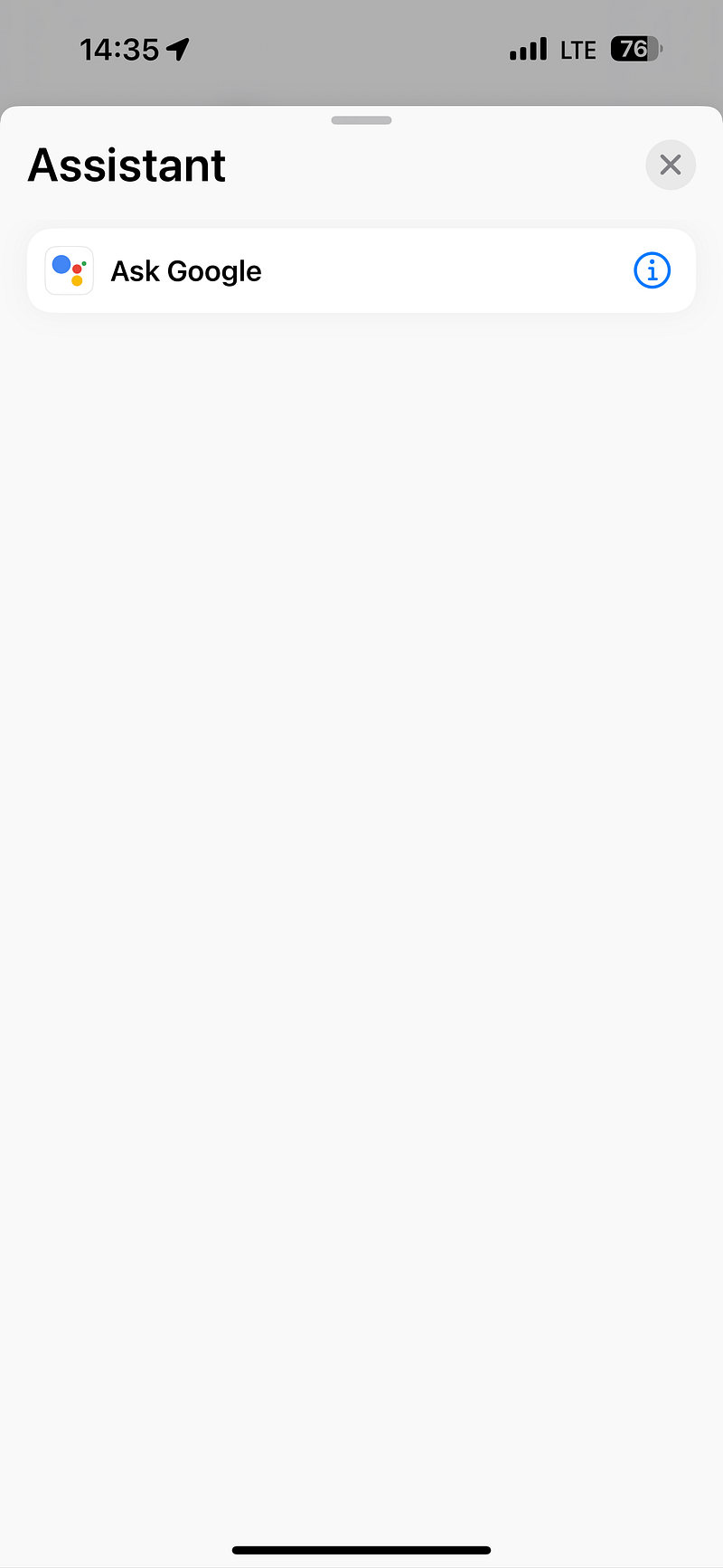
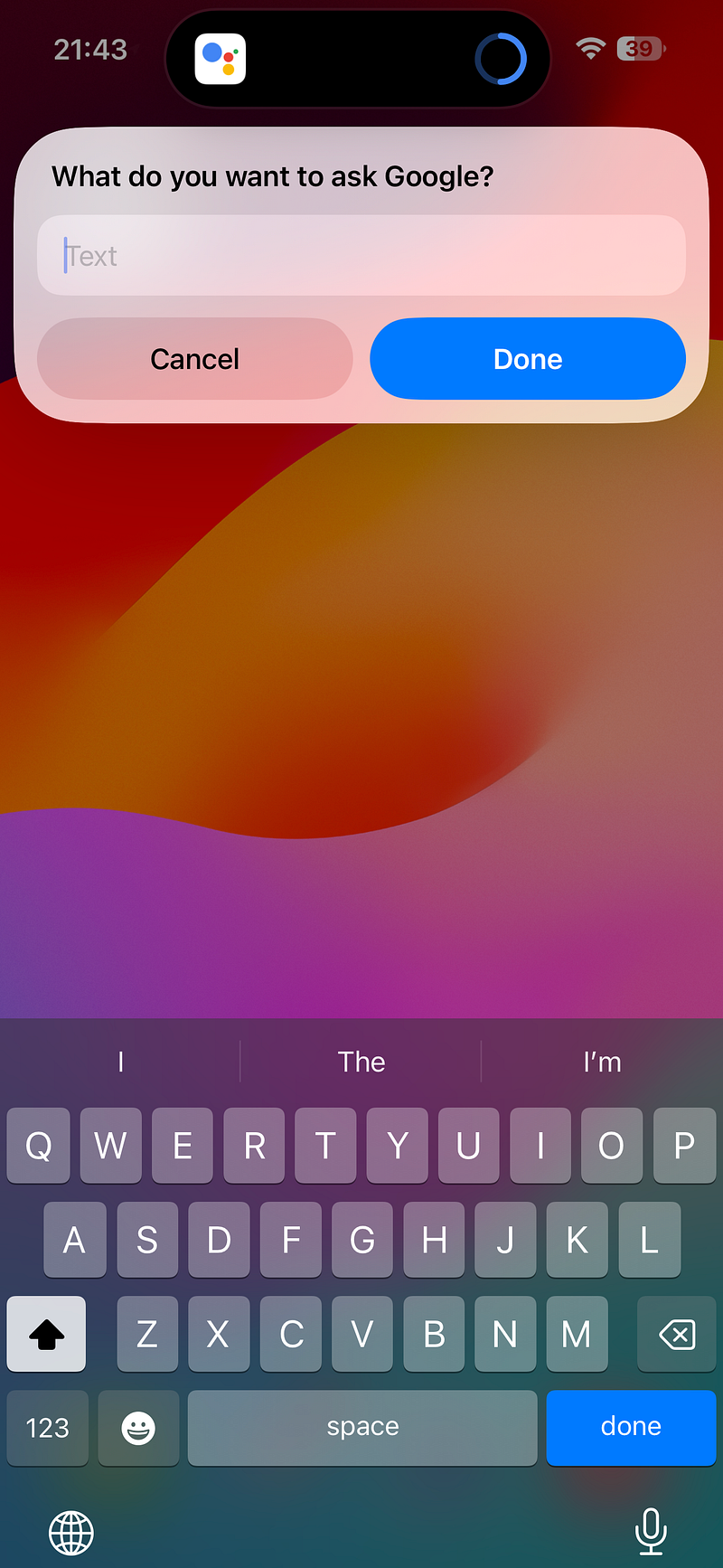
This configuration simply opens a text field to interact with the Assistant.
Another option: How to quickly add apps to the Action Button
If an app supports Siri Shortcuts, it’s straightforward to map it to the action button:
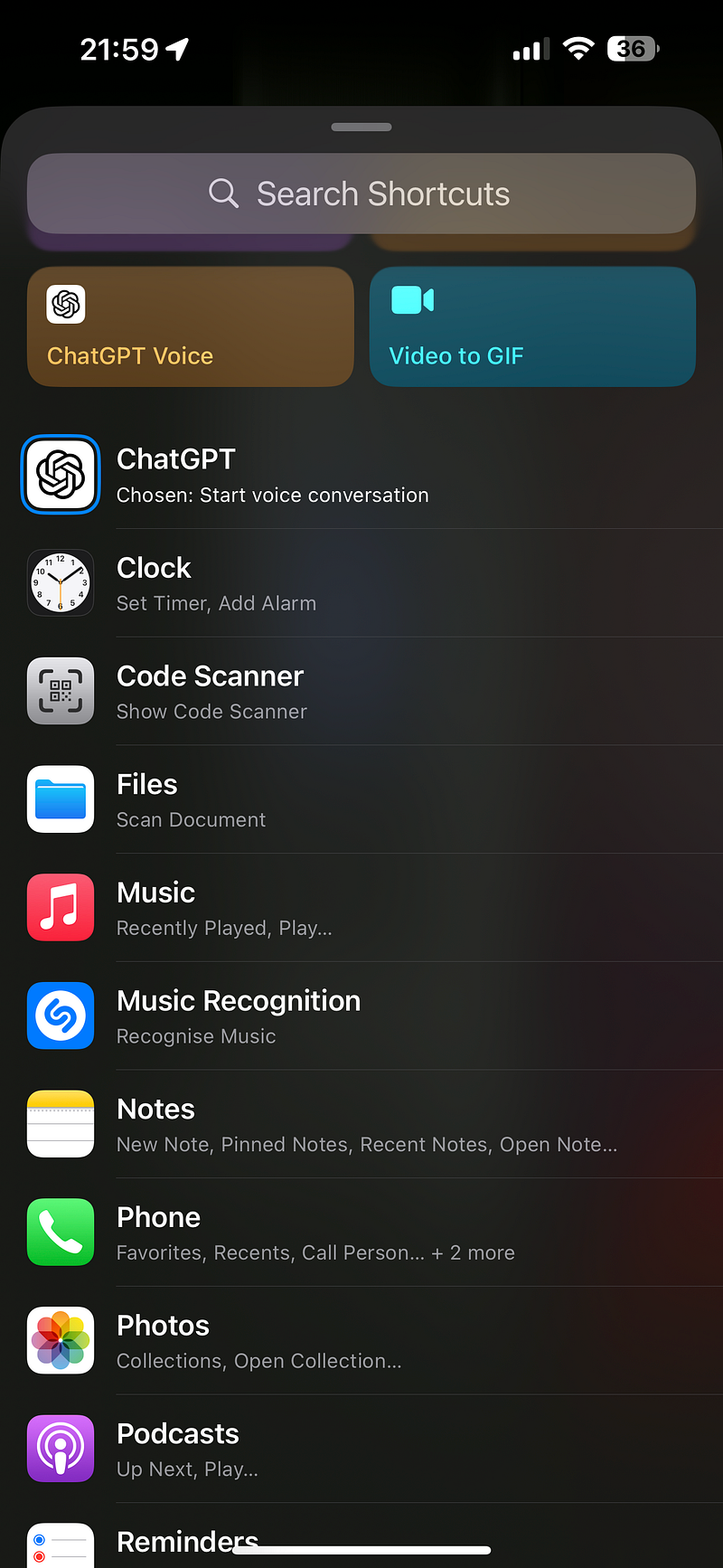
- Go to Action Button settings and select “Shortcuts”.
- Below your custom shortcuts, you’ll see a list of apps with pre-defined Siri shortcuts. Choose your desired app and a relevant shortcut from the options provided.
Closing Thoughts

The iPhone 15 Action Button has become my personal favorite feature of the iPhone. Experimenting with shortcuts has unveiled new possibilities, allowing me to bypass some of the traditional iOS constraints pre-iPhone 15 and really enhances my daily life.
Hej there! Can I ask you a favour (it will really help me out to grow this blog)?
If you find this article insightful and enjoy reading it, consider following me please for more content about Apple, Mem, productivity, and the general landscape of AI, as they help me reach a wider audience, enabling others to benefit from my stories and personal experiences. Thanks for reading and enjoy your day!