
Helium 10 Tutorial for Finding Profitable Keywords
This will give you an unfair advantage.

In this post, I’m going to show you how I use Helium 10 to do KDP niche research on Amazon and find the most profitable keywords to include in my book titles and Amazon ad campaigns.
I’ve tried almost every KDP keyword research tool out there, from Publisher Rocket to Book Beam and beyond.
While those tools are very useful, there is one tool that is light years ahead of the pack and has the power to give Amazon publishers a MASSIVELY unfair advantage.
That tool is Helium 10.
I’ve developed an entire publishing process around this tool that has allowed me to create books that are ranking on the first page of results for highly competitive keywords on Amazon.
However, I must tell you — my strategy isn’t for everyone.
I’m working to build a publishing company that generates at least $50,000+ a month.
That’s not a small goal — especially since this is a side project I’m doing all on my own.
(You can follow my progress here — Kristen’s KDP Project.)
In order to reach that big goal, I CANNOT just guess when it comes to choosing topics and keywords for my books and HOPE that one of them will magically be deemed worthy of promotion by the Amazon algorithm.
I tried the “hope and publish” method — it didn’t work for me.
Since then, I’ve spent countless hours researching and analyzing top-selling books on Amazon and I’ve discovered that there’s a formula to winning the Amazon publishing game:
- Find keyword phrase(s) a lot of people are searching for on Amazon that ALSO have a high sales conversion rate,
- Create a competitive product that is relevant to the keyword phrase(s).
- Get your book in front of people searching for the keyword phrase on Amazon.
This is all well and good, but you’ll still need a specific strategy to accomplish these steps.
I’m happy to share my strategy with you because there’s more than enough opportunity for all of us.
Just keep in mind that this is MY process, not the ONLY process. I’m certainly NOT saying that you have to do things the way I do.
I’m just sharing what’s working for me after a lot of trial and error.
Feel free to use what resonates with you and discard what doesn’t.
Part 1: The Formula
Before I get into the nuts and bolts of using Helium 10 for Amazon KDP niche research in Part 2 below, you need to understand the strategy I’m using for context, or the tutorials won’t make sense.
The main idea is that we are looking for books that are already selling well on Amazon that we can:
- Use as a “model” and
- Compete with.
For example, I wouldn’t try to use Prince Harry’s memoir as a model for my next book because there’s no way in hell I can compete with it.
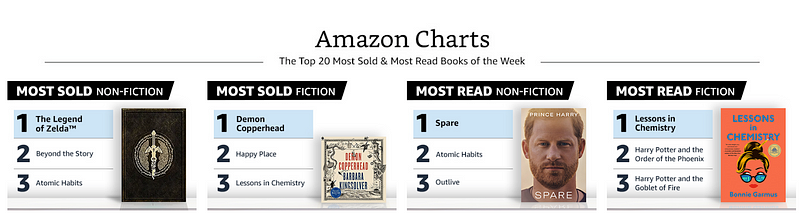
We need to dig deeper than the generic “best-seller” lists.
However, you can use Helium 10’s “Black Box” tool to find books in more obscure categories that are selling incredibly well AND that you CAN compete with (tutorial below.)
Take this Sudoku puzzle book, for example:

It was published in January 2023 (4 months ago) and only has 18 reviews.
Yet it’s selling over 1,728 copies per month and generating $9,763 in revenue.
You could easily make your own Sudoku puzzle book interior using Book Bolt.
But… if you were to just take this information at face value, you might not get too far.
What we need to know to be able to achieve similar results are the specific keywords that are driving sales to this book.
I already have the Helium 10 Chrome extension installed in my browser (see tutorial below).
So when I go to the Amazon sales page for this book, I’m going to see additional information.
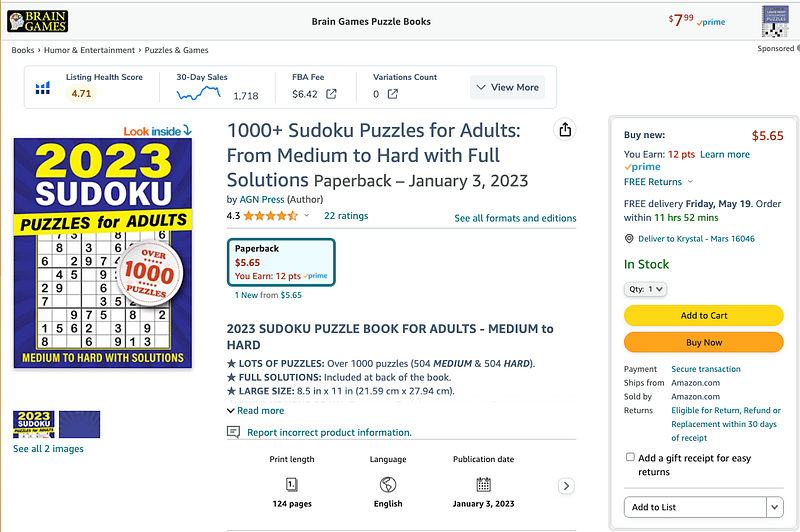
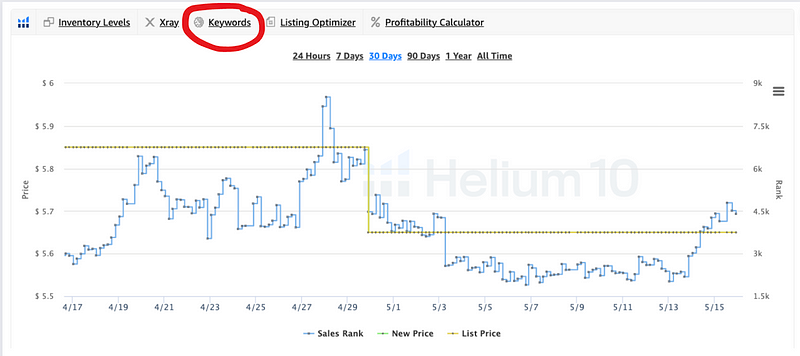
If you click on the “Keywords” tab on the Helium 10 graph that is embedded in the book listing page on Amazon, you can see every keyword that this book is ranked for organically.
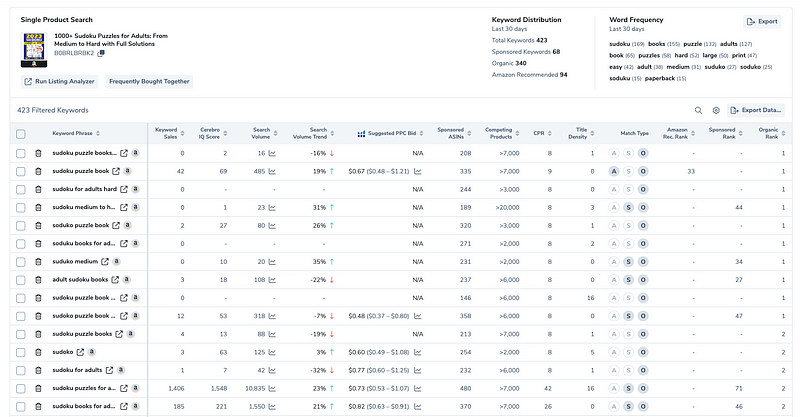
Pretty cool, right?
Not ONLY that, but I can also see how many sales are attributed to each specific keyword per month, AND I can see which keywords this author is running ads on.
My next step is to “sort” the keywords by “keyword sales” so that the keywords responsible for making the MOST sales each month show up at the top of the list.
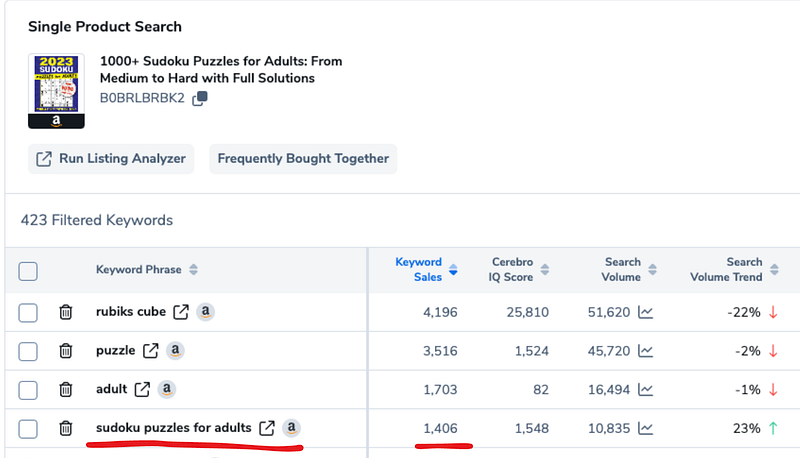
Next, I want to look down the list for the most relevant keyword.
You’ll notice the first couple of keywords are irrelevant or too generic.
However, “sudoku puzzles for adults” is perfect.
You might also notice that our “model” book has used this exact keyword phrase in its title.
I would also use this exact keyword phrase in the title of my new book.
You can add additional keywords in the title and subtitle to improve your chances of ranking for them on Amazon — just avoid “keyword stuffing.”
One to three high-performing keyword phrases are really all you need in your title/subtitle.
Note: While the keyword phrase “sudoku books for adults” is a generic phrase that we can use, you need to watch out for trademarked words.
For example, you can’t use “Disney Sudoku Book for Adults” because the word “Disney” is trademarked.
If you are in doubt about a word or phrase, do your research before using it in your title.
Book Beam has a trademark checker feature. You can also search the US Patent and Trademark database (which is free) to see if a certain keyword or phrase has been trademarked.
However, for the purpose of this example, we’re going to assume that the keyword phrase “sudoku puzzles for adults” is fair game to use in our title.
Modeling Best Sellers
When I’m “modeling” a book, my goal is NEVER to copy someone else’s intellectual property.
My goal is always to find what’s already selling and use it as inspiration to create a BETTER product.
For example, in this case, our “model” Sudoku book has 1,000 puzzles, so I might include 1,200 puzzles in my book because that would be an improvement over the model.
I also read customer reviews religiously.
Reviews tell you what people like about a book AND what they don’t.
There’s always something that can be improved upon.
Find those opportunities and design a better product that meets or ideally EXCEEDS customer expectations.
Title, Cover, Description
At this point, I would have a working title for my new book that includes the main keyword and a short list of 10–25 of the best-performing keywords that are relevant to my title.
(Best-performing = keywords that result in the most sales on Amazon.)
Next, I would create a cover (or have one made) that is competitive with the model in terms of quality and style.
Again, we are not trying to steal anyone’s design, but you must have a cover that matches the QUALITY and STYLE of the best-selling books in the category — otherwise, your book will not be appealing to buyers.
Finally, I would create the interior of the book.
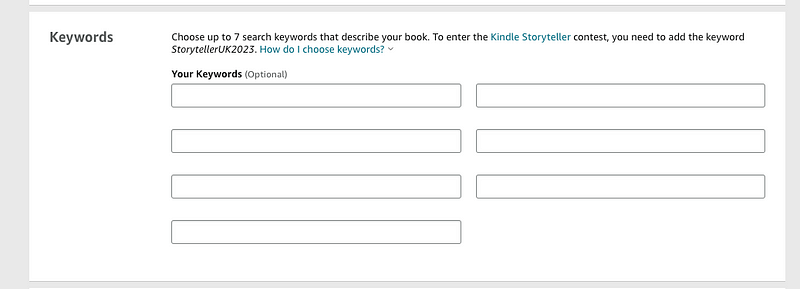
When I go to upload the book files to KDP, I want to use the top keywords from my shortlist of “best-performing” keywords in the seven slots Amazon gives you.
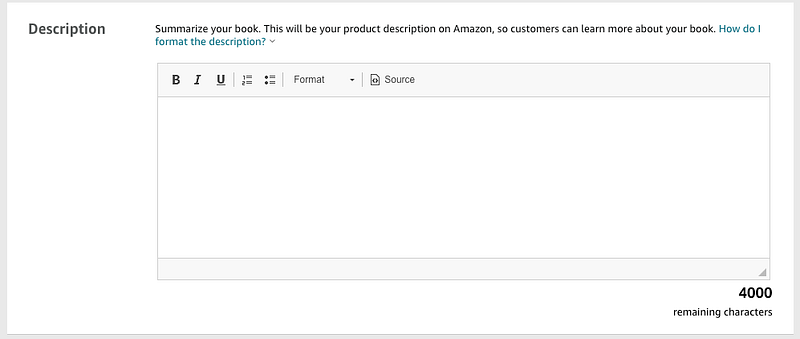
I also want to make sure those keywords are in my book description.
If you get stuck writing book descriptions, you can ask an AI tool like Jasper or ChatGPT to write one for you and include your specific keywords.
Here’s a sample prompt and response for creating a keyword-rich book description using ChatGPT:
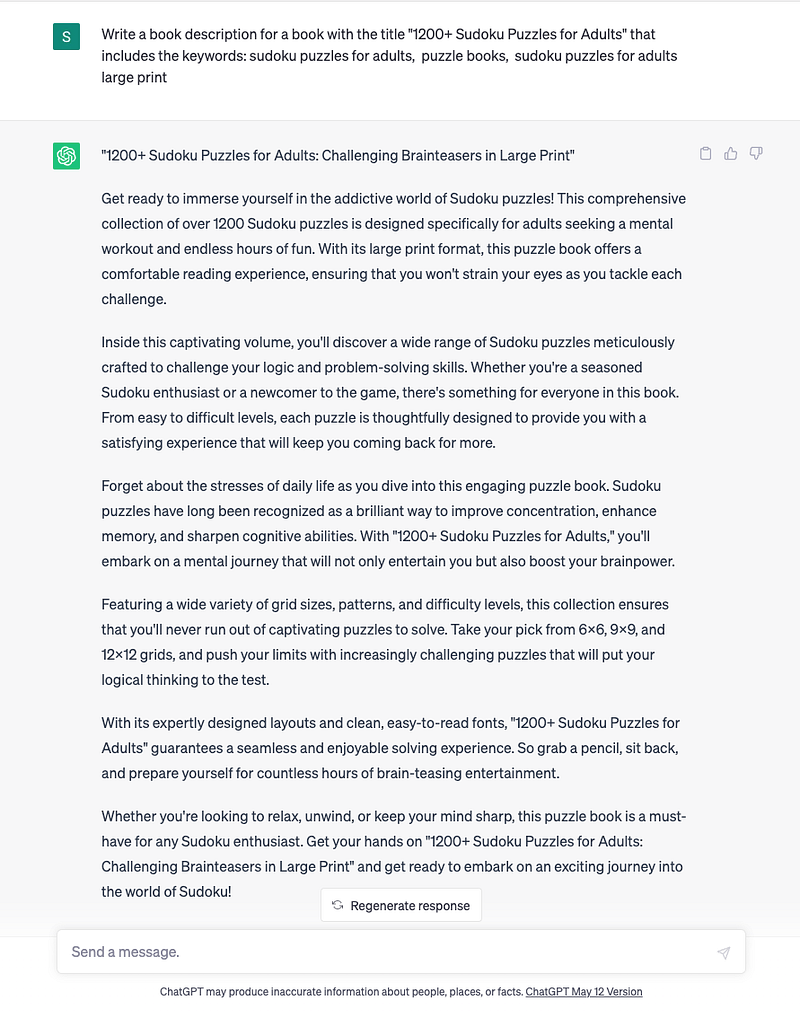
See how easy that was?
I would probably edit this description to fit my preferences, but it’s not a bad rough draft.
Amazon Ads
Once the book is published, I will set up Amazon ad campaigns for each of the keywords on my shortlist of “best-performing keywords.”
I usually target ONE keyword per campaign.
You CAN start slowly with this.
If you have a limited ad budget, start with the best-performing keyword phrase that is most relevant to your book (it should be in the title).
If you’ve created a competitive cover, you should start to see some sales coming in right away once you start running ads to your main keyword (assuming you’re bidding enough to get impressions.)
If your book is not making sales with this method, you have to take a good hard look at your cover, description, and possibly pricing.
In my experience, if no sales are coming in at this point, it’s probably an issue with the cover.
Remember, just because YOU like the cover doesn’t mean your customers necessarily do, so find someone who will give you honest feedback. You can always upload a new cover.
Do your best to let the data guide you.
Don’t let your ego or personal preferences get in the way of achieving results.
Strategy Wrap-up
That’s my Amazon book publishing strategy in a nutshell.
I could probably write an entire book about this process, but I think you get the point — I’m choosing books with a track record of sales to model and using relevant keywords from the model to position and sell my own improved version.
I’m not currently doing any outside promotion for my books aside from running Amazon ads.
I don’t share my specific titles here on Medium, so I’m not getting any traffic from these articles.
Next, I want to show you how to do each of those steps inside Helium 10.
Part 2: Helium 10 Tutorials
In this second part, I’m going to walk you through the following:
- How to get a discounted Helium 10 subscription (if you want to use it.)
- How to install the Helium 10 Chrome extension so that you can use it with Amazon.
- How to use Helium 10’s “Black Box” feature to find and filter best-selling books in different categories.
- How to find sales data for a specific title.
- How to find all the keywords a book is ranking for.
- How to find the specific keywords a book is running Amazon ads on.
The tutorials are labeled, so feel free to scroll to find what you need.
How to get a discount on your Helium 10 subscription
Helium 10 is a powerful software program that gives you behind-the-scenes insights into any product on Amazon.
But to be honest, it’s a little pricey.
As a user of the software, I have access to Helium 10 discount codes that I can give out to my community. However, you should also know that if you use my discount code or referral link, I will receive a small commission at no additional cost to you.
You can get 20% off your first 6 months of Helium 10 by using the code: KRISTEN6M20
Or, you can get 10% off your subscription forever by using the code: KRISTEN10
If you’re ready to get started with Helium 10, just click my referral link here and be sure to enter the discount code at checkout.
FYI: I’m subscribed to the Diamond Plan because it gives me access to the number of sales attributed to each keyword. This data is essential to my strategy.
You can still get general keyword traffic data by subscribing to the Platinum or Starter Plans, but you won’t be able to see how many sales were attributed to a specific keyword in the last month.
If cost is an issue, you can always pause or cancel your subscription during the times when you’re not using it as much.
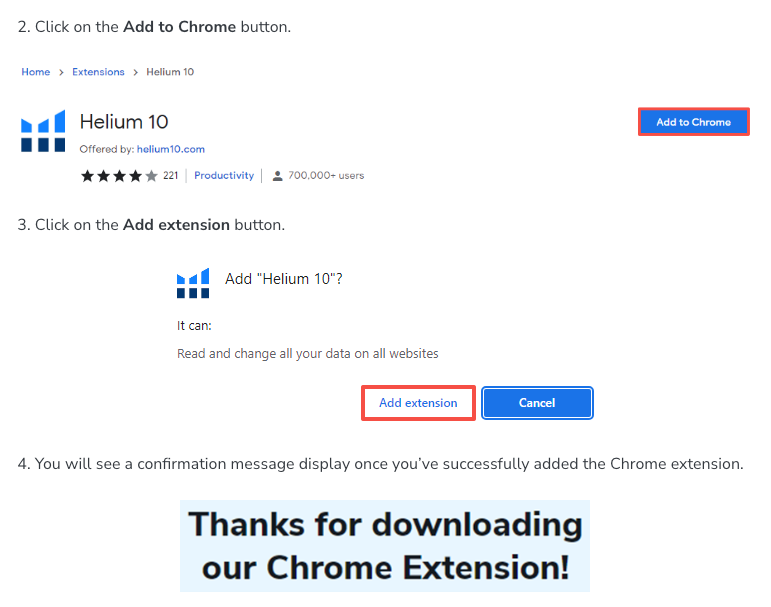
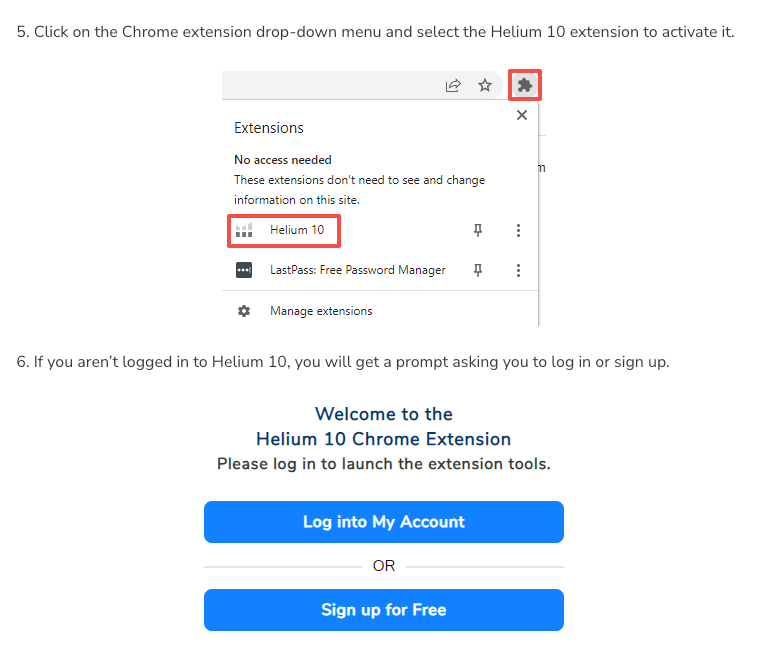
How to install the Helium 10 Chrome extension in your browser so that you can use it with Amazon
Once you sign up for a subscription plan, the first thing you’ll want to do is download the Helium 10 Chrome extension.
This will allow you to see Helium 10 sales and keyword data when you are on Amazon.
To get the Helium 10 Chrome extension, go to helium10.com/extension
Helium 10 Chrome Extension Basics
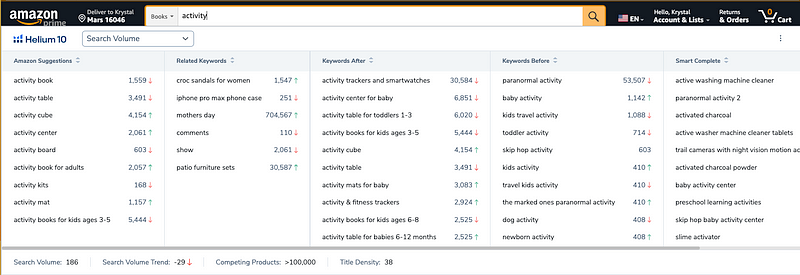
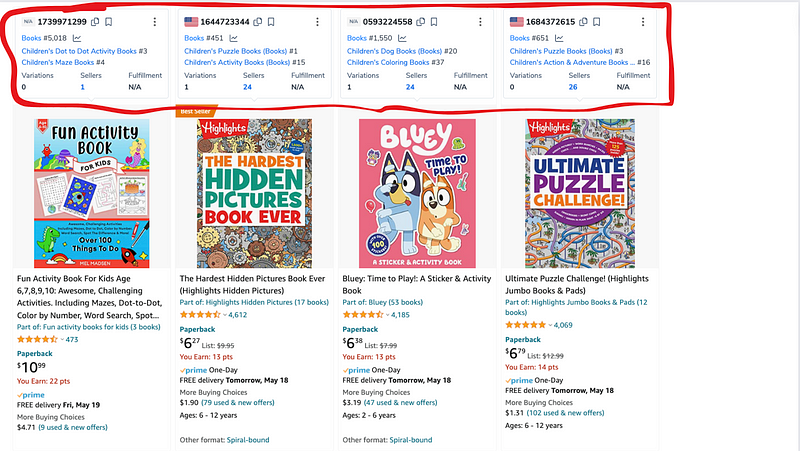
Once you have the Helium 10 Chrome extension installed and activated, you will be able to see additional information about products on Amazon.
For example, you’ll get immediate access to the Amazon search expander — when you type a keyword into the search bar on Amazon, you’ll see a drop-down of related words, along with their search volume.
You’ll also see BSR and category rank data on the main product pages.
This allows you to see which products are ranked the best without having to go into each individual product listing.
When you click on a specific book or product, you’ll see the Helium 10 sales history graph about halfway down the page.
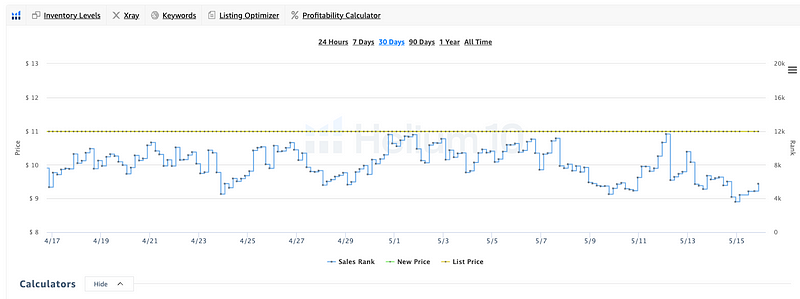
This has several important features.
First, you can see sales data for the book for the past 24 hours, 7 days, 90 days, 1 year, or all time.
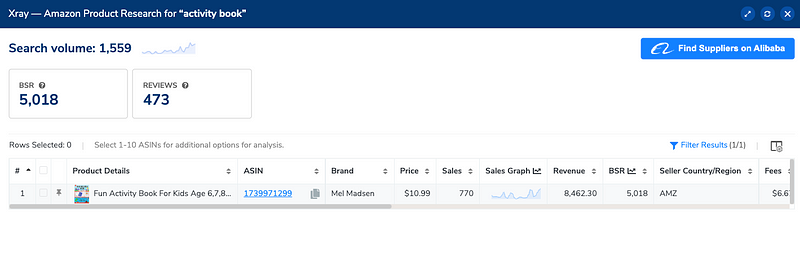
If you click on the “Xray” tab, you can see sales and revenue data for the last 30 days, along with the product’s price, number of reviews, and current BSR (best sellers rank.)
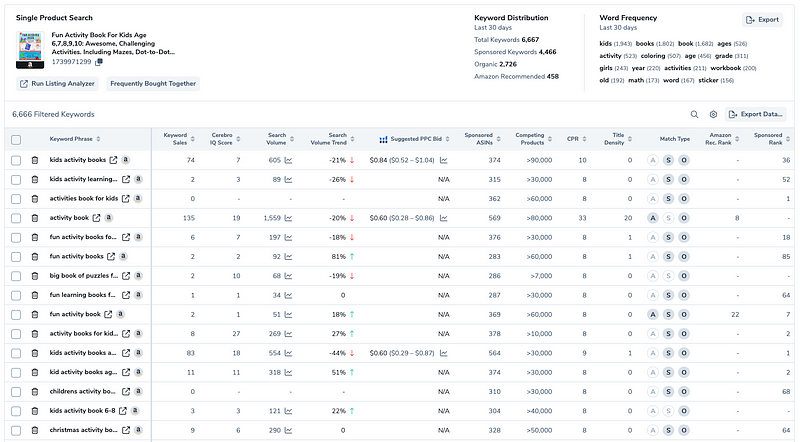
If you click on the “Keywords” tab, it will open Helium 10’s “Cerebro” tool in a separate window.
This is where you can see all of the keywords the book is ranking for AND which keywords the author is running ads on.
We’ll revisit this in a moment, but first, we need to backtrack.
How to use Helium 10’s “Black Box” to find best-selling books in different categories
If you’ll recall from above, I used the “Black Box” tool to find our “model” Sudoku book.
To access “Black Box”, you’ll need to go to Helium 10 dashboard (not be on Amazon.)
From the dashboard, select “Tools” from the top menu, then “Black Box” from the drop-down menu.
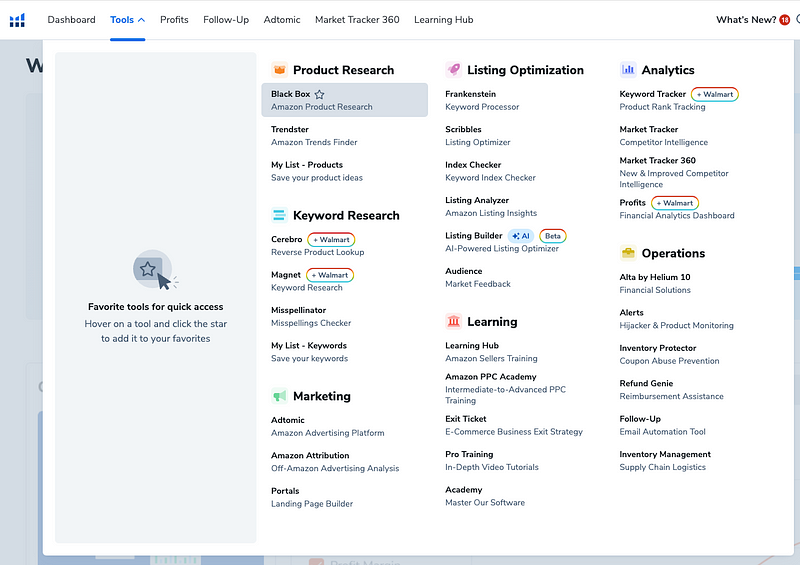
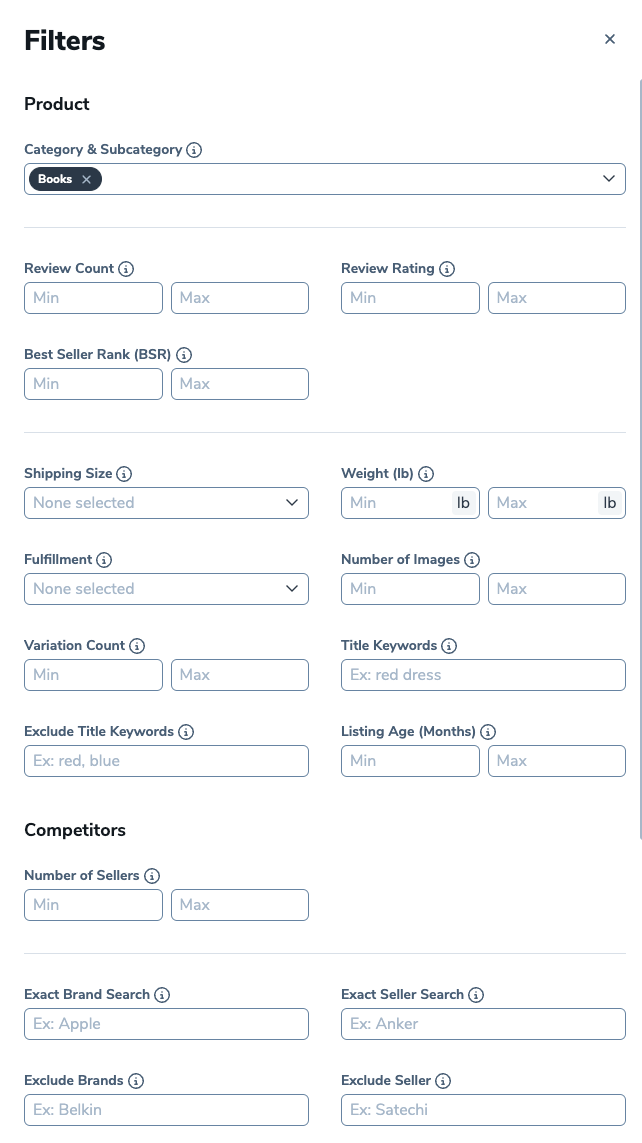
Once you’re in Black Box, you’ll see a ton of filters that you can use to narrow down results.
This might feel like drinking from a fire hose, but I’ll show you a simple way to get started.
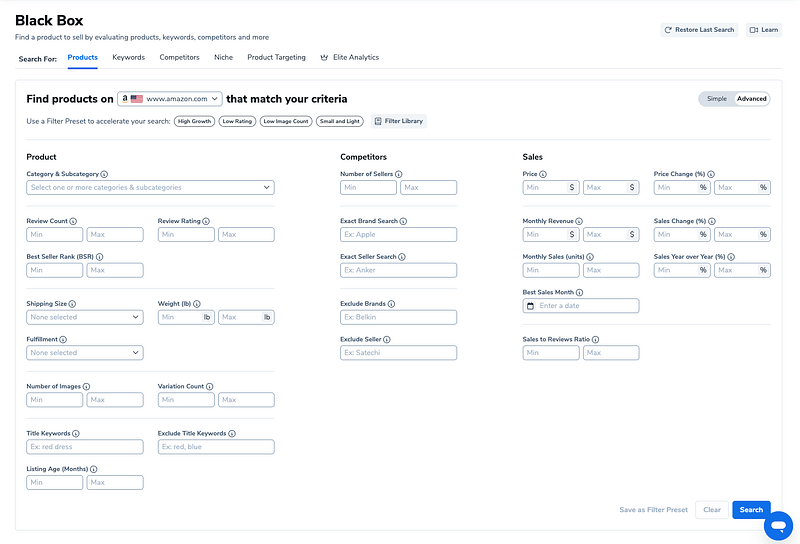
First, you already know that you’re looking for information on books.
So, you’ll want to check “books” under the “Category & Subcategory” dropdown.
From there, you can also select specific subcategories (topics) that you are interested in.
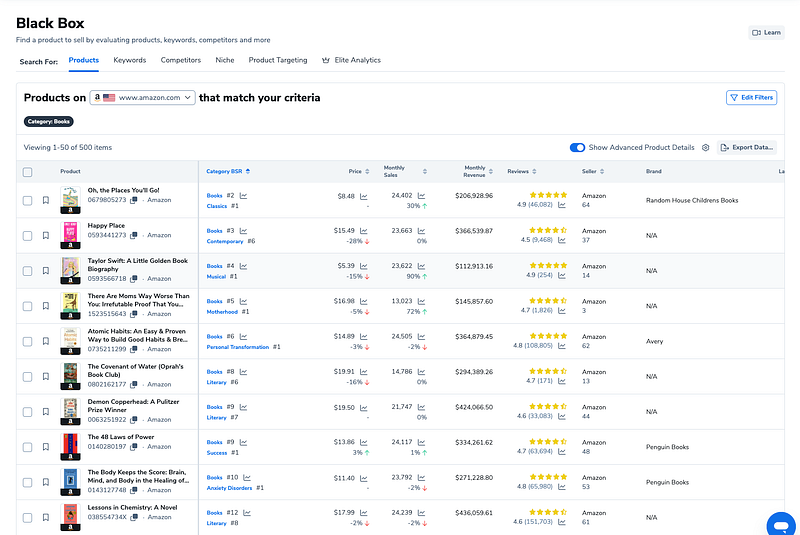
If you select “books” and nothing else, you’ll see the top 500 or so books on Amazon by default, along with their price, monthly sales, revenue, reviews, publisher, and more.
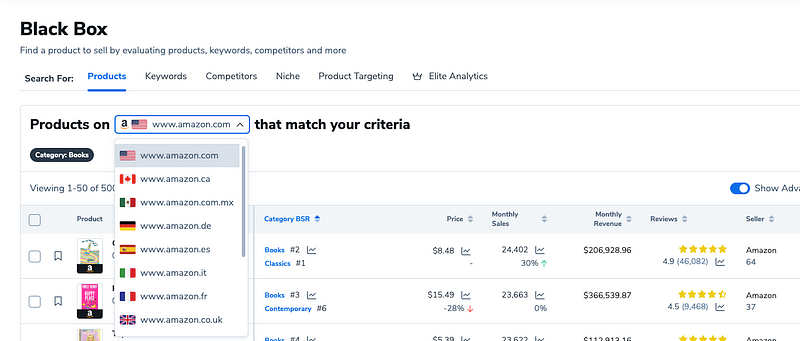
You can also choose the country you want to see results from.
Helium 10 can show you Amazon data from 13 different countries, including the US, Canada, Mexico, Germany, Italy, France, United Kingdom, India, Australia, Japan, and more.
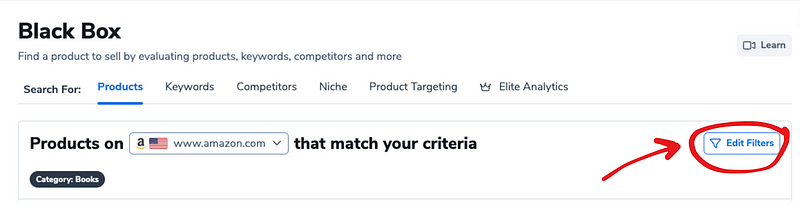
Once you’ve chosen your product category (books), subcategories (topics), and country, you can start applying additional filters to narrow down your results even further.
Click “Edit Filters.”
The filters allow you to narrow the results by:
- review count/rating
- best seller rank (BSR)
- title keywords (i.e. “sudoku”)
- listing age
- price
- monthly revenue
- monthly sales (units sold)
- best sales month
You’ll notice there are some of filters here that apply to Amazon FBA sellers, like “shipping size.” You don’t need to worry about those if you are selling books through Amazon KDP.
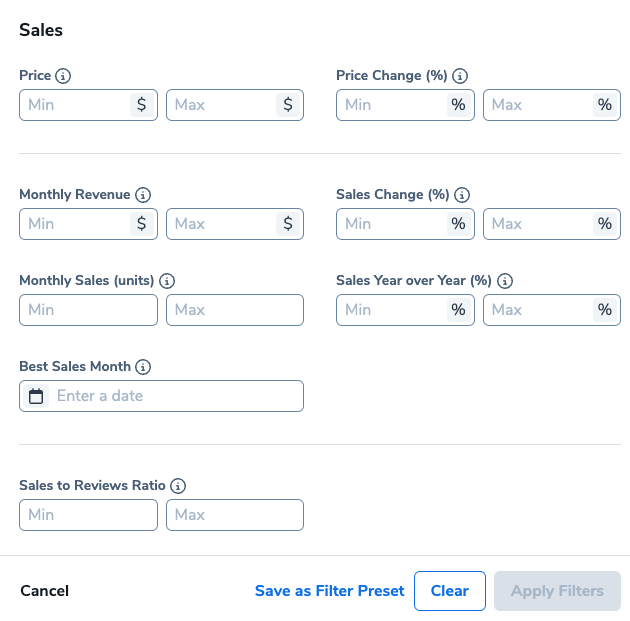
Let’s take a look at a more specific example to give you some ideas on how to use these filters to your advantage.
Assume I want to see books that have been published in the last month that are already earning more than $5,000 per month.
I could do that by putting a “1” in the “max listing age” filter and $5,000 in the “min monthly revenue” filter.
Here’s what I got —
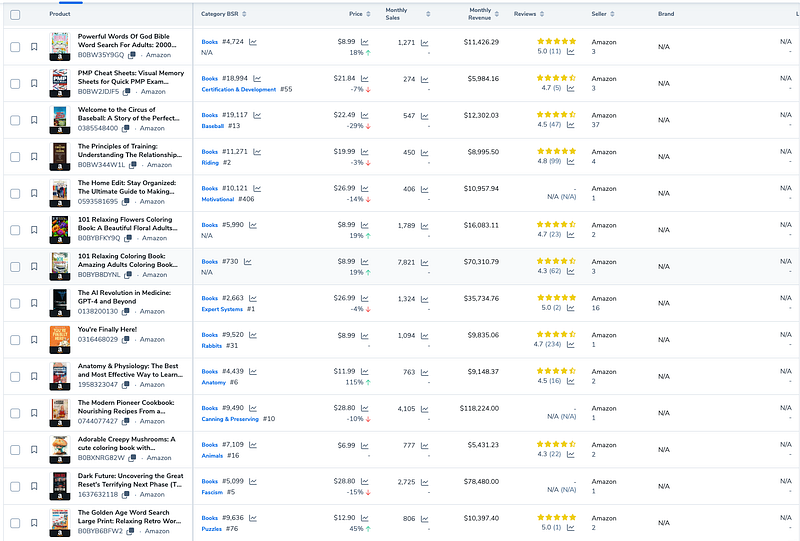
I could skim through these new listings to see what’s currently selling well to find a book to model.
Or, if I wanted to know which books sold the best in a particular month, I enter a month in the “best sales month” filter to plan out a publishing schedule for the rest of the year.
The filter combinations are almost endless and can be tailored to your unique interests.
However, I haven’t found a better, more efficient way to find books to model than by using the Black Box tool.
How to find sales data for a specific title using Helium 10
If you are browsing on Amazon and want to see sales data for a specific book (or product), click on the product’s sales page, then scroll down to the Helium 10 box located halfway down the page.
The main graph here will show you sales trends and BSR rank for the last 30 days by default.
The lower the graph line goes, the better the sales rank.
If you want to quickly see how many copies the book has sold in the last 30 days, click on the X-ray tab.
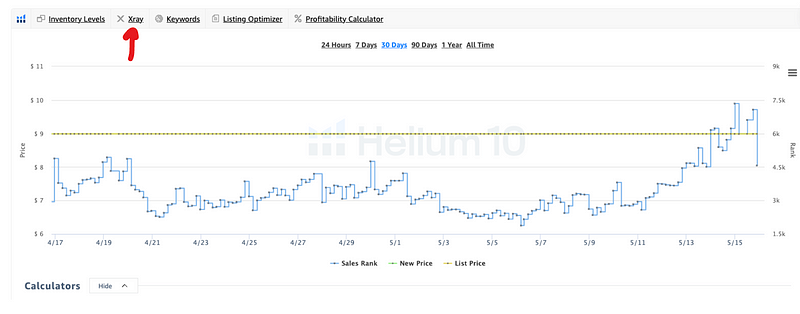
The X-ray report will show you how many copies were sold within the past month and the total revenue.
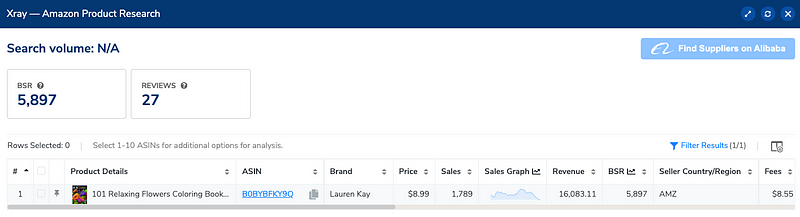
Just keep in mind that “revenue” is not the same thing as “profit.”
To calculate profit, you’d have to estimate the royalty rate for each unit and multiply that number by the total units sold.
How to find all the keywords a book is ranking for using Helium 10
If you want to see all of the keywords a specific book is ranked for on Amazon, along with monthly search volume and sales per keyword, go back to the Helium 10 graph on the product page and click “Keywords.”
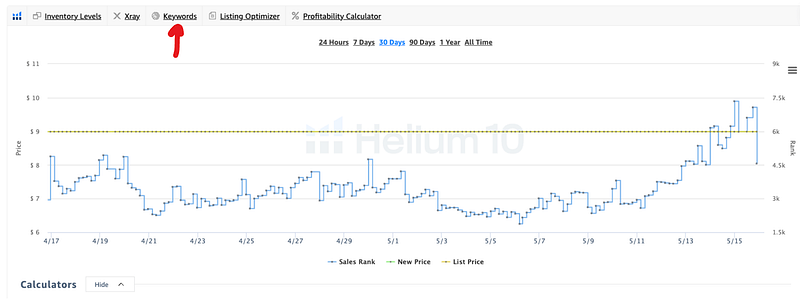
This will open a new window that contains all the keyword data for this product.
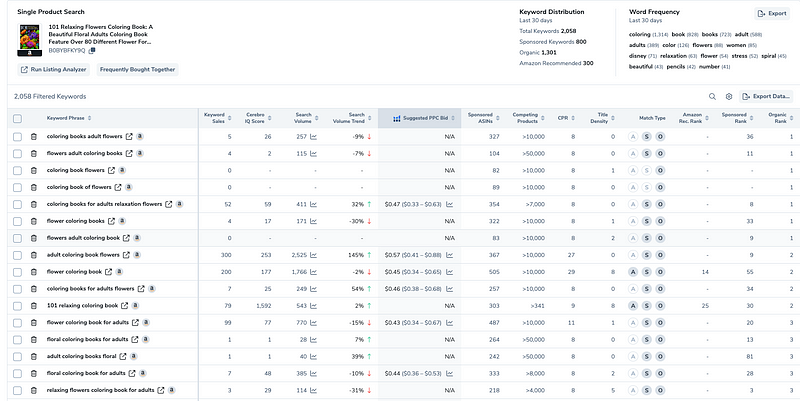
At the top of the report is your “keyword summary.”
This tells you how many total keywords the book is ranking for, how many “sponsored” keywords are being used in ads for this product, and more.
Moving down to the main section of the report, you can see:
- Keyword sales — this is the number of sales attributed to the keyword on Amazon in the last 30 days.
- Cerebro IQ Score — this number gives you an idea of how competitive the keyword is. A lower score means it's more competitive, versus a higher score which means it’s less competitive.
- Search Volume — the number of people that search for the keyword on Amazon each month.
- Search Volume Trend — lets you know if interest in the keyword has grown or declined in the last 30 days.
- Suggested PPC Bid — give you an estimate of how much you would need to pay per click if you were bidding on this keyword with Amazon ads.
- Sponsored ASINs — the number of products that are currently running ads on this keyword.
- Competing Products — the number of competitors in the category.
- CPR — this is the number of units you would need to sell over a period of 8 days resulting from a search of the keyword in order for your book to rank on the top half of the page of listings on Amazon when a customer searches the keyword.
- Title Density — the number of products ranked on the first page of results with the searched keyword in their title.
- Amazon Recommended Rank — this lets you see how relevant Amazon thinks this keyword is to the product. (The lower the number, the more relevant the keyword.)
- Sponsored Rank — These are keywords the book is running ads on and their relevant position to other products that are running ads on the same keyword.
- Organic Rank — How the book ranks organically for this keyword (lower number = better ranking.)
Now, that is a LOT of data to take in and digest.
I like to sort by “keyword sales” to see which keywords have led to the highest number of sales on Amazon in the last month.
You can “sort” by clicking on the arrows next to the column header.
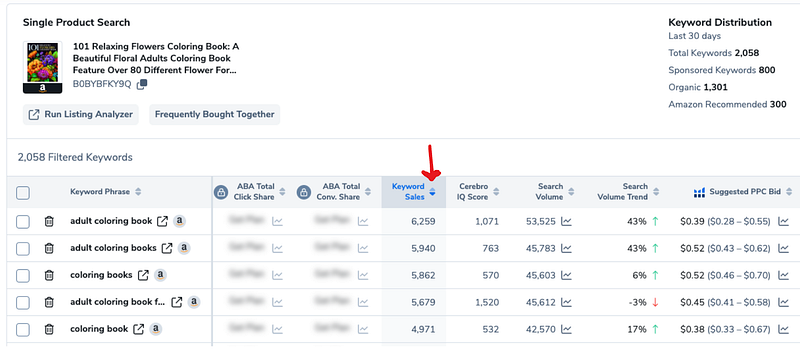
Then I’ll create a “short list” of 10–25 of the most relevant keywords to my book project that also have the highest number of sales associated with them.
These are the keywords I’ll eventually use in my title, book description, and ads.
Use can also save lists of keywords inside Helium 10 by checking the box to the left of the keywords you want to keep, then clicking “add to my list.”
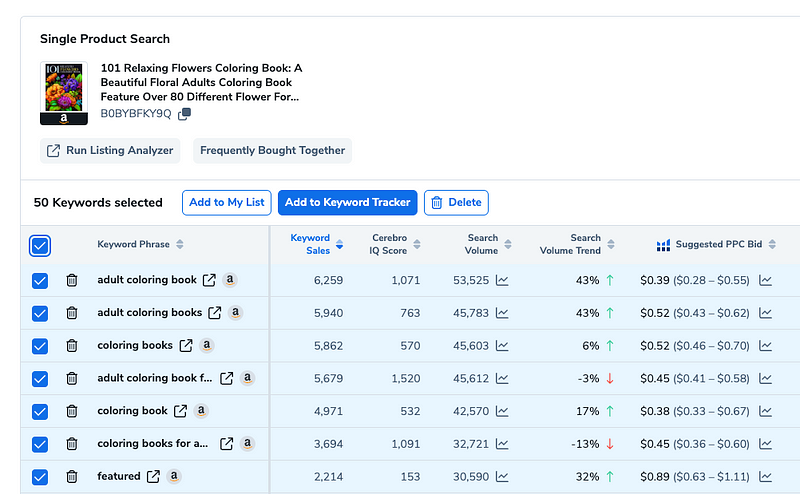
You can have multiple “lists” of saved keywords as well, which you can access by going to “Tools” on the Helium 10 main menu, then selecting “My List — Keywords” from the dropdown menu.
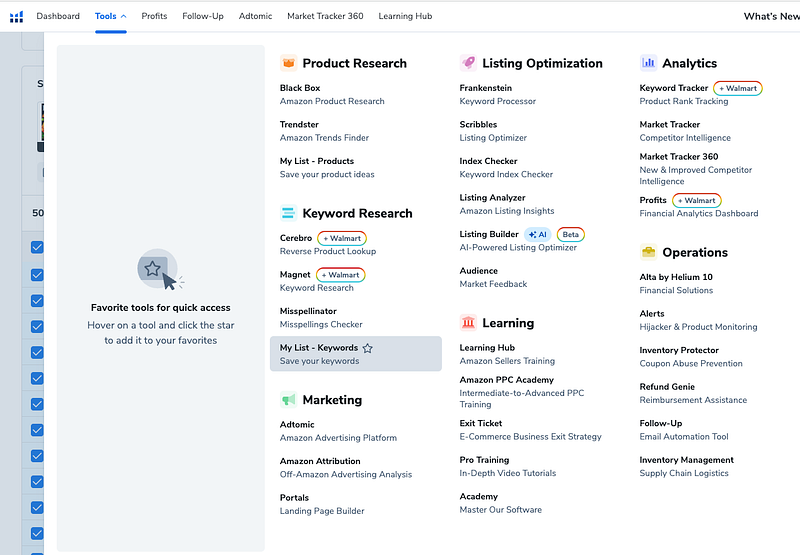
How to find the specific keywords a book is running ads on using Helium 10
Finally, the last thing I want to cover in this tutorial is how to see all of the keywords a book is running ads on.
Do do this, go up to the “filters” section in the Cerebro tool (this is the same screen as the keyword report, just above the keyword listings.)
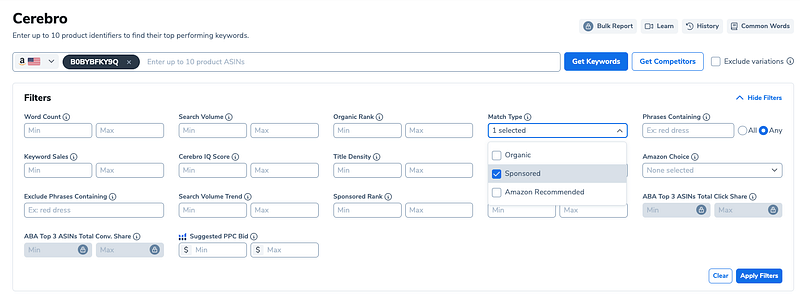
In the field that says “Match Type,” choose “Sponsored” from the drop-down menu, then “Apply Filters.”
This will give you a list that only contains keywords that this book is currently running Amazon ads on.
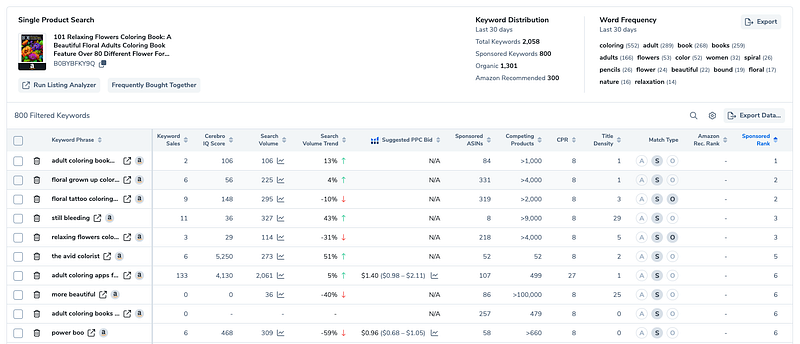
One caveat here is that it’s not always in your best interest to simply copy all the keywords another book is running ads to and use them in your Amazon ad campaigns, especially if you’re trying to stick to a budget.
When it comes to running Amazon ads, I like to stick with the keywords I know are most likely to lead to a sale and optimize them first before moving on to more obscure and less relevant keywords.
However, looking at the keywords your competitors are running ads on can give you some great ideas for your own Amazon ad campaigns that you might not have considered.
I know this was a long one, but we really only scratched the surface of what Helium 10 can do.
However, the tutorials I shared in this post are the features I use most often in my Amazon book research.
If you have questions or think I missed something important, please let me know in the comments :)
Also, I’d like to know what you think of this strategy? Is this something you’d consider trying? Are you already doing something similar?
Let me know!
Hey, have you joined Medium yet?
If not, consider signing up with my referral link to get access to EVERYTHING I write, plus more from thousands of really cool and interesting people.
👉 Sign up here 👈
This article contains my referral links for Helium 10, Book Bolt, Medium, and Jasper AI, which along with VidIQ, ConvertKit, and Teachable, are some of my favorite business tools for content creators.
If you purchase one of my favorite software products, I will receive a small commission at no additional charge to you.


