
Harnessing the Power of Service Workers in Next.js: A Comprehensive Guide
In the dynamic landscape of modern web development, the pursuit of creating immersive and responsive web applications is a central objective. Service workers, integral components of progressive web apps (PWAs), stand out as versatile tools that not only facilitate offline capabilities but also contribute to an enhanced user experience through features like background synchronization and push notifications. In this blog post, we’ll embark on a journey into the realm of service workers, exploring their multifaceted functionalities and demonstrating their seamless integration within the Next.js framework.
Understanding Service Workers
What are Service Workers?
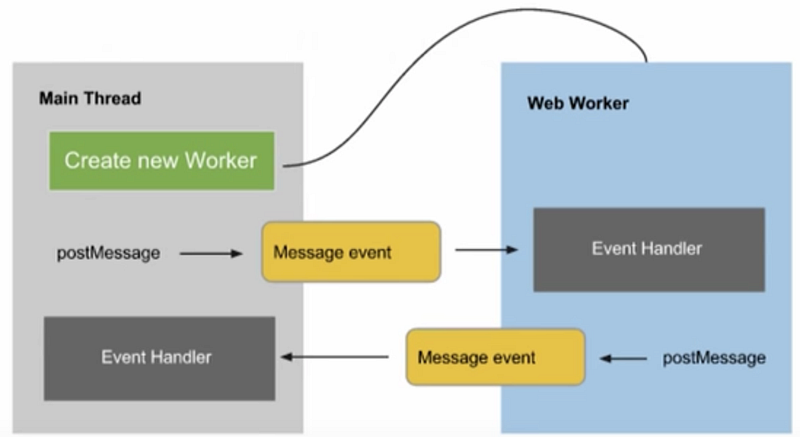
A service worker is a JavaScript file that runs in the background of a user’s browser, separate from the web page. It acts as a proxy between the web application and the network, enabling various features such as background synchronization, push notifications, and most importantly, offline capabilities.
Key Features of Service Workers:
- Offline Caching: Service workers can cache critical assets, allowing the web application to function even when the user is offline.
- Background Sync: Enables the synchronization of data in the background, ensuring a seamless user experience even in low-connectivity scenarios.
- Push Notifications: Service workers can receive push notifications from the server, providing a way to engage users even when the web page is closed.
- Improved Performance: By intercepting network requests, service workers can serve cached assets, significantly improving the loading speed of web pages.
Implementing Service Workers in Next.js
1. Setting Up a Next.js Project:
If you don’t have a Next.js project already, you can create one using the following commands:
npx create-next-app my-next-app
cd my-next-app
2. Installing Next Offline:
Next Offline is a plugin for Next.js that simplifies the integration of service workers. Install it using:
npm install next-offline3. Configuring Next Offline:
Add the following to your next.config.js file:
// next.config.js
const withOffline = require('next-offline');

module.exports = withOffline({
  // Next Offline options go here
});
4. Implementing Service Workers:
Create a sw.js file in your public directory. This will be the service worker script. Add the following code:
// public/sw.js
const CACHE_NAME = 'my-next-app-cache';

self.addEventListener('install', (event) => {
  event.waitUntil(
    caches.open(CACHE_NAME).then((cache) => {
      return cache.addAll(['/']);
    })
  );
});

self.addEventListener('fetch', (event) => {
  event.respondWith(
    caches.match(event.request).then((response) => {
      return response || fetch(event.request);
    })
  );
});
5. Testing the Service Worker:
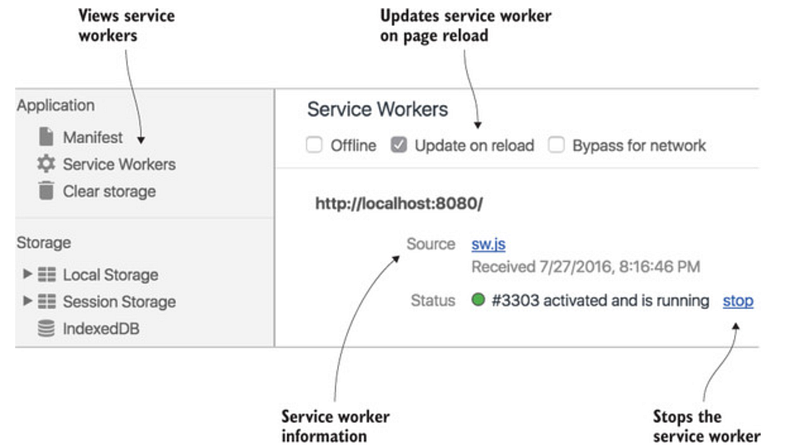
Run your Next.js application and navigate to http://localhost:3000 in your browser. Open the browser's developer tools, go to the 'Application' tab, and check the 'Service Workers' section. You should see your service worker listed.
Conclusion
Implementing service workers in your Next.js project can significantly enhance the user experience by providing offline capabilities and improved performance. As web development continues to evolve, leveraging tools like service workers becomes crucial for building robust and responsive applications. By following the steps outlined in this guide, you can empower your Next.js applications with the power of service workers, opening up a world of possibilities for creating advanced and user-friendly web experiences.


