avatarMario Chamorro

Free AI web copilot to create summaries, insights and extended knowledge, download it at here

9417

Abstract

<a href="https://www.displayfusion.com/">Display Fusion</a>)</li></ul><h1 id="035c">Monitor: Ultrawide vs. Standard Screens</h1><p id="b9cc">Similar to mechanical vs. membrane keyboards, here the debate is ultra-wide vs. standard monitors. There has been enormous progress on ultra-wide monitors, and today you can find great options on any price range. Some people say that ultra-wide monitors are better for productivity but I strongly disagree. Let’s see why:</p><ul><li><b>Screen real estate</b>: Let’s compare a standard double 27' screen setup vs. an equivalent 34' ultra-wide: As you can see, 2x 27' monitors offer 5.120 horizontal pixels vs. a mere 3.440 of a standard ultrawide. This means almost +50% of additional screen real state.</li></ul><figure id="7349"><img src="https://cdn-images-1.readmedium.com/v2/resize:fit:800/1*hma57q3sgqrKJGUaGnBrSA.png"><figcaption>2x standard monitors vs 1x ultrawide</figcaption></figure><ul><li><b>Ultra-wide monitors taskbars waste a lot of screen real estate</b>: The majority of people like to maximize their windows. This means opening a Chrome browser with huge lateral blank bars (empty content) or a Microsoft Office with a huge Ribbon bar, where only 30% of the space is effectively used for the menus. The same will apply for the majority of apps (99%) that are not optimized for ultra-wide screens.</li></ul><figure id="9045"><img src="https://cdn-images-1.readmedium.com/v2/resize:fit:800/0*lrdP6G1zs7DccPw_.jpg"><figcaption>Excel in a 49-inch ultra-wide monitor. Look at the menu bar where only 50% of the space is used and the rest is blank. Imagine having to move your head 50 degrees just to see the top-right menu.</figcaption></figure><ul><li><b>Taskbar management</b>: Even if the majority of ultra-wide monitors offer the option to split the screen in two or even three smaller screens, Windows by default will consider a unique taskbar. This means, in a lot of cases, that you will need to move your mouse all the way down-left to the app icon (and look for the position of the app in the taskbar). Not very efficient.</li><li><b>Sharing monitor at video conferences</b>: This is a total dealbreaker for me. With an ultra-wide monitor, when sharing the screen in Skype/Zoom/Hangouts/Teams, you will share all of your screen or a selected open window. If you share all the screen, the majority of viewers will see your ultra-wide screen in their standard 16:10/16:9 monitors, and everything will be too small, almost impossible to see. The majority of video-conference software today also offers the possibility to share only one active window, but this is not a good option either. If you want to show different windows, you will need to stop sharing and start sharing the new window again. Useless.</li></ul><h2 id="3799">Recommendations</h2><p id="4c75">2x27' monitors are a much better choice than one unique widescreen monitor for productivity. A third screen will also increase your productivity, but not as much as passing from one to a dual-monitor setup. In general, try to avoid cheap monitors, as the quality is much lower than mid-range screens and your eyes will note it.</p><h2 id="a758">How to organize your windows in a multi-monitor setup</h2><p id="4158">The way you organize your windows can make a big difference in your productivity, and it will certainly depend on the kind of work you do. My workflow is as follows:</p><ul><li><b>Main monitor (center)</b>: In the main monitor, I always have the principal window (normally the Excel spreadsheet or PowerPoint presentation I am working on, or the main Chrome window). 90% of the time, the window is maximized (remember, Windows + up arrow to maximize current window), if I want to make a quick check between two different windows (i.e. two spreadsheets, a spreadsheet and a pdf, etc.), I can do this quickly through Windows + left/right arrow shortcut.</li><li><b>Right monitor (horizontal orientation)</b>: Usually empty, showing a grey/dark background but with Skype/messenger apps minimized and quickly accessible through keyboard shortcuts. Normally I have mapped G2 macro key in the keyboard to quickly open/close Skype (shortcut: Windows + 2, as Skype is fixed in the second position of the Windows toolbar). Sometimes I also open a full-screen browser with background videos or other secondary content I need to refer to.</li><li><b>Left monitor (vertical orientation)</b>: It shows two Windows Explorer windows vertically and allows quick access to files. Also, the G3 key opens a new Windows Explorer window. I am not fully satisfied with this setup, as sometimes I am not sure of what folders are open and I need to check it and reopen a new window or navigate to the desired one. In general, file explorers in Windows suck (even if the native Windows Explorer has improved substantially). This monitor is also used to read and refer to vertical documents (mainly PDFs).</li></ul><figure id="b7b3"><img src="https://cdn-images-1.readmedium.com/v2/resize:fit:800/1*DSwSf3Qu8jnhqVw-0pymAA.png"><figcaption>My current setup with 1x 27' + 2x 24' monitors. I recommend adjusting all screens to the top for better top bar management</figcaption></figure><p id="ef46">In case you want further advice on how to organize your monitors and your Windows PC, you can refer to my previous article <a href="https://readmedium.com/how-to-set-up-your-windows-10-pc-to-maximize-productivity-c20f4d6a3047">How to Set Up Your Windows 10 PC to Maximize Productivity</a>.</p><h2 id="23fe">A note on monitor arms</h2><p id="efbc">If you have more than one monitor and you like to have a clean working space, you should install your monitors in an arm for an optimal positioning and easy/quick configuration (also, ensure that your monitors have VESA mounts). I recommend not buying the cheapest one, as your monitor could tremble, not be properly adjusted, and sooner than later you will need to get a better one, especially if you go for a standing desk. In general, a quick search in Amazon for +4 stars arms should be enough. Right now I am using a set of 3x <a href="https://www.ergotron.com/en-us/products/product-details/45-436#/?color=polished%20aluminum">Ergotron MX Mini Desk Arm</a>, and I am pretty happy with them.</p><h1 id="7858">Noise-Canceling Headphones</h1><p id="2f4a">You don’t know you needed them until you have them. Noise-canceling headphones are essential for flights and for working out of the office and they will isolate you from all the background noise that prevents you from concentrating and focusing. Try to avoid <i>cheap </i>options, as you will probably suffer from Bluetooth sync problems, poor noise-canceling, bad sound quality, or a microphone that distorts your voice for conferences.</p><figure id="3779"><img src="https://cdn-images-1.readmedium.com/v2/resize:fit:800/0*haEEPdLCUo-PejKg.jpg"><figcaption>Bose and Sony used to offer the bests noise-canceling headphones (photo composite of images from Sony and Bose).</figcaption></figure><h2 id="9026">Recommendations:</h2><ul><li><a href="https://www.amazon.com/Bose-QuietComfort-Wireless-Headphones-Cancelling/dp/B0756CYWWD">Bose QuietComfort 35 Wireless Headphones II</a>: The standard, quality-checked Bose headphones with great noise-canceling features and superb overall quality. Price:~350 (<a href="https://www.amazon.com/gp/product/B0756CYWWD">Amazon</a>). The new model has a more modern design and a supposedly improved noise-canceling system for +50 (<a href="https://www.amazon.com/Bose-Cancelling-Wireless-Bluetooth-Headphones/dp/B07Q9MJKBV/ref=sr_1_1?dchild=1&amp;keywords=Bose+Noise+Cancelling+Wireless+Bluetooth+Headphones+700%2C+with+Alexa+Voice+Control%2C+Black&amp;qid=1591810474&amp;sr=8-1">Amazon</a>).</li><li><a href="https://www.sony.com/electronics/headband-headphones/wh-1000xm3">Sony WH1000XM3</a>: The decision between noise-canceling headphones used to be Bose vs. Sony, and in some aspects, Sony has taken the lead (and also for a more contained price). Touch controls are much better than Bose buttons. For the rest, both of them are great. Price: ~280 (<a href="https://www.amazon.com/WH-1000XM3-Wireless-canceling-Headset-International/dp/B07H2DBFQZ/ref=sr_1_1?dchild=1&amp;keywords=SONY+WH-1000XM3+Wireless+Noise+canceling+Stereo+Headset%28International+Version%2FSeller+Warrant%29+%28Black%29&amp;qid=1591810506&amp;sr=8-1">Amazon</a>)</li><li><a href="https://www.apple.com/airpods-pro/">Apple AirPods Pro</a>: Airpods are one of the best Apple products in the last years, and the Pro version includes a great noise-canceling system in a much-contained size, and an aspect that will allow you to be unnoticed, vs. the huge Bose/Sony headphones. Price: 249 (<a href="https://www.apple.com/shop/product/MWP22AM/A/airpods-pro">Apple</a>)</li></ul><h1 id="5117">Remote Controls</h1><p id="1954">This is something I am not using yet, but I will definitely give it a try soon. It consists of the customization of an external number pad for certain apps. With that, you can define shortcuts for any key available in the number pad.</p><p id="67cb"><a href="https://twitter.com/kevintwohy/status/1264552460233969667">This Twitter thread g</a>ives a lot of detail on how to build everything and even get the stickers. As a summary, for Windows users, you can use <a href="https://www.autohotkey.com/">Autohotkey</a> and <a href="https://folivora.ai/">Folivora</a>

Options

for OSX.</p><figure id="10e1"><img src="https://cdn-images-1.readmedium.com/v2/resize:fit:800/0*QRvcc1PLxtU2wr3n"><figcaption>Photo source: <a href="https://twitter.com/yannicklu/status/1245264894544543751/photo/2">https://twitter.com/yannicklu/status/1245264894544543751/photo/2</a></figcaption></figure><h1 id="fc21">Standing Desk</h1><p id="b68d">You will probably sit in your chair and table +8 hours a day. A standing desk will allow you to stand up, stretch a little bit, and, especially, it will encourage you to move and walk around your office/room. I was not sure if a standing desk would be worth it, but after more than six months with the <a href="https://www.autonomous.ai/standing-desks/smartdesk-2-home">Autonomous SmartDesk</a> I don’t want to go back to a standard table ever. Some people even use a walking pad (<a href="https://www.banggood.com/es/Xiaomi-WalkingPad-C1-Smart-APP-Control-Folding-Walking-Pad-Mini-Ultra-thin-Walking-Pad-Machine-Outdoor-Indoor-Gym-Electrical-Gym-Fitness-Equipment-p-1470740.html">Xiaomi has a very interesting option for 360</a>) but I haven’t tried it yet and it may be too much, especially for the inconvenience of having to mount/unmount it every time.</p><figure id="3866"><img src="https://cdn-images-1.readmedium.com/v2/resize:fit:800/1*g-ZDhqMUP5eNPGrPY-z6qw.gif"><figcaption>My Autonomous SmartDesk 2 setup.</figcaption></figure><h2 id="3c57">Recommendations</h2><ul><li><a href="https://www.autonomous.ai/standing-desks/smartdesk-2-home">Autonomous SmartDesk 2 — Home Office</a> (380): It seems to be the best option for medium budgets, and can easily manage three-monitor setups. The business version has a dual-motor system, but I think it is probably overkill for most setups.</li><li><a href="https://www.ikea.com/es/en/p/bekant-desk-sit-stand-white-s69022537/">Ikea Bekant</a> (450): Also a good option for a similar budget, but after seeing numerous reviews on YouTube, it seems to be lower quality than the Autonomous SmartDesk.</li></ul><p id="1f44">If you go for the Autonomous SmartDesk 2, be sure to also buy the <a href="https://www.autonomous.ai/office-accessories/cable-tray">cable try</a> (20), or cable management will be hell.</p><h1 id="e1b7">Chair</h1><p id="50a3">Similar to desks, there are thousands of chair options with different materials, quality, and, of course, prices. Of course, the best option is to always try the chair before making the final decision, as all bodies are different and what you find comfortable others may find too hard/soft, too tall/low, too hot/cold, etc.</p><p id="62b8">During the last eight years, I have been using probably the top-selling office chair ever, the <a href="https://www.ikea.com/es/en/p/markus-office-chair-glose-black-40103100/">Ikea Markus</a>, and I am quite happy with it. You can find thousands of reviews online and I doubt there is a better chair in that price range (180).</p><p id="6c6a">If budget were not an issue, I would go for the <a href="https://www.hermanmiller.com/en_eur/products/seating/office-chairs/aeron-chairs/">Herman Miller Aeron</a>. Some say that it is the best office chair ever (it is even <a href="https://www.moma.org/collection/works/3734">exposed in the MOMA</a>), while others think its design is better than its functionality and it is not as comfortable as a chair priced ~1.000 should be. Whatever. I want one.</p><figure id="2090"><img src="https://cdn-images-1.readmedium.com/v2/resize:fit:800/1*PUT_wIX3i4JkpCdVd-34GA.jpeg"><figcaption>Herman Miller Aeron; photo from Herman Miller Inc.</figcaption></figure><h1 id="7a32">Other Recommendations</h1><p id="7507">There are other minor recommendations that for only some bucks will give an extra push to your productivity or, at least, increase your comfort at work.</p><h2 id="7242">Mousepad</h2><p id="42ed">This may seem like a minor and unnecessary item, but after you try a big mousepad, you will not want to go back to resting your arms on the hard and cold surface of your table. My recommendation is to go for a mousepad 50% wider than your keyboard + mouse setup. This way you will ensure that you have at all times enough surface to place and move them while comfortably resting your arms on it. There are numerous options in Amazon starting at ~15 (<a href="https://www.amazon.com/Extended-Stitched-Mousepad-Premium-Textured-Waterproof/dp/B0788LMLZL">example</a>), so the investment is totally worth it.</p><figure id="6ad8"><img src="https://cdn-images-1.readmedium.com/v2/resize:fit:800/0*MeQE8LOfMsRiVVtP.jpg"><figcaption>Source: Amazon</figcaption></figure><h2 id="6708">Phone stand (if possible, with wireless charging)</h2><p id="b23d">This is also a total must for ~15 and will allow you to rest your phone for video chats (WhatsApp, Facetime, Skype, etc.) instead of having to hold your phone all the time. My recommendation is to go for a stand that also offers wireless charging (if your smartphone supports that), or you may risk running out of battery while talking. Some stands also allow you to connect a standard charging wire, but the fewer wires in your table, the better.</p><p id="82fe">I am using a standard <a href="https://www.amazon.com/Wireless-NANAMI-Certified-Compatible-Qi-Enabled/dp/B06XXZK99F">Fast Wireless Charger by Nanami</a> with good results with my old iPhone X (19). Sometimes the phone gets too hot, though.</p><h2 id="4f7a">Laptop stand</h2><p id="7fab">Totally required if you use a laptop regularly, and it will only cost you ~30. I also recommend using an external keyboard and mouse.</p><figure id="02bd"><img src="https://cdn-images-1.readmedium.com/v2/resize:fit:800/0*vSiWEzCLpbYFAIQn.jpg"><figcaption>Image by Nulaxy.</figcaption></figure><h2 id="2259">Footrest</h2><p id="9188">This is another minor and inexpensive upgrade that will make any setup much more comfortable and will certainly help with the chair/desk ergonomics for a mere ~20. Again, thousands of options in Amazon, almost anything +20 with good reviews (<a href="https://www.amazon.com/Adjustable-Under-Desk-Footrest-Circulation/dp/B07L3RVF7C/">example</a>) will be enough.</p><h2 id="93a3">Adding a LED strip for better lightning</h2><p id="d959">Another inexpensive but very useful improvement for your setup is to install some LED lighting behind your monitor(s). This is especially useful for night work and for low-light setups, as it will create a more progressive lightning change between your screen and the wall. Also, your setup will look much cooler. Price: ~$20 (recommended option in Amazon: <a href="https://www.amazon.com/dp/B07SPJM29G">Light Led strips</a>).</p><figure id="51e1"><img src="https://cdn-images-1.readmedium.com/v2/resize:fit:800/1*b3earo6pCOMzVOhRgqI88Q.png"><figcaption>My current setup comparative: No back LE lighting vs. back LED lighting. Note how the screen-wall transition is much softer subtle in the right photo.</figcaption></figure><h1 id="b51f">My Current Setup (June 2020)</h1><p id="6f1b">After years and years of improvements, you can find my current setup below and the short-term improvements I should be doing in the coming months. Of course, recommendations are more than welcome!</p><ul><li><b>Custom-built PC</b>: AMD Ryzen 7 3800X with 16GB RAM and 500GB M2 SSD</li><li><b>Monitor</b>: 1x 27' main monitor (MSI Optix MAG271CQR) + 2x LG 24' generic monitors. The left monitor is placed vertically for reading documents and the right one horizontally.</li><li><b>Monitor arms</b>: 3x <a href="https://www.ergotron.com/en-us/products/product-details/45-436#/?color=polished%20aluminum">Ergotron MX Mini Desk Arm</a>.</li><li><b>Background lighting</b>: <a href="https://www.amazon.com/dp/B07SPJM29G">Light Led strips</a>.</li><li><b>Keyboard</b>: <a href="https://www.amazon.com/CORSAIR-PLATINUM-Mechanical-Gaming-Keyboard/dp/B01MU3R9VM">Corsair K95 RGB</a>.</li><li><b>Headphones</b>: <a href="https://www.amazon.com/gp/product/B07Q9MJKBV">Bose QuietComfort 35 wireless headphones II</a>.</li><li><b>Mouse</b>: <a href="https://www.amazon.com/Logitech-Lightspeed-Wireless-Gaming-Mouse/dp/B07QN369XX">Logitech G604</a>.</li><li><b>Table</b>: <a href="https://www.autonomous.ai/standing-desks/diy-smart-desk-kit">Autonomous SmartDesk DIY Kit</a> and custom wood table.</li></ul><figure id="95a7"><img src="https://cdn-images-1.readmedium.com/v2/resize:fit:800/1*EcSQfQzIAypH12Bz3V43KQ.jpeg"><figcaption>My current setup, still a lot of room for improvement!</figcaption></figure><h2 id="abac">Future upgrades</h2><ul><li><b>Chair</b>: <a href="https://www.hermanmiller.com/en_eur/products/seating/office-chairs/aeron-chairs/">Herman Miller Aeron</a> (I know there are better options, but that’s the one that I want).</li><li><b>Custom-built remote control</b> (source: <a href="https://twitter.com/kevintwohy/status/1264552460233969667">Twitter</a>) .</li><li><b>Earphones</b>: <a href="https://www.apple.com/airpods-pro/">Airpods Pro</a>.</li><li><b>Speakers</b>: Any minimal speakers that free some space on the desk.</li></ul><p id="8de0">👉<code>The Better Humans publication is a part of a network of personal development tools. For daily inspiration and insight, <a href="https://www.w3schools.com/html/coachtony.medium.com/subscribe">subscribe to our newsletter</a>, and for your most important goals, <a href="https://coach.me/coaching?ref=DbvXq">find a personal coach</a>.</code>👈</p></article></body>

Home Office Hardware to Boost Your Productivity

How to invest in the right hardware to help you settle into deep work more effectively
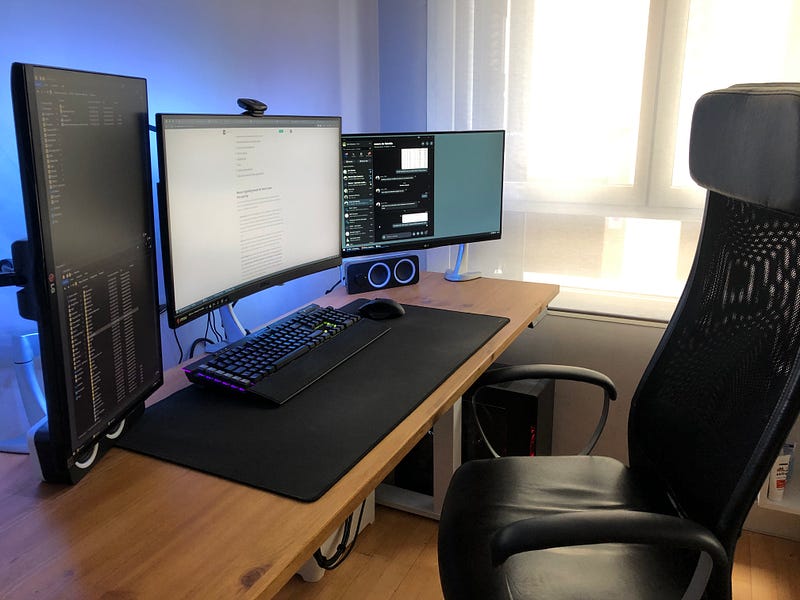
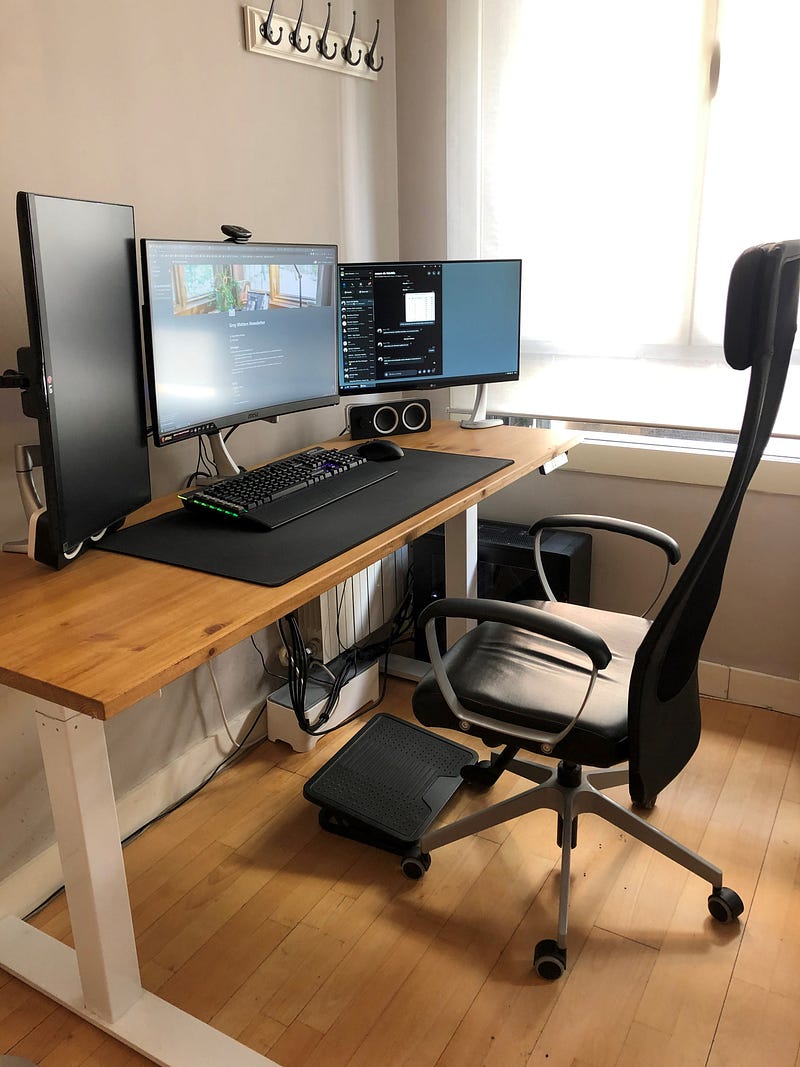
Photos by the author, unless noted otherwise.

Now that everybody is working from home, it’s a good time to identify what pieces of hardware can improve your productivity. From a better mouse that will allow more precision while adding some key shortcuts to your workflow, to a dual/triple monitor setup, to a comfy chair—all the below will for sure improve how you work and how comfortable you feel during +8 hours every day.

Table of contents
1. Mouse: A gaming mouse for much more than gaming
2. Keyboard: Is a mechanical keyboard worth it?
3. Monitor: Ultrawide vs standard screens
4. Noise-canceling headphones
5. Remote controls
6. Standing desk
7. Chair
8. Other recommendations
9. My current setup and future improvements

Mouse: A Gaming Mouse for Much More Than Gaming

A mouse is usually the most-used device while using a computer, and the decision can absolutely boost or ruin your productivity. There are four main aspects to consider for any mouse:

  • Ergonomics: You will be using your mouse probably +8 hours a day, so you certainly need something comfortable for your hand. There is an infinite number of forms, sizes, and distributions, some of which are supposed to be much better for the hand in the long term. But based on my experience, most of the people will not have issues with medium/high-end mice
  • Buttons: Here comes the interesting part. In general, the more buttons the better (except if it means a strange distribution/access to buttons). You will be able to customize all the buttons, so you need to be sure that the mouse comes with decent software, which is not always the case.
  • Scroll wheel: You will use the scroll wheel dozens of times per day so, again, you need something durable, comfortable, and customizable. For me, the Logitech mouse with dual-position scroll wheels is unbeatable. This feature allows you to switch the scroll wheel between a hyper-fast mode (perfect for websites, Word documents, PDFs, and the like) and ratcheted scrolling in case you need more precision. Hard to explain but when you try it, there is no coming back.
  • DPIs: Similar to buttons, in general, the more DPIs the better. In the real world, it is difficult that you will ever use a gaming mouse at its maximum DPI capacity, as it can very uncomfortable to use (every small mouse movement will reflect a huge movement in the screen). Depending on the task, you can usually switch between 1.500–3.000 DPI in case you need more precision/speed. For example, my working mouse profile is currently set up at 1.300 DPI.

Recommendations

Don’t save money on a mouse. Buy a good one. The mouse probably will be, by far, your most-used device while working with your PC. Gaming mice are the best match between ergonomics, buttons, scroll wheels, and DPIs. I am a big fan of Logitech mice and I totally recommend one of the following two:

  • Logitech G700s: The bad news is that it was discontinued several years ago, but you may find some of them on eBay, sometimes at crazy prices (+$200!). It has 13 customizable buttons and great precision, but a meh software (sometimes so frustrating) and scarce battery duration (in some cases, less than two intensive working days).
  • Logitech G604 ($100): Finally, in late 2019, Logitech decided to launch the G700's successor and it is totally awesome. 15 programmable buttons, much better software, and the same precision than its predecessor. Also, batteries last around four times as long compared to the G700. Totally worth it.
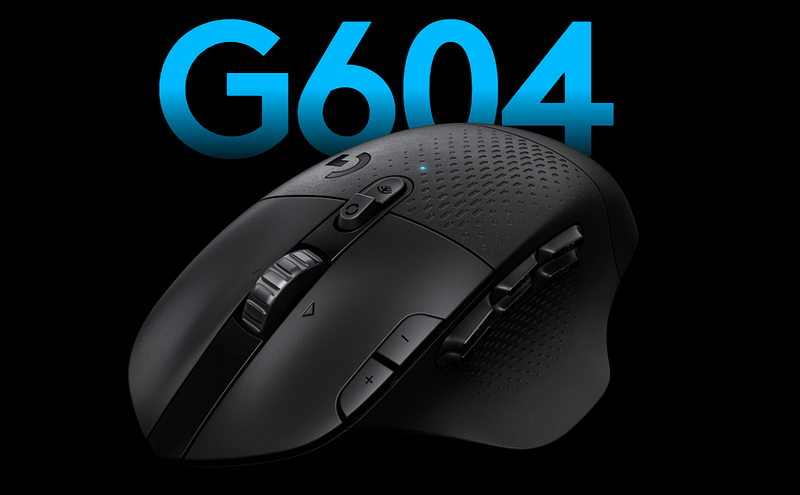
Logitech G604, the perfect gaming/working mouse.

In a future post, I will expand on how to properly configure a gaming mouse to increase your productivity, with a special focus on Microsoft Excel, PowerPoint, and Windows in general.

Keyboard: Is a Mechanical Keyboard Worth It?

Mechanical vs. membrane keyboards: the eternal debate. In practical terms, any keyboard will be enough to get work done, but there is also a big difference between a fast, reliable, and productive keyboard and a sluggish, slow, and keystroke-missing one (Hello, Macbook Pro Butterfly Keyboard).

There are thousands of comparatives online between the membrane and mechanical keyboards. My goal is not to make a detailed analysis, but to focus only on the impact on productivity. In general, membrane keyboards are cheaper and have a softer touch, so they can give a first impression of a faster or more effortless typing experience. They are also much more silent than mechanical keyboards, and you can find minimalist and beautiful options out there, like the Logitech Craft.

On the other hand, mechanical keyboards are—in general—clunky, big, with old-fashioned designs, and they make a lot of noise. But they are also faster for typing (even if it requires some adjustment if you are coming from a standard membrane keyboard).

As a summary, the main points to consider for a productive keyboard are:

  • Speed: In general, believe it or not, you will be faster using a mechanical keyboard.
  • Function keys: It is always better to have dedicated keys for certain quick actions (i.e. increase/decrease volume, mute, lock PC, print screen, etc.) than function keys that require a combination of keys and are, of course, slower.
  • Extra keys: Certain keyboards have extra programmable keys that allow you, for example, to quick-launch certain programs or perform specific actions.

Recommendations:

Similar to the mouse, don’t try to save some dollars on a cheap keyboard. There are great options starting at $20, but if you make an effort, you can buy premium keyboards like:

  • Corsair K95 RGB: A superb mechanical keyboard that also has six programmable macro keys. Corsair iCue software is great, reliable, and easy to configure.
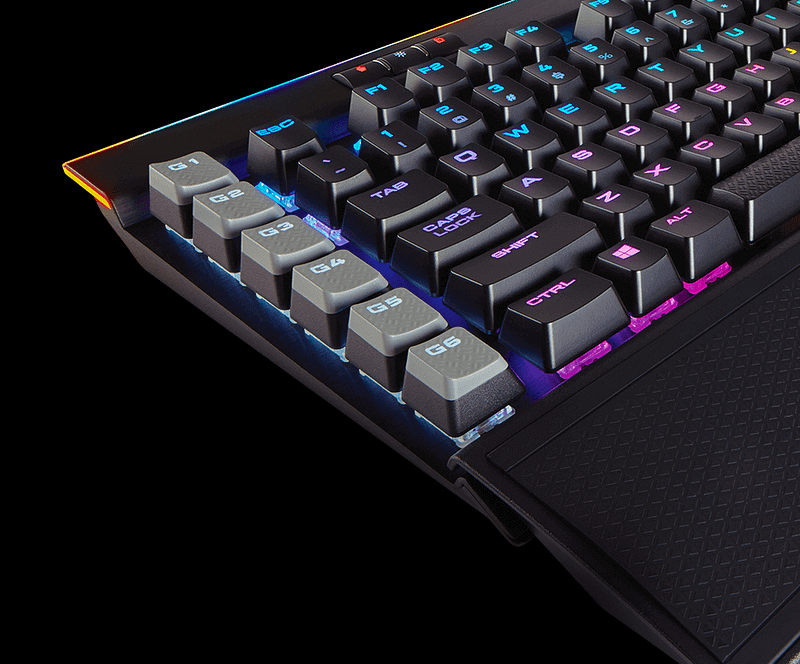
Extra: Macro keys, what for?

I have tried different configurations for macro keys and, finally, my recommendation is to try to keep it simple. Windows 10 allows you to navigate through all your open apps in the taskbar with Windows key + numbers, moving quickly between open apps. If you properly order the icons in the taskbar (something you should always do), you can easily customize macro keys for a super-quick swap between apps.

Shortcuts can easily be configured with Corsair iCue software. Simply remember that Windows + number key will correspond to the pinned applications in the Windows taskbar. If the first pinned app is Chrome, Windows + 1 will open Chrome. Also, the good part of these shortcuts is that if you are in Chrome and you press again the same shortcut, Chrome will be minimized. It’s very useful for a quick check on messaging apps and the like.

This is my current configuration:

  • Macro button #1 (Windows + 1): Chrome
  • Macro button #2 (Windows + 2): Skype/Messaging app
  • Macro button #3 (Windows + 3): Windows Explorer
  • Macro button #4 (Windows + 4): Evernote
  • Macro button #5 (Windows + 5): Move active window to next monitor (custom shortcut through Display Fusion)
  • Macro button #6 (Windows + 6): Minimize window (custom shortcut through Display Fusion)

Monitor: Ultrawide vs. Standard Screens

Similar to mechanical vs. membrane keyboards, here the debate is ultra-wide vs. standard monitors. There has been enormous progress on ultra-wide monitors, and today you can find great options on any price range. Some people say that ultra-wide monitors are better for productivity but I strongly disagree. Let’s see why:

  • Screen real estate: Let’s compare a standard double 27' screen setup vs. an equivalent 34' ultra-wide: As you can see, 2x 27' monitors offer 5.120 horizontal pixels vs. a mere 3.440 of a standard ultrawide. This means almost +50% of additional screen real state.
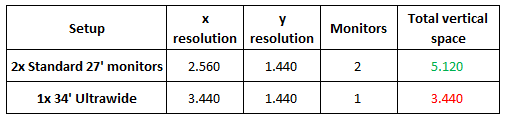
2x standard monitors vs 1x ultrawide
  • Ultra-wide monitors taskbars waste a lot of screen real estate: The majority of people like to maximize their windows. This means opening a Chrome browser with huge lateral blank bars (empty content) or a Microsoft Office with a huge Ribbon bar, where only 30% of the space is effectively used for the menus. The same will apply for the majority of apps (99%) that are not optimized for ultra-wide screens.
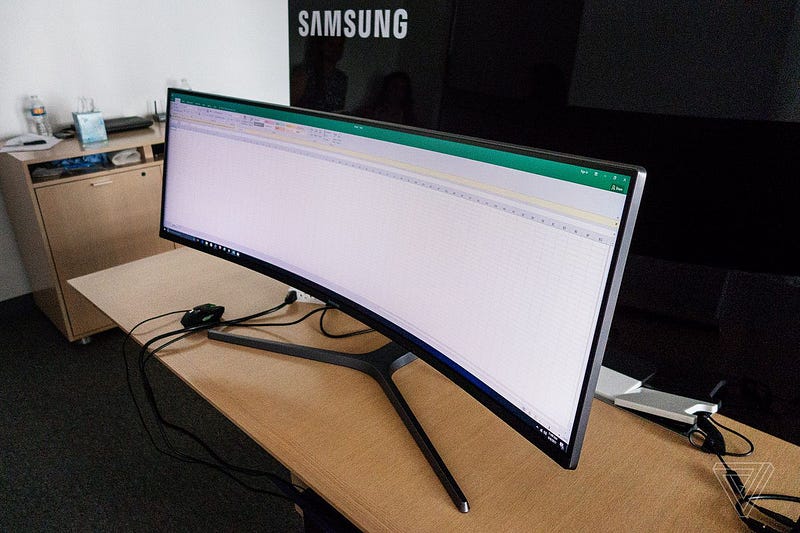
Excel in a 49-inch ultra-wide monitor. Look at the menu bar where only 50% of the space is used and the rest is blank. Imagine having to move your head 50 degrees just to see the top-right menu.
  • Taskbar management: Even if the majority of ultra-wide monitors offer the option to split the screen in two or even three smaller screens, Windows by default will consider a unique taskbar. This means, in a lot of cases, that you will need to move your mouse all the way down-left to the app icon (and look for the position of the app in the taskbar). Not very efficient.
  • Sharing monitor at video conferences: This is a total dealbreaker for me. With an ultra-wide monitor, when sharing the screen in Skype/Zoom/Hangouts/Teams, you will share all of your screen or a selected open window. If you share all the screen, the majority of viewers will see your ultra-wide screen in their standard 16:10/16:9 monitors, and everything will be too small, almost impossible to see. The majority of video-conference software today also offers the possibility to share only one active window, but this is not a good option either. If you want to show different windows, you will need to stop sharing and start sharing the new window again. Useless.

Recommendations

2x27' monitors are a much better choice than one unique widescreen monitor for productivity. A third screen will also increase your productivity, but not as much as passing from one to a dual-monitor setup. In general, try to avoid cheap monitors, as the quality is much lower than mid-range screens and your eyes will note it.

How to organize your windows in a multi-monitor setup

The way you organize your windows can make a big difference in your productivity, and it will certainly depend on the kind of work you do. My workflow is as follows:

  • Main monitor (center): In the main monitor, I always have the principal window (normally the Excel spreadsheet or PowerPoint presentation I am working on, or the main Chrome window). 90% of the time, the window is maximized (remember, Windows + up arrow to maximize current window), if I want to make a quick check between two different windows (i.e. two spreadsheets, a spreadsheet and a pdf, etc.), I can do this quickly through Windows + left/right arrow shortcut.
  • Right monitor (horizontal orientation): Usually empty, showing a grey/dark background but with Skype/messenger apps minimized and quickly accessible through keyboard shortcuts. Normally I have mapped G2 macro key in the keyboard to quickly open/close Skype (shortcut: Windows + 2, as Skype is fixed in the second position of the Windows toolbar). Sometimes I also open a full-screen browser with background videos or other secondary content I need to refer to.
  • Left monitor (vertical orientation): It shows two Windows Explorer windows vertically and allows quick access to files. Also, the G3 key opens a new Windows Explorer window. I am not fully satisfied with this setup, as sometimes I am not sure of what folders are open and I need to check it and reopen a new window or navigate to the desired one. In general, file explorers in Windows suck (even if the native Windows Explorer has improved substantially). This monitor is also used to read and refer to vertical documents (mainly PDFs).
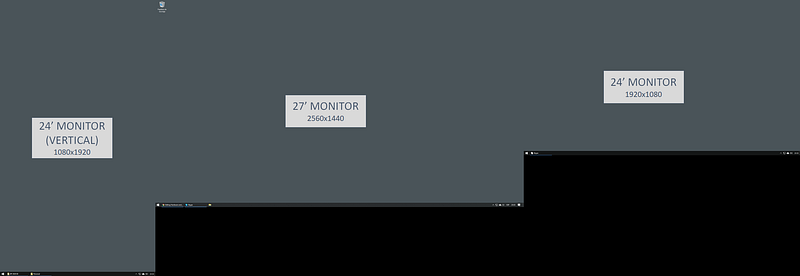
My current setup with 1x 27' + 2x 24' monitors. I recommend adjusting all screens to the top for better top bar management

In case you want further advice on how to organize your monitors and your Windows PC, you can refer to my previous article How to Set Up Your Windows 10 PC to Maximize Productivity.

A note on monitor arms

If you have more than one monitor and you like to have a clean working space, you should install your monitors in an arm for an optimal positioning and easy/quick configuration (also, ensure that your monitors have VESA mounts). I recommend not buying the cheapest one, as your monitor could tremble, not be properly adjusted, and sooner than later you will need to get a better one, especially if you go for a standing desk. In general, a quick search in Amazon for +4 stars arms should be enough. Right now I am using a set of 3x Ergotron MX Mini Desk Arm, and I am pretty happy with them.

Noise-Canceling Headphones

You don’t know you needed them until you have them. Noise-canceling headphones are essential for flights and for working out of the office and they will isolate you from all the background noise that prevents you from concentrating and focusing. Try to avoid cheap options, as you will probably suffer from Bluetooth sync problems, poor noise-canceling, bad sound quality, or a microphone that distorts your voice for conferences.
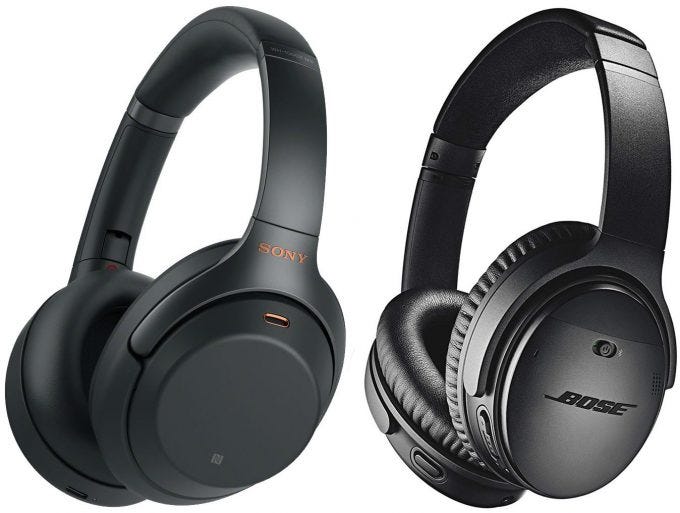
Bose and Sony used to offer the bests noise-canceling headphones (photo composite of images from Sony and Bose).

Recommendations:

  • Bose QuietComfort 35 Wireless Headphones II: The standard, quality-checked Bose headphones with great noise-canceling features and superb overall quality. Price:~$350 (Amazon). The new model has a more modern design and a supposedly improved noise-canceling system for +$50 (Amazon).
  • Sony WH1000XM3: The decision between noise-canceling headphones used to be Bose vs. Sony, and in some aspects, Sony has taken the lead (and also for a more contained price). Touch controls are much better than Bose buttons. For the rest, both of them are great. Price: ~$280 (Amazon)
  • Apple AirPods Pro: Airpods are one of the best Apple products in the last years, and the Pro version includes a great noise-canceling system in a much-contained size, and an aspect that will allow you to be unnoticed, vs. the huge Bose/Sony headphones. Price: $249 (Apple)

Remote Controls

This is something I am not using yet, but I will definitely give it a try soon. It consists of the customization of an external number pad for certain apps. With that, you can define shortcuts for any key available in the number pad.

This Twitter thread gives a lot of detail on how to build everything and even get the stickers. As a summary, for Windows users, you can use Autohotkey and Folivora for OSX.
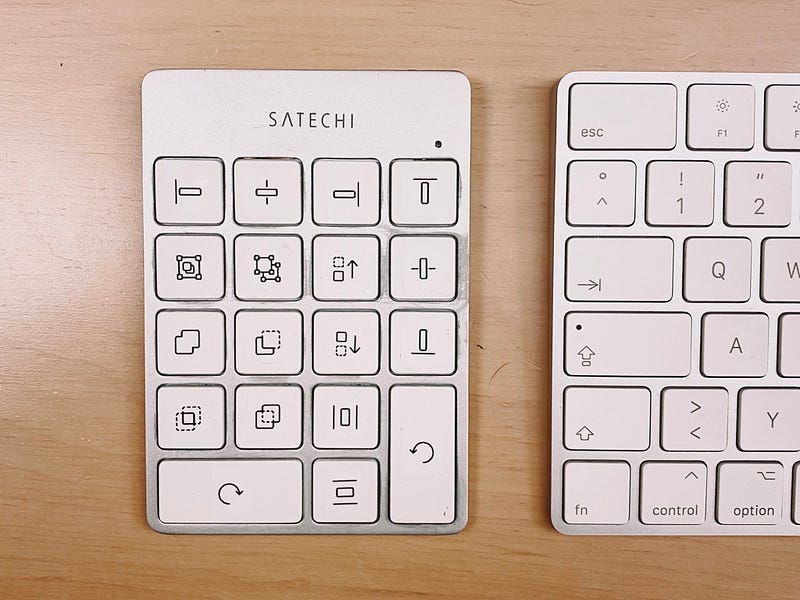
Photo source: https://twitter.com/yannicklu/status/1245264894544543751/photo/2

Standing Desk

You will probably sit in your chair and table +8 hours a day. A standing desk will allow you to stand up, stretch a little bit, and, especially, it will encourage you to move and walk around your office/room. I was not sure if a standing desk would be worth it, but after more than six months with the Autonomous SmartDesk I don’t want to go back to a standard table ever. Some people even use a walking pad (Xiaomi has a very interesting option for ~$360) but I haven’t tried it yet and it may be too much, especially for the inconvenience of having to mount/unmount it every time.
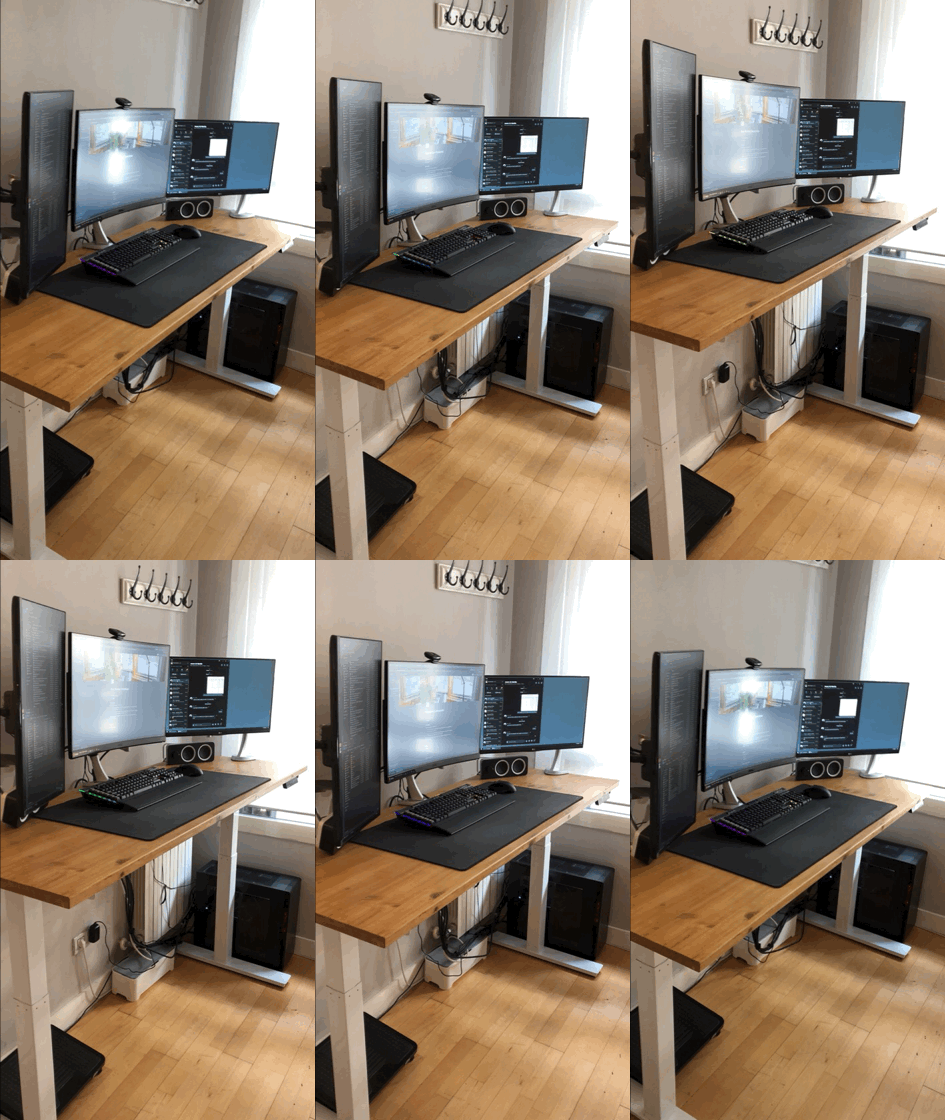
My Autonomous SmartDesk 2 setup.

Recommendations

  • Autonomous SmartDesk 2 — Home Office ($380): It seems to be the best option for medium budgets, and can easily manage three-monitor setups. The business version has a dual-motor system, but I think it is probably overkill for most setups.
  • Ikea Bekant ($450): Also a good option for a similar budget, but after seeing numerous reviews on YouTube, it seems to be lower quality than the Autonomous SmartDesk.

If you go for the Autonomous SmartDesk 2, be sure to also buy the cable try ($20), or cable management will be hell.

Chair

Similar to desks, there are thousands of chair options with different materials, quality, and, of course, prices. Of course, the best option is to always try the chair before making the final decision, as all bodies are different and what you find comfortable others may find too hard/soft, too tall/low, too hot/cold, etc.

During the last eight years, I have been using probably the top-selling office chair ever, the Ikea Markus, and I am quite happy with it. You can find thousands of reviews online and I doubt there is a better chair in that price range (~$180).

If budget were not an issue, I would go for the Herman Miller Aeron. Some say that it is the best office chair ever (it is even exposed in the MOMA), while others think its design is better than its functionality and it is not as comfortable as a chair priced ~$1.000 should be. Whatever. I want one.
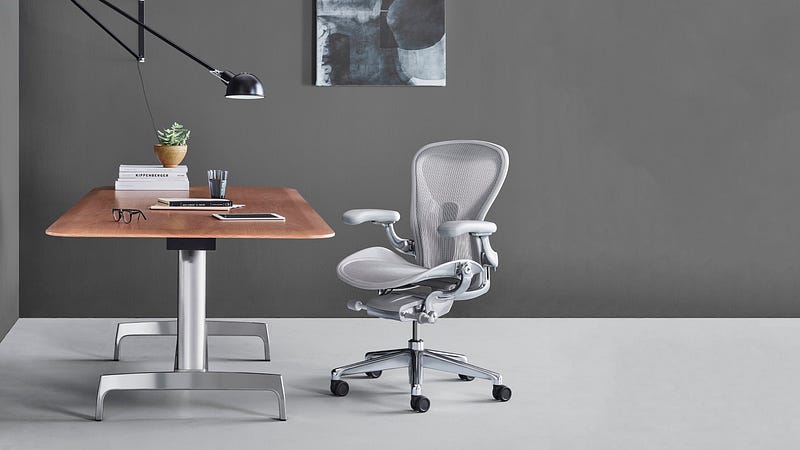
Herman Miller Aeron; photo from Herman Miller Inc.

Other Recommendations

There are other minor recommendations that for only some bucks will give an extra push to your productivity or, at least, increase your comfort at work.

Mousepad

This may seem like a minor and unnecessary item, but after you try a big mousepad, you will not want to go back to resting your arms on the hard and cold surface of your table. My recommendation is to go for a mousepad 50% wider than your keyboard + mouse setup. This way you will ensure that you have at all times enough surface to place and move them while comfortably resting your arms on it. There are numerous options in Amazon starting at ~$15 (example), so the investment is totally worth it.
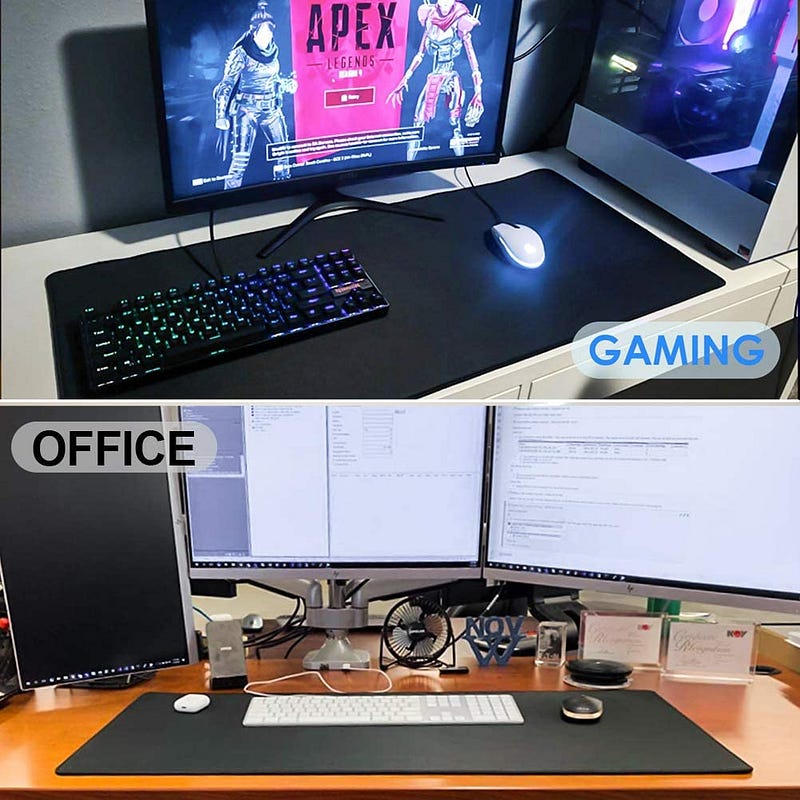
Source: Amazon

Phone stand (if possible, with wireless charging)

This is also a total must for ~$15 and will allow you to rest your phone for video chats (WhatsApp, Facetime, Skype, etc.) instead of having to hold your phone all the time. My recommendation is to go for a stand that also offers wireless charging (if your smartphone supports that), or you may risk running out of battery while talking. Some stands also allow you to connect a standard charging wire, but the fewer wires in your table, the better.

I am using a standard Fast Wireless Charger by Nanami with good results with my old iPhone X ($19). Sometimes the phone gets too hot, though.

Laptop stand

Totally required if you use a laptop regularly, and it will only cost you ~$30. I also recommend using an external keyboard and mouse.
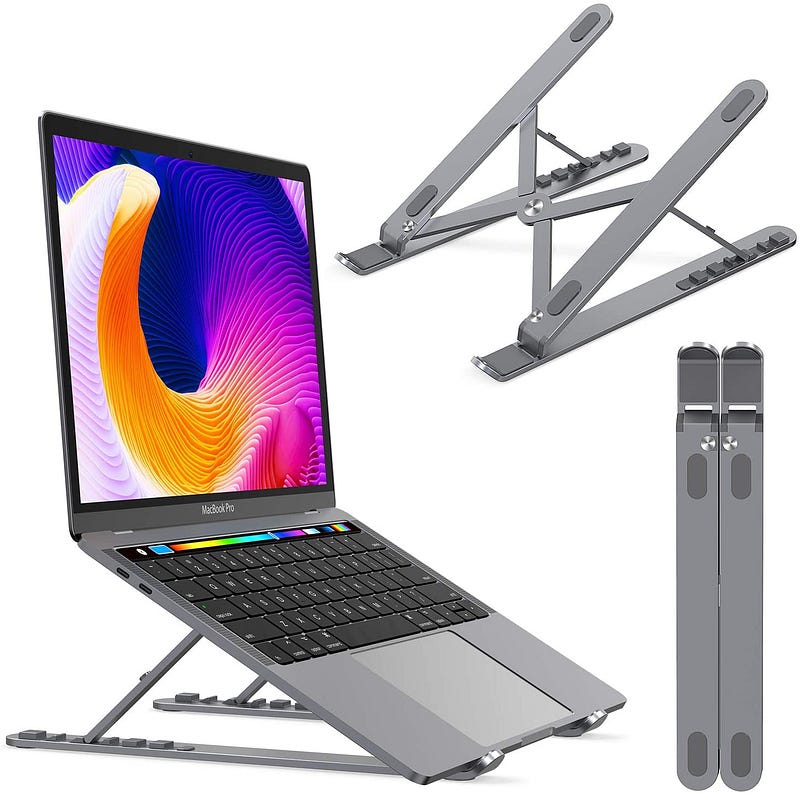
Image by Nulaxy.

Footrest

This is another minor and inexpensive upgrade that will make any setup much more comfortable and will certainly help with the chair/desk ergonomics for a mere ~$20. Again, thousands of options in Amazon, almost anything +$20 with good reviews (example) will be enough.

Adding a LED strip for better lightning

Another inexpensive but very useful improvement for your setup is to install some LED lighting behind your monitor(s). This is especially useful for night work and for low-light setups, as it will create a more progressive lightning change between your screen and the wall. Also, your setup will look much cooler. Price: ~$20 (recommended option in Amazon: Light Led strips).
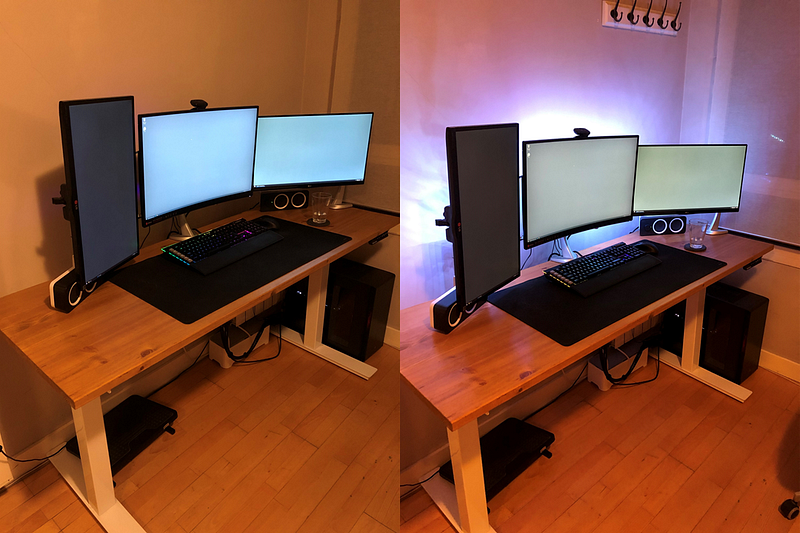
My current setup comparative: No back LE lighting vs. back LED lighting. Note how the screen-wall transition is much softer subtle in the right photo.

My Current Setup (June 2020)

After years and years of improvements, you can find my current setup below and the short-term improvements I should be doing in the coming months. Of course, recommendations are more than welcome!

My current setup, still a lot of room for improvement!

Future upgrades

  • Chair: Herman Miller Aeron (I know there are better options, but that’s the one that I want).
  • Custom-built remote control (source: Twitter) .
  • Earphones: Airpods Pro.
  • Speakers: Any minimal speakers that free some space on the desk.

👉The Better Humans publication is a part of a network of personal development tools. For daily inspiration and insight, subscribe to our newsletter, and for your most important goals, find a personal coach.👈

Productivity
Technology
Hardware
Office Furniture
Remote Working
Recommended from ReadMedium