
Guide to Setup Python Environment & Understanding Python IDLE
Creating the environment for your first Python code and start coding

Introduction
Setting up a Python environment on your computer is the first step before starting your first python script. There are many approaches you can begin with the setup and installation but in this article, we will learn to set up our Python environment by downloading from the official python distributions — python.org. After setting up our Python environment we will understand more about Python IDLE that comes bundled together with your Python installation. (* OS used in this tutorial is on Windows)
Let’s start setting up our Python Environment!
Step 1 — Navigate to the python.org downloads page for Windows.

Step 2 — Select the latest Python 3 Release (As of this article, the latest Python version is Python 3.9.6)

Step 3 — Scroll to the bottom of the page, select and download Windows x86–64 executable installer for 64-bit (If your PC is using 32-bit then select the installer Windows x86 executable installer for 32-bit)

Step 4 — Run the installer by double click on the downloaded file
- A dialog box will pop up after you run the Python windows installer

- Check the box “Add Python 3.9 to Path” (This box is unchecked by default)
By adding Python to PATH allows you to run Python from your command prompt (cmd). In summary, you can run Python script from your command prompt by just typing “python”.

Step 5 —Click “ Install Now”

If your installation is successful, you will receive the message “Setup was successful”

Step 6 — Under the Windows Search bar, enter “Python” and Select IDLE (Python 3.9 64-bit)

The IDLE shell window will open up and you can begin writing your first Python script.

Step 7 — Write your first Python Script (“Hello, World!”)

Well done! You now have your Python environment installed on your computer and written your first Python scirpt. Next part of this article, we will understand more about Python IDLE.
What is Python IDLE?
Python IDLE is a Python development and learning environment and IDLE stand for:

There are two main windows, which are the “Shell Window” and the “Editor Window”. The “Shell Window” provides access to Python interactive mode and the “Editor Window” allows you to create or edit from existing python files. Let’s first see how we can configure our Python IDLE environment.
In your IDLE shell environment, navigate to Options → Configure IDLE.

The “Settings” menu will pop out and the tab “Fonts/Tabs” shows a list of fonts you can select and font size for your Python IDLE environment.

On the “Highlights” tab, you can select a theme for your Python IDLE environment. For example, I will switch to a Dark them as it is more soothing for our eyes.

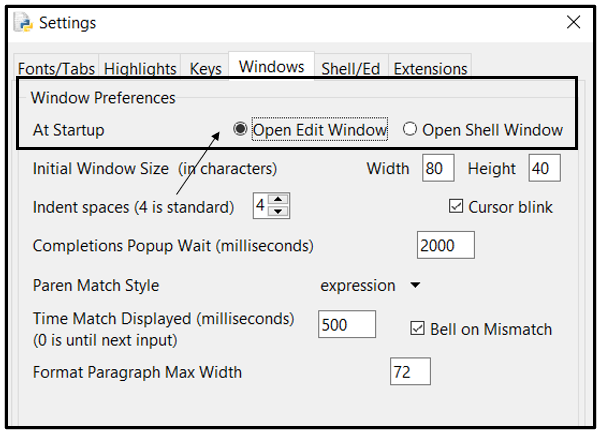
The “Windows” tab is where you can specify your Window Preferences such as width, height, etc. But let’s take note of the Window preference upon startup which by default is “Open Shell Window”.

In the earlier section where we open “IDLE (Python 3.9 64-bit)” from the window search bar, by default the IDLE “Shell Window” opens up as the option “Open Shell Window” was selected by default in the settings. But what happens if the option “Open Edit Window” is selected? — Let’s try selecting this option and observe the difference.
Observe the difference when the “Open Edit Window” option is selected with the “Shell Window”. The “Shell Window” displays information about the version of the Python installed and the operating system where else the “Edit Window” is an empty file.

The “Shell Window” is an interactive environment and is useful when you only need to execute one line of command but will not be practical if you are writing a full python program. Therefore, the “Edit Window” will be more useful as you can write your Python scripts and save the code. Let’s look at an example of printing the “Hello, World!” message using “Edit Window”.

Notice that the “Edit Window” does not run the script upon entering. To run the script, you will need to navigate to Run → Run Module.

A dialog message will pop up requesting that the file must be saved. Save the Python file with your preferred file name (Ensure the file is saved with the .py extension). Upon saving, your Python file will be executed and the result will be printed in an IDLE “Shell Window”

Conclusion:
Setting up your own Python environment is easy and only requires few steps and you may start working on your first Python script. As a beginner learning Python, Python IDLE can be a great place to begin your journey. However, as you advance further you will explore other tools such as Pycharm, Eclipse, Microsoft Visual Studio, etc. Nonetheless, congrats on your first exploration with Python!
References & Links
[1] https://realpython.com/installing-python/


