
Dataframes with Tablesaw for Java. Examples using IJava Kernel for Jupyter.
If you’ve ever found yourself looking for a quick and easy library for writing and using ‘Dataframes’ in Java, you’ve probably come across Tablesaw.
Tablesaw is a dataframe and visualization library, as well as utilities for loading, transforming, filtering, and summarizing data.
- The Docs
I’ve already briefly introduced Google Colab (hosted Jupyter Notebooks), and how to get started installing and using a Java Kernel, in a separate article titled Java, Jupyter and Google Colab.
I’ll revisit this approach and expand on it with a little help from the team behind the Deep Java Library (DJL) at Amazon.
Finally, we’ll get a quick introduction to using Tablesaw on Google Colab.
Let’s Get To It
Copy the Jupyter Notebook template from GitHub
(1) We’re going to get started using a blank Jupyter Notebook configured to use the Java Kernel (IJava).
NOTE: for more information on the process behind configuring the IKernel for use in Google Colab, see my previous article: Java, Jupyter and Google Colab.
(2) From inside Google Colab, use ctl + O to open a Notebook.
(3) Copy & paste the following URL, as illustrated below.
https://github.com/gmsharpe/edumore/blob/master/blank_notebook_with_java_kernel.ipynb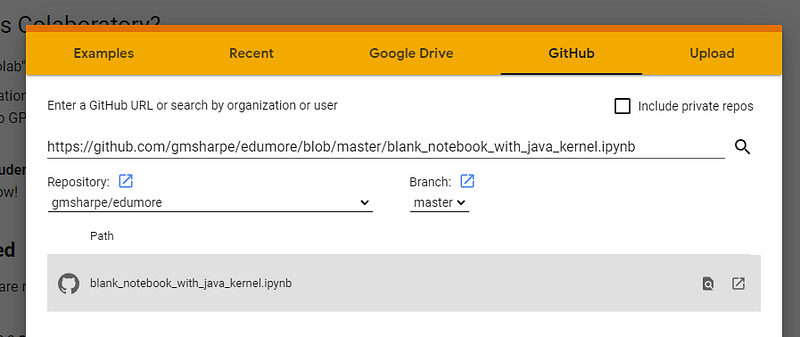
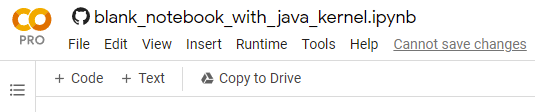
(4) Next, once you’ve opened the Notebook, you won’t be able to save your changes until you make a copy of it for yourself. You can copy it to your Google Drive from the link provided on the ribbon:
Installing the Java Kernel
(5) Now that we have the template available, we’re going to install the Java Kernel, to make it available to Colab. To do this, we’re going to get help from the team behind the Deep Java Library, who have put together some amazing resources related to Deep Learning, using Jupyter Notebooks (and Google Colab, specifically) as a platform for reading and executing examples.
The complete body of work, as of right now, is available here, where they have started to implement a Java version of the original Dive Into Deep Learning book by Aston Zhang, Zachary C. Lipton, Mu Li, Alex J. Smola and all the community contributors.
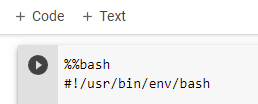
One step they take to prepare their environments in Google Colab involves executing the following bash script. Copy this into a code cell with the first line entered as%%bash indicating that we want to run this cell as a ‘bash’ script.
We can do the same by simply referencing the GitHub location of the original script, and executing it in a code block in our previously uploaded notebook:
!curl -O https://raw.githubusercontent.com/deepjavalibrary/d2l-java/master/tools/colab_build.sh && bash colab_build.sh
NOTE: to run the entire raw script in a code block, just prepend %%bash at the start of the block, before the script.
The colab_build.sh script does also clone the https://github.com/deepjavalibrary/d2l-java and all of the content they have prepared for their Java implementation of Dive Into Deep Learning.
NOTE: We don’t need all of this content, but there is quite a bit of useful material here for getting us up and running quickly using Tablesaw. Plus, I’ll be using more of this content in future articles expanding on topics related to Data Wrangling, Data Visualizations, Machine Learning, Statistics and more, all using Java and many of the libraries and tools included in the DJL team’s repository.
Retrieve the Example Data
(6) Before we connect the Java Kernel, let’s take one extra step to download some additional data for our example, by executing the following in a code block:
!wget https://raw.githubusercontent.com/gmsharpe/edumore/master/data/elections.csv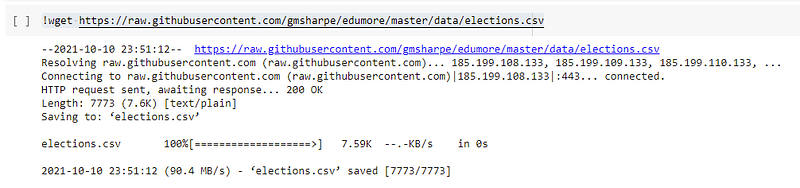
Connect to the Hosted Runtime (Java Kernel)
(7) Next, we may need confirm that we are using the ‘Java’ kernel:
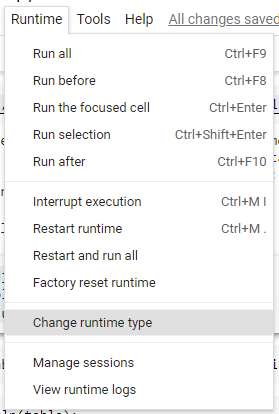
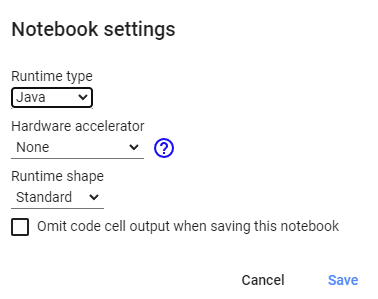
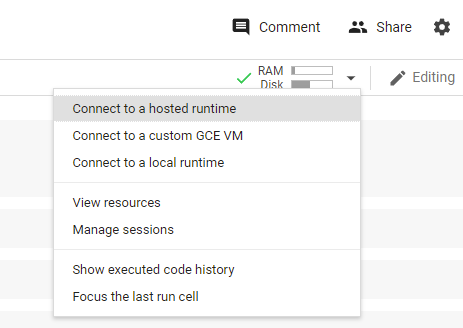
… and finally, let’s ‘Connect to a hosted runtime’ in Colab,
Load Utility Classes
(8) Next, we’re going to load all many of the utilities that will use in the next steps here, as well in future articles.
I’ll again give a grateful and deserved shout out to the team behind the Deep Java Library at AWS.
Copy and execute the following in a code block within your Notebook.
%load ../utils/djl-imports%load ../utils/plot-utils%load ../utils/Functions.javaCreate your first Dataframe with Tablesaw
Now, we should have everything we need to create our first Dataframe using Tablesaw.
In Tablesaw, the ‘Table’ is the primary data-type and representation of a traditional dataframe.
What’s a dataframe?
A dataframe is an in-memory, tabular data structure in which each column holds a single datatype, while rows can contain a variety of types.
Tablesaw provides these operations:
- Importing and exporting data from text files and databases
- Adding and removing columns
- Sorting
- Filtering
- Creating new columns by applying functions to existing ones (mapping)
- Summarizing columns or tables (reducing)
- Combining tables by appending or joining
- Calculating descriptive statistics
- Adding, updating, and removing rows
— The above was also sourced from the Tablesaw website.
Load the Data
(9) Execute the following in a code block:
Table table = Table.read().csv("/content/elections.csv");
table.print(20);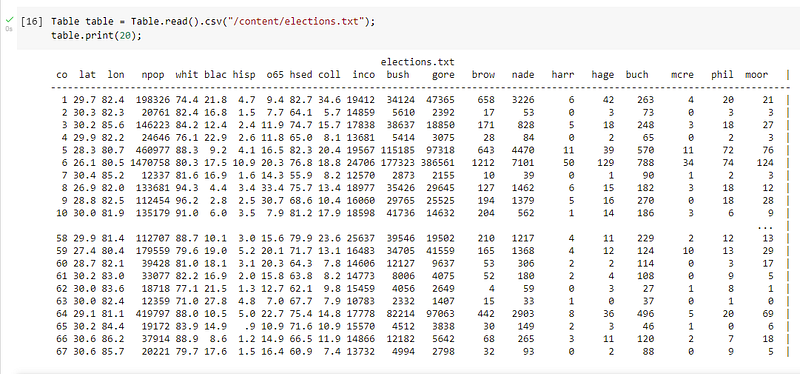
Write Your First Query
(10) Let’s now execute the following code block, representing our first query!
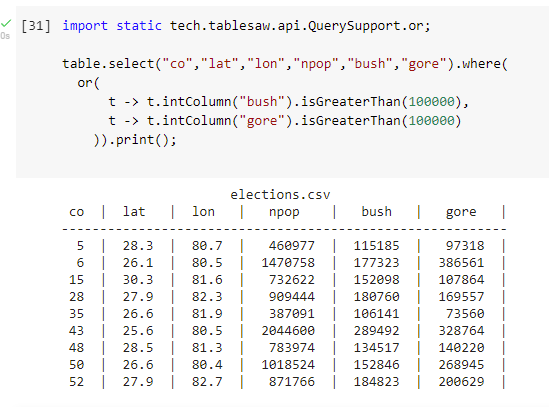
That’s it!
In this article, I hoped to get you up and running quickly with Tablesaw. In future articles, I plan to cover Tablesaw in more depth.


