avatarSajal Dulal

Free AI web copilot to create summaries, insights and extended knowledge, download it at here

2897

Abstract

ory in your terminal/bash/powershell Enter the following to run your go code:</p><div id="bfb5"><pre><span class="hljs-keyword">go</span> run main.<span class="hljs-keyword">go</span></pre></div><p id="a479">If you see <code>hello, world</code> printed then GO is working correctly.</p><p id="0338">Now, before we get started if you are using VS Code IDE, there are a few tips that will in turn make your GO programming experience a lot better inside VS Code IDE.</p><p id="b13d">Install the following extension:</p><figure id="f332"><img src="https://cdn-images-1.readmedium.com/v2/resize:fit:800/1*c-xW5y9AnwN8Pu5fCmpdAA.png"><figcaption>GO extension for vs code</figcaption></figure><p id="1ea4">After you install this extension, reload if VS Code asks you to. Then, open up your main. go file inside vs code. Vscode will show a small pop on the bottom right side like below:</p><figure id="e5ed"><img src="https://cdn-images-1.readmedium.com/v2/resize:fit:800/1*Q9Lue-9Q6xCFXgxbBia5Ng.png"><figcaption>Pop up shown by vs code.</figcaption></figure><p id="3ab8">Press the <b>Install All </b>button. It will install all the necessary packages for your GO environment. Now to see how this benefits you, go ahead and delete the import line inside your main.go to the file we just created and save the file. This is only one of the features it also includes tests, code validation, and many more integrated straight inside your VS code. Making your coding with GO experience a lot smoother.</p><p id="0c02">Now, let's look at the code.</p><p id="6171">The first line is<code>package main</code> . Here the keyword package is used to specify the name of the package. Sounds plain right? GO programming language uses packages. All the functions, types, etc defined inside this file become part of the declared package. So let's say, we have 5 files all with the package name “main”. Then everything defined inside those files becomes a part of the package main, and you are able to use them freely within each other without importing specific functions or values as long as you are inside the same package. Now there are usually multiple packages each with several files inside a GO program/project. In such a case, you only need to import the package, that the current file is not a part of, and boom. You have access to everything that the package holds. Now, we can always name different packages as per our own needs, but the entry point of our GO program should always be part of the package main.</p><p id="fe38">Now, let's move to the function: <code>func main() { fmt.Println("hello, world"}</code> Now, similar to the package main, the <i>“main”</i> function is also mandatory for the entry point of our GO program. Every other function is free to have any name, but there has to be a <i>“main”</i> function, which is by default the entry point of the program.</p><p id="9f23">Let's move

Options

to the method <i>“fmt”, </i>which is a part of the default packages provided by go. We imported fmt with the statement <code>import "fmt"</code> . Package fmt implements formatted I/O with several functions inside it. The one we are currently implementing is the <i>“Println”</i> function, which translates to the <b>print line</b> and does exactly that. If you wish to look at more functions, you can visit the <a href="https://golang.org/pkg/fmt/">official docs for fmt</a>. Go has extensive documentation for all of its basic packages.</p><p id="bb24">Now, let's talk about types in GO. Some of the fundamental types in go are:

  1. bool: true, false
  2. string: “hi”, “hello”
  3. int: 0, 20, -50
  4. float64: 10.001, -0.005, 99.99</p><p id="d02a">Obviously, there are a lot of other fundamental types and a lot more aggregate, reference, and interface types. But these are the fundamentals we need to know about right now.</p><p id="3424">Now go to your main.go and change replace the function main() with the following:</p><div id="958c"><pre><span class="hljs-function">func <span class="hljs-title">main</span>()</span> { <span class="hljs-keyword">var</span> Value <span class="hljs-built_in">string</span> = <span class="hljs-string">"hello, world"</span> fmt.Println(Value) }</pre></div><p id="0576">Now run your program from the terminal with, go run main.go. You should see the same result as the program before this.</p><p id="2f5e">Let's look at the line:</p><blockquote id="f0bf"><p>var Value string = “hello, world”</p></blockquote><p id="ba99">Here, we declare a variable named Value, we need to specify the type of the variable while declaring it. There is an easier way for this though. If you are initializing a variable we can simply write:</p><div id="dd6a"><pre>Value := <span class="hljs-string">"hello, world"</span></pre></div><p id="34ec">This would initialize <b>Value</b> as a string-type variable by default.</p><p id="c631">Hope this was useful. I did not get into using different simple keywords in go like if, else, for, etc which is very similar to C, C++, and most other programming languages. Feel free to figure them out.</p><p id="e475">This is the first article in the <b>“Getting Started with GOlang”</b> series. You can check other articles as well.
  5. Getting started with GOlang
  6. <a href="https://readmedium.com/slices-custom-types-and-receiver-functions-methods-in-golang-cdce4c01a5e8">Slices, Custom Types and Receiver Functions(methods) in GOlang</a>
  7. <a href="https://readmedium.com/structs-and-maps-in-golang-15c7ac08db31">Structs and Maps in GOlang</a>
  8. <a href="https://readmedium.com/pointers-and-passby-value-reference-in-golang-a00c8c59b7f1">Pointers and Passby value/reference in GOlang</a>
  9. <a href="https://readmedium.com/interfaces-in-golang-2d675538f646">Interfaces in GOlang</a></p><p id="7629">Happy Coding :)</p></article></body>

Getting started with GOlang
This article aims at the general starting with the GO programming language. This by no means is a guide to programming itself, this article expects you to have some programming knowledge of any language. This article is more focused on the conceptual aspects of GO programming which I personally think is essential to mastering a language.

This article by not any means covers all the topic but at least you would not be completely unfamiliar when you see GO codes written somewhere. So, before anything, we need to install GO and for that, we need to download appropriate files for GO. Please visit the OFFICIAL GO DOWNLOAD PAGE and download go for your operating system. And refer below for installation.

  1. Mac OS: Download the PKG file and install it, and you are good to go.
  2. Linux: For Linux, download the .gz file, extract it using the default archive manager, and put its contents to /usr/local/go/ or simply use the command below. Replace “go-downloaded-file.tar.gz” below with your own file, this extracts it to the specified location.
tar -C /usr/local -xzf go-downloaded-file.tar.gz

After that, we need to add the go path to the system PATH environment variable. Enter the following in your terminal. You might have to restart the terminal for this to take effect.

export PATH=$PATH:/usr/local/go/bin

3. Windows: Download and install the .msi file. By default, it installs it to C:/go/ . We need to add the go path to the system environment variables. For that go to your control panel and search for “Environment Variables”. Inside it click Environment Variables and add a new entry with value: C:/go/bin

Create your new directory/folder. Create a new file “main.go”. and enter the following inside it and save it.

package main
import "fmt"
func main() {
 fmt.Println("hello, world")
}

Now to check if everything worked fine. Go to this directory in your terminal/bash/powershell Enter the following to run your go code:

go run main.go

If you see hello, world printed then GO is working correctly.

Now, before we get started if you are using VS Code IDE, there are a few tips that will in turn make your GO programming experience a lot better inside VS Code IDE.

Install the following extension:
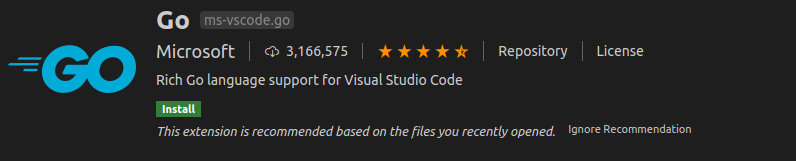
GO extension for vs code

After you install this extension, reload if VS Code asks you to. Then, open up your main. go file inside vs code. Vscode will show a small pop on the bottom right side like below:
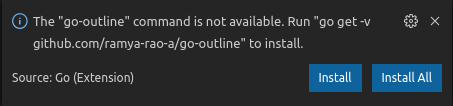
Pop up shown by vs code.

Press the Install All button. It will install all the necessary packages for your GO environment. Now to see how this benefits you, go ahead and delete the import line inside your main.go to the file we just created and save the file. This is only one of the features it also includes tests, code validation, and many more integrated straight inside your VS code. Making your coding with GO experience a lot smoother.

Now, let's look at the code.

The first line ispackage main . Here the keyword package is used to specify the name of the package. Sounds plain right? GO programming language uses packages. All the functions, types, etc defined inside this file become part of the declared package. So let's say, we have 5 files all with the package name “main”. Then everything defined inside those files becomes a part of the package main, and you are able to use them freely within each other without importing specific functions or values as long as you are inside the same package. Now there are usually multiple packages each with several files inside a GO program/project. In such a case, you only need to import the package, that the current file is not a part of, and boom. You have access to everything that the package holds. Now, we can always name different packages as per our own needs, but the entry point of our GO program should always be part of the package main.

Now, let's move to the function: func main() { fmt.Println("hello, world"} Now, similar to the package main, the “main” function is also mandatory for the entry point of our GO program. Every other function is free to have any name, but there has to be a “main” function, which is by default the entry point of the program.

Let's move to the method “fmt”, which is a part of the default packages provided by go. We imported fmt with the statement import "fmt" . Package fmt implements formatted I/O with several functions inside it. The one we are currently implementing is the “Println” function, which translates to the print line and does exactly that. If you wish to look at more functions, you can visit the official docs for fmt. Go has extensive documentation for all of its basic packages.

Now, let's talk about types in GO. Some of the fundamental types in go are: 1. bool: true, false 2. string: “hi”, “hello” 3. int: 0, 20, -50 4. float64: 10.001, -0.005, 99.99

Obviously, there are a lot of other fundamental types and a lot more aggregate, reference, and interface types. But these are the fundamentals we need to know about right now.

Now go to your main.go and change replace the function main() with the following:

func main() {
 var Value string = "hello, world"
 fmt.Println(Value)
}

Now run your program from the terminal with, go run main.go. You should see the same result as the program before this.

Let's look at the line:

var Value string = “hello, world”

Here, we declare a variable named Value, we need to specify the type of the variable while declaring it. There is an easier way for this though. If you are initializing a variable we can simply write:

Value := "hello, world"

This would initialize Value as a string-type variable by default.

Hope this was useful. I did not get into using different simple keywords in go like if, else, for, etc which is very similar to C, C++, and most other programming languages. Feel free to figure them out.

This is the first article in the “Getting Started with GOlang” series. You can check other articles as well. 1. Getting started with GOlang 2. Slices, Custom Types and Receiver Functions(methods) in GOlang 3. Structs and Maps in GOlang 4. Pointers and Passby value/reference in GOlang 5. Interfaces in GOlang

Happy Coding :)

Go
Golang
Tutorial
Beginner
Recommended from ReadMedium