
Getting Started with ChatGPT and Jupyter Notebook
In my previous blog post, I explored the integration of ChatGPT with Microsoft Sentinel, cloud-native Security Information and Event Management (SIEM) platform that helps organizations detect and respond to threats in real-time. The goal of the integration was to speed up and simplify the incident handling process by leveraging the power of ChatGPT. I went through the process of obtaining an API key for ChatGPT, creating a Microsoft Sentinel Playbook, and explained the use case for adding comments and tasks to incidents based on the tactics and techniques used by attackers.
In this new blog post, I’ll be taking a different approach to integrating ChatGPT. I’ll be sharing my experience of integrating ChatGPT with Jupyter Notebook, a popular open-source platform for data analysis and scientific computing. The integration will allow us to use ChatGPT in a notebook environment, started from Microsoft Sentinel Notebooks, where we can easily interact with the model and perform various tasks, such as natural language processing and text generation. So, stay tuned for an exciting new way to use ChatGPT!
The aim of this example Notebook is to provide a interface for asking questions to ChatGPT, assisting security analysts in investigating cyber threats.
Microsoft Sentinel Notebooks
Microsoft Sentinel utilizes Jupyter Notebooks for security investigations and threat hunting. The data store of Microsoft Sentinel is accessible through a common API, including Jupyter and Python, which enables analysts to perform custom analytics and create unique data visualizations. The Microsoft Sentinel experience in the Azure portal allows for easy creation and execution of notebooks, utilizing the Kqlmagic library to run KQL queries. Microsoft Sentinel notebooks come with pre-packaged notebooks developed by security analysts, as well as the option to import notebooks from the Microsoft Sentinel GitHub repository. The notebooks include a browser-based interface and a kernel running on an Azure virtual machine, utilizing popular Python libraries such as pandas, matplotlib, and bokeh. The Microsoft Sentinel notebooks also utilize the MSTICPy.
MSTICPy opensource library, developed by Microsoft, is a collection of cybersecurity tools for data retrieval, analysis, enrichment, and visualization developed for use in Microsoft Sentinel Jupyter notebooks. It provides a convenient and streamlined way for security analysts to carry out complex data analysis and investigation tasks.
To access Microsoft Sentinel Notebooks, you can use the Azure portal, where you can create and run notebooks to analyze your data. You can also import notebooks from the Microsoft Sentinel GitHub repository. Notebooks have a browser-based interface where you enter and run queries and code, and where the results of the execution are displayed. The Microsoft Sentinel notebook’s kernel runs on an Azure virtual machine (VM). The integration of Jupyter experience into the Azure portal makes it easy for you to access and use the notebooks.
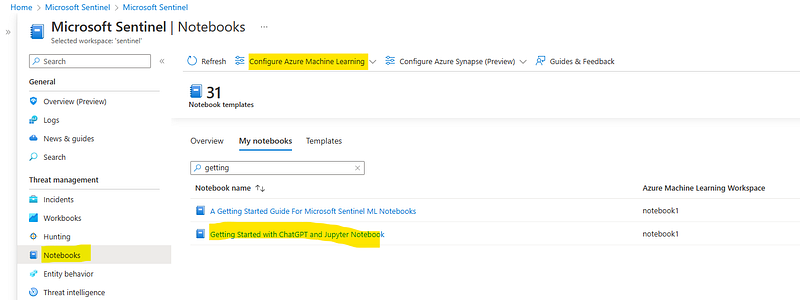
In order to use Microsot Sentinel Notebooks, you need an Azure Machine Learning (ML) workspace to access Microsoft Sentinel notebooks. An Azure ML workspace is a cloud-based environment for managing, deploying, and sharing machine learning models. This integration enables you to run Microsoft Sentinel notebooks directly in the Azure portal and perform advanced analytics and data visualization on the security data stored in Microsoft Sentinel. By using Azure ML workspace with Microsoft Sentinel, you can take advantage of cloud-based resources and scale up or down based on the demands of your projects.
Refer to this guide to set up Azure Machine Learning (ML) workspace to access Microsoft Sentinel notebooks.
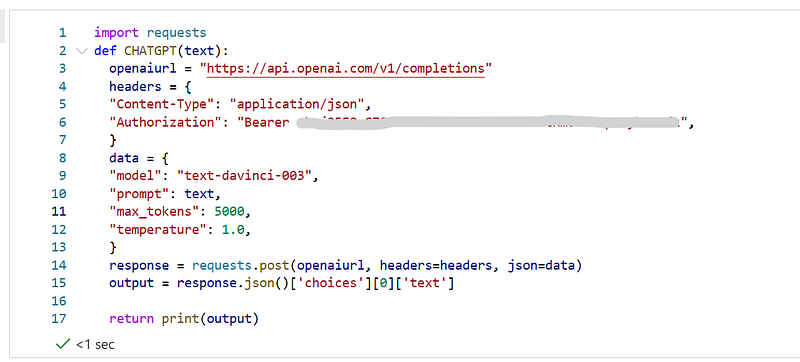
You can import the notebook from this github repo: https://github.com/format81/JupyterNotebook-ChatGPT
“Getting Started with ChatGPT and Jupyter Notebook” analysis
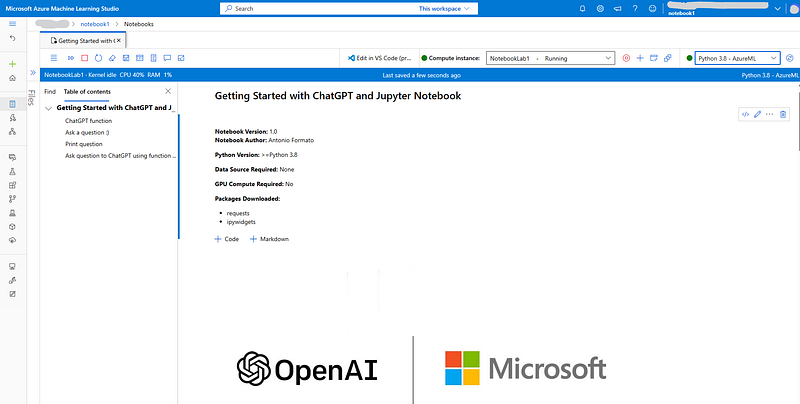
ChatGPT Function
This code is a Python function that uses the OpenAI API to generate text completions based on a given prompt. The function, named chatGPT, takes one argument: text, which represents the prompt or text that the API should use to generate text completions.
The function uses the requests library to make a POST request to the OpenAI API endpoint. The request includes the following parameters:
model: The name of the OpenAI language model to use. In this case, the model istext-davinci-003.prompt: The text to use as a prompt for text completions. This is passed as the argument to the chatGPT function.max_tokens: The maximum number of tokens to generate in the text completion. A token is a sequence of characters that represents a single element of meaning. In this case, the maximum number of tokens is set to 5000.temperature: Controls the creativity and originality of the generated text. A temperature of 1.0 means the generated text is intended to be as original as possible. The function then parses the response from the API and extracts the generated text from the choices element in the JSON response. The generated text is then returned by the function using the print statement.- The chatGPT function can be used to generate text completions based on a given prompt, making use of the power of the OpenAI language model to generate coherent and coherent text. This function can be used as part of a larger project, such as a chatbot, that needs to generate text based on user input.
import requests
def CHATGPT(text):
  openaiurl = "https://api.openai.com/v1/completions"
  headers = {
  "Content-Type": "application/json",
  "Authorization": "Bearer INSERT YOUR OPENAI API KEY",
  }
  data = {
  "model": "text-davinci-003",
  "prompt": text,
  "max_tokens": 5000,
  "temperature": 1.0,
  }
  response = requests.post(openaiurl, headers=headers, json=data)
  output = response.json()['choices'][0]['text']

  return print(output)
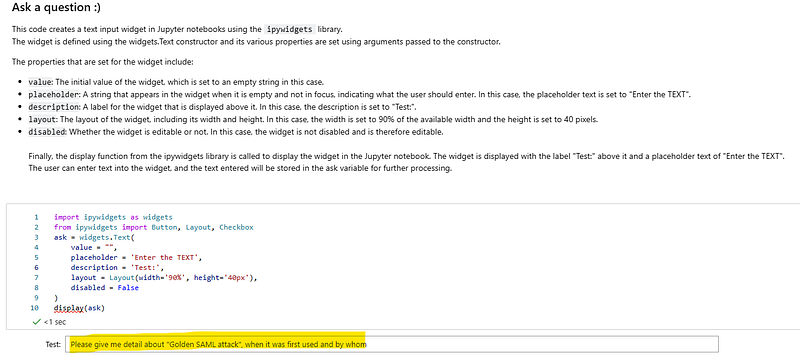
Ask a question :)
This code creates a text input widget in Jupyter notebooks using the ipywidgets library.
The widget is defined using the widgets.Text constructor and its various properties are set using arguments passed to the constructor.
The properties that are set for the widget include:
value: The initial value of the widget, which is set to an empty string in this case.placeholder: A string that appears in the widget when it is empty and not in focus, indicating what the user should enter. In this case, the placeholder text is set to "Enter the TEXT".description: A label for the widget that is displayed above it. In this case, the description is set to "Test:".layout: The layout of the widget, including its width and height. In this case, the width is set to 90% of the available width and the height is set to 40 pixels.disabled: Whether the widget is editable or not. In this case, the widget is not disabled and is therefore editable.- Finally, the display function from the ipywidgets library is called to display the widget in the Jupyter notebook. The widget is displayed with the label "Test:" above it and a placeholder text of "Enter the TEXT". The user can enter text into the widget, and the text entered will be stored in the ask variable for further processing.
import ipywidgets as widgets
from ipywidgets import Button, Layout, Checkbox
ask = widgets.Text(
    value = "",
    placeholder = 'Enter the TEXT',
    description = 'Test:',
    layout = Layout(width='90%', height='40px'),
    disabled = False
)
display(ask)
Print question
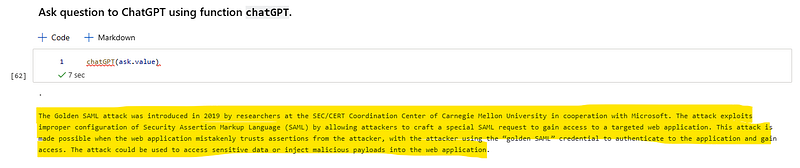
print(ask.value)Ask question to ChatGPT using function "chatGPT”.
By using function `chatGPT`, you can ask question to OpenAI engine without leaving your Notebook. The intriguing aspect is that you can utilize the outcome generated from the “Generative Pre-trained Transformer” model as input for other sections in your notebook, allowing you to gain valuable insights from the processed variables.
CHATGPT(ask.value)
Demo:
I asked from my notebook more information about “Golden SAML attack”.
Video:
I hope you have enjoyed using this Jupyter Notebook. If you found this notebook useful, I invite you to obtain the latest version from Github and to contribute to its development.
https://github.com/format81/JupyterNotebook-ChatGPT
References:
Disclaimer: Opinions expressed are solely my own and do not express the views or opinions of my employer.
Credits: Thank to Thomas Roccia for his advice, I suggest following him on Medium.


