avatar4gray

Free AI web copilot to create summaries, insights and extended knowledge, download it at here

1210

Abstract

id="60bd">Accessing the Notebook</h1><p id="5397">Accessing the Notebook is a straightforward process:</p><ol><li>Visit <a href="https://copilot.microsoft.com"><code>copilot.microsoft.</code>com</a>.</li><li>Choose your preferred mode. While there are several options, <b>“Creative”</b><i> </i>is highly recommended for its ability to generate innovative content.</li><li>Navigate to the top menu and select <b>“Notebook”</b>.</li></ol><figure id="4300"><img src="https://cdn-images-1.readmedium.com/v2/resize:fit:800/1*[email protected]"><figcaption>Copilot Notebook view with two-column layout</figcaption></figure><h1 id="4200">Key Features and Limitations</h1><p id="a216">The Notebook comes with its own set of features and limitations:</p><ul><li>The mode you select influences the Notebook’s behavior. For leveraging the power of GPT-4, “Creative” or “Precise” modes are suggested.</li><li>The Notebook allows up to <b>18,000 characters</b>, a significant increase from the <b>4,000 character</b> limit in chat.</li><li>Just like in chat, the Notebook has a limit of 30 messages for each conversation.</li></ul><h1 id="02f0">Writing and Testing Your Prompts</h1><p id="b8be">The Notebook simp

Options

lifies the process of writing and testing prompts:</p><ol><li>Enter your initial prompt on the left side of the interface.</li><li>Click “Send” (Shift + Enter) to view the generated result on the right side.</li></ol><h1 id="65c8">Perfecting Your Prompts</h1><p id="4b84">The Notebook also facilitates prompt refinement:</p><ol><li>Modify your prompt as needed.</li><li>Send the updated version to compare the new result with the previous one.</li></ol><p id="64ab">In conclusion, after spending some time familiarizing myself with the Microsoft Copilot Notebook, I find that I am just beginning to understand its potential and usefulness. One particularly convenient aspect is the ability to quickly modify and enhance prompts directly within the Notebook. If a prompt turns out to be ineffective or inaccurate, it’s easy to make adjustments on the spot, without the need to copy the text or start a new chat session. This feature significantly streamlines the process, saving valuable time and making the experience more efficient and user-friendly. As I continue to explore the capabilities of the Copilot Notebook, I’m looking forward to uncovering more ways it can enhance my workflow.</p></article></body>

Get to Know Microsoft Copilot Notebook to Test Your Prompts

From Everyday Users to Tech Enthusiasts: How Everyone Can Benefit from Microsoft Copilot

Test your Prompts and Save Time with Copilot Notebook (generated by DALL-E)

Recently, Microsoft has rebranded Bing Chat as Microsoft Copilot, introducing a host of new features designed to enhance the user experience. One such feature that stands out is the Microsoft Copilot Notebook (see the second tab on the screenshot). This article aims to provide a walkthrough of this feature.

What is Microsoft Copilot Notebook

Microsoft Copilot Notebook is a feature that allows users to test and fine-tune their prompts in a streamlined manner. It eliminates the need to start a new conversation each time a prompt is tested, saving valuable time and effort. This feature is particularly useful for those who frequently interact with GPT-4, as it provides a more efficient way to generate and compare results.

Accessing the Notebook

Accessing the Notebook is a straightforward process:

  1. Visit copilot.microsoft.com.
  2. Choose your preferred mode. While there are several options, “Creative” is highly recommended for its ability to generate innovative content.
  3. Navigate to the top menu and select “Notebook”.
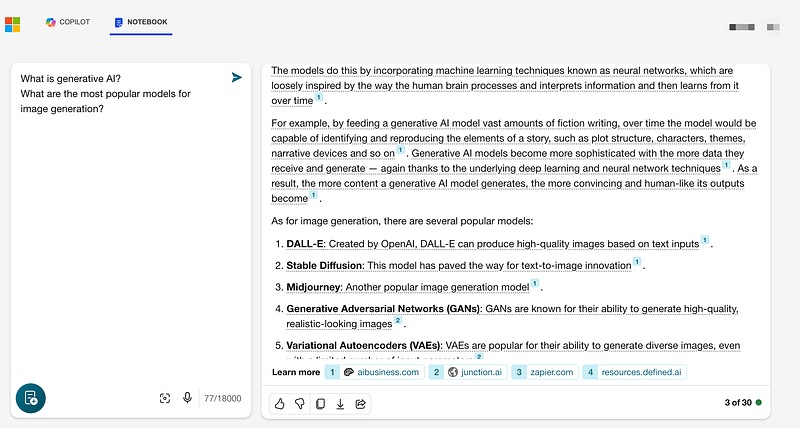
Copilot Notebook view with two-column layout

Key Features and Limitations

The Notebook comes with its own set of features and limitations:

  • The mode you select influences the Notebook’s behavior. For leveraging the power of GPT-4, “Creative” or “Precise” modes are suggested.
  • The Notebook allows up to 18,000 characters, a significant increase from the 4,000 character limit in chat.
  • Just like in chat, the Notebook has a limit of 30 messages for each conversation.

Writing and Testing Your Prompts

The Notebook simplifies the process of writing and testing prompts:

  1. Enter your initial prompt on the left side of the interface.
  2. Click “Send” (Shift + Enter) to view the generated result on the right side.

Perfecting Your Prompts

The Notebook also facilitates prompt refinement:

  1. Modify your prompt as needed.
  2. Send the updated version to compare the new result with the previous one.

In conclusion, after spending some time familiarizing myself with the Microsoft Copilot Notebook, I find that I am just beginning to understand its potential and usefulness. One particularly convenient aspect is the ability to quickly modify and enhance prompts directly within the Notebook. If a prompt turns out to be ineffective or inaccurate, it’s easy to make adjustments on the spot, without the need to copy the text or start a new chat session. This feature significantly streamlines the process, saving valuable time and making the experience more efficient and user-friendly. As I continue to explore the capabilities of the Copilot Notebook, I’m looking forward to uncovering more ways it can enhance my workflow.

Artificial Intelligence
Software Development
Data Science
Technology
AI
Recommended from ReadMedium