
Fragment transitions with shared elements
One of the cornerstones of Material design is meaningful motion between screens. Lollipop introduced support for these animations in the form of the transitions framework, which allows us to animate transitions between Activities and Fragments. I haven’t seen many articles on how to use transitions with Fragments, so I set out to write one!
Our end product is fairly simple. We will be making an app that has a grid of images, and when you click on an image the app will show a details screen. Thanks to the transitions framework, the image from the grid will animate into place on the details screen.
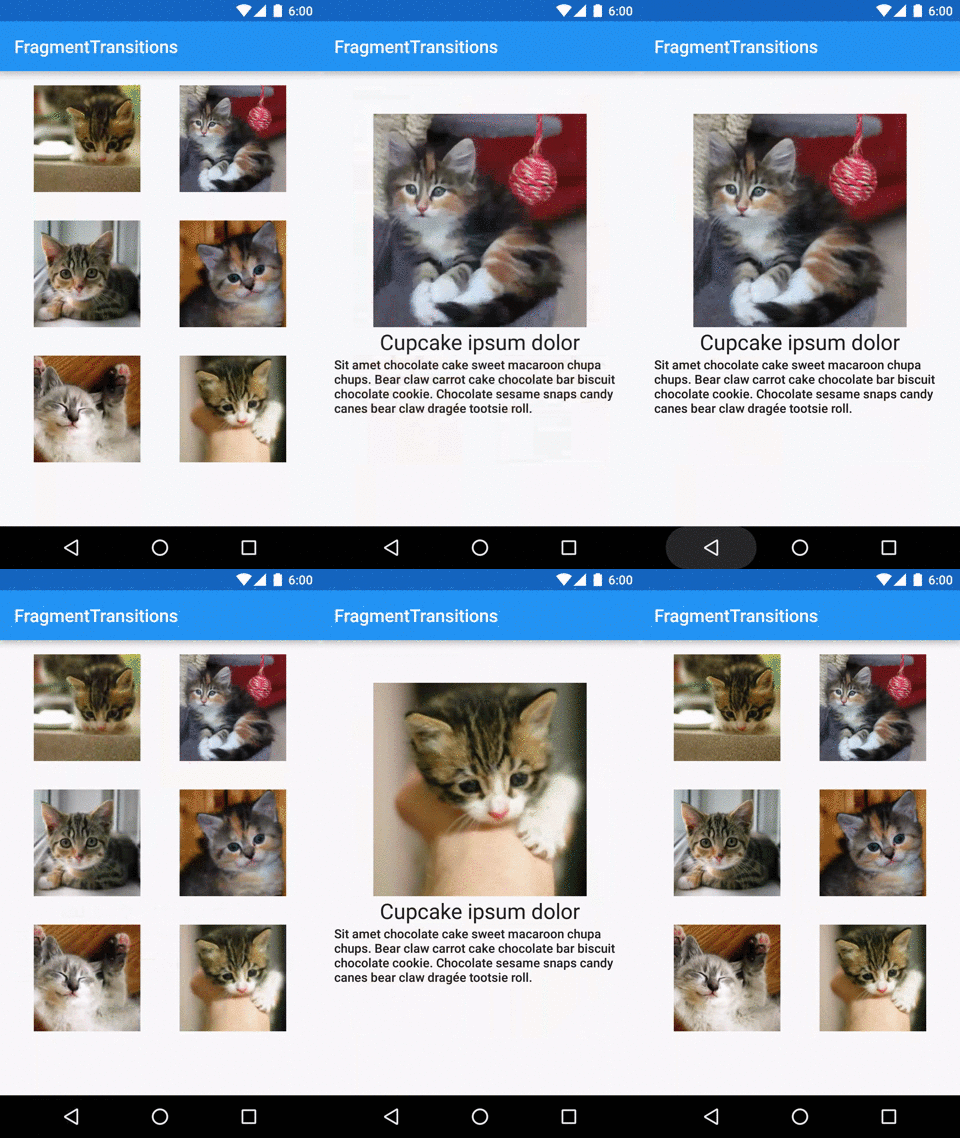
If you want to head straight to the sample app, you can find it here on GitHub.
What about older versions of Android?
I have good news and bad news. The bad news is that content transitions don’t exist prior to Lollipop. However, the support library provides methods that you can use to gracefully support transitions on API 21+ without littering your code with API version checks.
This article will use these support library functions to provide content transitions.
Setup
Unlike Activity transitions, you do not need Window.FEATURE_ACTIVITY_TRANSITIONS to use Fragment transitions. You also don’t need Window.FEATURE_CONTENT_TRANSITIONS. As a matter of fact, you don’t need to do anything special- you should already be ready to go!
Transition Names
The framework needs a way to associate Views on the first screen to their counterparts on the second screen. Lollipop also introduced a new “transition name” property on Views that is the key to making this association.
There are two ways to add a transition name to your Views:
- In code you can use ViewCompat.setTransitionName(). Of course, you can also just call setTransitionName() on devices running Lollipop and up.
- In your layout XML, you can use the android:transitionName attribute.
One important item to note is that within a given layout (e.g. all views in screen one), transition names must be unique. Keep this in mind when you are transitioning from a ListView or RecyclerView; defining a transition name in your row XML will lead to each row having the same transition name.
Set up the FragmentTransaction
Setting up your FragmentTransactions should look very familiar:
getSupportFragmentManager()
        .beginTransaction()
        .addSharedElement(sharedElement, transitionName)
        .replace(R.id.container, newFragment)
        .addToBackStack(null)
        .commit();
The new step is calling addSharedElement() to specify what Views to share between the Fragments.
The View passed to addSharedElement() is the View in the first Fragment you want to “share” with the second Fragment. The transition name here is the transition name of the “shared” View in the second Fragment. If the View in the first screen has the transition name “foo” and the View in the second screen has the transition name “bar,” then your want to pass in “bar”.
Specifying the transition animations
Finally we need to specify how we want to animate the transition between Fragments.
For the shared element:
- Call setSharedElementEnterTransition() to specify how the View moves from the first Fragment to the second Fragment.
- Call setSharedElementReturnTransition() to specify how the View moves from the second Fragment back to the first Fragment when the user hits the back button.
Note that you need to call these methods on the second Fragment. If you set these on the originating Fragment, nothing will happen.
You can animate the transition for all non-shared Views as well. For these Views, use setEnterTransition(), setExitTransition(), setReturnTransition(), and setReenterTransition() on the appropriate Fragment.
Each of these methods takes in a single parameter, which is the Transition animation to use for the transition.
We are going to keep our animations fairly simple. We will use a custom transition for the movement of the image (more on that in a second), and a Fade exit transition.
Transition animation classes
Android provides some pre-made transition animations that are suitable for many use cases. Fade will perform a simple fade. Slide will slide views in from the sides of the screen. Explode can be fun- views will all move away from a particular focal point. Finally, AutoTransition will fade, move, and resize. These are just a few examples- explore the transition package for yourself to find more!
I mentioned that we need a custom transition to move our image. Here it is:
This transition is just a set of three transitions that will play together:
- ChangeBounds animates the bounds (location and size) of the view.
- ChangeTransform animates the scale of the view, including the parent.
- ChangeImageTransform allows us to change the size (and/or scale type) of the image
If you are curious about how these three interact together, try out the sample app and try removing one at a time to see how the animation breaks.
You can also define more complex transitions like this using XML. If you prefer XML, check out the Transition documentation.
Putting it all together
Our final code for performing this transition is fairly simple:
We are using our custom DetailsTransition for our shared element enter and return animation. All the other views in our first screen will exit with a Fade transition, and the non-shared views in the second fragment will enter with a Fade as well.
There you have it! An easy to implement transition between two Fragments!


