
Unlimited Uncensored Midjourney-Quality AI Image Generation Hack — Part 1
Generate unlimited high-quality AI images cheaper—well, not cheap—100% free
AI image generators like Midjourney produce amazing images but often require paid subscriptions. Fooocus is a free, open-source program that lets you generate high-quality AI images on your own computer. It uses your GPU to create stunning visuals without any cost or cloud services.
This guide will show you how to install and use Fooocus on your computer. Whether you’re an artist, developer, or just curious, you’ll find it easy to get started.

What is Fooocus?
Fooocus is a program that generates high-quality images using artificial intelligence. It’s based on the Stable Diffusion XL (SDXL) technology. Unlike other services, Fooocus runs entirely on your computer, so you have full control and privacy.
Key Features:
- Free and Open Source: No subscription fees or usage limits.
- Easy to Use: Simple installation and user-friendly interface.
- High-Quality Images: Produces images comparable to paid services.
- Runs Locally: All processing is done on your computer.
Important: Beware of fake websites claiming to offer Fooocus. The only official source is the GitHub repository:
Hello, non-paid Medium member. You can read the full article here.
System Requirements
Before installing Fooocus, make sure your computer meets these minimum requirements:
Operating System
- Windows: Windows 10 or 11 (64-bit)
- Linux: Ubuntu 20.04 or later
GPU (Graphics Card)
- NVIDIA GPU:
- Minimum: 4 GB VRAM
- Recommended: 8 GB VRAM or more
- AMD GPU: 8 GB VRAM (beta support)
- Mac M1/M2: Supported but slower performance
Memory (RAM)
- Minimum: 8 GB RAM
- Virtual Memory (Swap): Enabled (important for lower RAM)
Disk Space
- At Least: 20 GB free space
Software Dependencies
- Python: Version 3.10 or later
- Git: For downloading the program
- CUDA Toolkit: Version 11.7 or later (for NVIDIA GPUs)
How to Install Fooocus
For Windows Users
- Download Fooocus:
- Go to the official GitHub page: https://github.com/lllyasviel/Fooocus.git
- Click on the download link provided for Windows.
2. Extract the Files:
- Unzip the downloaded file to a folder on your computer.
3. Run Fooocus:
- Open the folder where you extracted the files.
- Double-click on
run.batto start Fooocus.
4. Automatic Model Download:
- The first time you run Fooocus, it will download the necessary models automatically.
- This may take some time depending on your internet speed.
For Linux Users (Using Anaconda)
- Open a Terminal.
- Clone the Repository:
git clone https://github.com/lllyasviel/Fooocus.git
cd Fooocus
3. Create a Conda Environment:
conda env create -f environment.yaml
conda activate fooocus
4. Install Requirements:
pip install -r requirements_versions.txt5. Run Fooocus Run🏃➡️:
python entry_with_update.pyNote: For other installation methods or platforms (like Mac), check the official GitHub page.
Setting Up Your GPU
To make sure Fooocus runs smoothly, set up your GPU correctly.
NVIDIA GPUs
Update Drivers:
- Download the latest drivers from the NVIDIA website.
Install CUDA Toolkit:
- Download and install version 11.7 or later from NVIDIA.
AMD GPUs
- Install Latest Drivers.
- Linux Users:
- Install ROCm (beta support).
Mac Users (I personally have not tested)
Use macOS ‘Catalina’ or Newer with M1/M2 Chip.
Install PyTorch with MPS Support:
- Follow Apple’s guide for PyTorch on Mac.
Using Fooocus
- Start Fooocus:
- Windows: Double-click
run.bat. - Linux: Run
python entry_with_update.pyin the terminal.
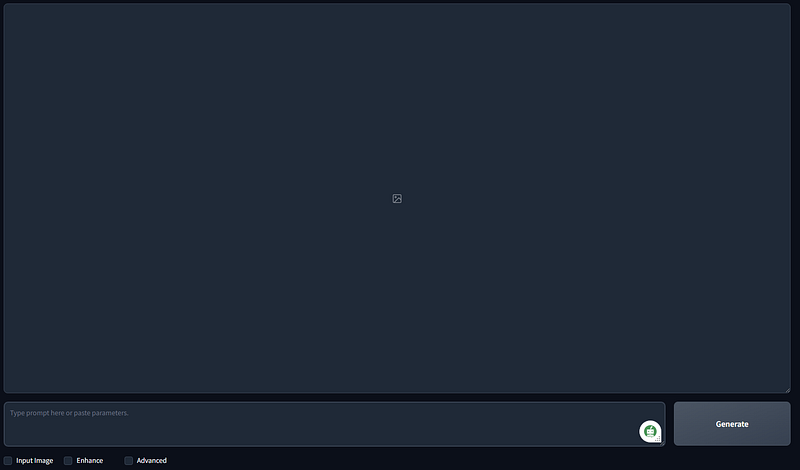
2. Open the Interface:
- Fooocus will open in your web browser at
http://localhost:7860. - If it doesn’t open automatically, type this address into your browser.
3. Enter a Prompt:
- In the text box, type a description of the image you want to create.
- Example: “A serene lake surrounded by mountains at sunset”
4. Generate the Image:
- Click the “Generate” button.
- Wait for the image to be created.
5. Save Your Image:
- Once the image appears, you can save it to your computer.
Troubleshooting Common Issues
Out of Memory Error:
- Lower the image resolution.
- Close other programs using the GPU.
- Make sure virtual memory is enabled.
Slow Performance:
- Reduce the number of sampling steps.
- Check that your GPU drivers are up to date.
Installation Problems:
- Ensure you have Python 3.10 or later.
- Verify that all required software is installed.
Web Interface Not Working:
- Check that Fooocus is running in the terminal.
- Make sure no other program is using port 7860.
Ethical Considerations
Respect Copyright:
- Do not use or generate copyrighted material without permission.
Avoid Harmful Content:
- Do not create misleading, offensive, or illegal images.
Be Transparent:
- If you share your images, mention that they were created with AI.
Promote Diversity:
- Be mindful of biases and strive for inclusive representations.
Conclusion
Fooocus allows you to create high-quality AI-generated images on your own computer for free. With simple installation and easy usage, you can start exploring AI art without any subscriptions or fees.
Enjoy creating your own images!
Reminder: Always download Fooocus from the official source:
Follow me, as I would post further articles on how to use fooocus like-a-pro and how to make you AI-generated images act.

This story is published on Generative AI. Connect with us on LinkedIn and follow Zeniteq to stay in the loop with the latest AI stories.
Subscribe to our newsletter and YouTube channel to stay updated with the latest news and updates on generative AI. Let’s shape the future of AI together!



